Goal
Learn how to customize Alter to match your preferences, manage your account, configure AI models, and set up permissions for optimal productivity.Steps
1. Access Settings
There are three ways to open Settings: Option 1: Menu Bar Click the Alter icon in the menu bar and select Settings… from the dropdown menu. Option 2: Keyboard Shortcut Press ⌘ , (Command + Comma) to open Settings directly. Option 3: Notch Menu Click the three-dot menu icon (⋮) in the Alter notch and select Settings.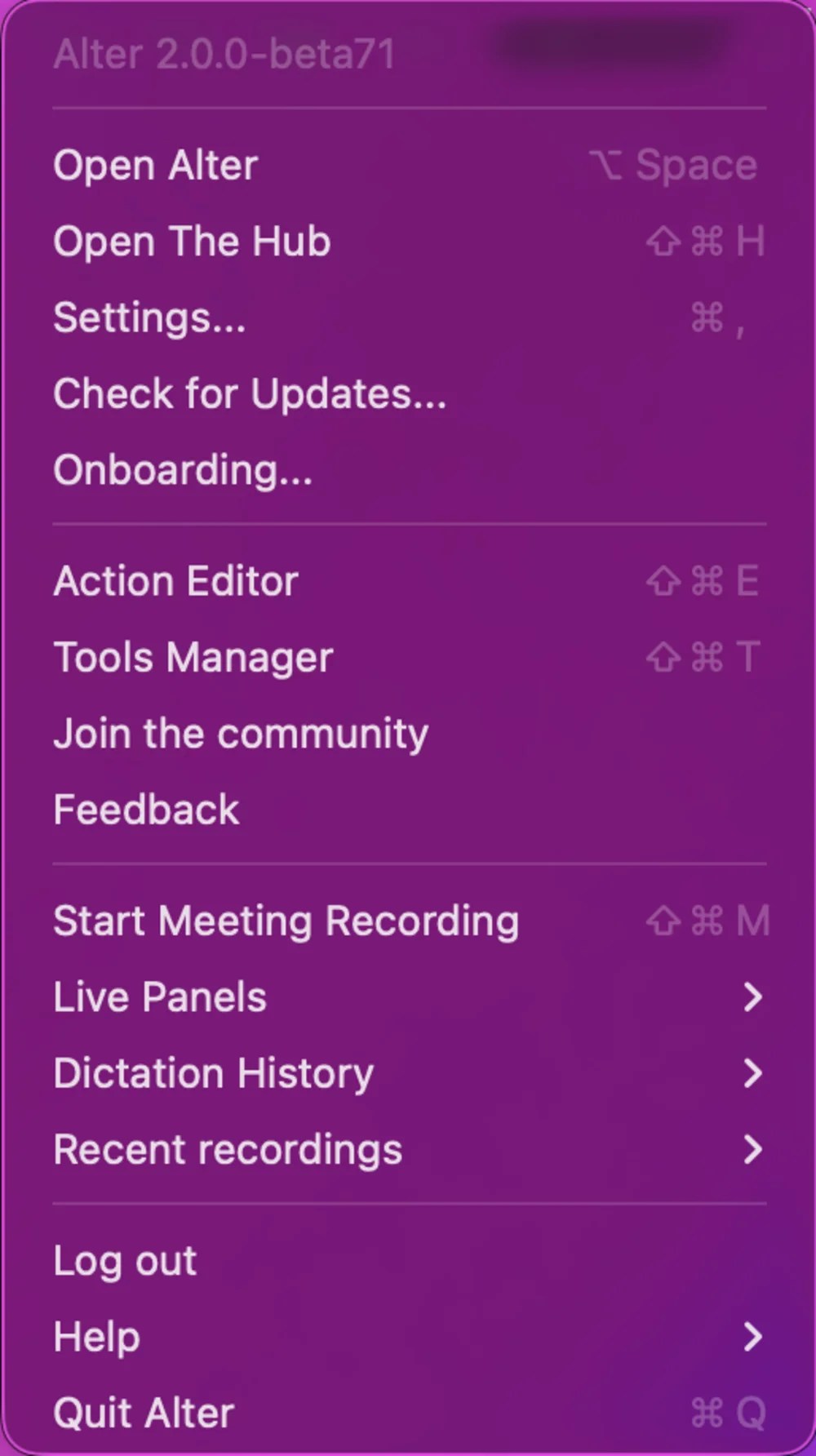
General Settings
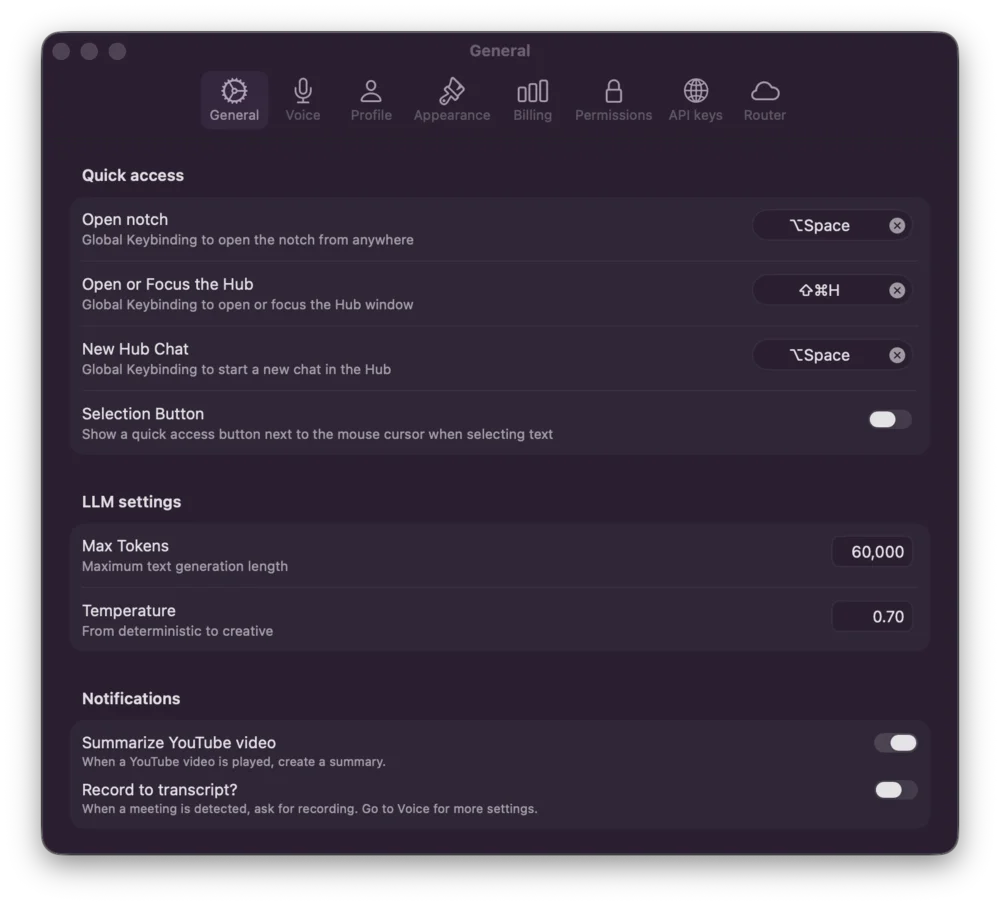
In the General tab, you can configure core functionality and quick access options: Quick Access- Open notch: Enable keyboard shortcut to open the notch from anywhere on your screen
- Open or Focus the Hub: Quickly switch to or launch the Alter Hub window (⌘ ⌥ H)
- New Hub Chat: Start a fresh conversation session in the Hub (⌘ Space)
- Selection Button: Show a quick action button accessible from anywhere
- Max Tokens: Set the maximum length of AI responses
- Temperature: Control response creativity and variation (0.0 = deterministic, 1.0 = creative; default: 0.70)
- Summarize YouTube video: Automatically create summaries when you visit YouTube videos
- Record to transcript: Automatically transcribe recordings to your notes (go to Notes settings for more options)
2. Voice Settings
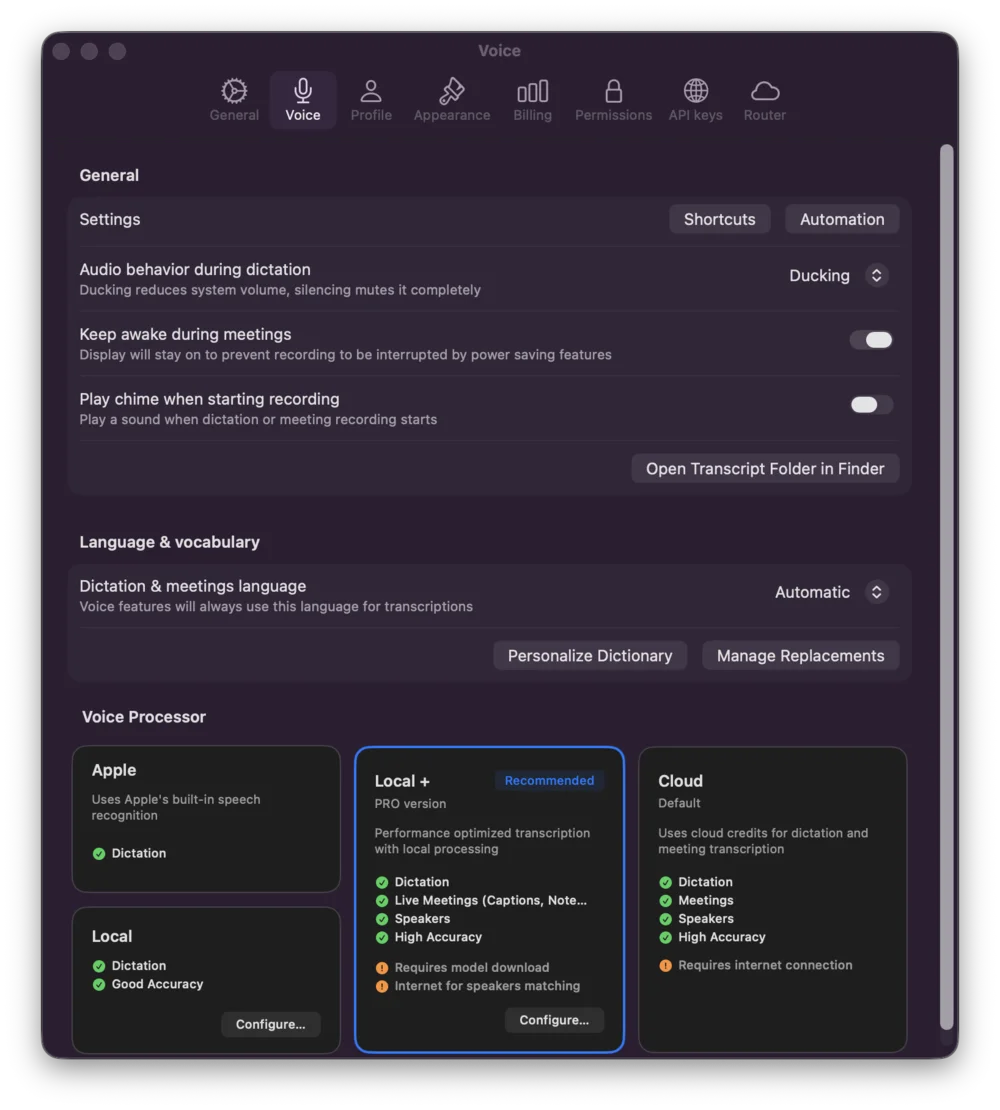
The Voice tab controls how Alter processes and responds to audio: General Configuration- Audio behavior during dictation: Control how system audio is handled while dictating. Options include ducking (reduce volume) or silencing audio completely to minimize interruptions
- Keep awake during meeting: Prevent your Mac from sleeping or entering power-saving mode during meeting recordings, ensuring uninterrupted transcription
- Play chime when starting recording: Receive an audio alert when you begin dictation or meeting recording
- Dictation language: Select your preferred language for voice input
- Personal Dictionary: Add custom terms and transcription replacements
- Manage Replacements: Edit frequently misrecognized words
- Apple: Built-in, optimized for privacy
- Local: Run on your machine with downloaded models
- Cloud options: Anthropic and other cloud providers with various capabilities
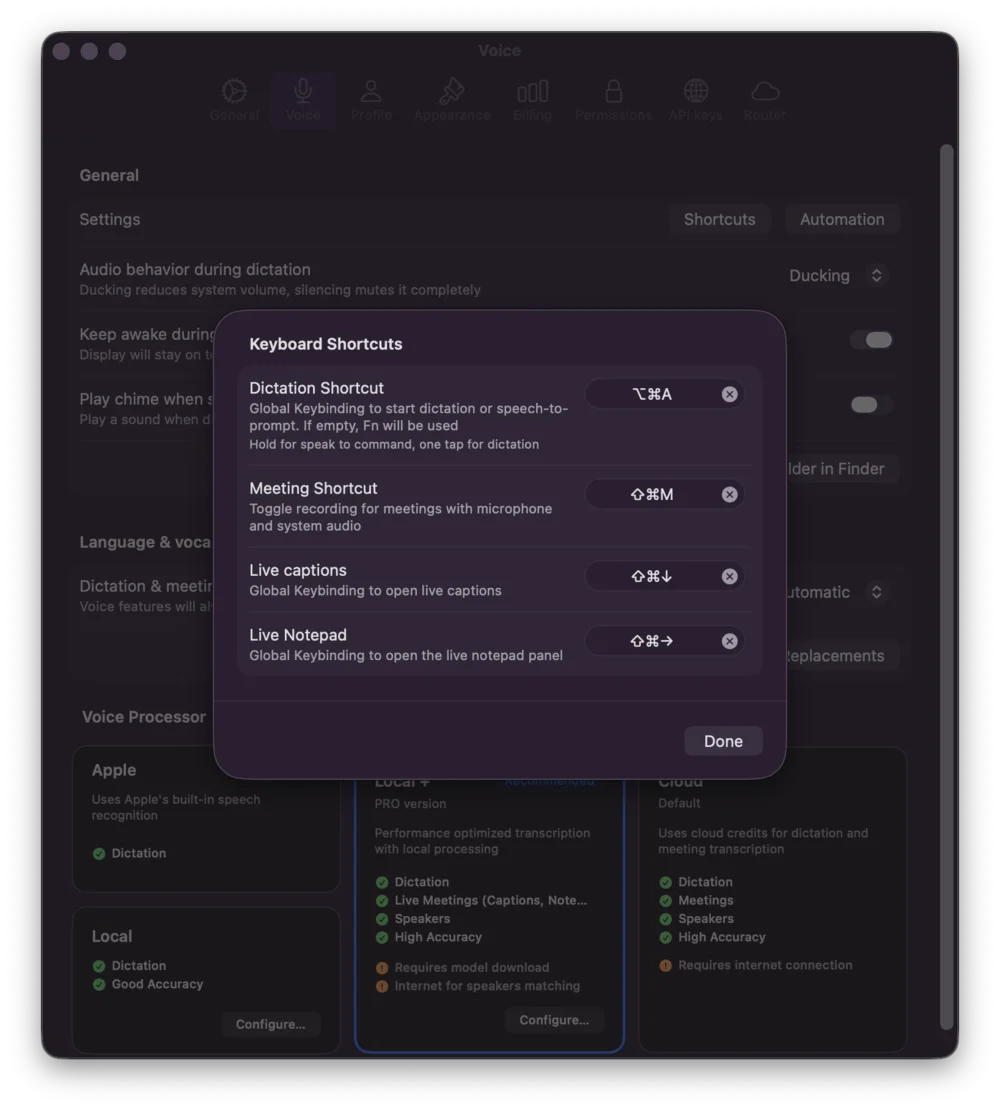
Voice Settings - Keyboard Shortcuts
Configure keyboard shortcuts for quick voice access from anywhere:- Keyboard Shortcut : Start/stop voice input and speak commands. Customize the activation key for hands-free operation. Hold to speak to prompt, tap for dictation.
- Meeting Shortcut : Quick access to meeting-specific voice commands
- Live Captions : Enable live transcription overlay while speaking
- Live Notepad : Open the live notepad panel to capture voice input directly into notes
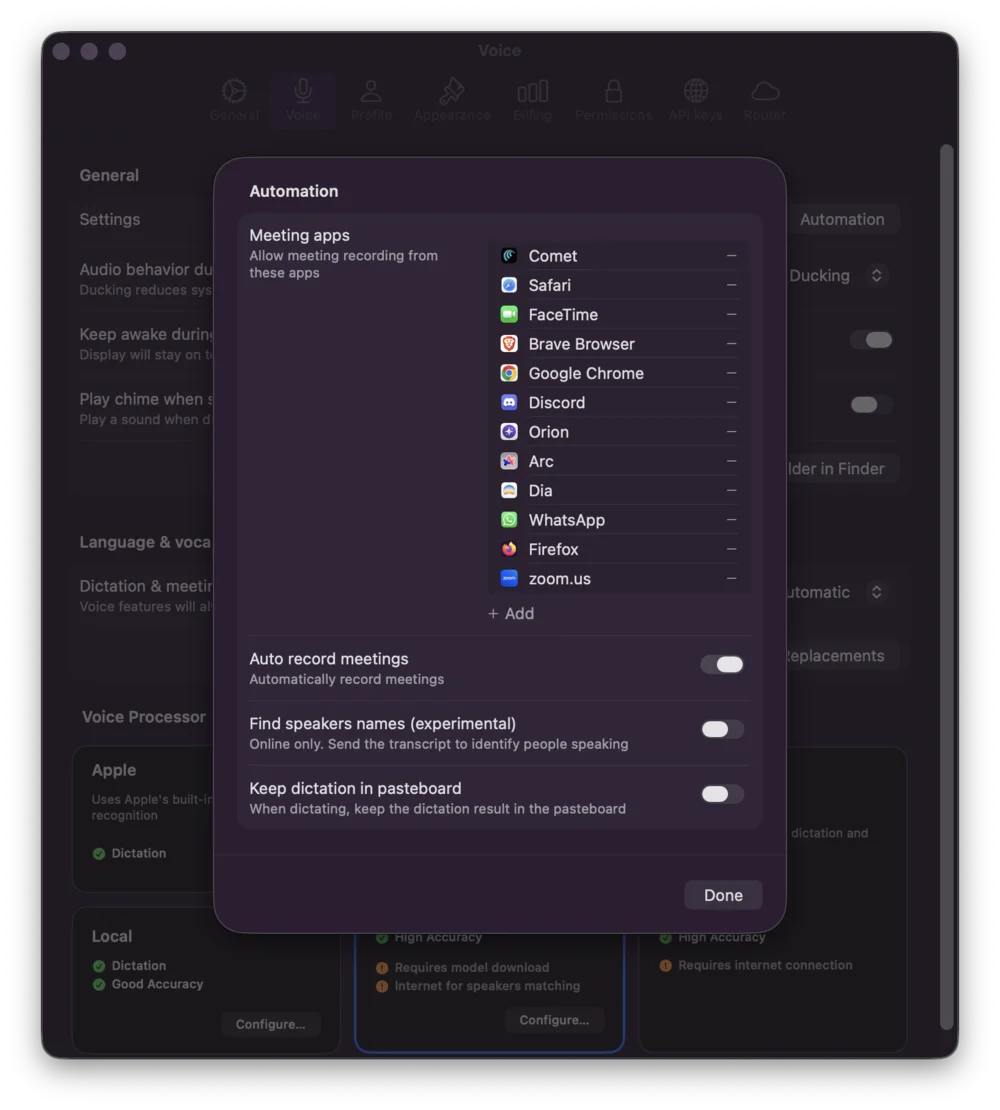
Voice Settings - Automation
Configure automation for meetings and recordings:- Meeting apps: Select which apps to monitor for meetings
- Auto record meetings: Automatically start recording when a meeting is detected
- Find speakers names: Identify each speaker’s name based on the meeting service you are using
- Keep dictation in pasteboard: Retain voice input in clipboard
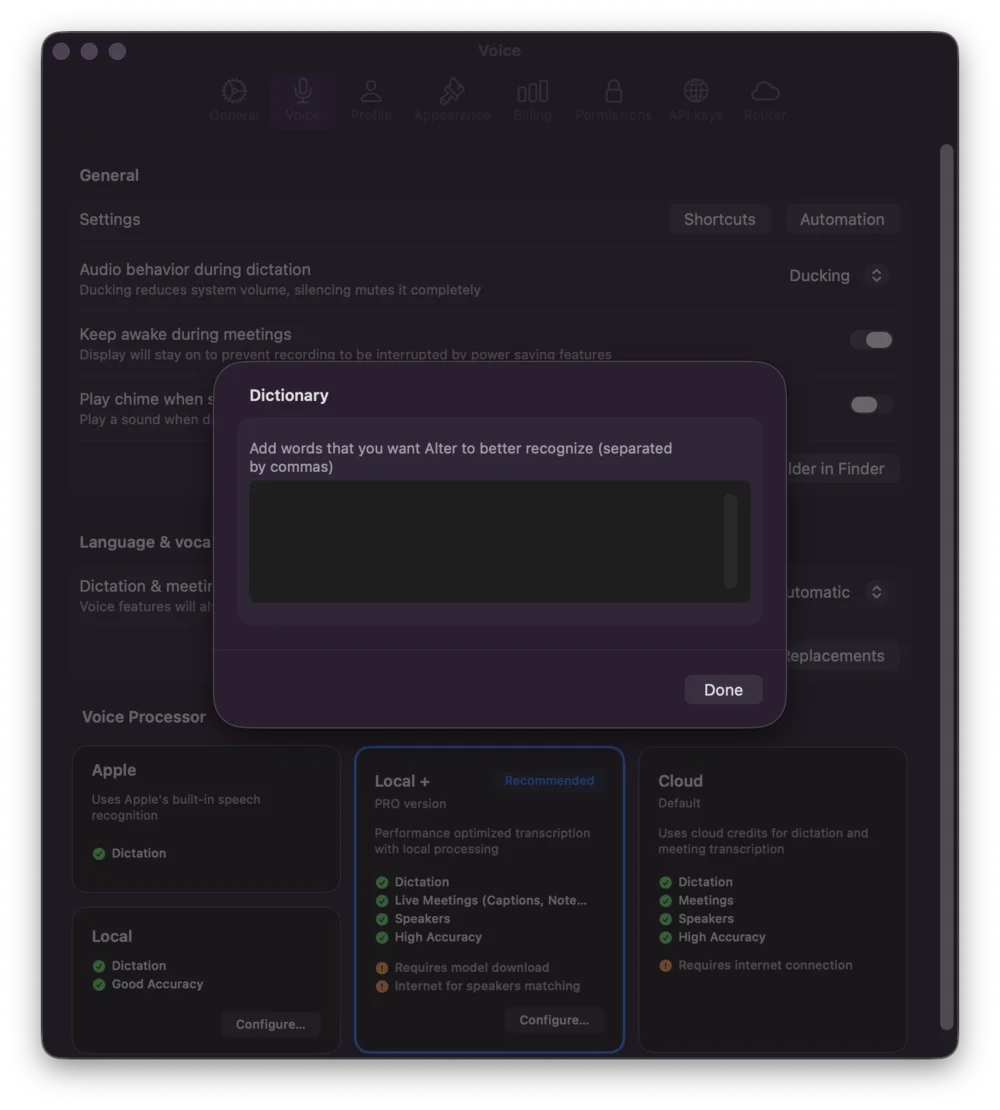
Voice Settings - Dictionary
Build a personal dictionary for accurate transcription:- Add words or phrases Alter frequently misrecognizes
- Create custom terminology for your field or workflow
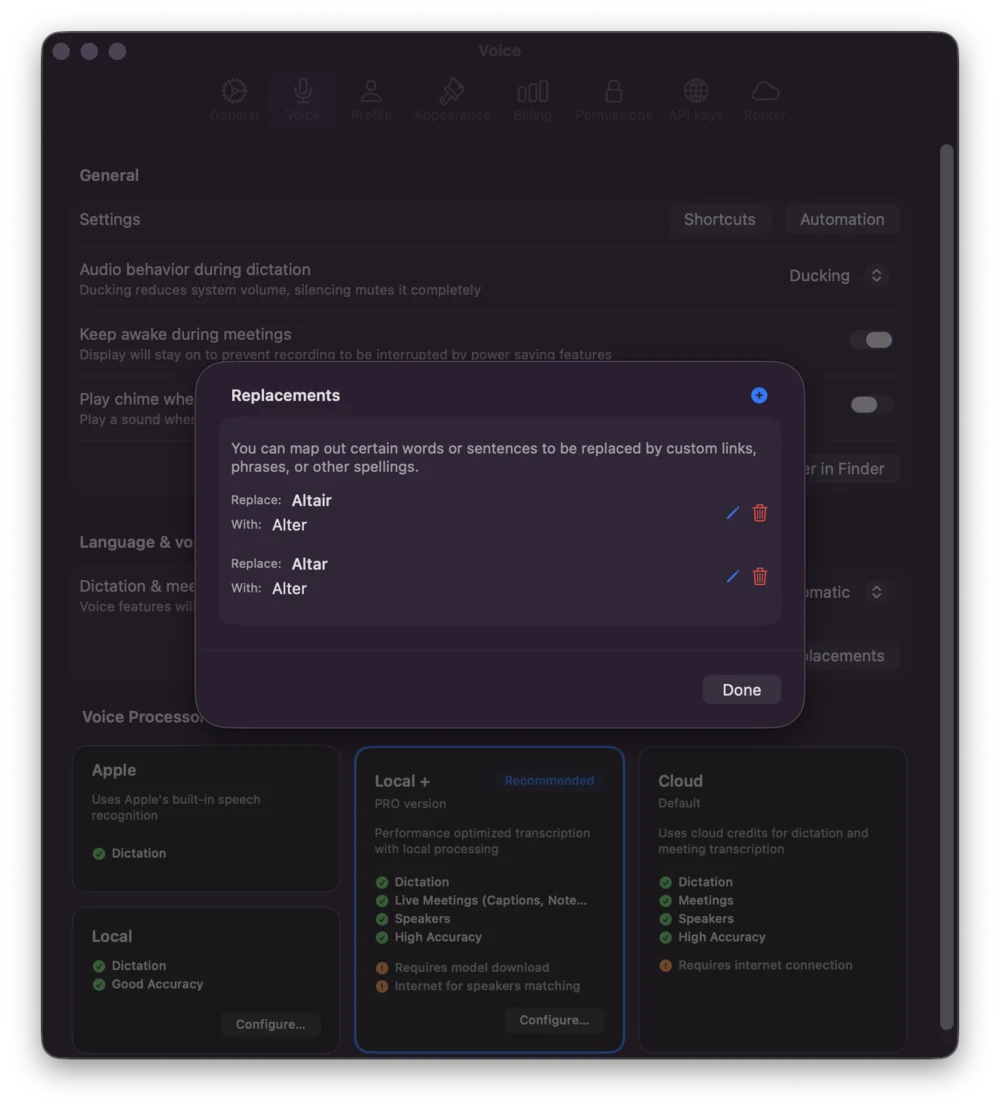
Voice Settings - Replacements
Set up word replacements for common transcription mistakes:- Map frequently misheard words to correct ones
- Example: “Alter” → “Alter” (if misheard as “Altar”)
Voice Settings - Local Models
Choose from local voice processing models when using the Local processor: Why Local Processing?- Complete privacy: All audio processing happens on your Mac—no data is sent to cloud services
- Zero data sharing: Recordings, transcripts, and speaker identification stay entirely on your device
- GDPR compliant: Designed with data protection by design principles
- Always available: Works offline without internet dependency
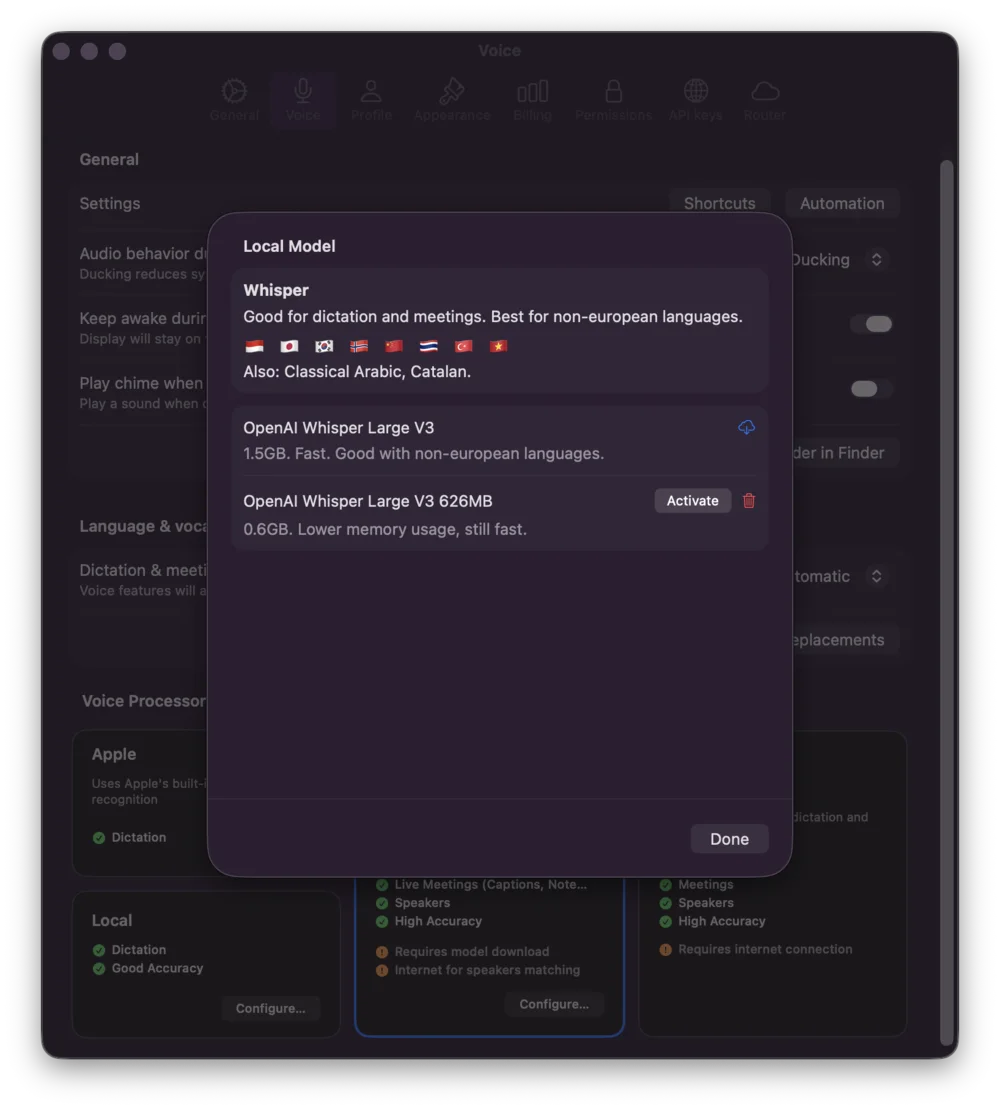
- Whisper models for speech-to-text
- Multiple model sizes (Tiny, Base, Small, Medium, Large, etc.)
- Choose based on accuracy vs. performance trade-off
- Major languages: English, Spanish, French, German, Portuguese, Russian, Italian, Japanese, Korean, Chinese
- European languages: Dutch, Polish, Romanian, Swedish, Ukrainian, Greek, Czech, Hungarian, Slovak, Turkish, Danish, Norwegian, Finnish
- Other languages: Arabic, Hebrew, Hindi, Vietnamese, Thai, Indonesian, Tagalog, Bengali, Tamil, Marathi, Kannada, and many more
- Word-level timestamps automatically generated
- Speaker identification (who said what)
- Optimized to 626MB for Mac performance
- Best for global language coverage and accuracy
- Same broad language support as Local option
- Optimized for accuracy across diverse linguistic contexts
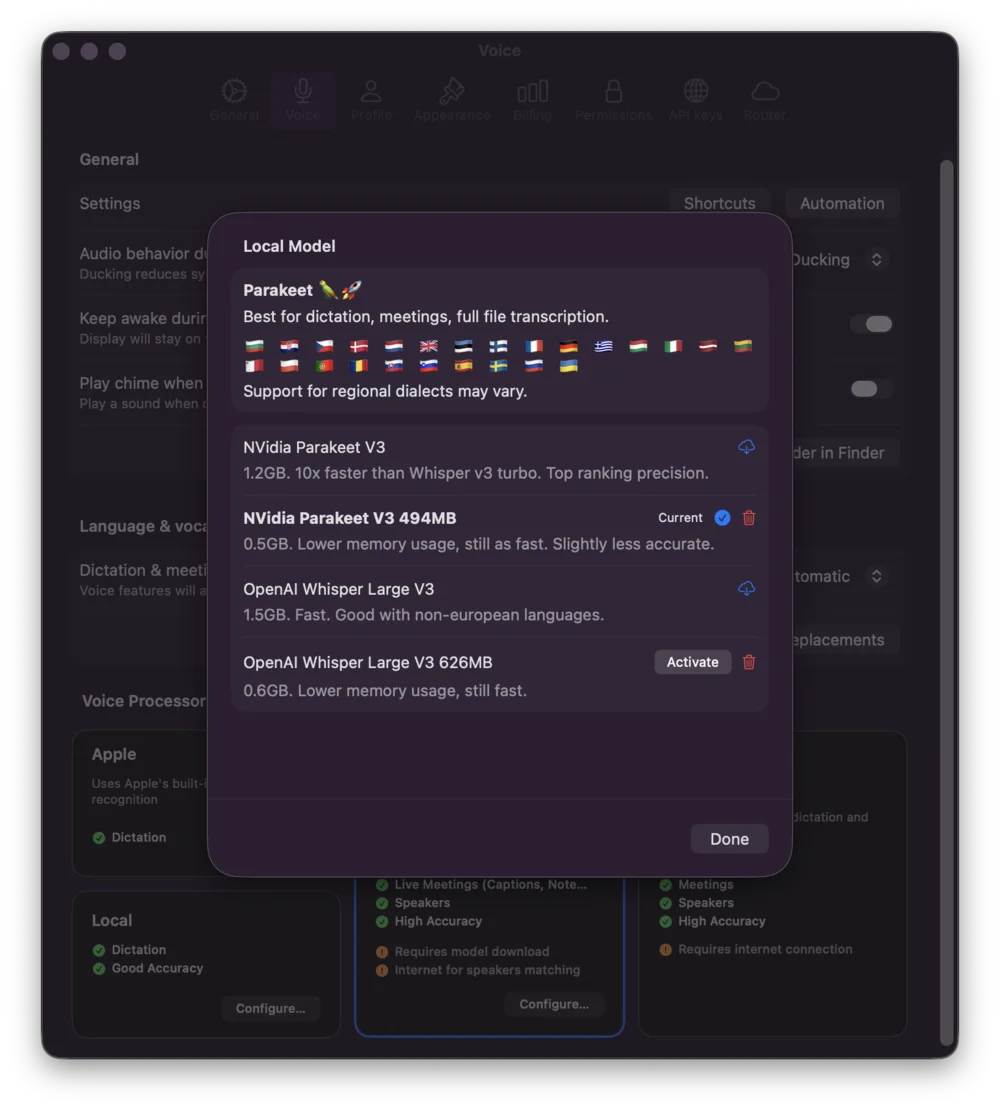
- Fast, lightweight speech-to-text engine by NVIDIA
- 10x faster than Whisper for meeting transcription on Mac
- Automatic language detection from audio
- Supports Bulgarian, Croatian, Czech, Danish, Dutch, English, Estonian, Finnish, French, German, Greek, Hungarian, Italian, Latvian, Lithuanian, Maltese, and 9+ other European languages
- Speaker diarization (identify different speakers)
- Optimized to 494MB for Mac performance
- Ideal for real-time meeting recording
- Best for European language workloads
- Parakeet: Faster processing, lower resource usage, ideal for meetings (25 European languages)
- Whisper: Broader language coverage, maximum accuracy (50+ global languages)
3. Profile Settings
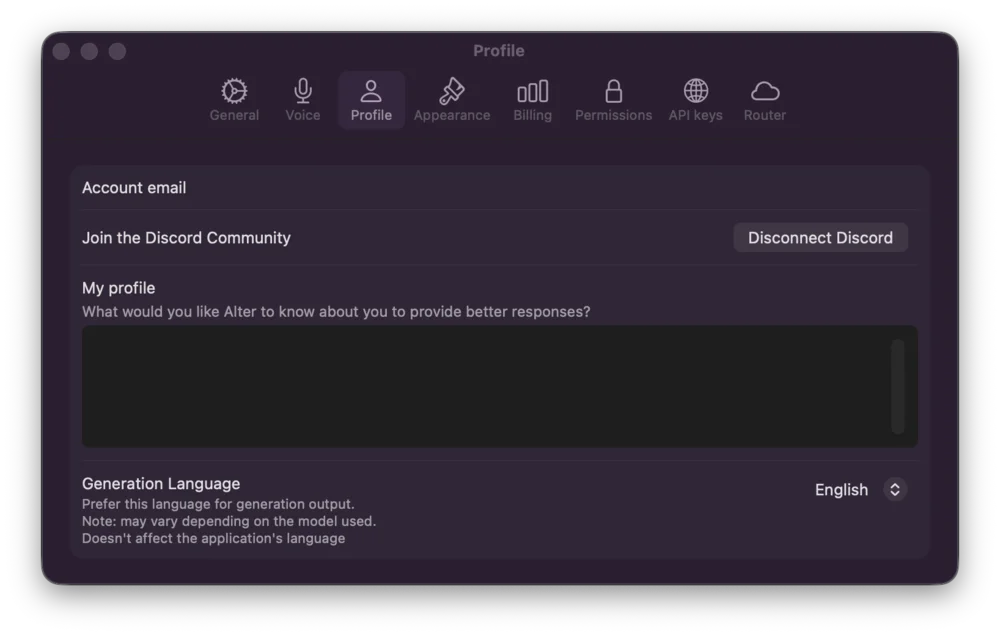
The Profile tab manages your identity and preferences: Account Email- View your current account email
- Used for billing and account recovery
- Connect or disconnect your Discord account
- Enables Discord-specific workflows
- Add a profile description (helps Alter provide better-tailored responses)
- Custom information Alter uses in conversations
- Set your preferred language for Alter’s responses (default: English)
- Note: This may vary depending on the model you’re using
4. Appearance Settings
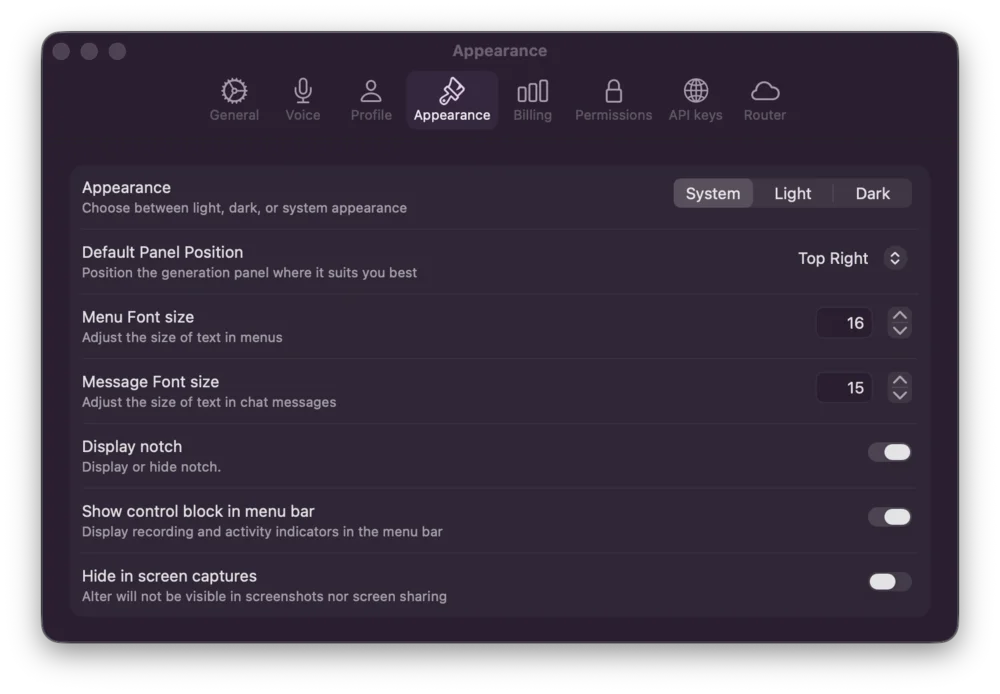
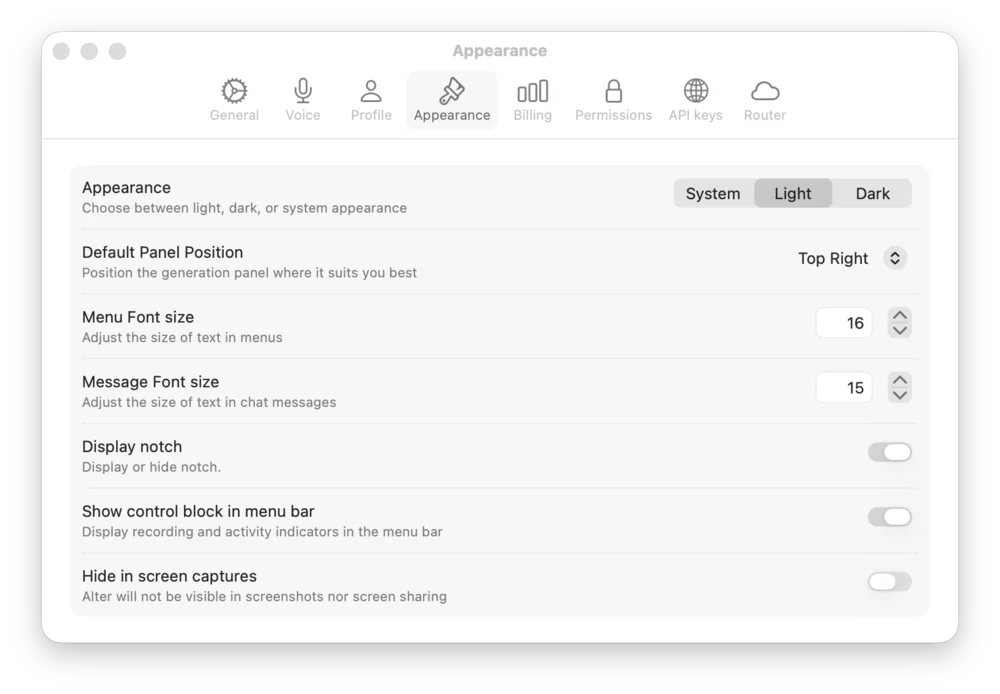
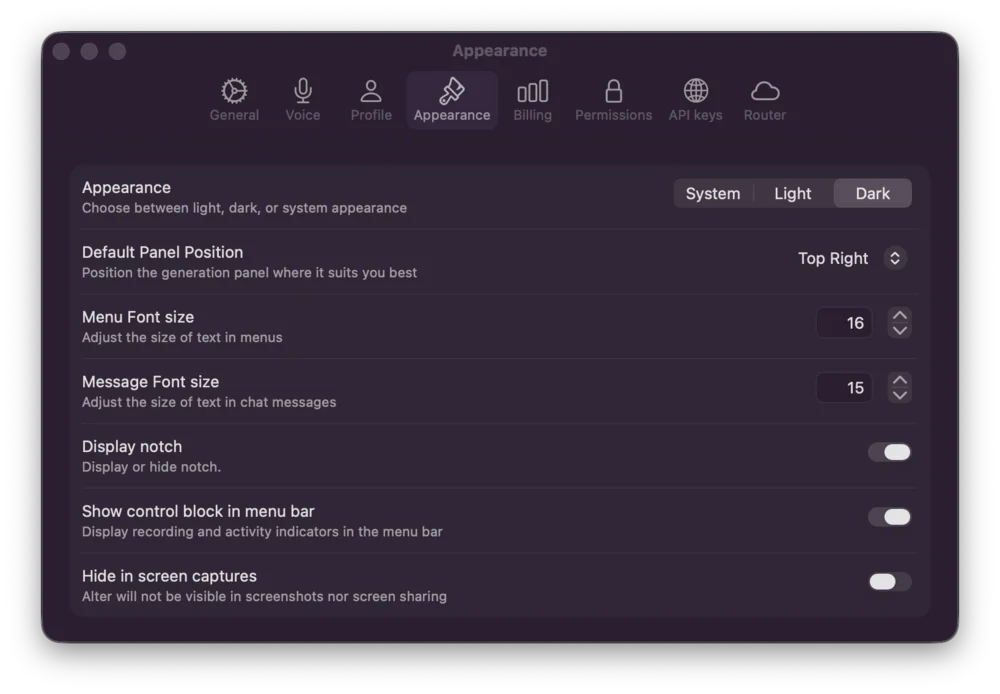
The Appearance tab controls the visual look and feel: Theme Options- System: Match your Mac’s system appearance
- Light: Force light theme
- Dark: Force dark theme
- Default Panel Position: Where panels appear (Top Right default)
- Menu Font Size: Adjust text size for readability (default: 16)
- Message Font Size: Set chat message text size (default: 15)
- Display Notch: Show the status indicator
- Show control block in menu bar: Display indicator in Alter menu bar
- Hide in screen captures: Exclude Alter from screenshots and screen sharing
5. Billing Settings
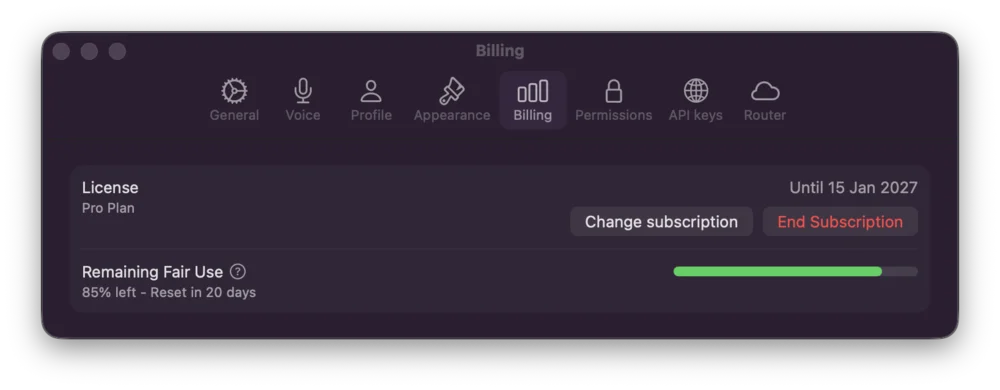
The Billing tab shows your subscription status: License Information- Your current plan (e.g., Pro Plan)
- Expiration date
- Change or End subscription options
- Visual indicator of your remaining fair use allocation
- Shows reset timeline (e.g., “Reset in 20 days”)
6. Permissions Settings
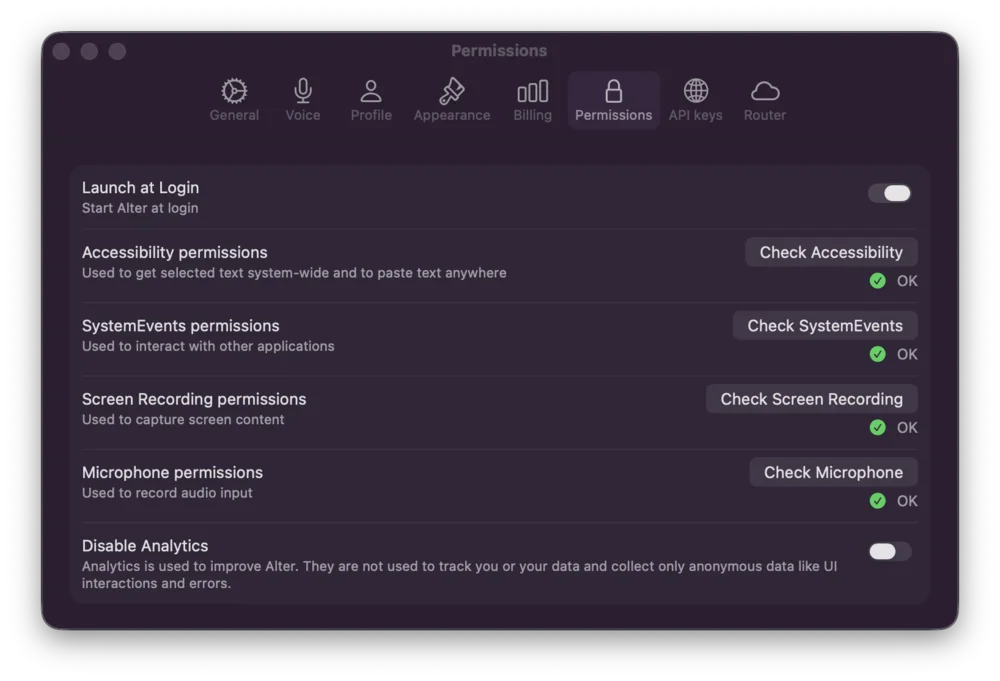
The Permissions tab manages system access and data collection preferences: System Permissions Each permission can be enabled with quick-access buttons:- Launch at Login: Start Alter automatically when your Mac starts
- Accessibility: Required for keyboard commands and window control (Check Accessibility)
- System Preferences: Allow access to system settings (Check System Preferences)
- Screen Recording: Capture screen content for analysis and context awareness (Check Screen Recording)
- Microphone: Enable voice input and dictation (Check Microphone)
- Disable Analytics: Control whether Alter collects anonymized usage data. When enabled, Alter only collects anonymous UI interaction and error data to improve the product—no personal data or content is tracked.
7. API Keys Settings
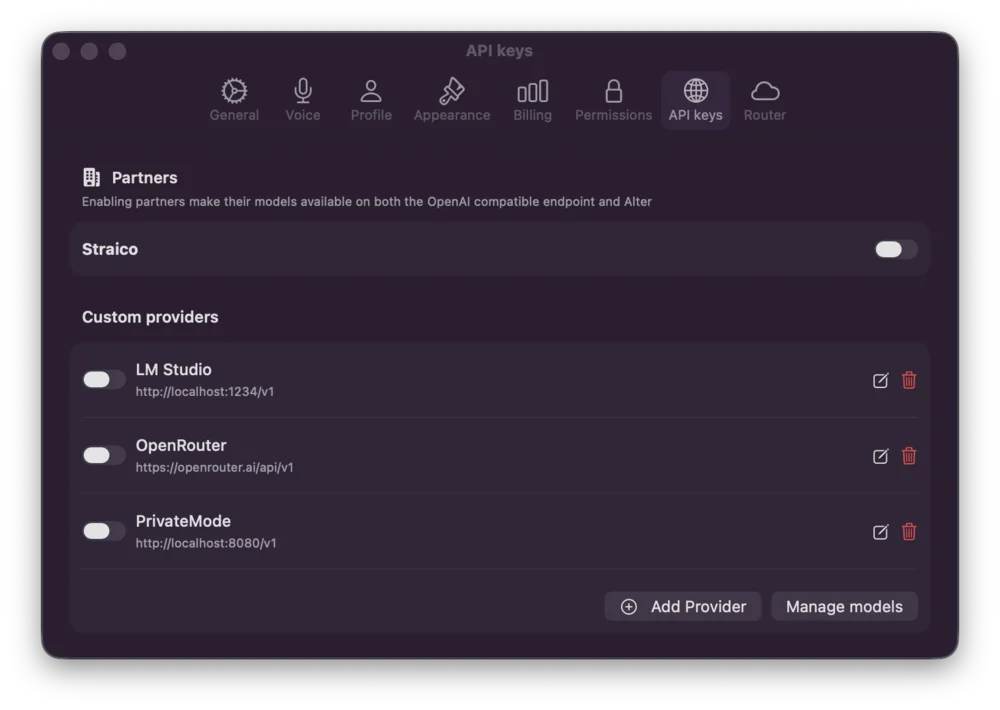
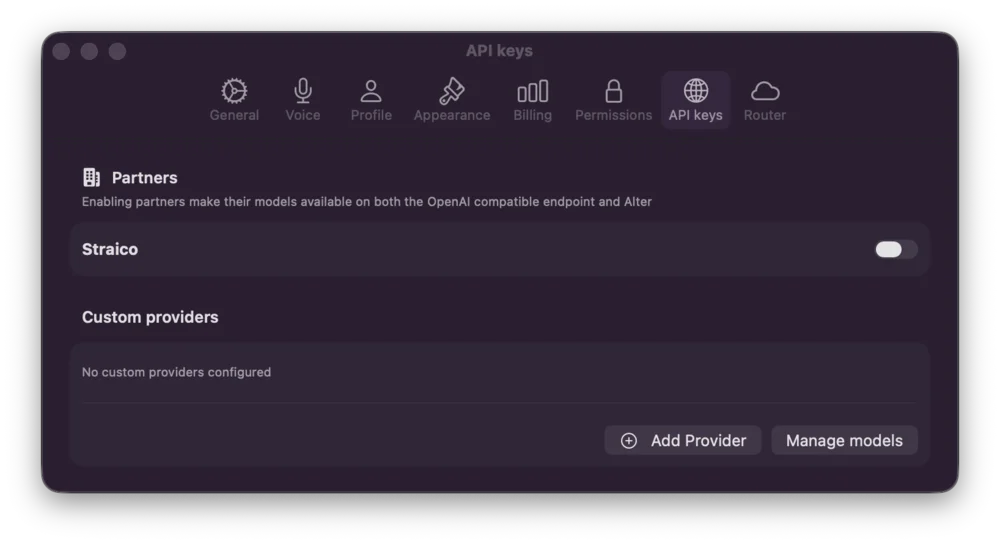
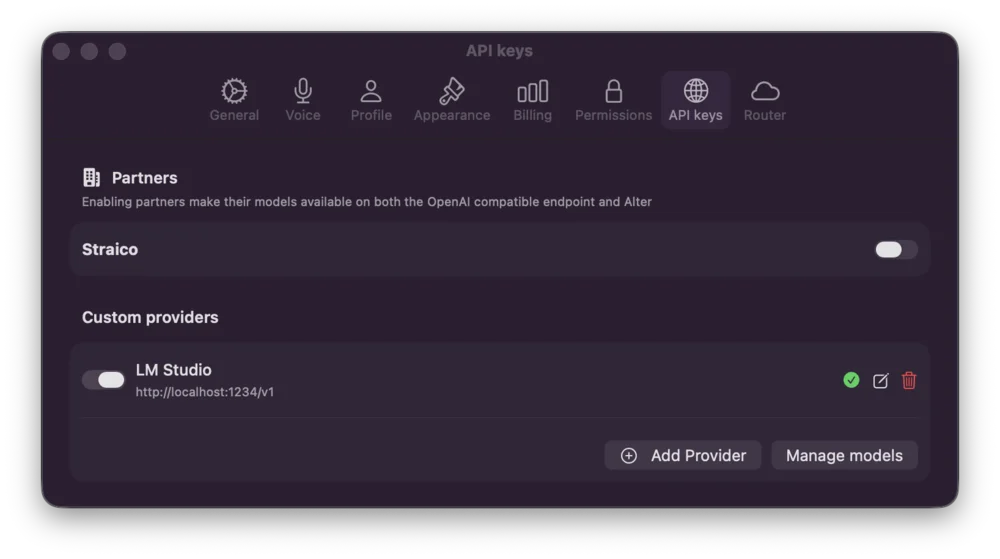
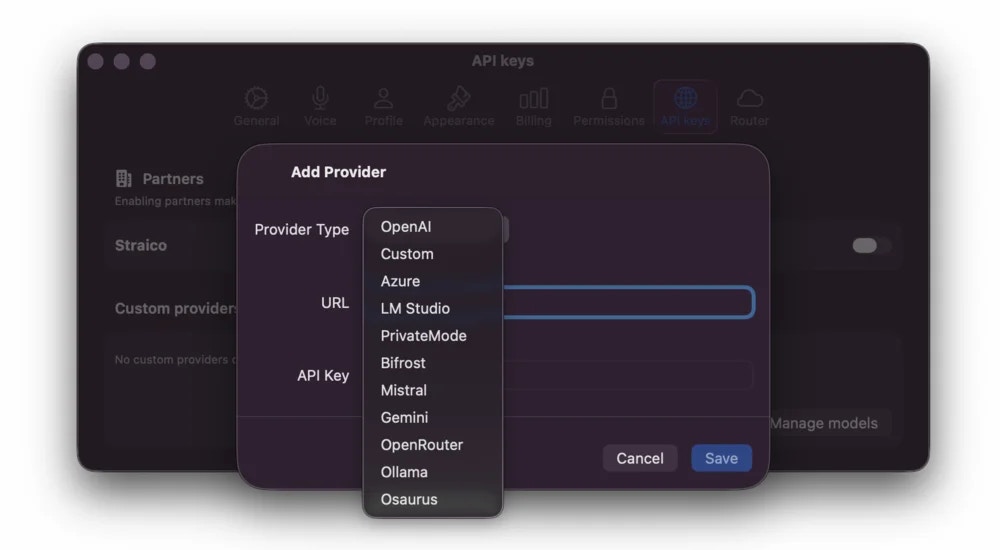
The API keys tab allows you to bring your own models: Partners- Integrate with partner services that provide OpenAI-compatible endpoints
- Add Provider: Create new custom model endpoint
- Provider URL: Endpoint URL (e.g.,
http://localhost:1234/v1) - Manage Models: View and test available models from each provider
- OpenAI: OpenAI’s API (GPT models)
- Custom: Generic OpenAI-compatible endpoints
- Azure: Microsoft Azure OpenAI Service
- LM Studio: Local models via LM Studio
- PrivateMode: Local inference engines
- Bifrost: Bifrost API provider
- Mistral: Mistral AI models
- Gemini: Google Gemini API
- OpenRouter: Multi-model router service
- Ollama: Local LLM framework
- Osaurus: Osaurus provider
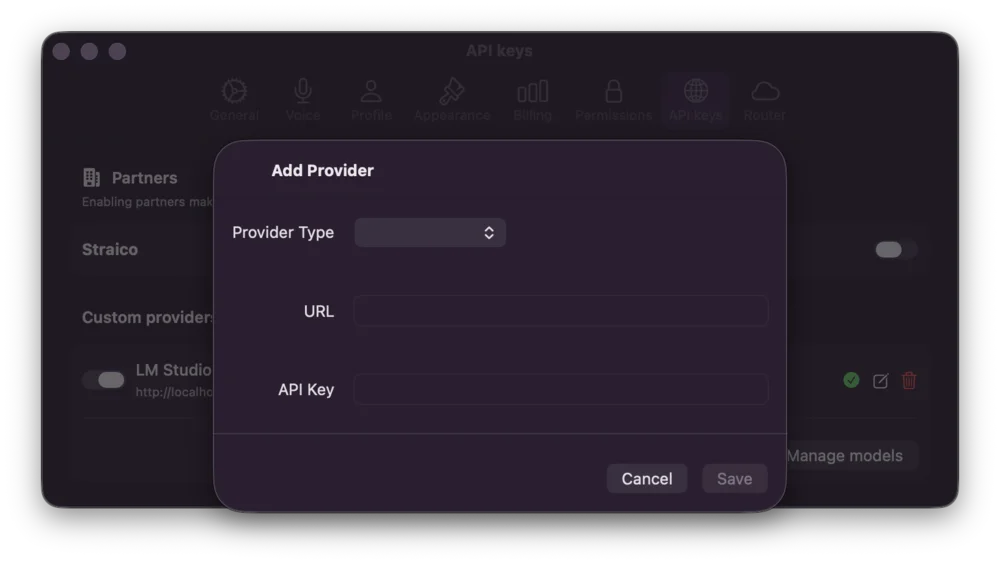
- Click “Add Provider” button
- Select Provider Type from the dropdown
- Enter the API endpoint URL
- Provide your API Key
- Click “Save” to configure
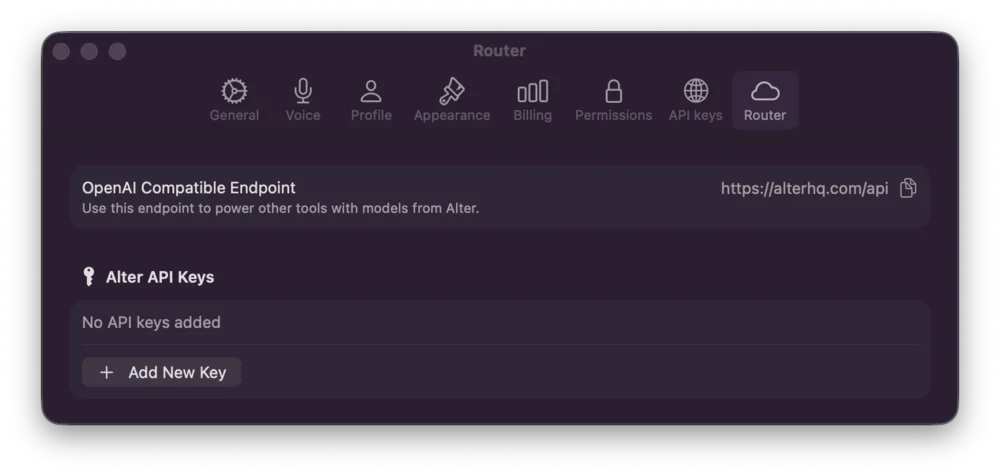
8. Router Settings
The Router tab configures the default AI endpoint: OpenAI Compatible Endpoint- Default endpoint for powering Alter models
- Link: https://alterhq.com/api
- Generate and manage your personal API keys
- Use for integrations and third-party tools