

Alter Actions are customizable AI workflows that let you create specialized assistants for specific tasks. Combine AI instructions, voice triggers, tools, and conditional execution to automate anything on your Mac.
What is an Alter Action?
An Alter Action is an advanced automation that combines:- AI Instructions - System prompts defining how the AI behaves
- Triggers - Voice commands, hotkeys, or conditional execution
- Context - Access to selected text, files, active applications
- Tools - Configured integrations with your Mac and 2000+ external services
- Output - How results are displayed (markdown, code, inline insertion)
Opening the Action Editor
Method 1: Menu Bar (Fastest)
- Click the Alter menu icon in the menu bar (top right)
- Select Action Editor
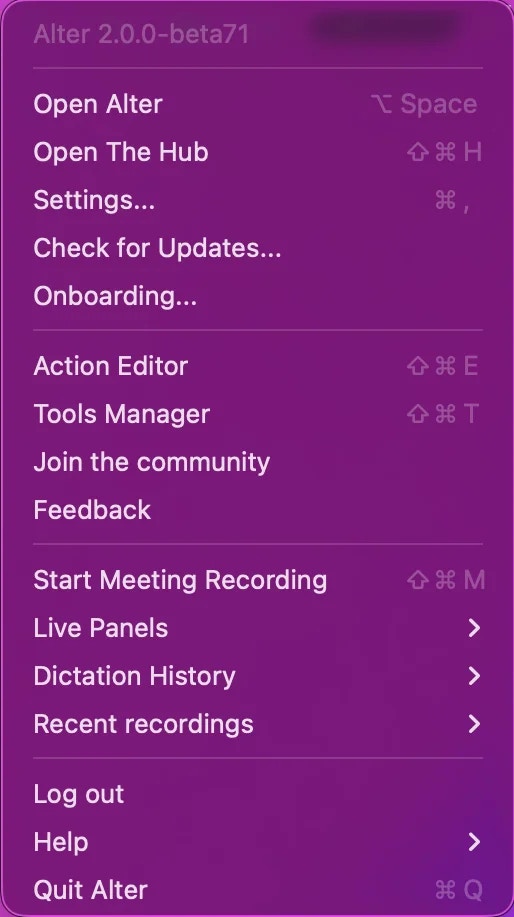
Method 2: Options Menu
- Open Alter window
- Click ⋯ (three dots) in top right
- Select Action Editor
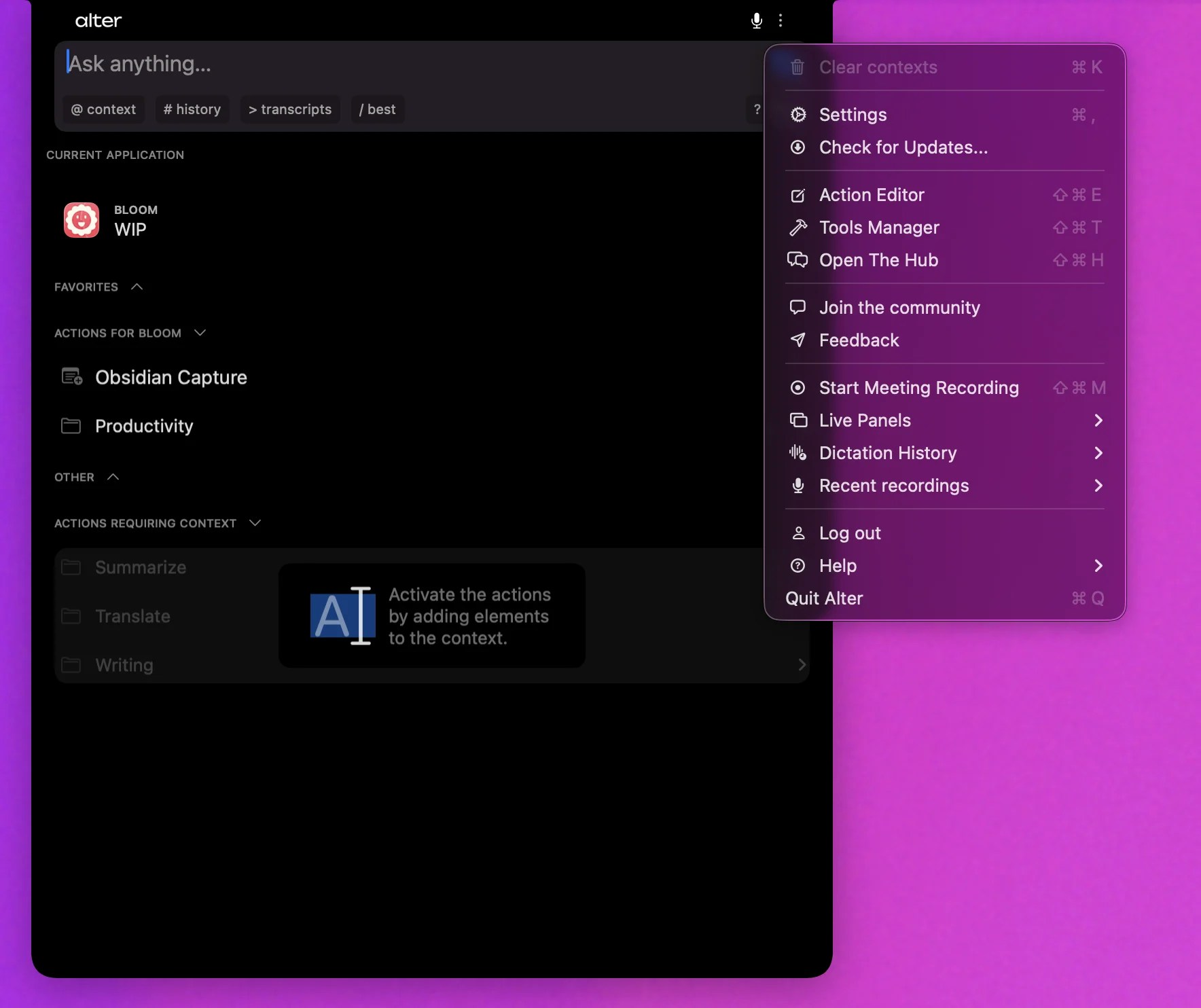
Method 3: Keyboard Shortcut
Press ⌘ E (Command + E) to open the Action Editor directlyAction Editor Walkthrough
The Action Editor has 7 main sections, each controlling different aspects of your action. Use the left panel to navigate between tabs.1. General Settings
Configure basic metadata and execution context.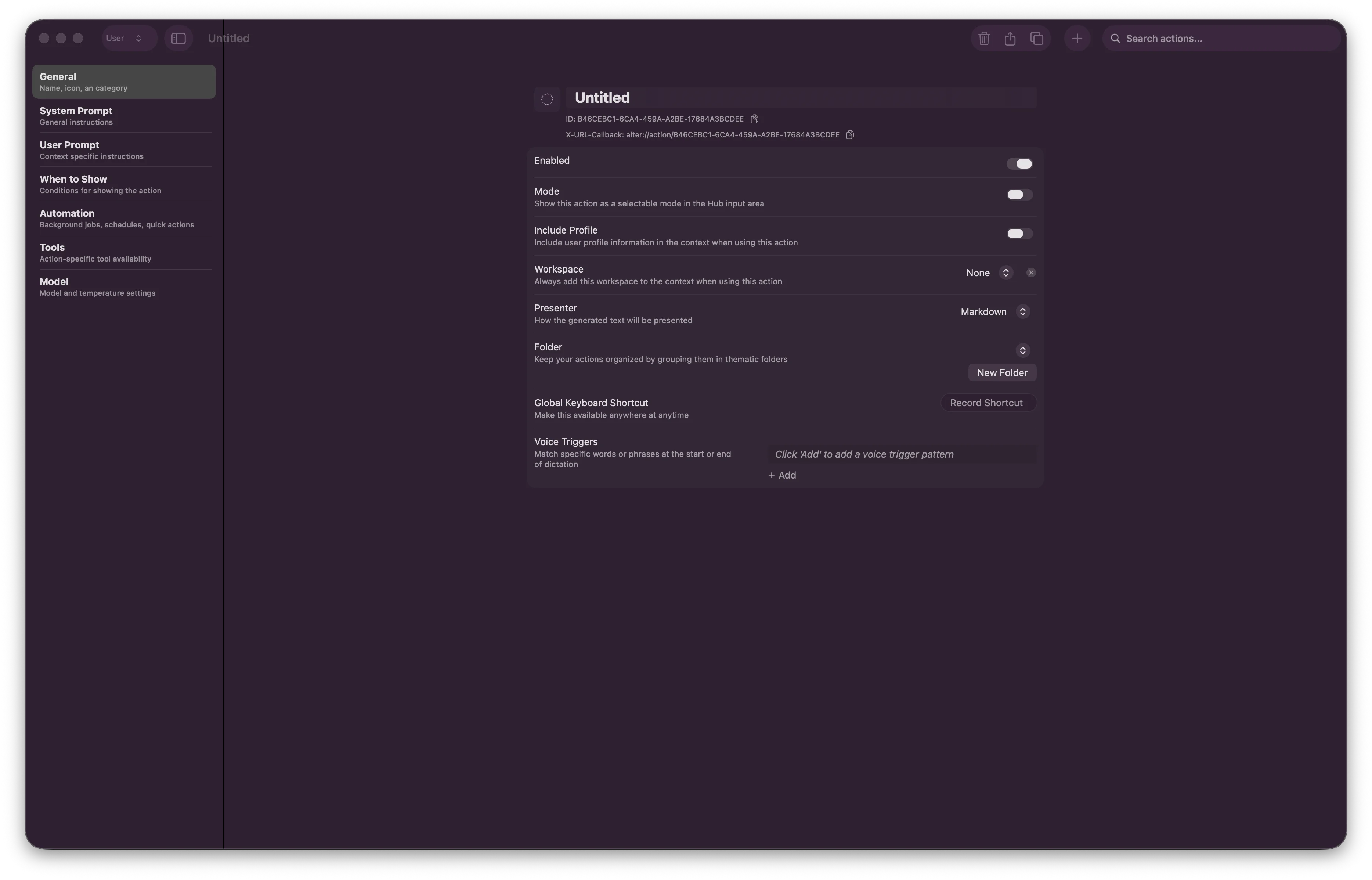
- Name - Human-readable action name (e.g., “Code Explainer”)
- Description - What this action does (optional)
- Category - Organize actions by type (code, productivity, business, etc.)
- Workspace - Assign to a specific workspace (optional)
- Include Profile - Include user profile information in AI context
- Show only when running - Action only appears if an app is running
- Show only when active - Action only appears if an app has focus
- Workspace context - Choose which workspace(s) see this action
Each action gets a unique UUID automatically.
2. System Prompt
Define AI instructions and parameters for the model.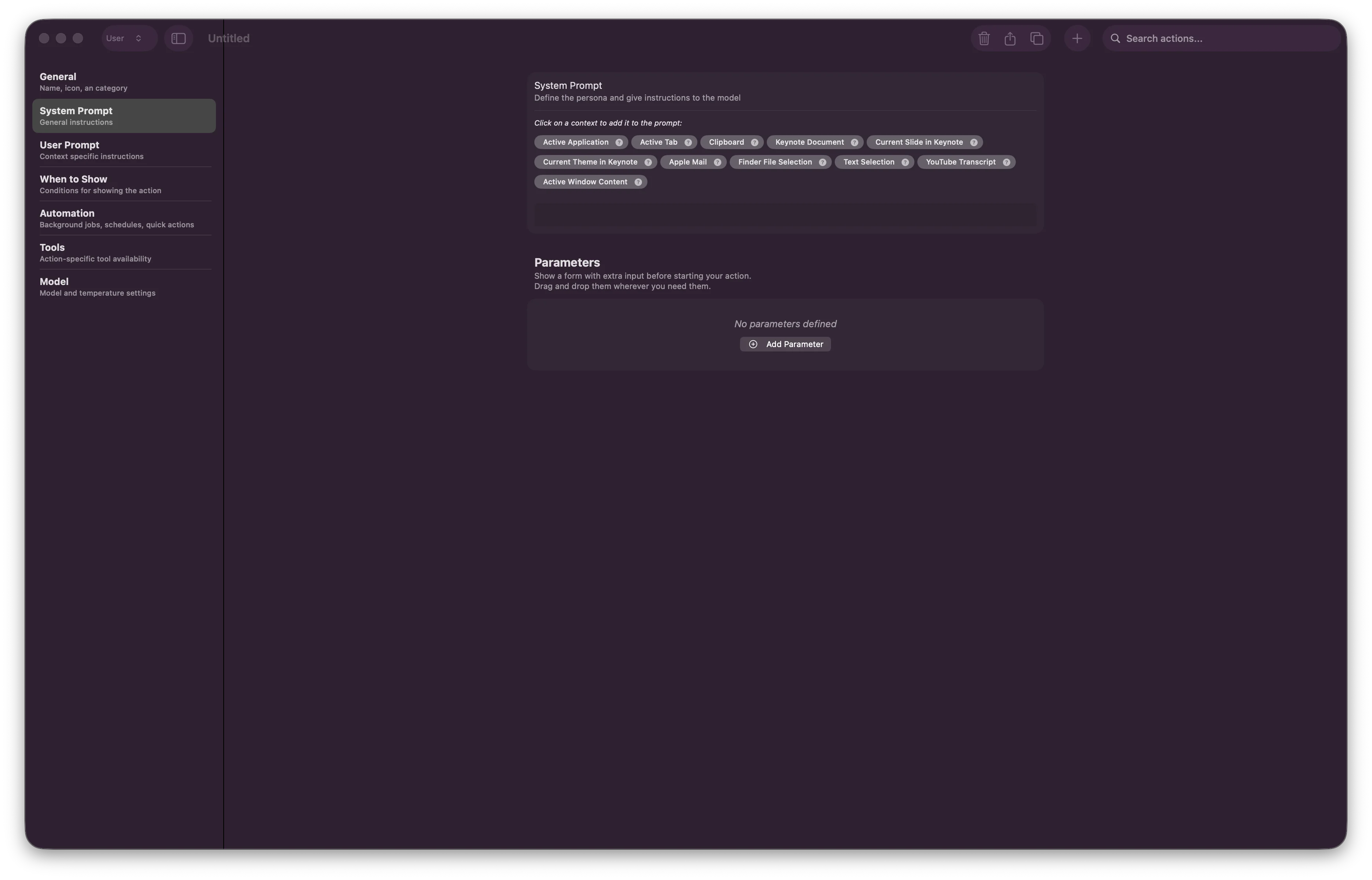
3. User Prompt
Template for the user-facing prompt that gets sent to the AI.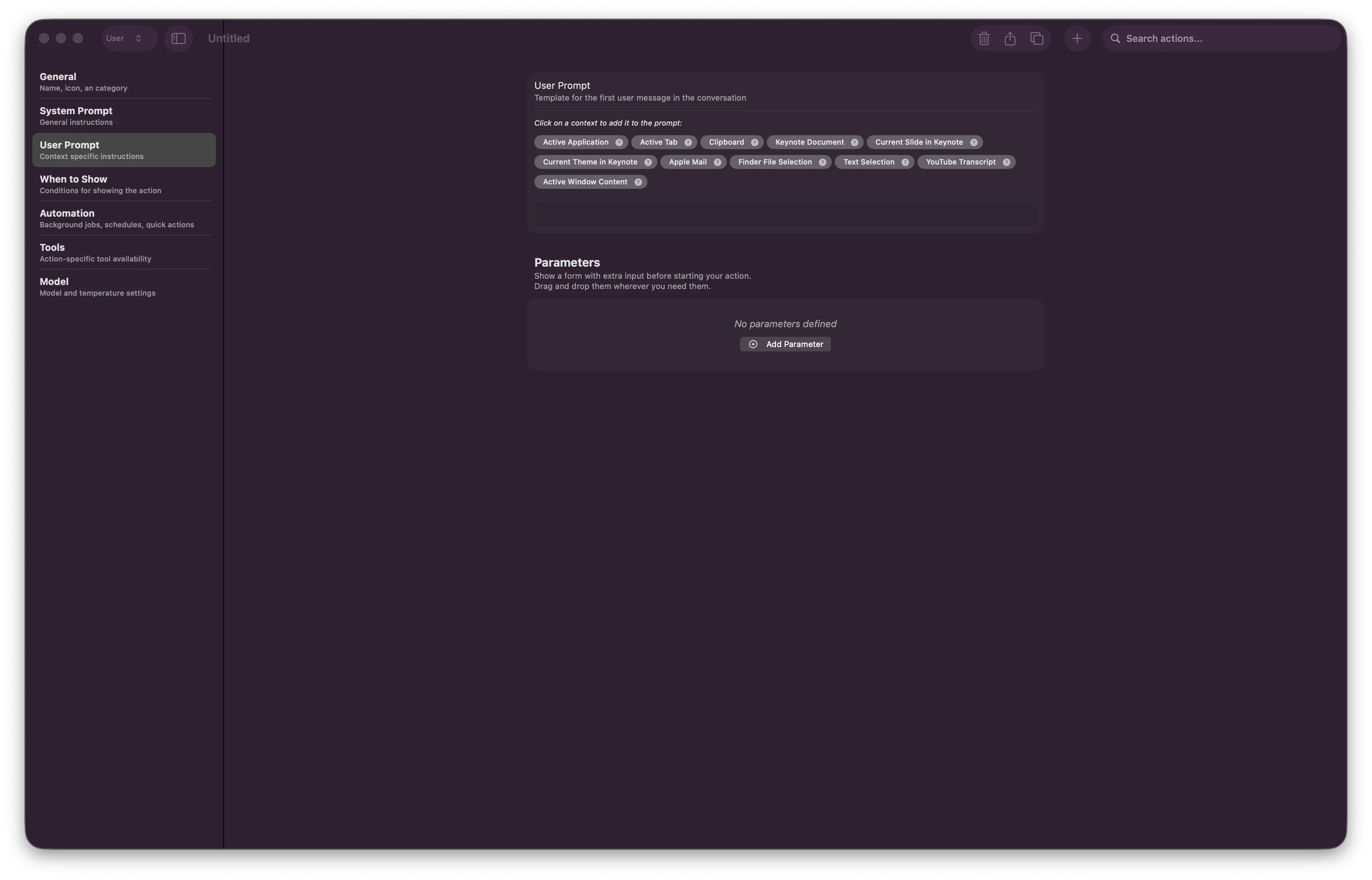
{{ }} to insert dynamic content:
{{ textSelection }}- Currently selected text{{ filePath }}- Path to selected file{{ clipboard }}- Clipboard contents- Custom parameters you defined in System Prompt
4. When to Show
Control when and where this action appears.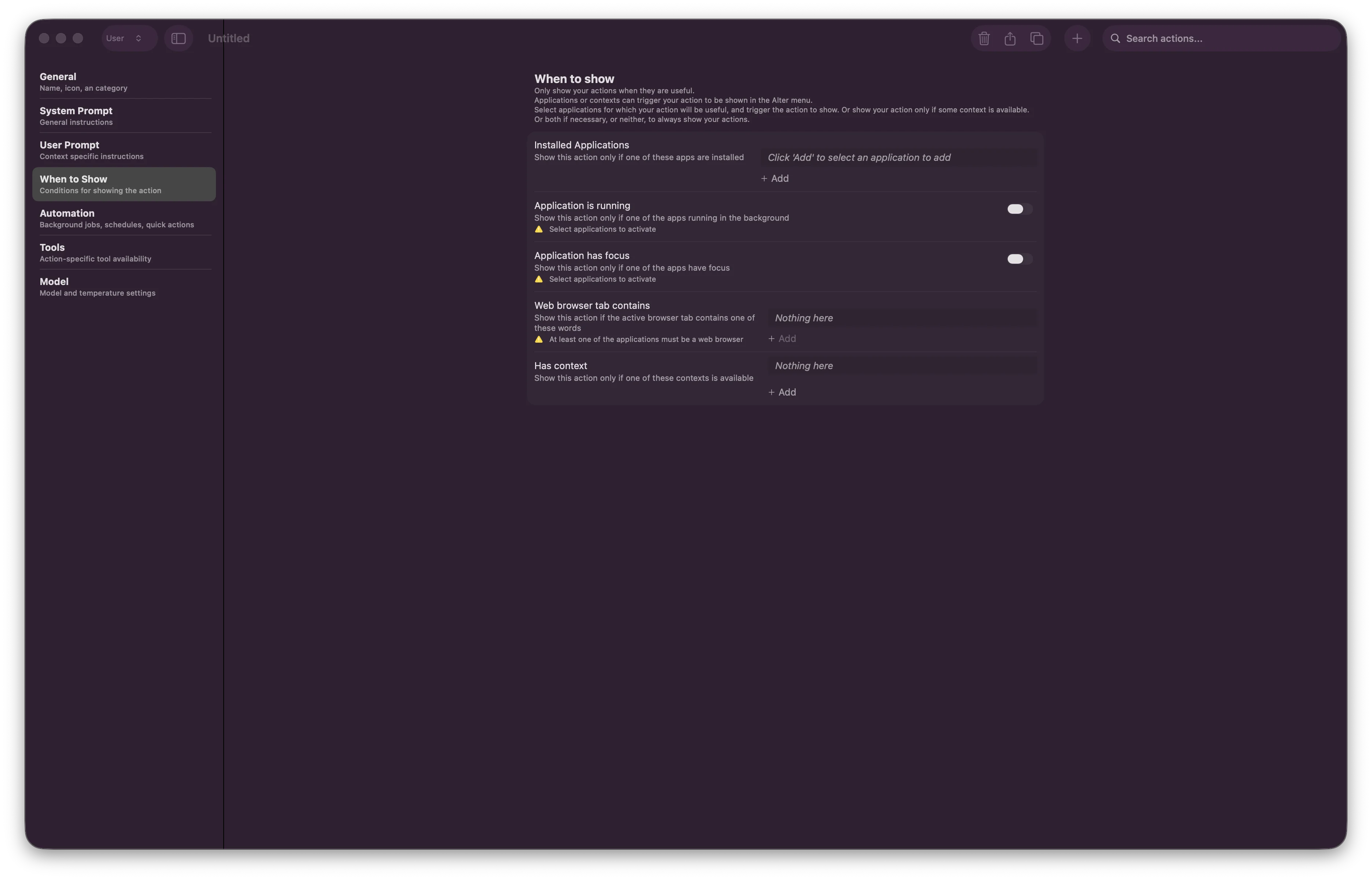
- Installed Applications - Show action only in specific apps (VSCode, Xcode, Safari, etc.)
- Application is running - Action requires the app to be running
- Application has focus - Action only works when app is in foreground
- Web browser tab contains - Show action when browsing specific domains
- Has content - Show action only when context is available
5. Automation
Configure execution behavior, schedules, and background processing.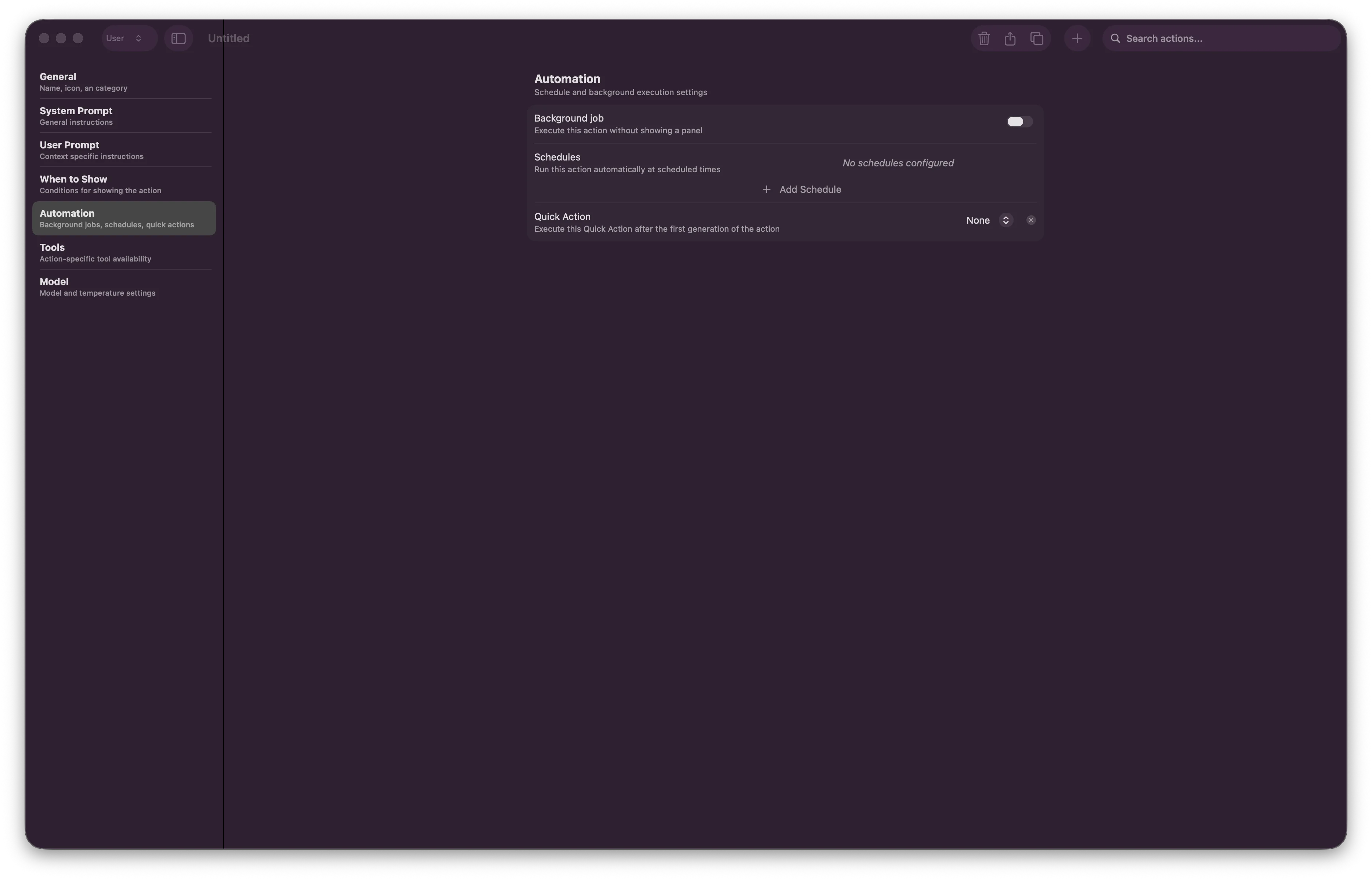
- Background Job - Run action in background without showing UI
- Schedules - Execute action at specific times (e.g., “Every Monday at 9 AM”)
- Quick Action - Execute the next “Quick Action” automatically after this completes
6. Tools
Scope which tools are available for this action.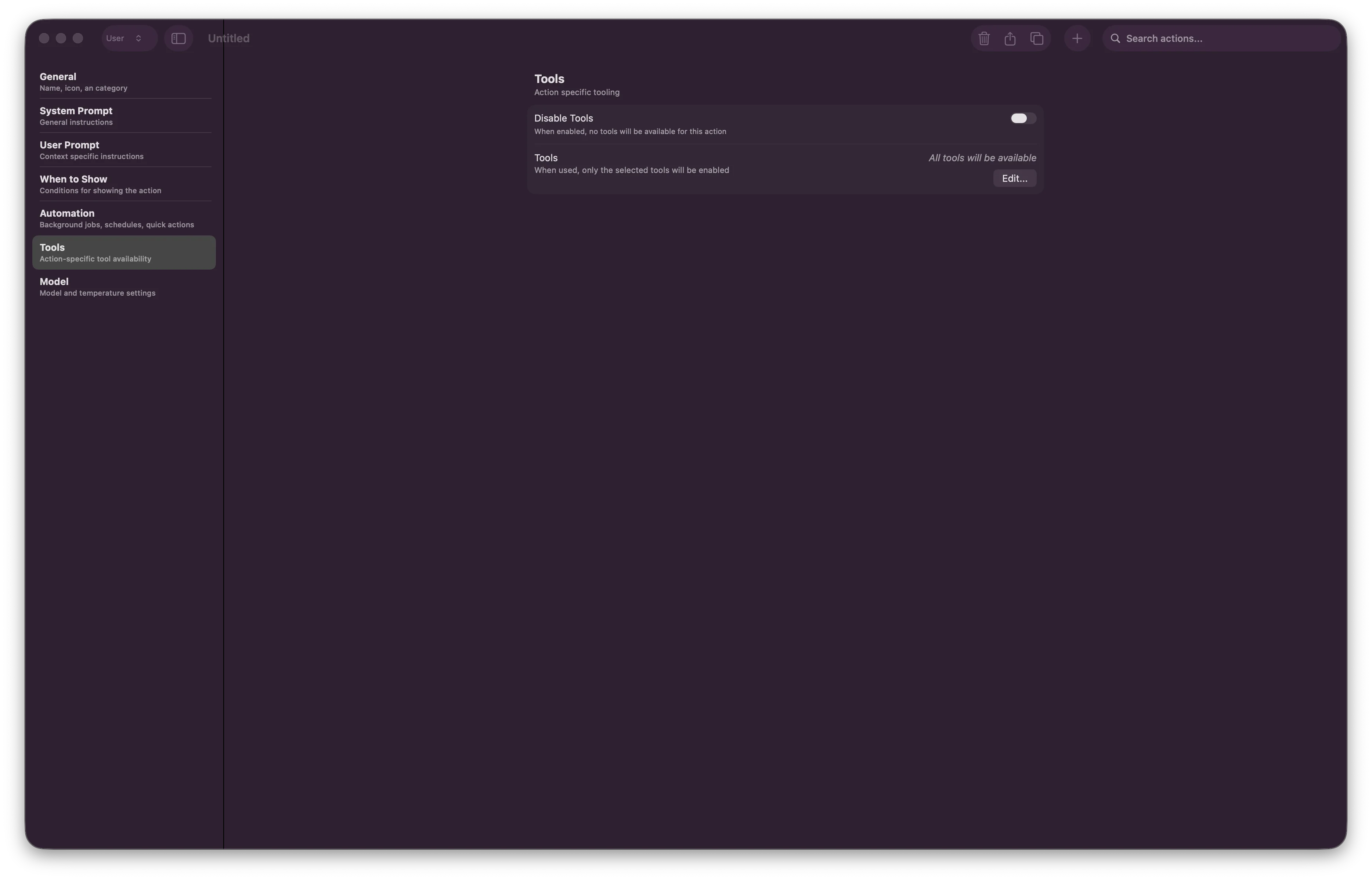
- Disable Tools - Toggle off individual tools to restrict functionality
- When empty: All tools are available
- When configured: Only selected tools are available
- Reduce AI decision overhead (focus on relevant tools)
- Speed up action execution
- Improve security (limit what actions can access)
7. Model
Select AI model and adjust creativity level.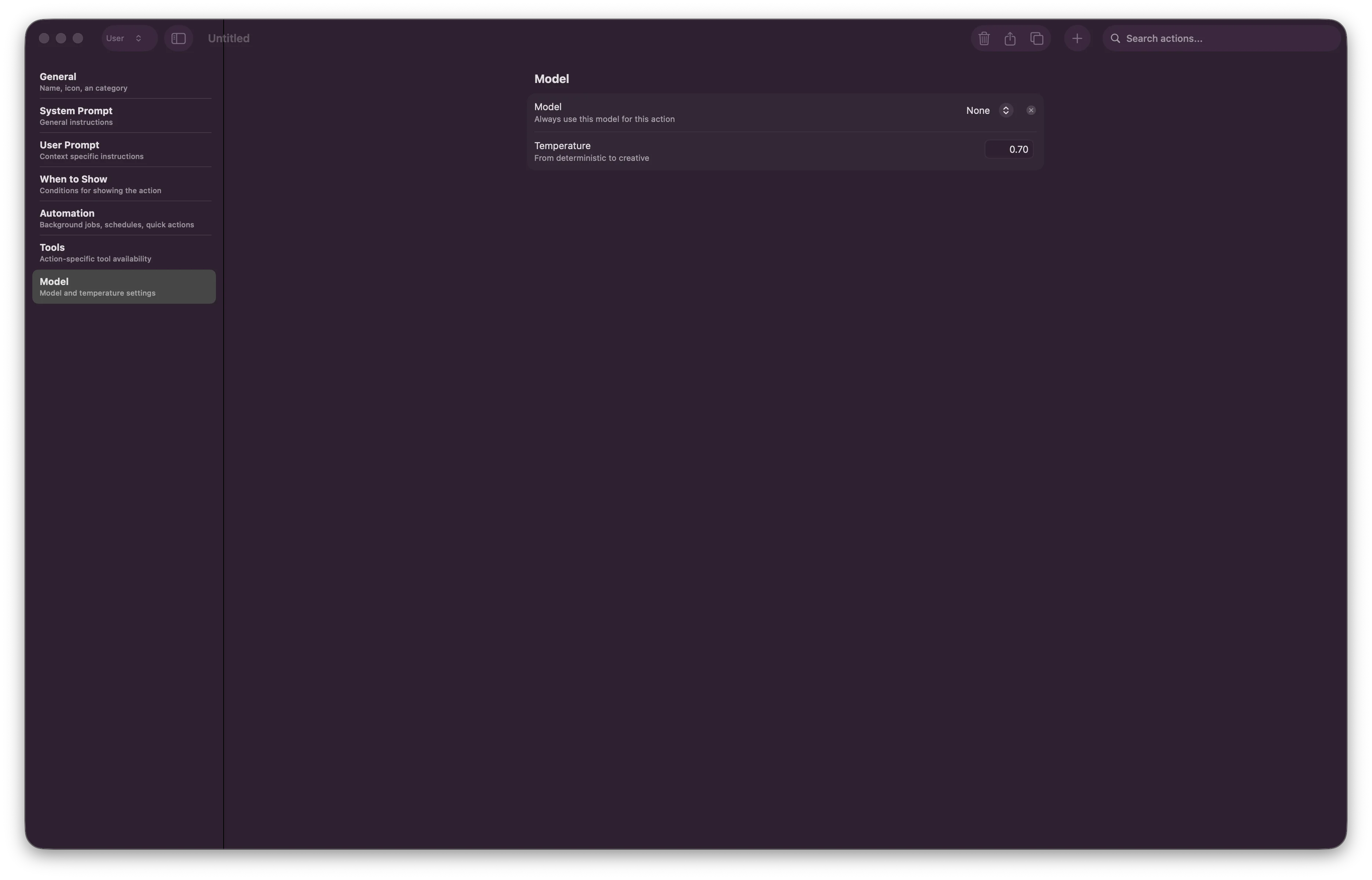
-
Model - Choose specific AI model for this action
- Leave empty to use user’s default model setting
- Or select: Claude, GPT-4, local model, etc.
-
Temperature - Adjust creativity vs. precision
- 0.0 - Deterministic (consistent, predictable)
- 0.5 - Balanced (default)
- 1.0 - Creative (unpredictable, exploratory)
Best Practices
Clear Names
“Code Explainer” describes what it does. Avoid generic names like “Action 1”.
Specific Prompts
Be detailed with AI instructions. Generic prompts produce generic outputs.
Scope Tools
Enable only the tools your action needs. Reduces overhead and improves speed.
Use Context Variables
{{ textSelection }} always works. Manual copy/paste is error-prone.Conditional Visibility
“Code Explainer” only in VSCode + Xcode reduces menu clutter.
Test Before Sharing
Test with real data before deploying to your team.
Common Action Examples
Example 1: Code Explainer
Setup:- Name: Explain Code
- Category: code
- Installed Apps: VSCode, Xcode
- System Prompt: You are an expert programmer who explains code clearly
- User Prompt:
Please explain this code:\n\n{{ textSelection }} - Consumer: markdown
- Temperature: 0.5
Example 2: Email Draft Creator
Setup:- Name: Draft Email
- Category: productivity
- When to Show: Mail app active
- System Prompt: You are a professional business communicator
- User Prompt:
Transform this into a professional email:\n\n{{ textSelection }} - Tools: Enable only Mail
- Consumer: in-place
- Temperature: 0.6
Example 3: Scheduled Daily Brief
Setup:- Name: Daily Brief
- Category: productivity
- Automation: Schedule for 9:00 AM daily
- Background Job: Enabled
- System Prompt: Generate a daily brief of priorities
Voice Triggers
Assign voice hotkeys to trigger actions hands-free:
Usage: Hold voice hotkey + say trigger phrase → Action executes with current context
x-callback-url Integration
Trigger Alter actions from any application using special URLs. This enables powerful cross-app automation workflows.What is x-callback-url?
x-callback-url is an inter-app communication protocol that lets applications trigger actions in each other through formatted URLs.- Inbound - Trigger Alter actions from other apps (Shortcuts, Notes, Safari, etc.)
- Outbound - Create links in Alter that open other apps (Bear, OmniFocus, Drafts, etc.)
Getting Your Action’s Callback URL
Format:
Triggering Alter Actions from Other Apps
Example 1: Web Search from Safari- Create a new Shortcut
- Add “Open URL” action
- Paste your
alter://URL - Run the shortcut to trigger the action
Use Cases
Workflow Automation
Workflow Automation
Trigger action from Calendar → Generate meeting notes → Create email draft
Multi-App Integration
Multi-App Integration
Notion button → Trigger Alter action → Update task status
Information Transfer
Information Transfer
Copy text → Trigger action with callback → Open result in external app (no manual copying needed)
Keyboard Shortcuts
| Action | Shortcut |
|---|---|
| Open Action Editor | ⌘ E |
| New Action | Cmd + N (in editor) |
| Save Action | Cmd + S (in editor) |
| Delete Action | Cmd + Delete (in editor) |
| Search Actions | Cmd + F (in editor) |
Troubleshooting
Action doesn't appear in menu
Action doesn't appear in menu
Action runs but produces poor output
Action runs but produces poor output
- Review System Prompt — be more specific
- Adjust Temperature (lower for precision, higher for creativity)
- Check User Prompt — ensure variables are correct
Voice trigger not working
Voice trigger not working
- Verify hotkey is configured in Settings
- Check microphone permissions
- Test with manual trigger first
Tools not available in action
Tools not available in action
- Go to Tools tab
- Verify tools aren’t disabled
- Check system permissions for the tool
Related Guides
- Tools & Integrations — Available tools for your actions
- URL Callbacks — Deep dive into x-callback-url automation
- Voice & Dictation — Set up voice triggers
- Settings — Configure global model and voice settings
Ready to build? Open Alter, press
⌘ E, and start creating your first action!
Want to automate across apps? Use x-callback-urls to trigger actions from Safari, Shortcuts, Notes, or any app that supports URL schemes.