

Overview
The Alter settings window provides comprehensive control over the application’s functionality, appearance, and integration capabilities.Accessing Alter Settings
When the Alter window is visible- Use the keyboard shortcut when the Alter window is open:
cmd+,
- click on the 3 dots on the main window /
 When the Alter widow is not visible
Access it via the menu bar
When the Alter widow is not visible
Access it via the menu bar
 Here’s a detailed breakdown of each section
Defaults
 Quick access settings:
- Open notch keybinding (default:
Alt+Space) - Selection Button toggle for quick access when selecting text
- Max Tokens: Set maximum text generation length (default: 2,048)
- Temperature: Adjust from deterministic to creative (default: 0.70)
Dictation
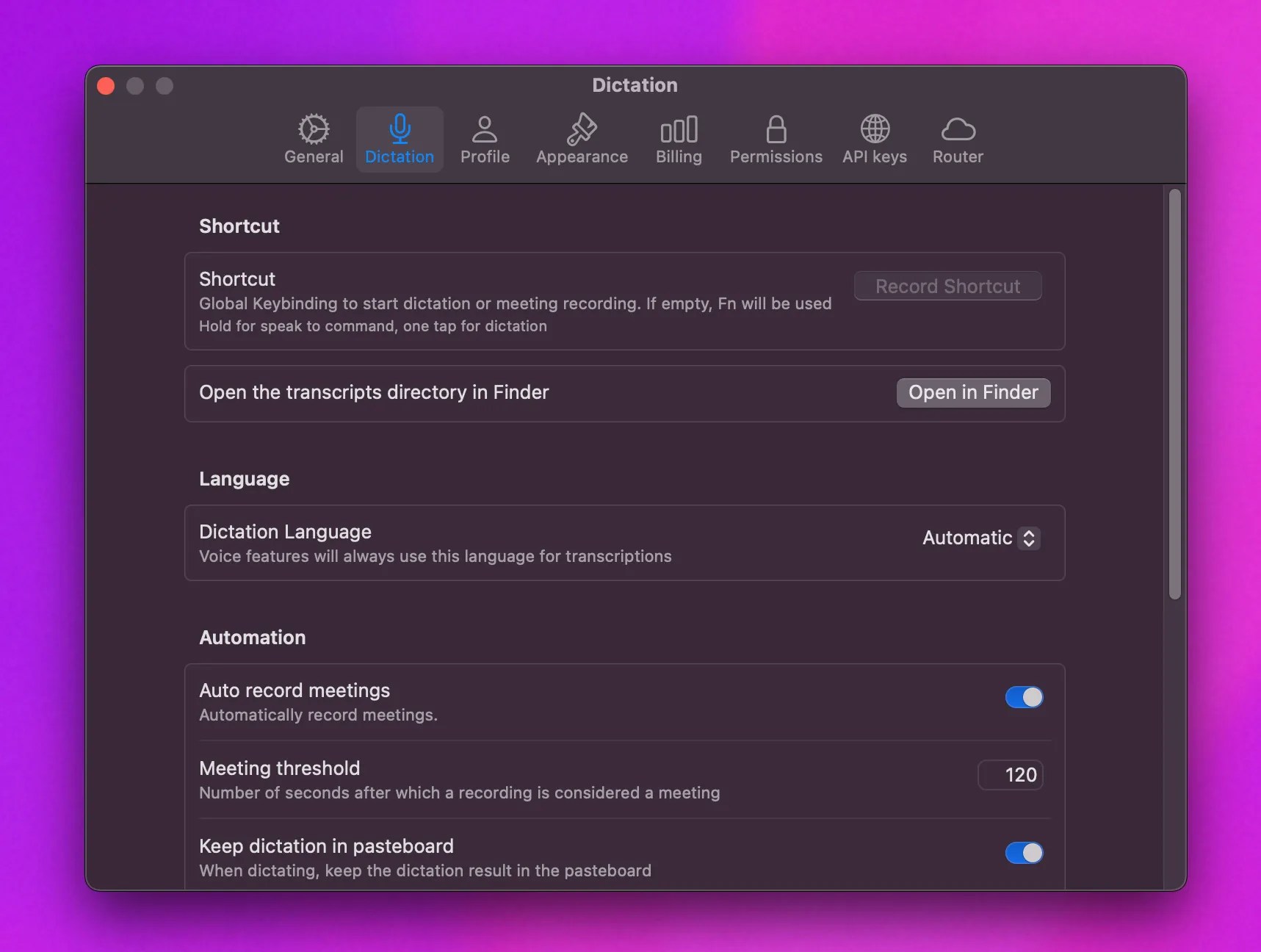
Shortcut
Global Keybinding Set a custom keyboard shortcut to trigger Alter’s voice features. If left empty, the Fn key will be used by default. Behavior:- Hold - Activates speak-to-command mode
- One tap - Starts dictation mode
File Management
Transcripts Directory Access your saved transcriptions and recordings through Finder. Click “Open in Finder” to navigate directly to where Alter stores your voice data.Language
Dictation Language Set the primary language for voice recognition and transcription. When set to “Automatic”, Alter will attempt to detect the language being spoken. Note: All voice features will use this language setting for processing transcriptions, including meetings.Automation
Auto Record Meetings When enabled, Alter automatically starts recording when it detects you’re in a meeting. Meeting Threshold Define how long a recording must be (in seconds) before Alter considers it a meeting rather than a quick voice note. Default is 120 seconds (2 minutes). Keep Dictation in Pasteboard When enabled, dictated text is automatically copied to your clipboard/pasteboard, making it easy to paste into any application.Dictionary
Custom Word Recognition Add words that you want Alter to better recognize during transcription. This is particularly useful for:- Technical terms specific to your industry
- Company names and product names
- Proper nouns that might be misunderstood
- Acronyms and abbreviations
Processor
Speech Processing Engine Choose how Alter processes your voice input:- Cloud - Uses cloud-based processing for highest accuracy
- Local (Apple) - Uses Apple’s on-device speech recognition
- Local (Whisper) - Uses OpenAI’s Whisper model locally for privacy
- Whisper Pro - Advanced local processing with 10-second transcripts for meetings
These settings help you customize Alter’s voice recognition and automation features to match your workflow and preferences.
Profile
 Profile is a simple way to tell Alter who you are and how you want to work together. Context matters - when Alter knows more about you, it can skip the fluff and provide more helpful, targeted responses.
My Profile:
Use this personalization section to:
Profile is a simple way to tell Alter who you are and how you want to work together. Context matters - when Alter knows more about you, it can skip the fluff and provide more helpful, targeted responses.
My Profile:
Use this personalization section to:
- Tell Alter about yourself: Share your role, expertise, and background
- Share what you’re working on: Describe your current projects and goals
- Set your preferred communication style: Specify how you like to receive information
- Add explainers for tools: Detail how you want some tools to be used and provide technical references if needed (pairs of names and ids for example)
- Generation Language: Select preferred language for outputs Note: Language selection affects generation only, not application interface
Appearance
 Theme options:
- System (follows system settings)
- Light mode
- Dark mode Panel customization: Default Panel Position (e.g., top center)
Billing

Permissions

- Launch at Login: Toggle switch to control whether Alter starts automatically when the system boots up
Required Permissions
Alter will work at best when those permissions are enable-
Accessibility permissions
- Purpose: Used to get selected text system-wide and to paste text anywhere
- Status: OK
- Action button: “Check Accessibility”
-
SystemEvents permissions
- Purpose: Used to interact with other applications
- Status: OK
- Action button: “Check SystemEvents”
-
Screen Recording permissions
- Purpose: Used to capture screen content
- Status: OK
- Action button: “Check Screen Recording”
-
Microphone permissions
- Purpose: Used to record audio input
- Status: OK
- Action button: “Check Microphone”
Disable analytics
We rely on analytics to improve Alter. However you are free to disable it if you prefer it- Disable Analytics: Toggle switch to control analytics collection
External API keys
This is where you want to set up your API keys if you are using your own providers, for example, OpenAI, OpenRouter, or your local models. Partners integration:
- Straico support
- Custom provider options
 Provider configuration:
- Enable/disable custom providers
- LM Studio
- Mistral
- Ollama
- OpenAI
- Open Router
- Custom (any OpenAI compatible endpoind)


Router
Alter can be used as a gateway to provide its cloud models to other tools in the same manner than OpenRouter.