

Alter connects to Discord as a bot using a bot token. You create the bot in the Discord Developer Portal; Alter does not generate an invite URL for you — you add the bot to your server from the portal.
Before you start
- A Discord account with permission to create applications (and to add bots to your target server).
- Alter installed and running on your Mac.
- A few minutes to copy tokens and IDs — treat bot tokens like passwords.
Step 1 — Create a Discord application
1
Open the Developer Portal
Go to discord.com/developers/applications and sign in.
2
New Application
Click New Application, choose a name (for example 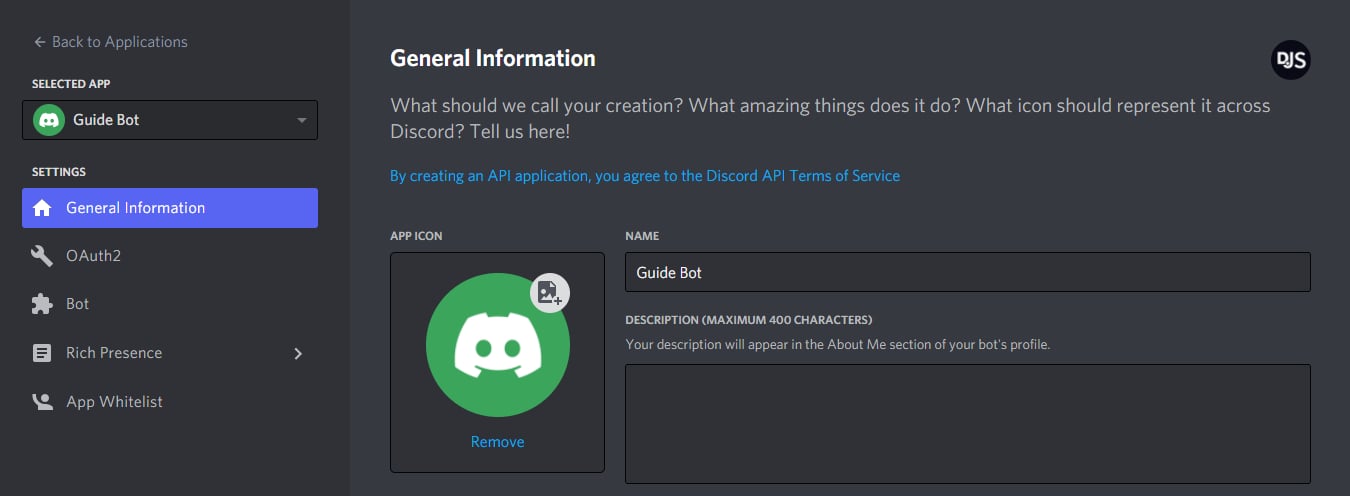
Alter), and confirm.3
Open the Bot page
In the left sidebar, select Bot, then click Add Bot (or Reset Token if you already created one).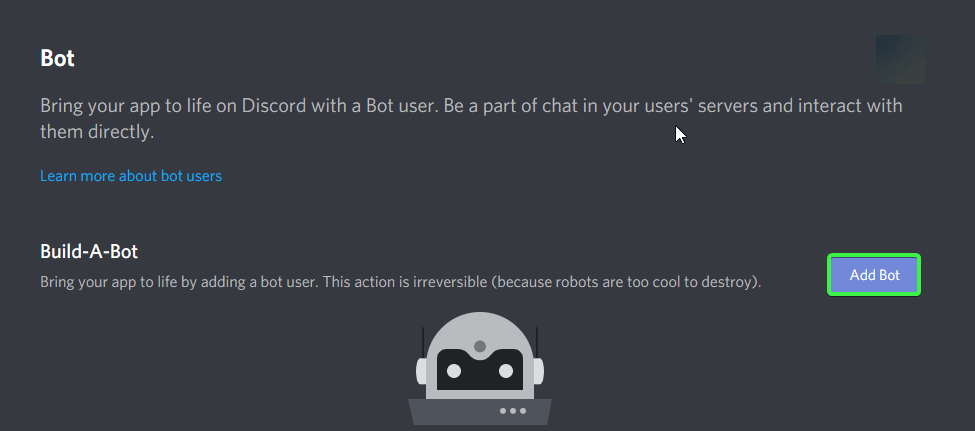
Step 2 — Enable Message Content Intent
Alter must read message text in servers and DMs. Discord requires you to turn this on explicitly in the Developer Portal.1
Open Bot settings
In your application, go to Bot.
2
Enable Message Content Intent
Under Privileged Gateway Intents, turn on Message Content Intent.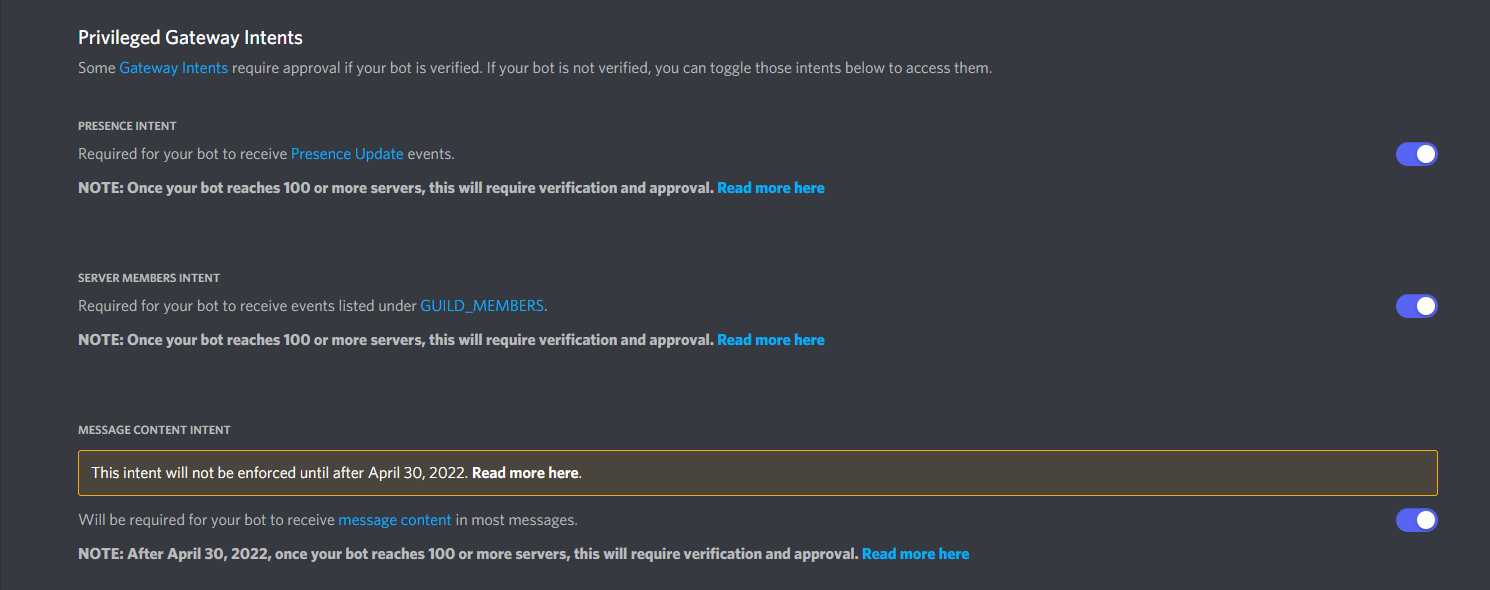
3
Save changes
Confirm any prompts. Without this intent, Alter cannot read messages and shows an error such as Enable Message Content Intent for this bot.
Step 3 — Copy the bot token
1
Reveal the token
On the Bot page, click Reset Token (first-time setup) or Copy under Token.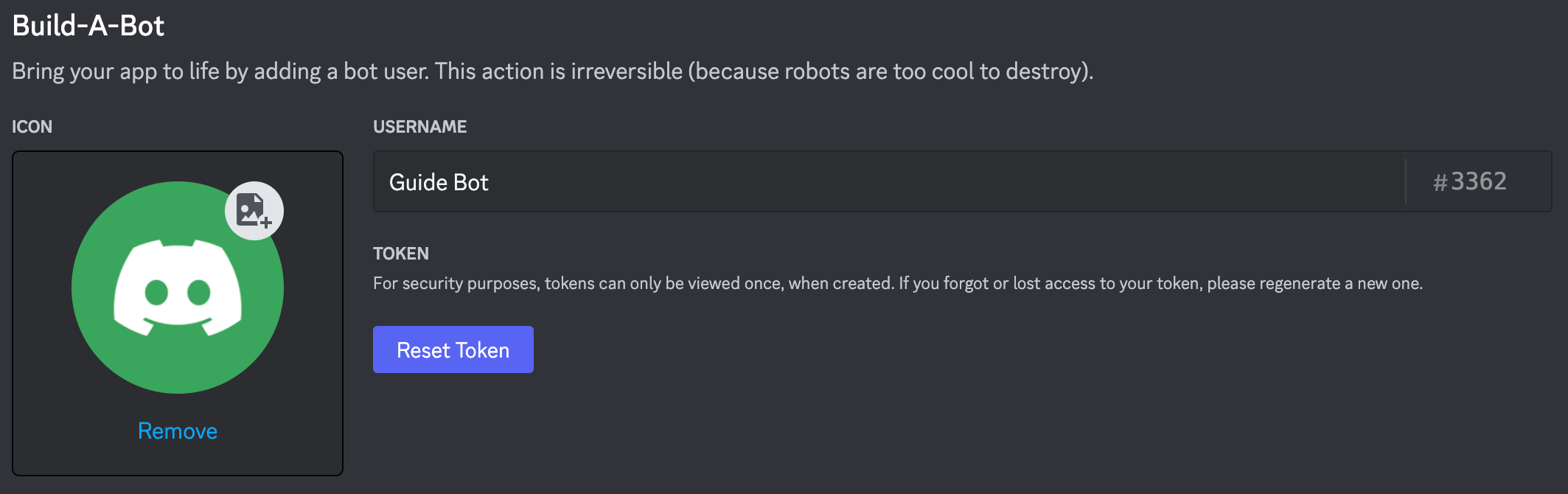
2
Store it securely
Paste the token somewhere safe temporarily — you will enter it in Alter in a later step. If it leaks, use Reset Token in the portal and update Alter.
Step 4 — Invite the bot to your server
Alter does not build an invite link inside the app. Generate one in the Developer Portal:1
Open OAuth2 URL Generator
In your application sidebar, go to OAuth2 → URL Generator.
2
Select scopes
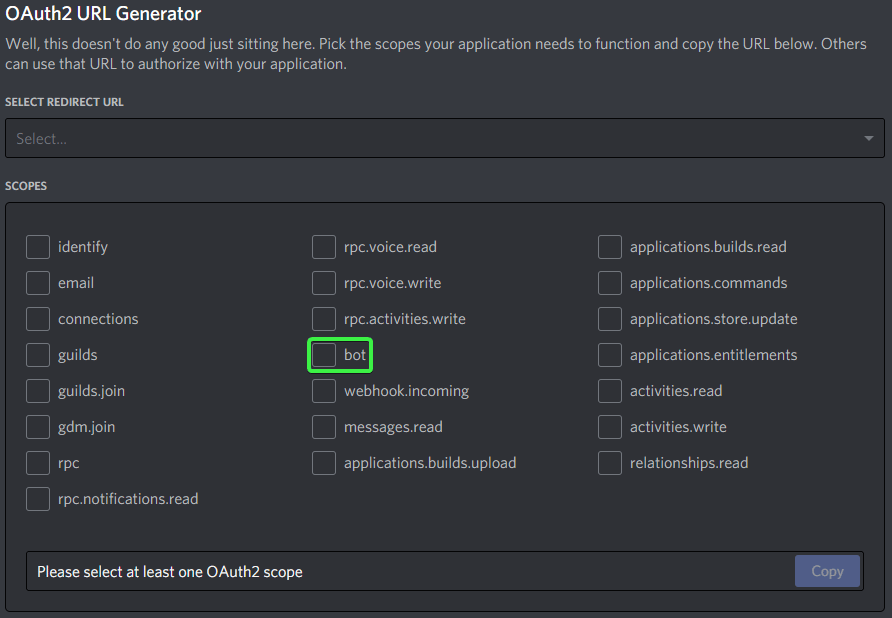
3
Select bot permissions
Under Bot Permissions, enable: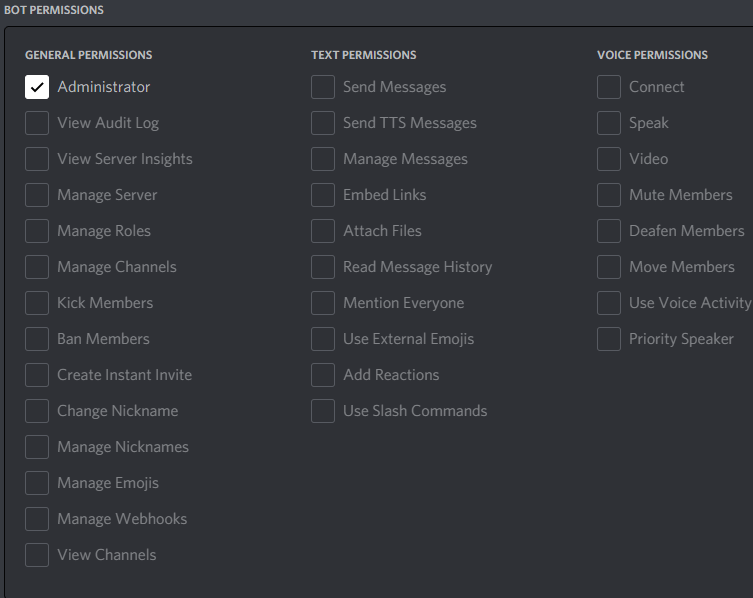
- View Channels
- Send Messages
- Read Message History
- Attach Files
- Create Public Threads and Send Messages in Threads (optional — only needed if you enable Start server discussions in threads in Alter)
4
Copy and open the generated URL
Copy the URL at the bottom, open it in your browser, choose your server, and authorize the bot.Discord documents this flow in Adding bots to servers.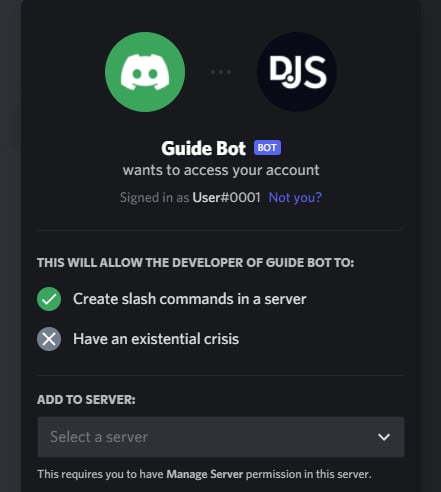
Step 5 — Optional: copy Server and user IDs
Use these if you want to restrict which server or users can talk to Alter.1
Enable Developer Mode in Discord
In the Discord client: User Settings → Advanced → Developer Mode → on.See Discord’s ID documentation.
2
Copy Server ID
Right-click your server icon → Copy Server ID. Paste this into Alter’s Server ID (optional) field to ignore messages from other servers.
3
Copy user IDs
Right-click a user → Copy User ID. Use comma-separated IDs in Allowed Discord user IDs to allow only those people.
Connect in Alter
1
Open Gateways settings
Open Settings (⌘,) → Integrations → Gateways. See the Gateways overview for other ways to open Settings.
2
Add a Discord gateway
Click Add gateway → Discord. Alter creates a new gateway entry in the list.
3
Fill in Connection fields
A Discord gateway setup guide link at the bottom of the Connection section opens this page in your browser.
4
Choose Default action and thread behavior
Ask Anything is the default and works on Discord out of the box. For a custom action, set Availability to Discord or All under Action Editor → Gateways.Under Behavior, Start server discussions in threads is on by default for new Discord gateways — each new top-level server message gets its own Discord thread and Alter chat. Messages already inside a thread continue that chat. Direct messages are unchanged. Turn it off if you prefer replies in the main channel. If you keep it on, grant Create Public Threads and Send Messages in Threads when inviting the bot (Step 4).
5
Enable and save
Turn Enabled on, then click Save and restart. Wait for a status such as Connected as bot … or Connected as @….
Test the bot
1
Confirm Alter is running
Gateways only work while Alter is open on your Mac.
2
Send /help
In a DM or server channel, send
/help (or use Discord’s /help slash command). The bot should list commands and show New chat, Choose action, and Past chats buttons.3
Send a message
Send a normal message (or
@mention the bot in a server if Require a mention in servers is enabled). Alter should react with 👀, show a Thinking… placeholder, then stream the answer and react with ✅ or ❌ when done.4
Check web search formatting
When the active action uses web search, Discord replies include clearly formatted source links instead of raw markup.
5
Try /new
Run
/new to start a fresh conversation with the Default action, or /new ask-anything to target a specific action ID.6
Try voice messages
Send a Discord voice message or attach an audio file. Alter transcribes it with your selected voice processor (Settings → Voice) and sends the text to the active action.