

Goal
Learn how to customize Alter to match your preferences, manage your account, configure AI models, and set up permissions for optimal productivity.Steps
1. Access Settings
There are three ways to open Settings: Option 1: Menu Bar Click the Alter icon in the menu bar and select Settings… from the dropdown menu. Option 2: Keyboard Shortcut Press ⌘ , (Command + Comma) to open Settings directly. Option 3: Notch Menu Click the three-dot menu icon (⋮) in the Alter notch and select Settings.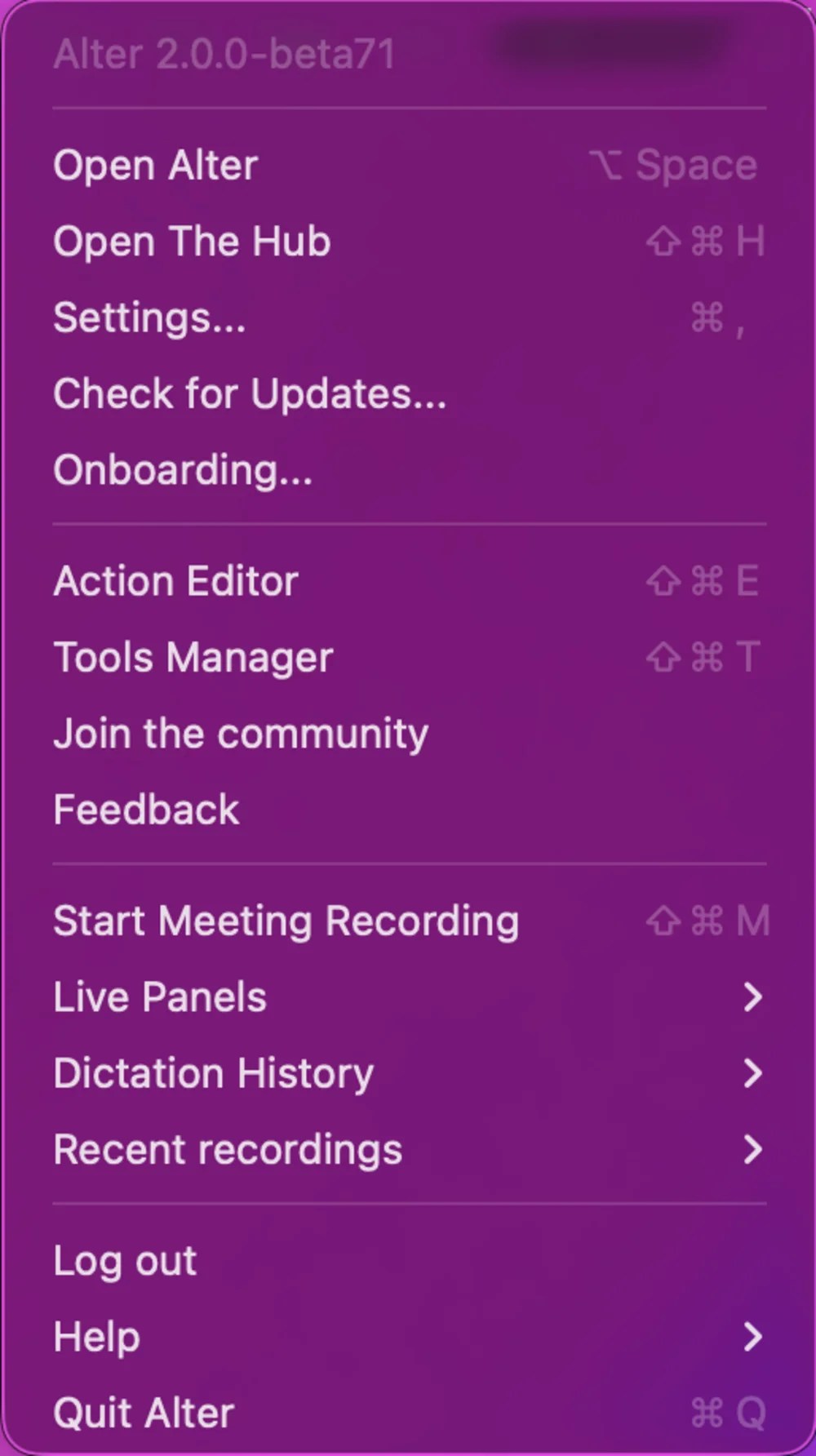
General Settings
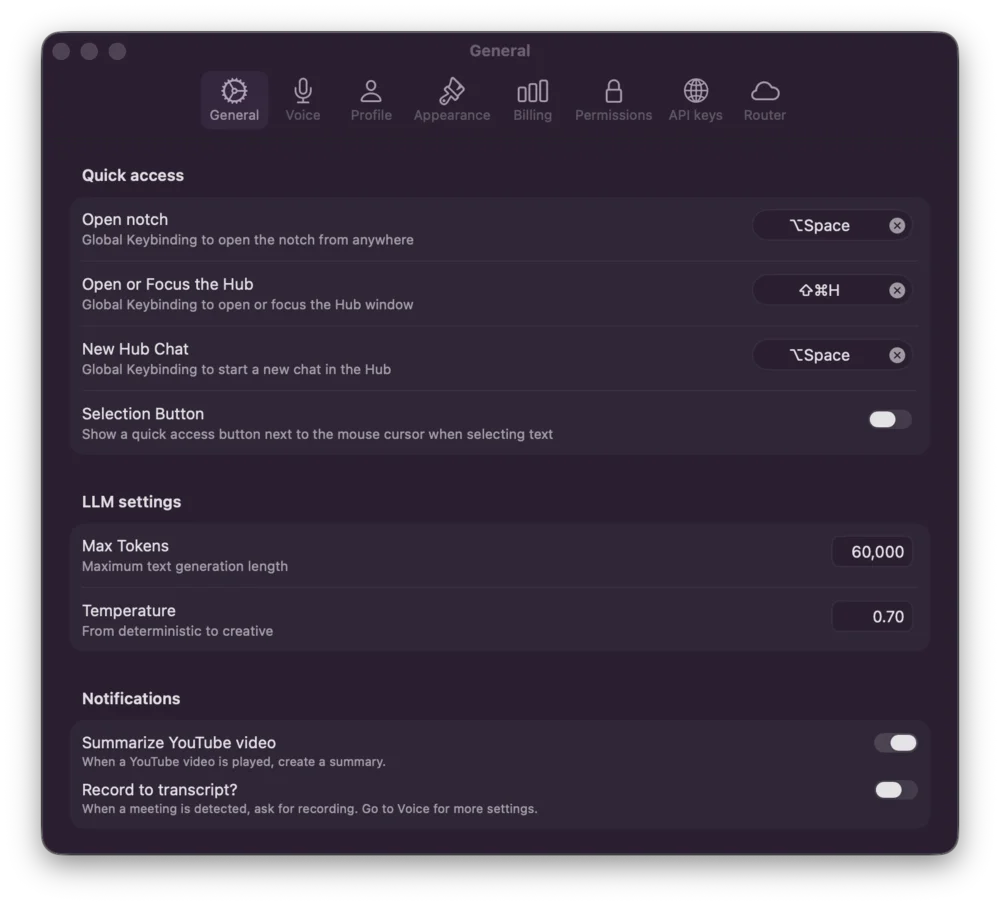
In the General tab, you configure QuickHub Mode, Edge Bar, selection assist, default model parameters, and notification rules.Quick access
- Selection Button — Show a quick access button next to the mouse cursor when selecting text
- QuickHub Mode — Use QuickHub for all conversations instead of the notch (default on for new users). When off, global shortcuts label Open notch instead of Open QuickHub. See QuickHub Mode.
Edge Bar
Edge Bar settings appear below QuickHub Mode and are disabled when QuickHub Mode is off.- Left edge / Right edge — Enable screen-edge launchers independently (default: right on, left off)
- All monitor edges — Use selected left/right edges on every monitor, including edges between displays. When off, only outer edges on multi-monitor setups are eligible
- Opening distance — Slider from 0% (stick to the edge) to 100% (default distance) in 25% steps
- Max Tokens: Set the maximum length of AI responses
- Temperature: Control response creativity and variation (0.0 = deterministic, 1.0 = creative; default: 0.70)
- Summarize YouTube video: Automatically create summaries when you visit YouTube videos
- Record to transcript: Automatically transcribe recordings to your notes (go to Notes settings for more options)
Memory Settings
Open Settings → Memory from the General section in the left sidebar. Use Memory- Master switch for recall, automatic learning, and the Memory tool
- Default: on
- Turning Memory off preserves existing saved entries on your Mac
- When off (default), facts you state directly in the current chat can save automatically after a turn
- Facts learned from tools or recalled history still require approval
- When on, every proposed save waits for your confirmation
2. Voice Settings
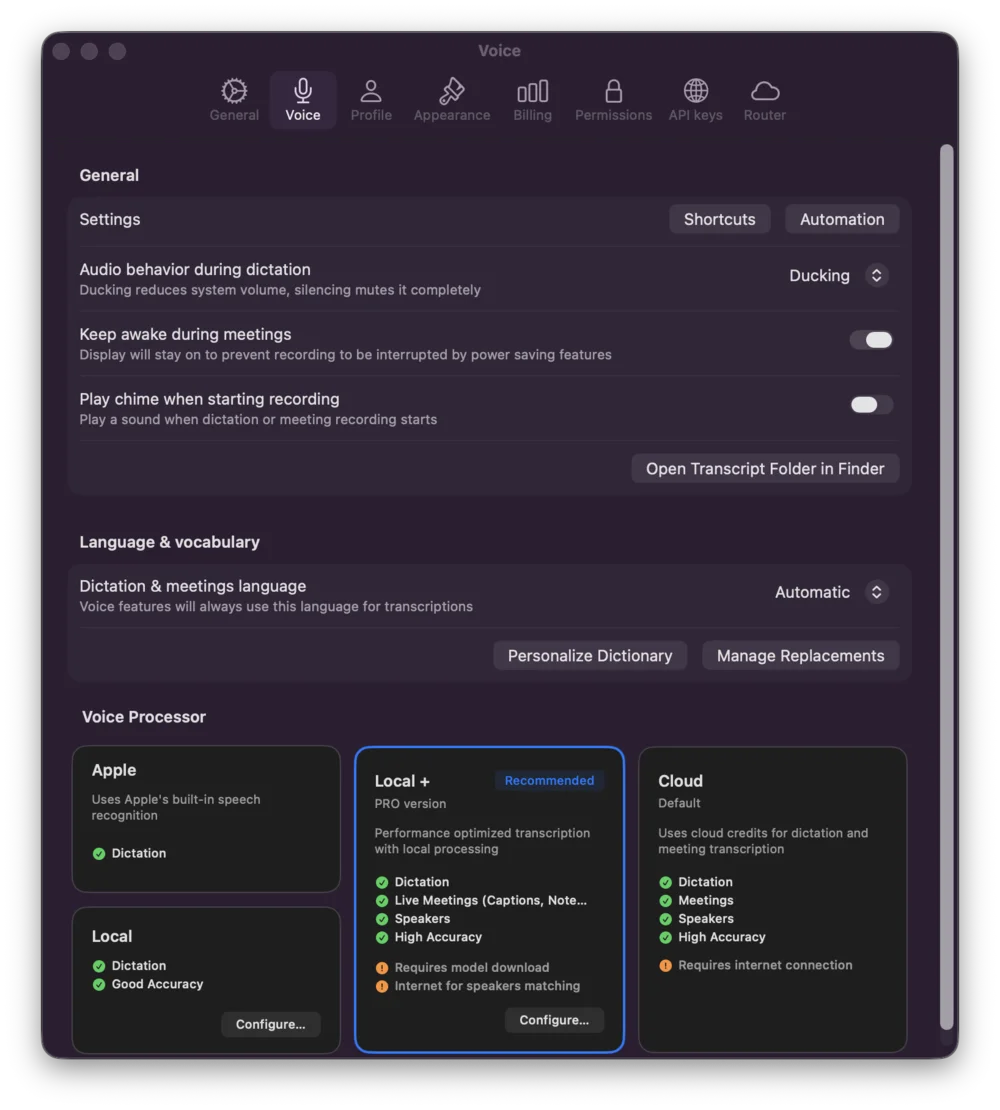
The Voice tab controls how Alter processes and responds to audio: General Configuration- Audio behavior during dictation: Control how system audio is handled while dictating. Options include ducking (reduce volume) or silencing audio completely to minimize interruptions
- Keep awake during meeting: Prevent your Mac from sleeping or entering power-saving mode during meeting recordings, ensuring uninterrupted transcription
- Play chime when starting recording: Receive an audio alert when you begin dictation or meeting recording
- Dictation language: Select your preferred language for voice input
- Personal Dictionary: Add custom terms and transcription replacements
- Manage Replacements: Edit frequently misrecognized words
- Apple: Built-in, optimized for privacy
- Local / Local Plus: Run on your Mac with downloaded Whisper or Parakeet models
- Cloud: Online transcription via Soniox V5 (beta96+); best accuracy for meetings when eligible
Voice Settings - Keyboard Shortcuts
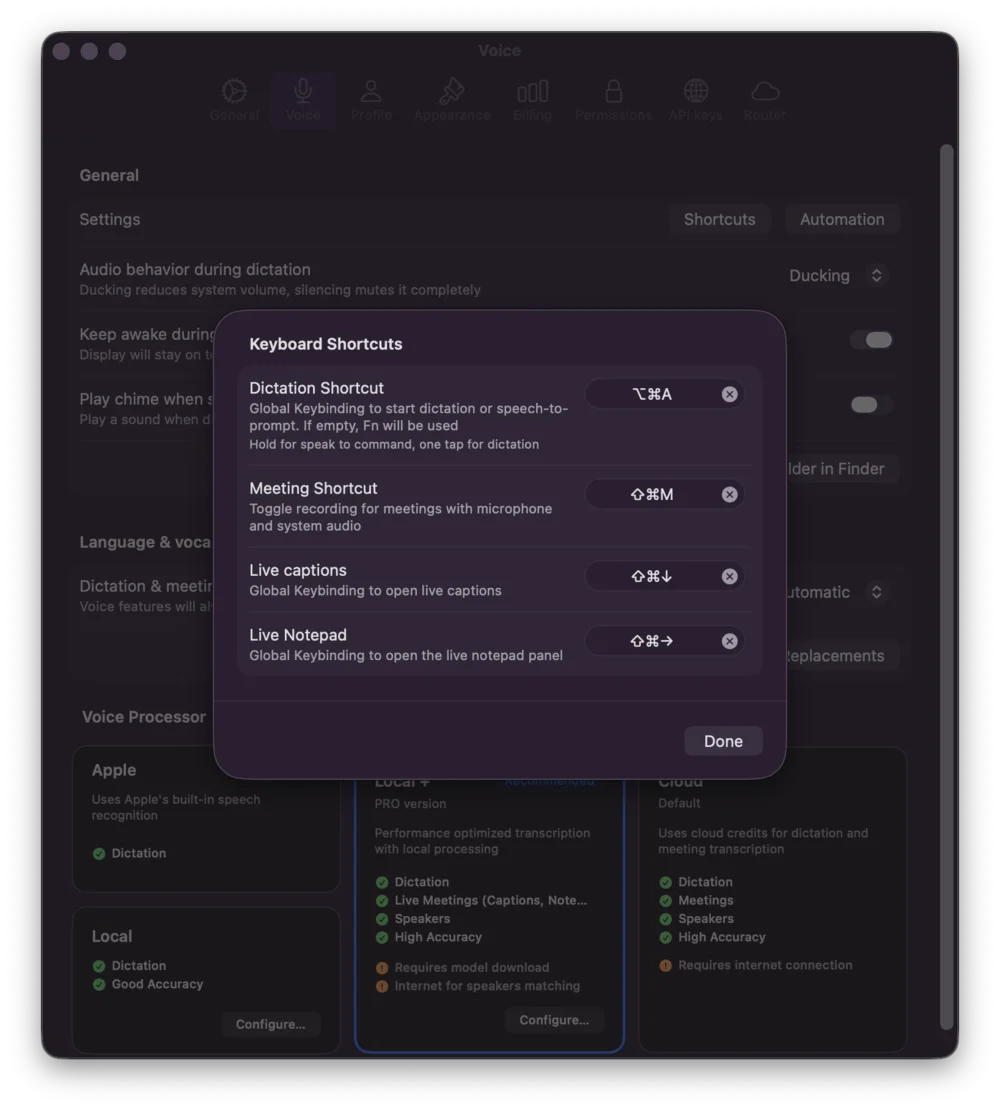
Configure keyboard shortcuts for quick voice access from anywhere:- Keyboard Shortcut : Start/stop voice input and speak commands. Customize the activation key for hands-free operation. Hold to speak to prompt, tap for dictation. Modifier-only shortcuts are supported — for example ⌘, left or right Control, or left or right Option alone.
- Meeting Shortcut : Quick access to meeting-specific voice commands
- Live Captions : Enable live transcription overlay while speaking
- Live Notepad : Open the live notepad panel to capture voice input directly into notes
Voice Settings - Automation
Configure automation for meetings and recordings:- Meeting apps: Select which apps to monitor for meetings
- Auto record meetings: Automatically start recording when a meeting is detected
- Find speakers names (experimental): Optional cloud layer that suggests real names from calendar events and Contacts when generic speaker labels remain after local diarization and saved-voice matching (beta93+). Saved voices themselves are stored locally — see Speaker identity.
- Calendars for speaker matching: Choose Apple calendars used to match events and suggest attendee names
- Contacts for speaker matching: Resolve attendee emails to display names
- Keep dictation in pasteboard: Retain voice input in clipboard
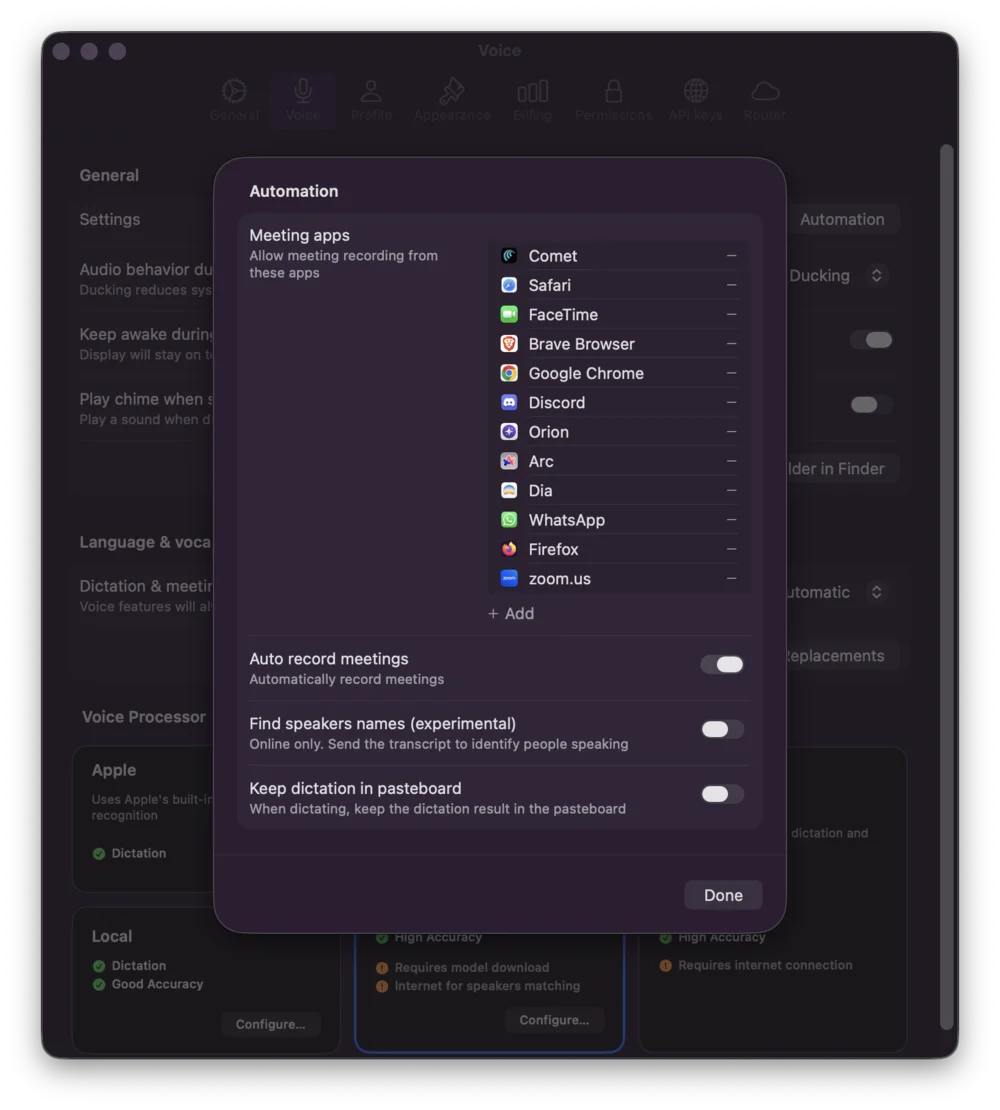
Voice Settings - Dictionary
Build a personal dictionary for accurate transcription:- Add words or phrases Alter frequently misrecognizes
- Create custom terminology for your field or workflow
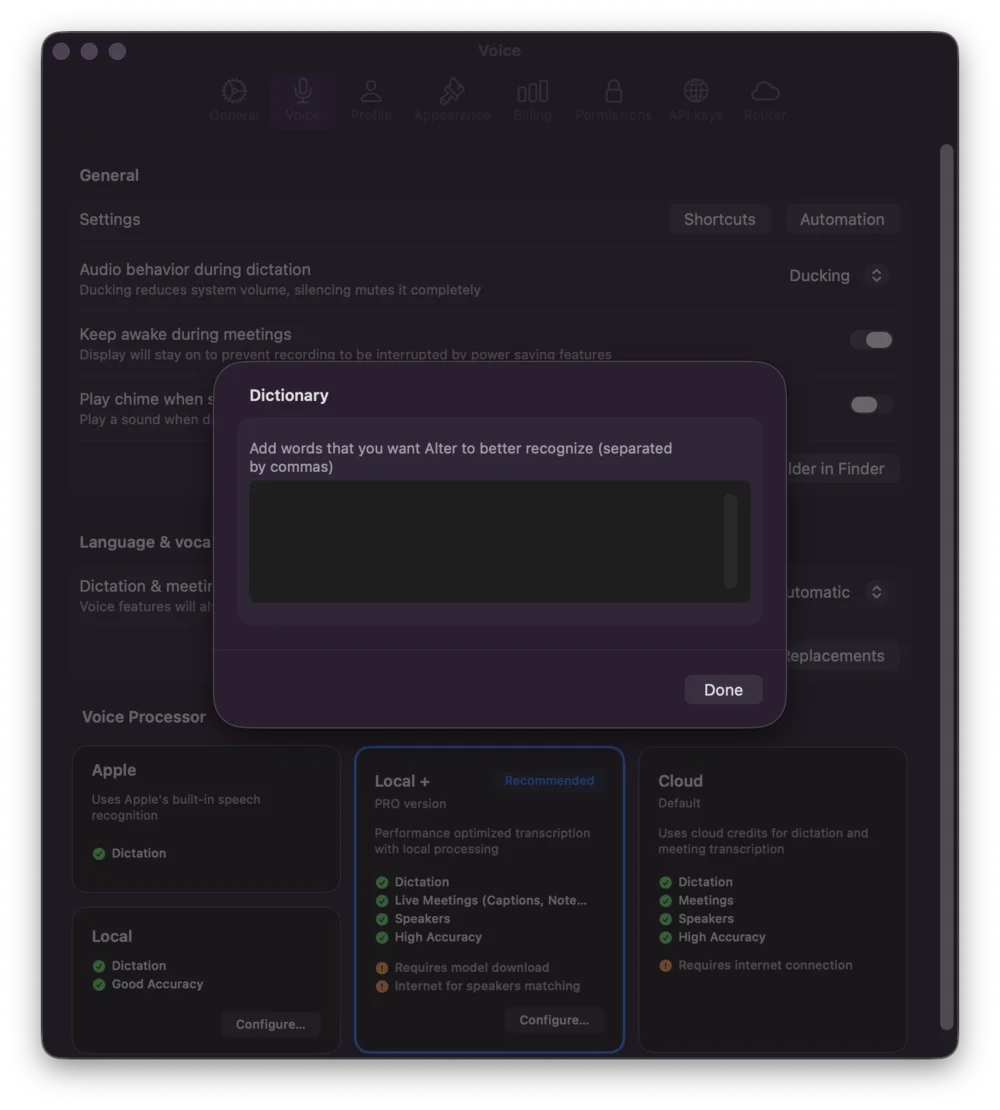
Voice Settings - Replacements
Set up word replacements for common transcription mistakes:- Map frequently misheard words to correct ones
- Example: “Alter” → “Alter” (if misheard as “Altar”)
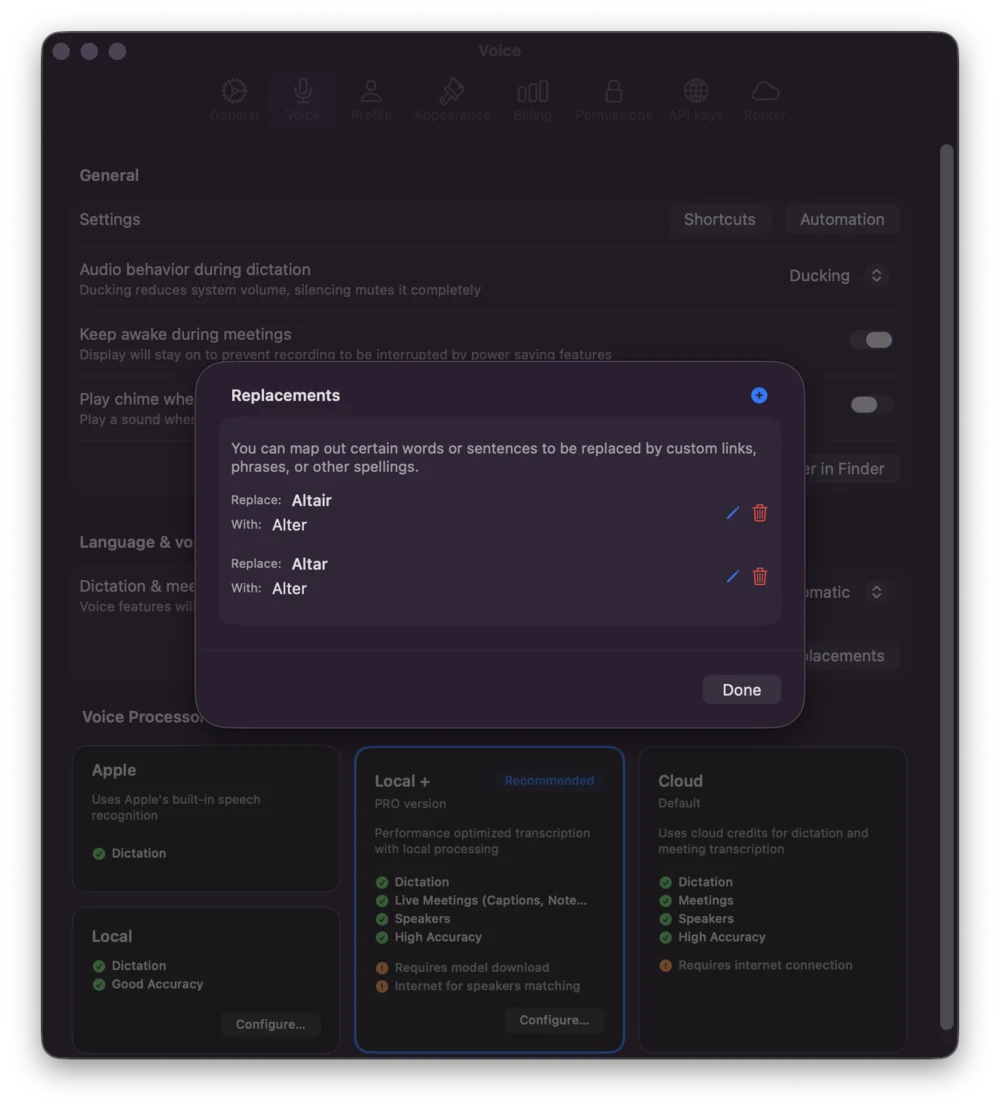
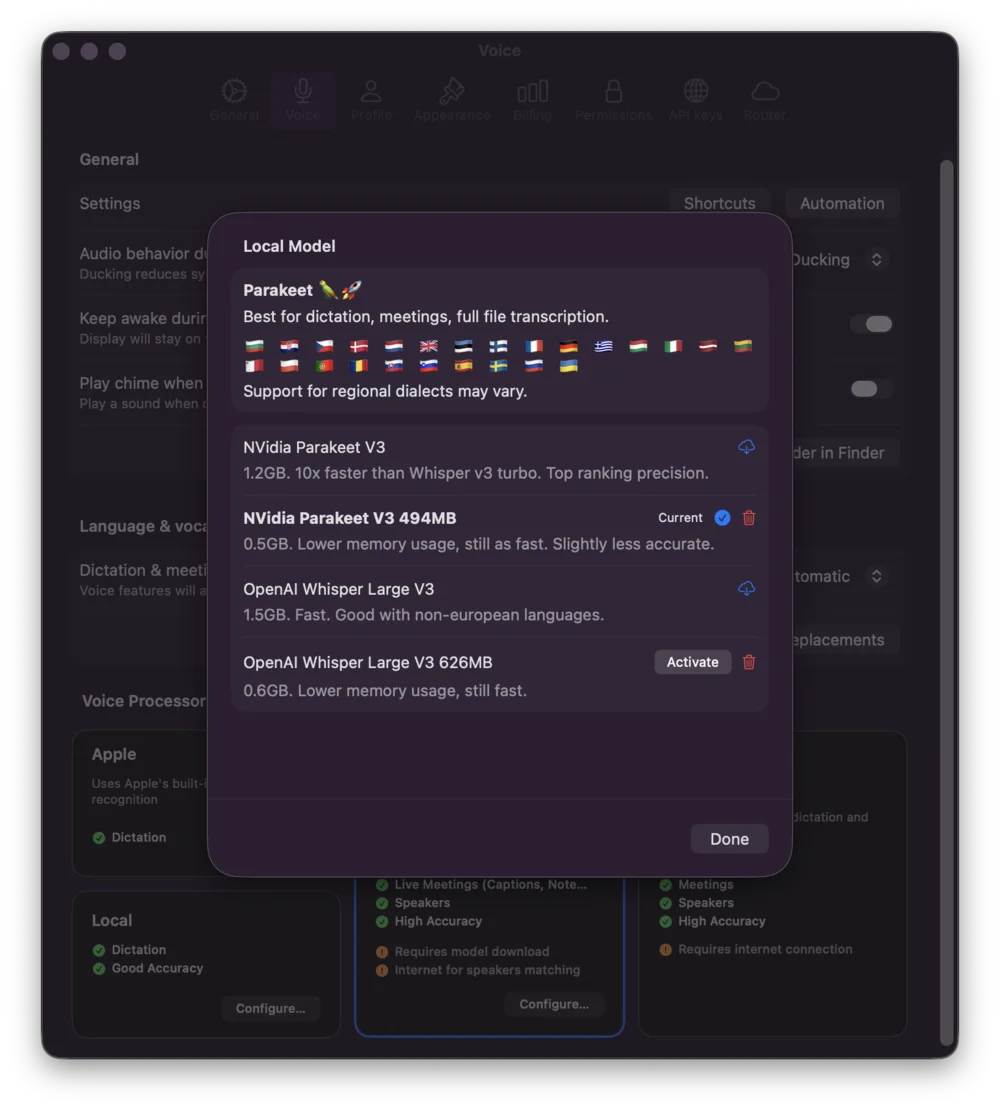
Voice Settings - Local Models
Choose from local voice processing models when using the Local processor: Why Local Processing?- Complete privacy: All audio processing happens on your Mac—no data is sent to cloud services
- Zero data sharing: Recordings, transcripts, and speaker identification stay entirely on your device
- GDPR compliant: Designed with data protection by design principles
- Always available: Works offline without internet dependency
- Whisper models for speech-to-text
- Multiple model sizes (Tiny, Base, Small, Medium, Large, etc.)
- Choose based on accuracy vs. performance trade-off
- Major languages: English, Spanish, French, German, Portuguese, Russian, Italian, Japanese, Korean, Chinese
- European languages: Dutch, Polish, Romanian, Swedish, Ukrainian, Greek, Czech, Hungarian, Slovak, Turkish, Danish, Norwegian, Finnish
- Other languages: Arabic, Hebrew, Hindi, Vietnamese, Thai, Indonesian, Tagalog, Bengali, Tamil, Marathi, Kannada, and many more
- Word-level timestamps automatically generated
- Speaker identification (who said what)
- Optimized to 626MB for Mac performance
- Best for global language coverage and accuracy
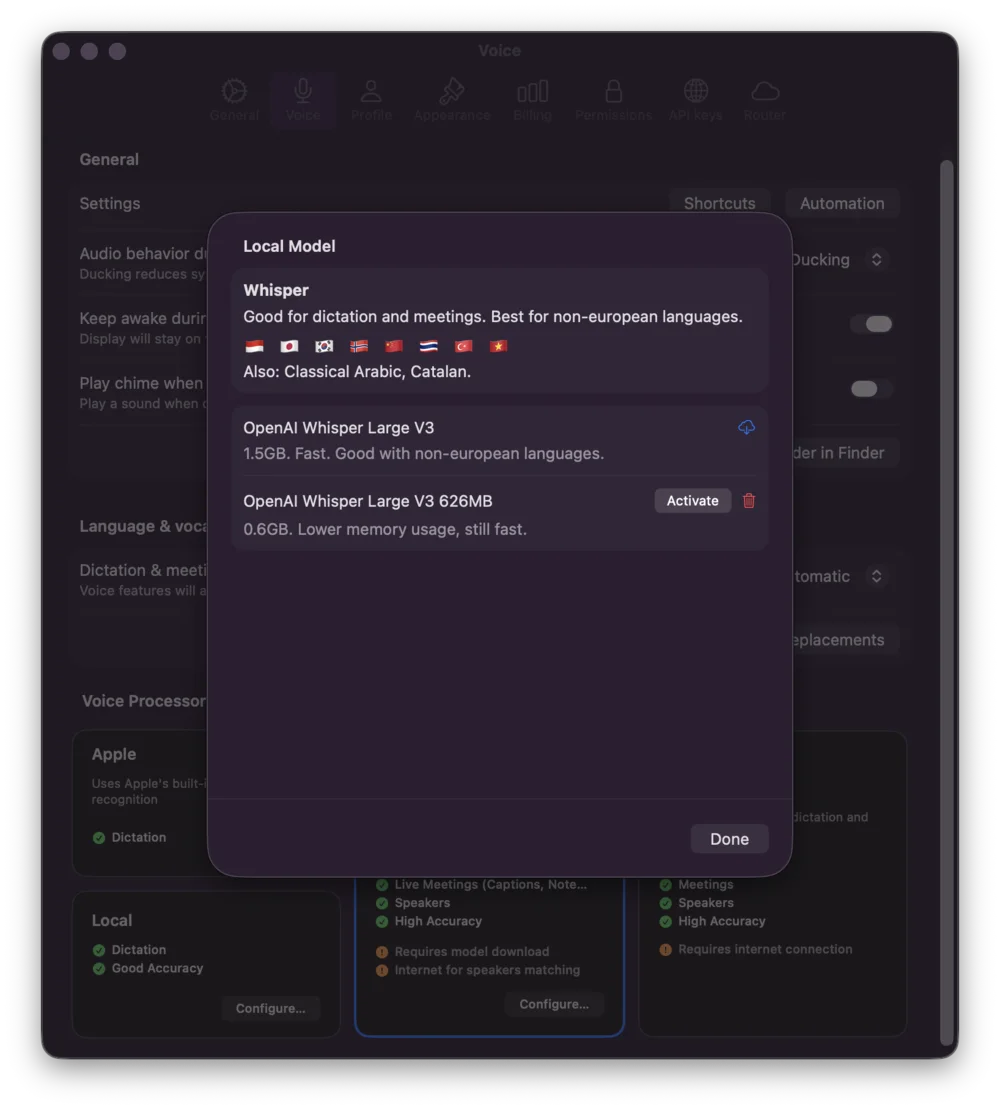
- Same broad language support as Local option
- Optimized for accuracy across diverse linguistic contexts
- Fast, lightweight speech-to-text engine by NVIDIA
- 10x faster than Whisper for meeting transcription on Mac
- Automatic language detection from audio
- Supports Bulgarian, Croatian, Czech, Danish, Dutch, English, Estonian, Finnish, French, German, Greek, Hungarian, Italian, Latvian, Lithuanian, Maltese, and 9+ other European languages
- Speaker diarization (identify different speakers)
- Optimized to 494MB for Mac performance
- Ideal for real-time meeting recording
- Best for European language workloads
- Parakeet: Faster processing, lower resource usage, ideal for meetings (25 European languages)
- Whisper: Broader language coverage, maximum accuracy (50+ global languages)
3. Profile Settings
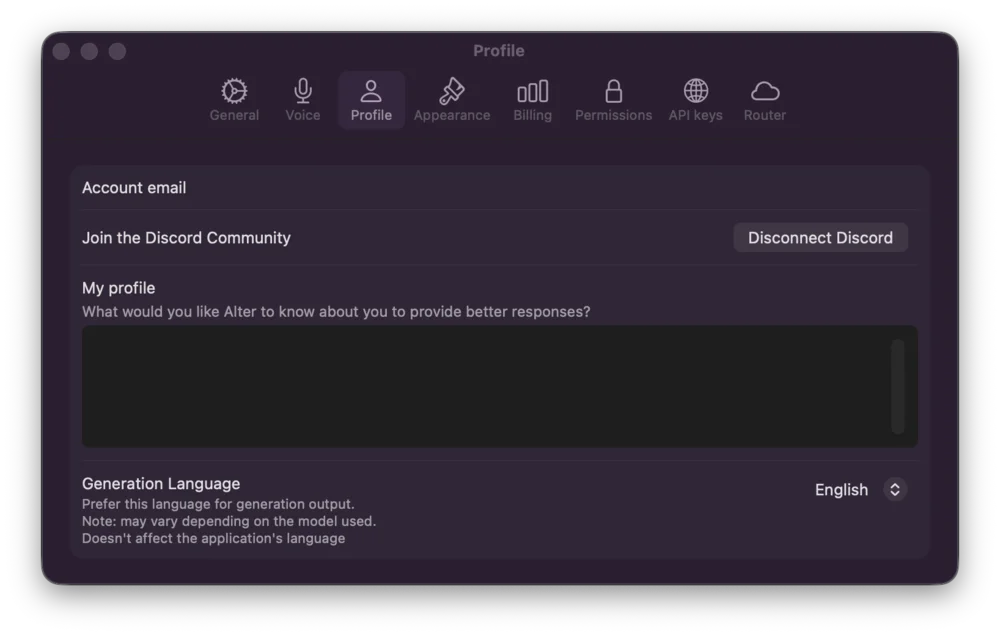
The Profile tab manages your identity and preferences: Account Email- View your current account email
- Used for billing and account recovery
- Connect or disconnect your Discord account
- Enables Discord-specific workflows
- Add a profile description (helps Alter provide better-tailored responses)
- Custom information Alter uses in conversations
- Set your preferred language for Alter’s responses (default: English)
- Note: This may vary depending on the model you’re using
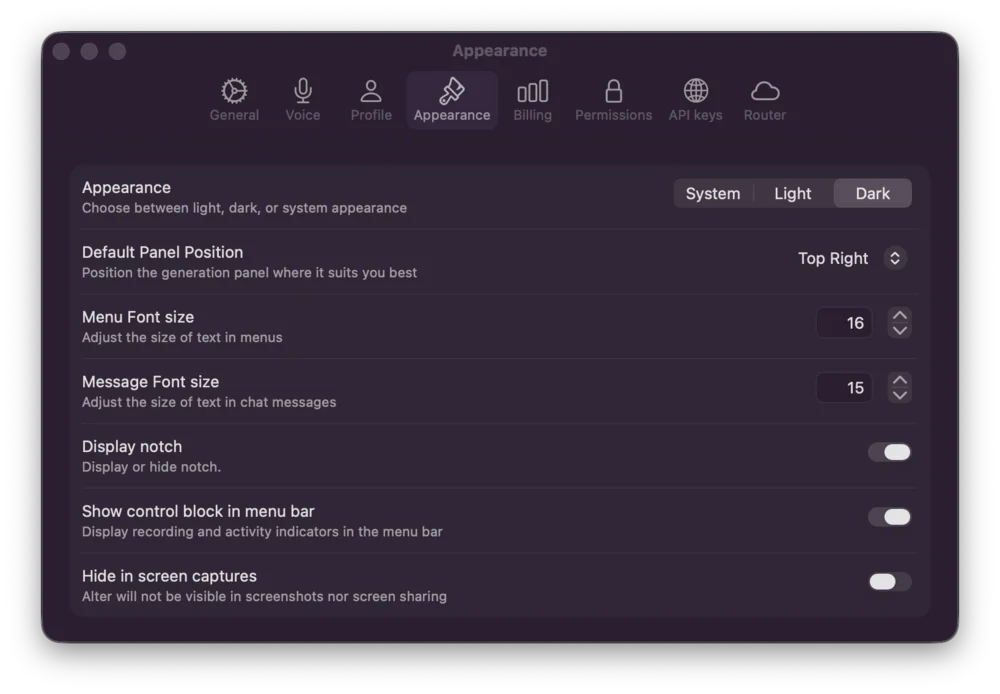
4. Appearance Settings
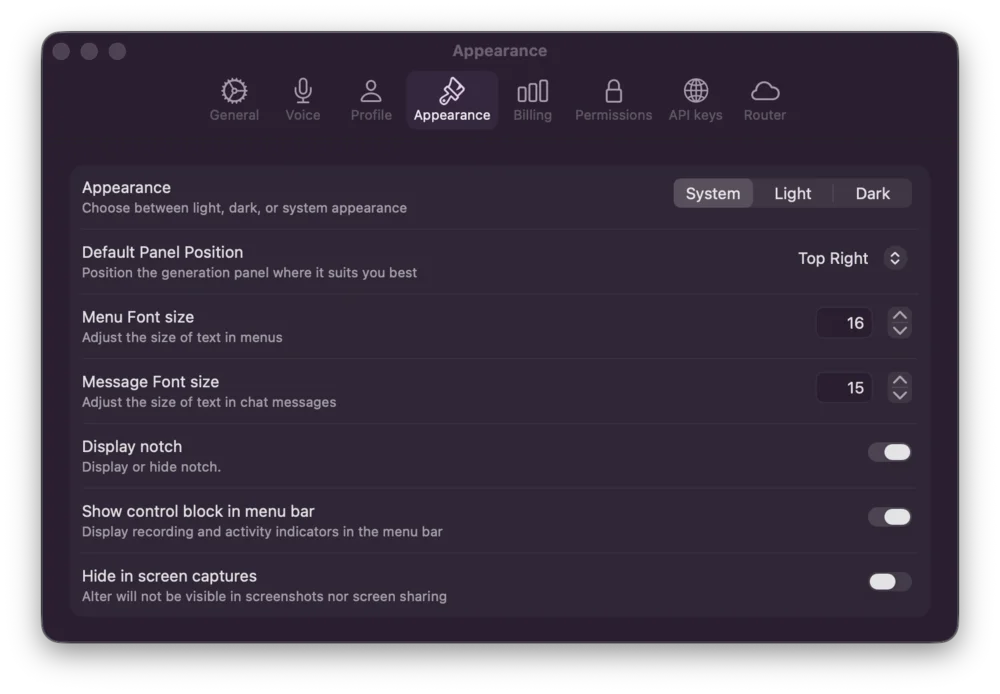
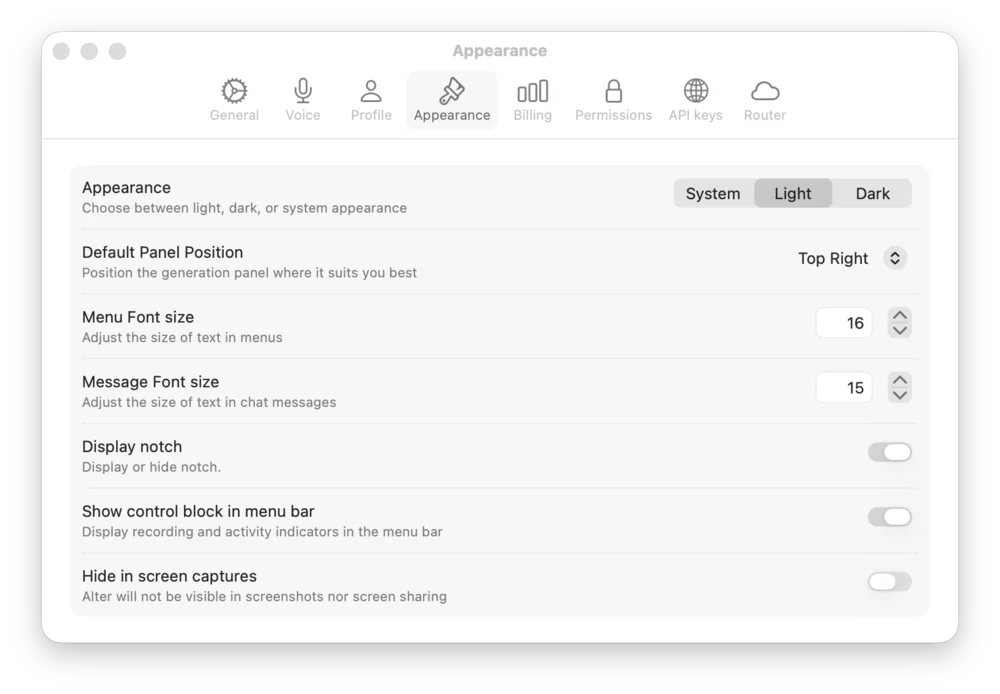
The Appearance tab controls the visual look and feel: Theme Options- System: Match your Mac’s system appearance
- Light: Force light theme
- Dark: Force dark theme
- Default Panel Position: Center, Top Left, Top Right, Bottom Left, Bottom Right, Top Center, or Last Position (Top Right is the default for new installs)
- Menu Font Size: Adjust text size for readability (default: 16)
- Message Font Size: Set chat message text size (default: 15)
- Display Notch: Show the status indicator
- Show control block in menu bar: Display indicator in Alter menu bar
- Hide in screen captures: Exclude Alter from screenshots and screen sharing
5. Billing Settings
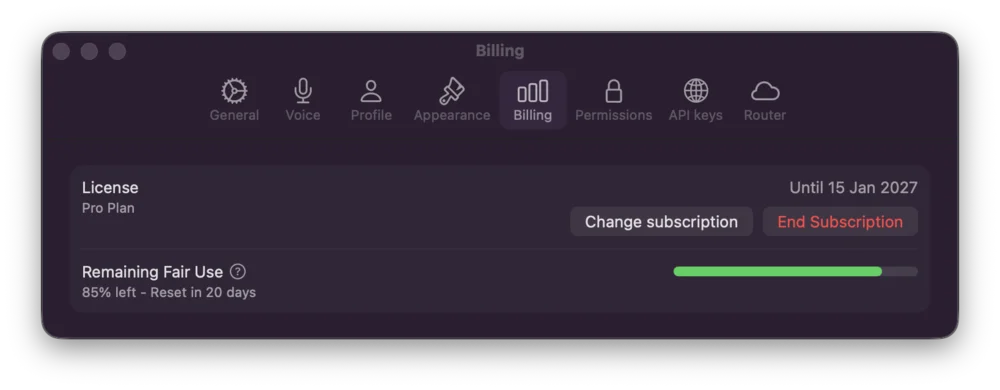
The Billing tab shows your subscription status: License Information- Your current plan (e.g., Pro Plan)
- Expiration date
- Change or End subscription options
- Visual indicator of your remaining fair use allocation
- Shows reset timeline (e.g., “Reset in 20 days”)
6. Permissions Settings
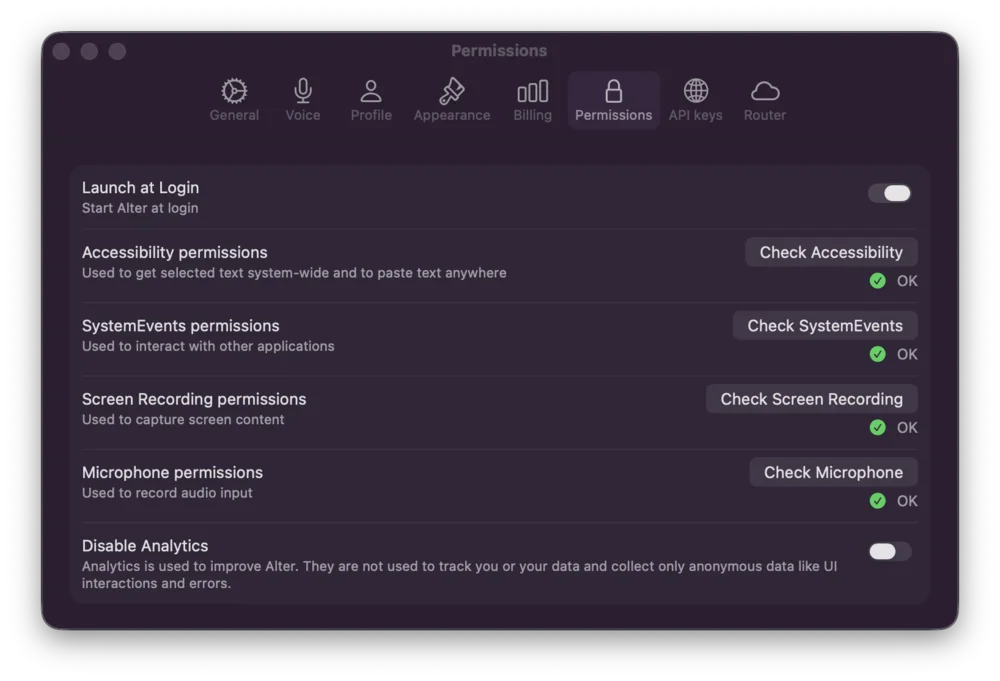
The Permissions tab manages system access and data collection preferences: System Permissions Each permission can be enabled with quick-access buttons:- Launch at Login: Start Alter automatically when your Mac starts
- Accessibility: Required for keyboard commands and window control (Check Accessibility)
- System Preferences: Allow access to system settings (Check System Preferences)
- Screen Recording: Capture screen content for analysis and context awareness (Check Screen Recording)
- Microphone: Enable voice input and dictation (Check Microphone)
- Disable Analytics: Control whether Alter collects anonymized usage data. When enabled, Alter only collects anonymous UI interaction and error data to improve the product—no personal data or content is tracked.
7. API Keys Settings
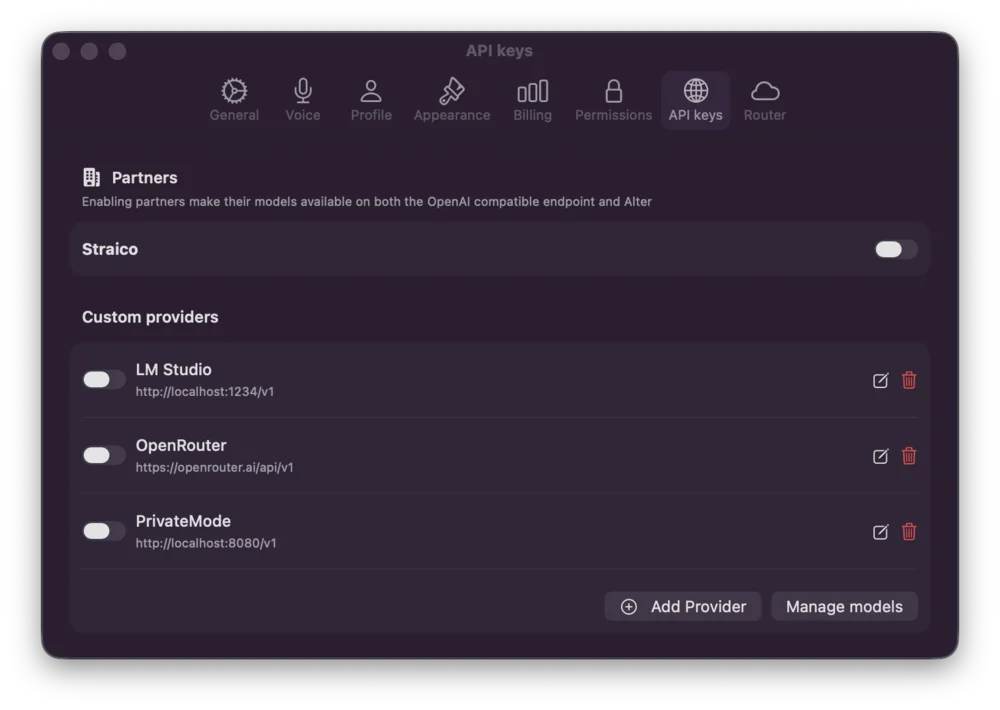
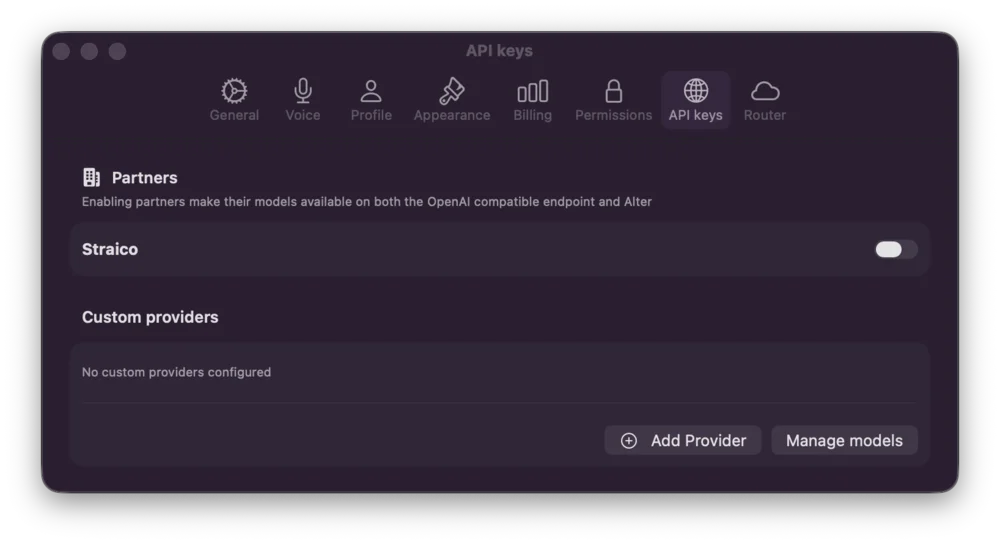
The API keys tab allows you to bring your own models: Partners- Integrate with partner services that provide OpenAI-compatible endpoints
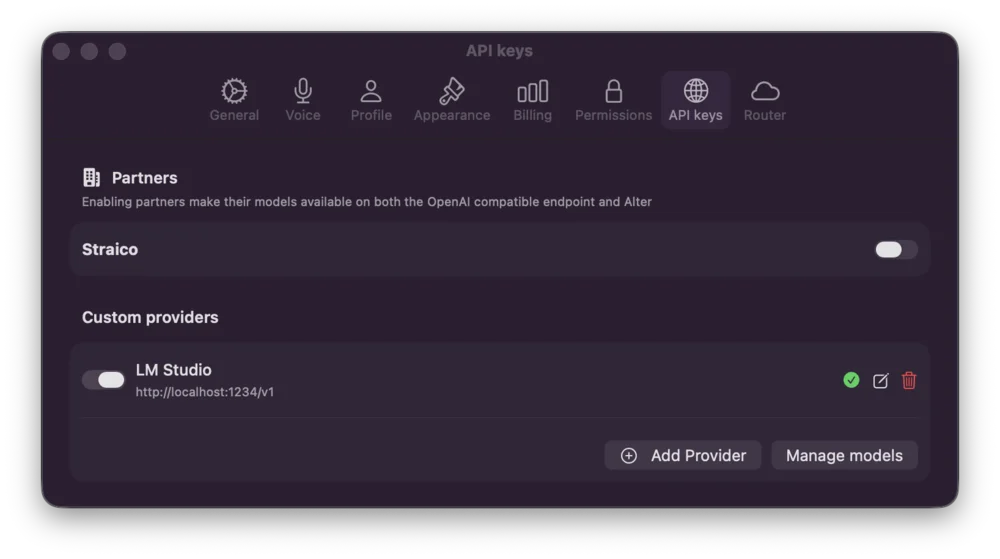
- Add Provider: Create new custom model endpoint
- Provider URL: Endpoint URL (e.g.,
http://localhost:1234/v1) - Manage Models: View and test available models from each provider
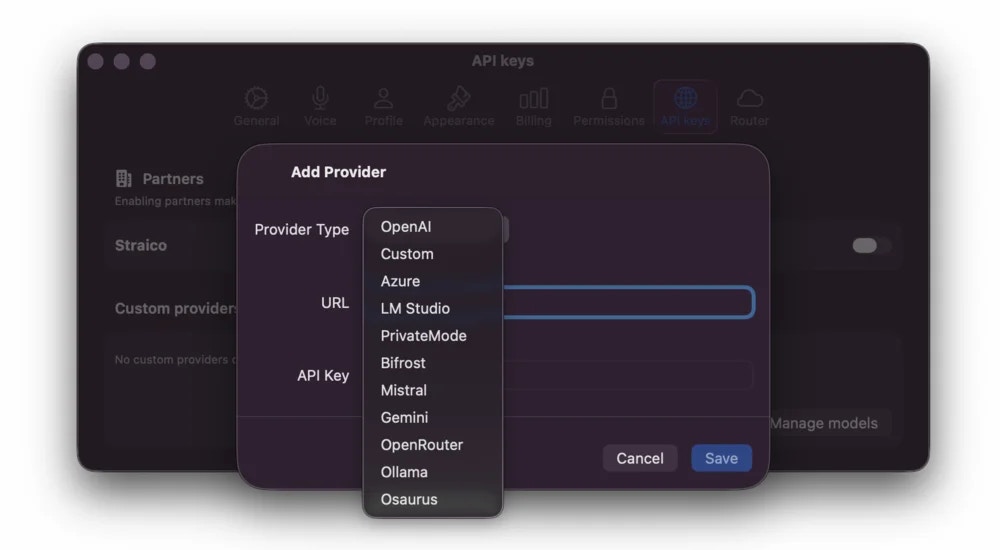
- OpenAI: OpenAI’s API (GPT models)
- Custom: Generic OpenAI-compatible endpoints
- Azure: Microsoft Azure OpenAI Service
- LM Studio: Local models via LM Studio
- PrivateMode: Local inference engines
- Bifrost: Bifrost API provider
- Mistral: Mistral AI models
- Gemini: Google Gemini API
- OpenRouter: Multi-model router service
- Ollama: Local LLM framework
- Osaurus: Osaurus provider
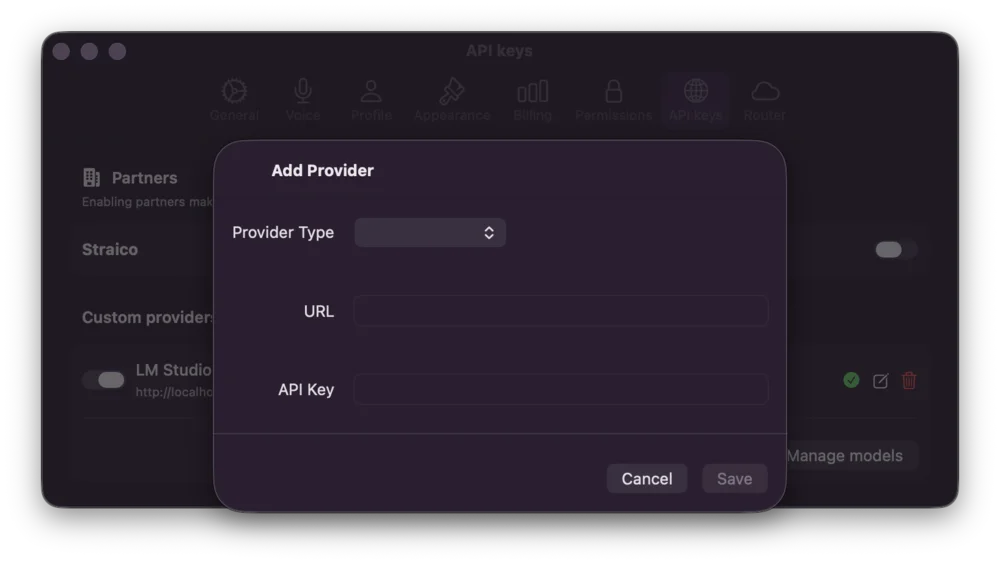
- Click “Add Provider” button
- Select Provider Type from the dropdown
- Enter the API endpoint URL
- Provide your API Key
- Click “Save” to configure
8. Router Settings
The Router tab configures the default AI endpoint: OpenAI Compatible Endpoint- Default endpoint for powering Alter models
- Link: https://alterhq.com/api
- Generate and manage your personal API keys
- Use for integrations and third-party tools
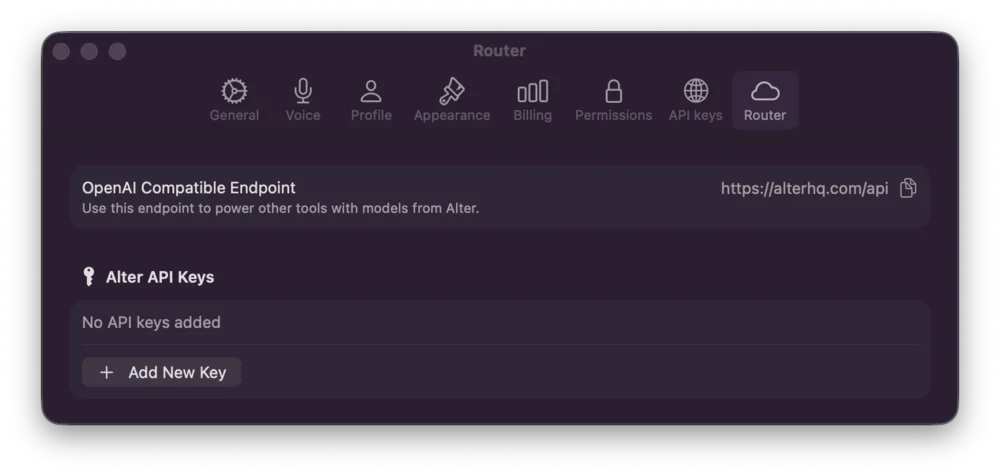
9. Gateways Settings
The Gateways tab (under Integrations in the settings sidebar, alongside API keys and Router) connects Alter to Discord and Telegram bots. Internal builds also support Buzz. Open Settings (⌘,) → Integrations → Gateways. Full setup walkthroughs:- Gateways overview
- Set up a Buzz gateway (internal)
- Set up a Discord gateway
- Set up a Telegram gateway
- Add gateway — Create a Discord or Telegram connection. Internal builds also offer Buzz.
- Each row shows the gateway Name, platform, and an enabled/disabled indicator.
- Toggle — When on (default), Alter keeps active gateway bots connected while the MacBook lid is closed. Normal sleep returns when the last gateway stops.
- Allow… — One-time administrator permission to change a protected macOS sleep setting (
pmset disablesleep). Required the first time lid-closed availability activates while a gateway is running. - Options… — Opens Lid-closed availability:
- Gateway availability status (for example Keeping this Mac awake, Paused for low battery)
- Pause below — Battery floor while unplugged (default 20%, range 5–50%). Alter restores normal sleep at or below this level and re-enables after charging above it.
- Pause in Low Power Mode — Always on; honors the system power-saving preference.
- Remove administrator permission… — Revokes the installed permission. Turning the main toggle off does not remove permission.
Bot tokens are stored in the macOS Keychain. After Save and restart, the status line shows whether the bot connected (for example Connected as @username).
10. Computer use Settings
The Computer use tab configures how Alter’s UI automation agent drives apps, browsers, and the floating live preview introduced in 2.0.0-beta100. Open Settings (⌘,) and select Computer use in the sidebar — it appears under the API section with the cursor-rays icon, alongside API keys and Router. The tab is organized into three sections that match the app UI exactly: Browser, Preview, and Blocked apps.Browser
Give Computer Use its own browser so agent-driven pages stay separate from your daily browsing. Agent browser — The browser the computer-use agent drives- macOS default —
open_urlsinside Computer Use uses your system default browser (out-of-the-box behavior) - Dedicated browser — Pick an installed browser (Chrome, Safari, Arc, etc.). During a Computer Use run, pages the agent opens go into this browser only. Links you open yourself, and
open_urlsoutside Computer Use, still use your macOS default.
- When enabled, Alter closes tabs the agent opened after the last Computer Use session ends
- For browsers that cannot close individual tabs (for example Firefox), the agent browser is quit instead — but only if the agent launched it, never a browser you already had open
- Requires a dedicated Agent browser (disabled when macOS default is selected)
Preview
The floating preview shows a live picture-in-picture of the window Computer Use is controlling. Show preview automatically — Reveal the floating preview when a computer-use task starts- On (default): preview opens when a task starts
- Off: runs still happen in the background; open the preview anytime via Watch preview in the Tool Inspector on the running task
The preview keeps a fixed aspect ratio; you can hide it with the on-window Hide control without stopping the run.
Blocked apps
Computer Use refuses to open, read, or control apps on this list. Password managers and other sensitive apps are blocked by default:- Keychain Access
- Bitwarden
- Passwords (macOS)
- 1Password / 1Password 7
.app bundles from /Applications to block
Restore defaults — Reset the list to Alter’s built-in sensitive-app defaults
Remove an app with the minus button on its row. If a goal targets a blocked app, the agent reports the block and stops trying — adjust the list only when you intentionally want Computer Use to control that app.
When no apps are blocked, the section shows No apps are blocked. in secondary text.
Permissions reminder
Computer Use requires Accessibility (to read AX trees and send clicks) and Screen Recording (for the live preview andcomputer_use_screenshot). Grant both under Settings → Permissions before your first run. If something still fails, open Settings → Doctor for a consolidated permission report.
11. Shortcuts Settings
The Shortcuts tab is a searchable editor for every Alter keyboard shortcut. Open Settings → Shortcuts (under the General section in the sidebar).Search and navigation
- Search shortcuts — Filter by action name, description, category, or key combination
- ⌘F — Focus search while the Shortcuts tab is frontmost
- Esc — Clear the search field when search is focused
Global
System-wide shortcuts that work from any app (subject to macOS permissions):Open QuickHub and Attach
Open QuickHub and Attach has two extra pickers beside the shortcut recorder:- Attach behavior — Attach Left or Attach Right (default Attach Right)
- Shortcut — Double-tap trigger: Double tap ⌘ (default), Double tap ⌥, Double tap ⌃, Double tap ⇧, or None
Hub & QuickHub
Shared shortcuts that apply to whichever conversation surface is active:QuickHub
Attach and navigation shortcuts specific to the floating QuickHub panel:Hub
Hub-window shortcuts including workspace and export actions:Windows
Open Alter’s auxiliary windows:Conversation
Input and scroll behavior inside QuickHub and Hub conversations:Tools
The Tools section lists read-only shortcuts for configured quick-action tools. To edit them, click Open Quick Actions — Alter opens Tools Manager to the Quick Actions section (⌘⇧T oralter://toolsManager?section=quickActions).
Conflicts and reset
macOS and other apps may claim the same key combinations. If a shortcut does not fire:- Check System Settings → Keyboard → Keyboard Shortcuts for conflicts
- Pick an unused combination in Alter’s recorder
- Click the ↺ reset button to restore Alter’s default for that row
12. Marketplace Settings
The Marketplace tab (under Account in the settings sidebar) controls your public Alter Marketplace profile and notification preferences. What you save here can appear on agent listings and community pages; local-only Alter settings are unaffected.Public Profile
- Display Name — Username shown on your public profile
- Bio — Up to 160 characters; a live counter shows
count/160 - Avatar — Click the camera badge to pick an image; Remove clears the current avatar
- Save Profile — Uploads changes (disabled until you edit something)
Social Links
Optional URLs displayed on your marketplace profile:- Website
- GitHub
- Twitter / X
- Discord
- YouTube
Notifications
- Comment notifications — Get notified when someone comments on your agents or replies to you.
13. Doctor Settings
Doctor (under System in the settings sidebar) runs a health and permission diagnostic across Alter. Use it when tools fail mysteriously, voice processing misbehaves, or you need a redacted report for support. Doctor runs automatically when you open the tab, then shows a summary and detailed sections.Summary header
- Alter Doctor title with last checked time
- Overall status pill: OK, Warning, Failed, or Idle
- Count pills: OK, Idle, Warn, Fail
Refresh and Copy Report
- Refresh — Re-run all checks (shows a progress indicator while running)
- Copy Report — Copy a redacted plain-text report to the clipboard (home directory paths shortened to
~; JWT/token-like strings replaced). Button briefly shows Copied
Diagnostic sections
Environment- macOS — Operating system version string
- Architecture —
arm64orx86_64
- Version — Short version, build number, and configuration (Debug/Release)
- Application Support — Whether Alter’s support directory exists
- Accessibility — Required for selection read and app control. Links to Settings → Permissions when not granted
- Screen Recording — Required for meeting/screen context and Computer Use preview
- Microphone — Required for dictation and meeting audio
- Automation — System Events access for AppleScript-style automation. Starts as Idle until you click Check Automation; Alter prompts for permission and refreshes the report
- Configured gateways — Idle when no gateways exist
- Per gateway: connection status (connected, connecting, reconnecting, failed, or disabled) with a shortcut to Settings → Integrations → Gateways
- Per gateway: access — Warning when an enabled gateway has no allowlist; OK when access is limited to configured IDs
- Selected processor — Current speech engine (Apple, cloud, Whisper, etc.) with link to Settings → Voice
- Plan access — Whether your subscription supports the selected processor
- Local model / Local model runtime (Apple Silicon + Whisper only) — Download and load status
- Activated tools — Count with Open the Tools Manager shortcut to the Active Tools section
- MCP configuration — Connected apps and remote MCP servers
- MCP clients — Per-server runtime status (running, stopped, error)
- Conversations / Transcripts — Indexed record counts; Warning while re-indexing
- Notes — Whether Apple Notes tools are active
Section actions
Some sections include footer buttons:- Open Permissions, Open Voice, Open Billing — Jump to the relevant settings tab
- Open the Tools Manager — Deep-link to MCP or active tools sections
- Check Automation — Trigger System Events permission check (Permissions section)