

Alter Actions are customizable AI workflows that let you create specialized assistants for specific tasks. Combine AI instructions, voice triggers, tools, and conditional execution to automate anything on your Mac.
What is an Alter Action?
An Alter Action is an advanced automation that combines:- AI Instructions - System prompts defining how the AI behaves
- Triggers - Voice commands, hotkeys, or conditional execution
- Context - Access to selected text, files, active applications
- Tools - Configured integrations with your Mac and 2000+ external services
- Output - How results are displayed (markdown, code, inline insertion)
Opening My Actions
Alter now manages actions inside Tools & Actions. The My Actions section combines a searchable action list, inline controls, and an editor chat that can create or change actions for you.Method 1: Keyboard shortcut (fastest)
Press ⌘⇧E (Command + Shift + E). Alter opens Tools & Actions directly on My Actions.Method 2: Window menu
- Open any Alter window (Hub, QuickHub, or Tools & Actions)
- Choose Window → My Actions
Method 3: Tools & Actions sidebar
- Press ⌘⇧T (Command + Shift + T) to open Tools & Actions
- Select My Actions in the sidebar
My Actions and action documents require sign-in. If you are logged out, Alter shows a login overlay instead of the editor.
My Actions layout
When My Actions is selected, the window has three working areas: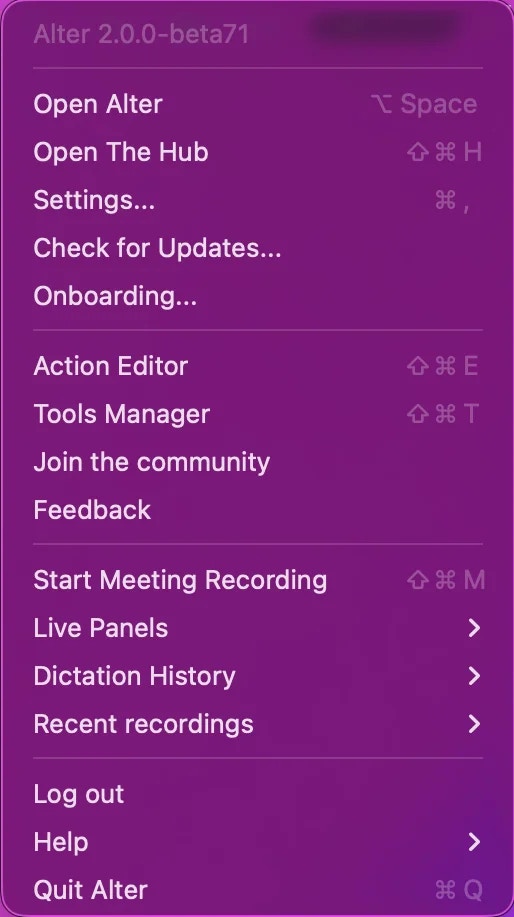
Action list
Actions are grouped into folders (categories). You can:- Search with ⌘F — matches action names and indexed resource properties (tools, gateways, Quick Actions, and similar linked resources)
- Filter with the filter icon — narrow by background jobs, schedules, warnings, modified actions, published listings, disabled actions, or specific folders
- Collapse or expand folders, rename folders, and drag actions between folders
- Select multiple actions for batch export, move, enable/disable, or delete
- Create a folder from the toolbar, then add actions by drag-and-drop or from the row context menu
- Icon and name — double-click a name (or press Return with one row selected) to open the action document
- Voice trigger indicator when voice phrases are configured
- Modified by you badge when you customized a built-in action
- Background job indicator
- Marketplace indicator when the action came from a listing
- Warnings indicator when diagnostics find a configuration issue
Inline row controls
Without opening the full document, each row exposes three controls on the right:
Hover a row to reveal the shortcut control when no shortcut is set yet.
Row context menu
Right-click one or more actions to Run, Edit, Rename, set a keyboard shortcut, Move To a folder, Enable / Disable, Duplicate, Export, Publish to Marketplace, or Delete / Reset. Edit opens the action in a separate action document window for field-by-field editing.Editor chat
The right column is a dedicated chat for managing actions. It uses Alter’s fast model with a fixed set of management tools, so you can describe what you want instead of clicking through every tab.What you can do in chat
Ask Alter to:- Create a new action from a description (“Make a daily standup summary action that runs at 9 AM”)
- Edit the selected action’s prompts, parameters, visibility, model, tools, schedules, or gateways
- Enable or scope tools globally or for one action
- Configure Quick Actions — Alter opens reviewed forms for webhooks, AppleScript/JXA, shortcuts, and similar setup
- Connect Connected Applications and MCP servers through native approval sheets
- Install or enable Skills
- Diagnose warnings on one action or scan your whole library
- Find actions by name, description, or linked resources (“Which actions use the Discord gateway?”)
- Copy callback URLs for automation
Approvals and sensitive setup
Destructive or privileged changes require your confirmation in native sheets or alerts — for example deleting actions, resetting built-in overrides, connecting OAuth apps, configuring MCP servers, installing tools, or saving Quick Action webhooks and scripts. Alter explains dependency blockers when deletion fails (for example an action still linked from a Quick Action or workspace) and tells you what to unlink first.Profile context for suggestions
The editor chat includes your profile information when generating tailored suggestions — for example recommending tools or wording that match how you work. Turn this off per action under General → Include Profile in the action document if you prefer not to send profile context for that workflow.Action document
For precise control, open an action document — a dedicated window with section tabs on the left and fields on the right. Use it when you want to edit prompts directly, tune parameters, or review every toggle. Open a document:- Double-click an action name in the list
- Select one action and press Return
- Right-click → Edit
- From another Alter window, use Edit in Action Editor when offered for the current action
1. General
Configure basic metadata, availability, and execution context.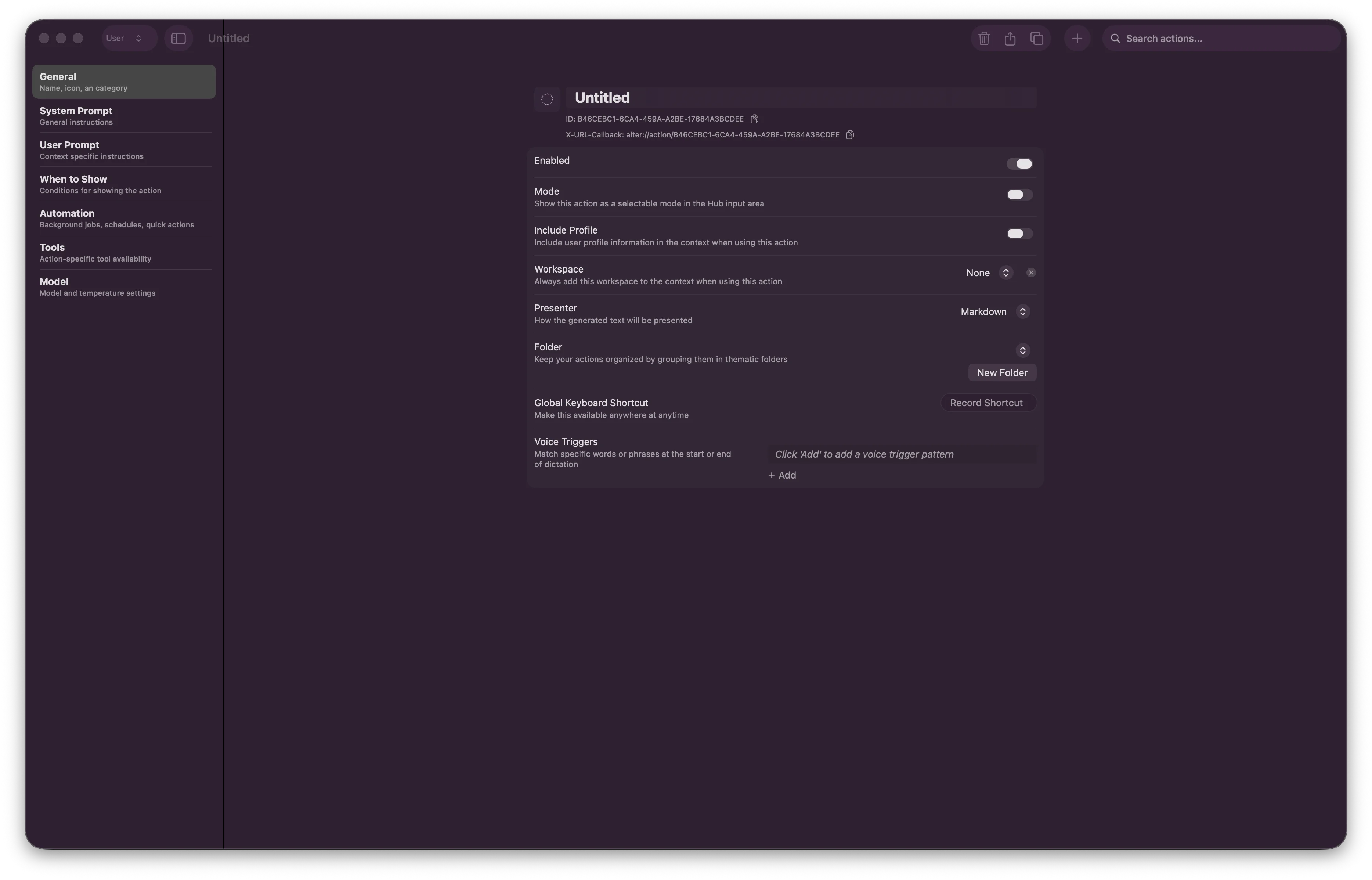
- Enabled — Turn the action on or off
- Mode — Show this action as a selectable mode in the Hub input area
- Include Profile — Include user profile information in AI context
- Save to History — Keep conversations from this action in History so you can reopen and search them later
- Name, Description, Category, Icon
- Workspace — Always add a workspace to context when this action runs
- Global Keyboard Shortcut — Trigger this action from anywhere on your Mac
- Voice Triggers — Phrases that run this action during dictation
- Show only when running — Action appears only if a chosen app is running
- Show only when active — Action appears only if a chosen app has focus
- Workspace context — Limit which workspace(s) see this action
Each action gets a unique UUID automatically. Built-in actions are read-only until you duplicate them or save an override.
2. System Prompt
Define AI instructions and parameters for the model.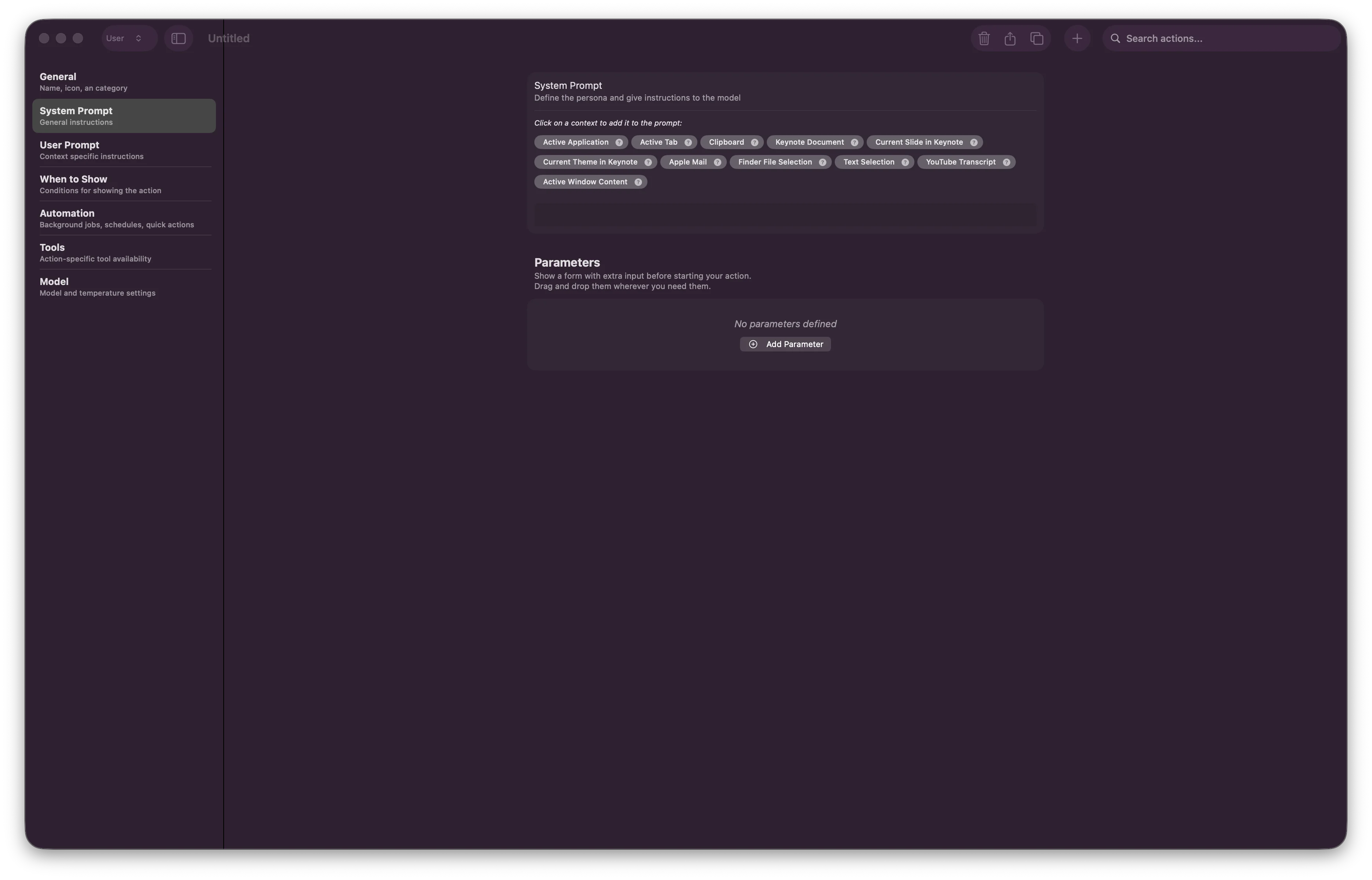
3. User Prompt
Template for the user-facing prompt that gets sent to the AI.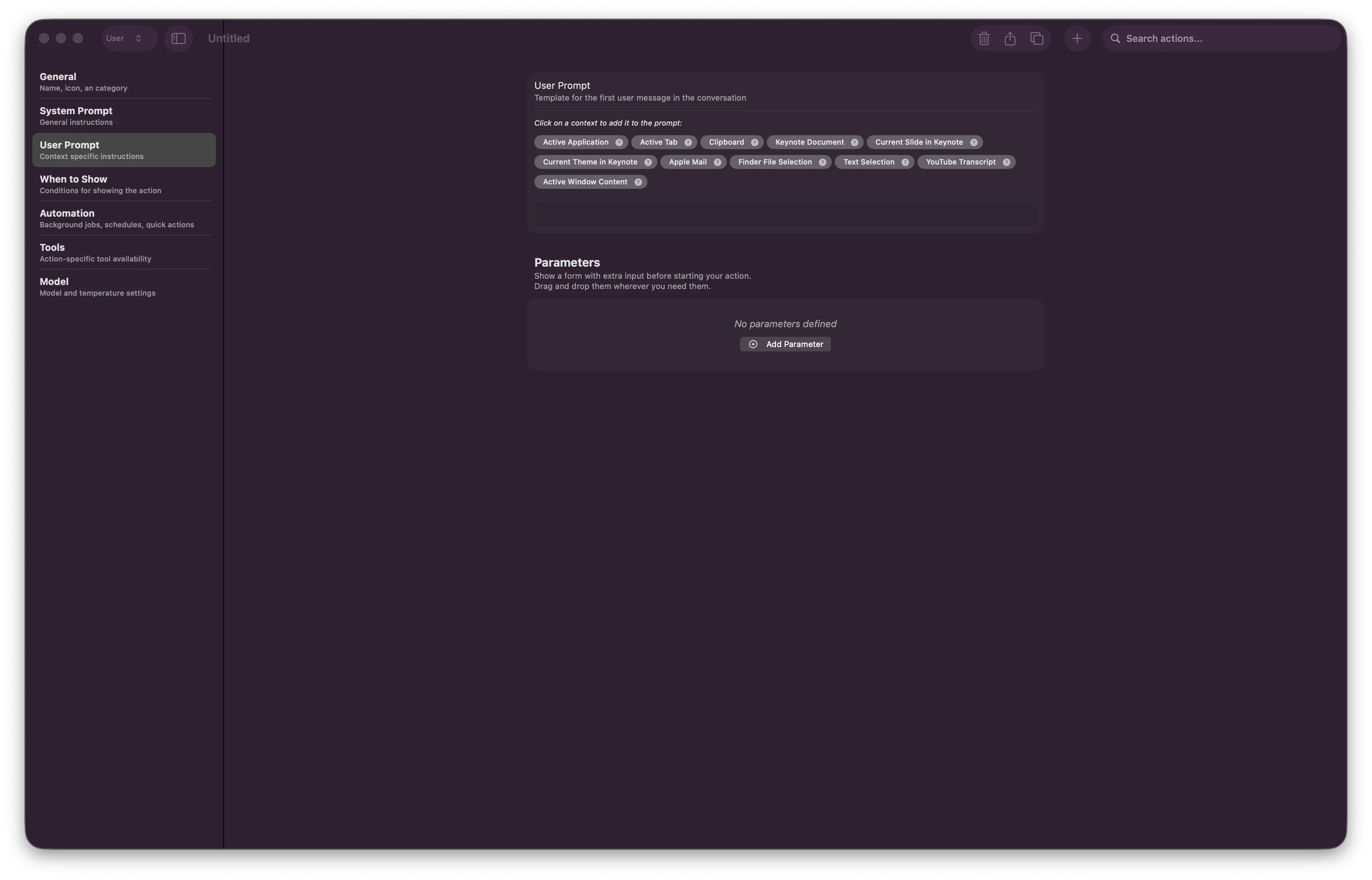
{{ }} to insert dynamic content:
{{ textSelection }}- Currently selected text{{ filePath }}- Path to selected file{{ clipboard }}- Clipboard contents- Custom parameters you defined in System Prompt
4. When to Show
Control when and where this action appears.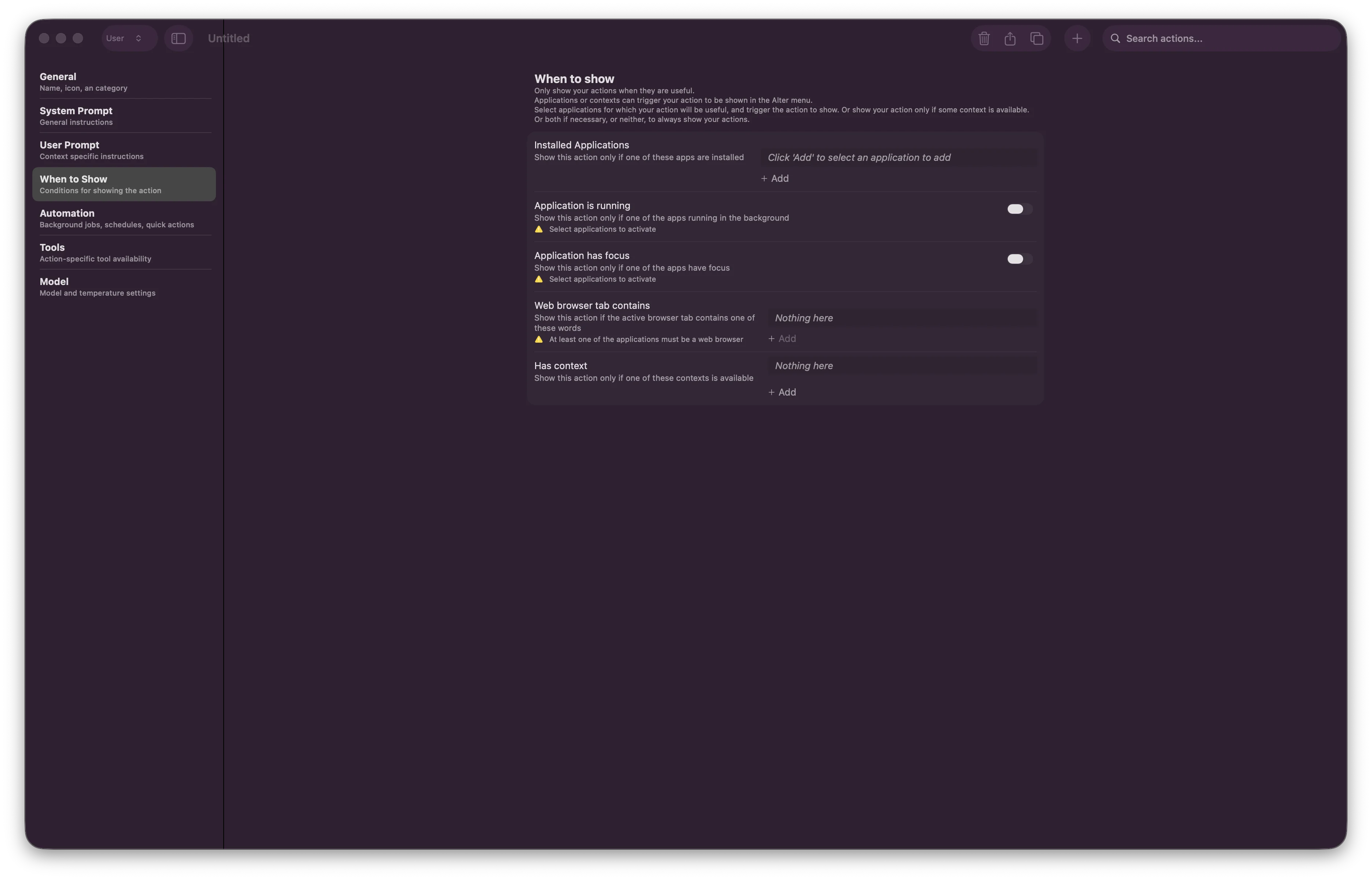
- Installed Applications - Show action only in specific apps (VSCode, Xcode, Safari, etc.)
- Application is running - Action requires the app to be running
- Application has focus - Action only works when app is in foreground
- Web browser tab contains - Show action when browsing specific domains
- Has content - Show action only when context is available
5. Automation
Configure execution behavior, schedules, and background processing.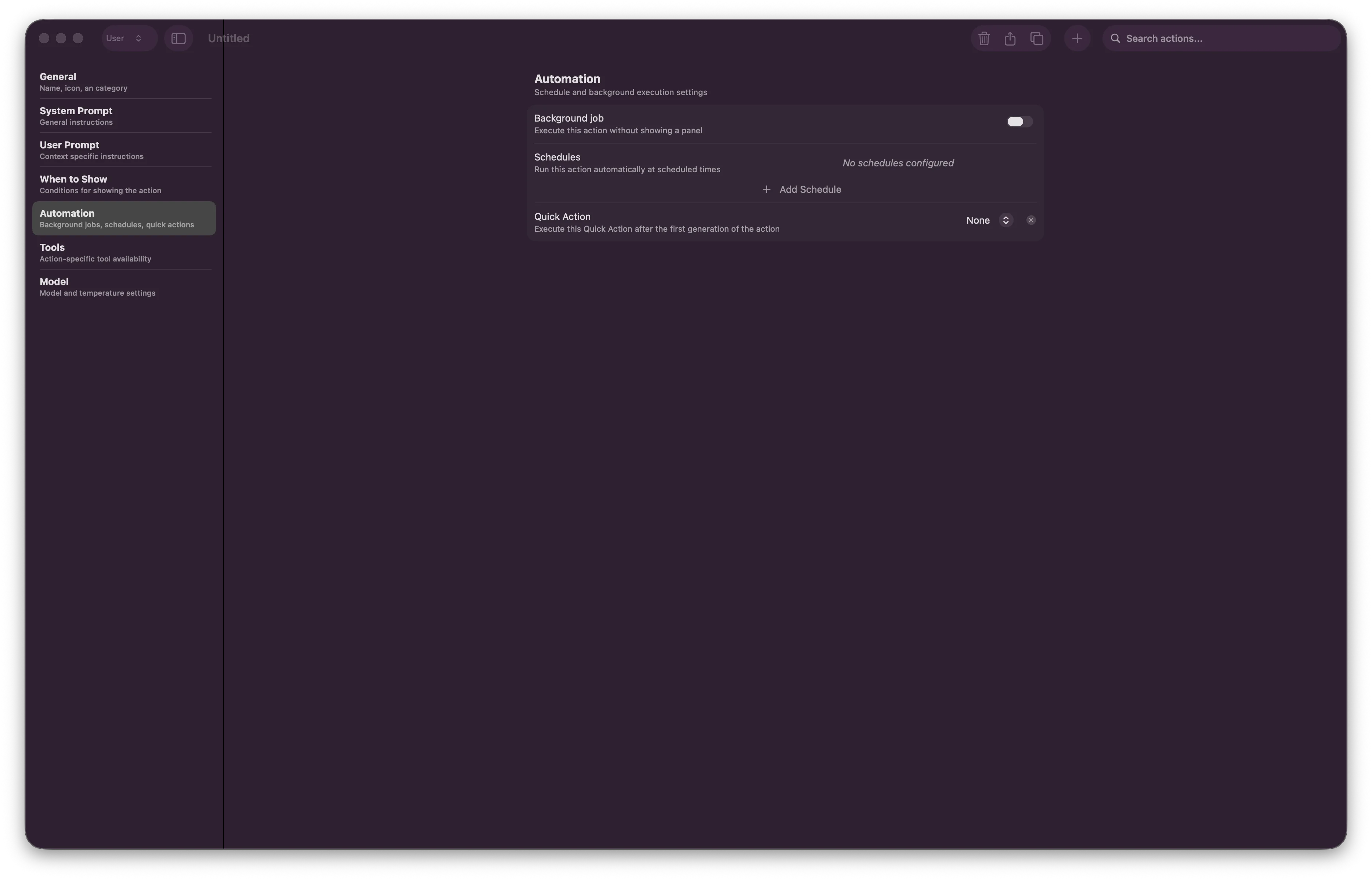
- Background Job - Run action in background without showing UI
- Background markdown rendering - Render markdown to HTML when pasting in background mode
- Send a system notification - Notify shortly after a background job completes
- Schedules - Execute action at specific times (e.g., “Every Monday at 9 AM”)
- Quick Action - Execute a linked Quick Action automatically after the first assistant response
6. Tools
Scope which tools are available for this action.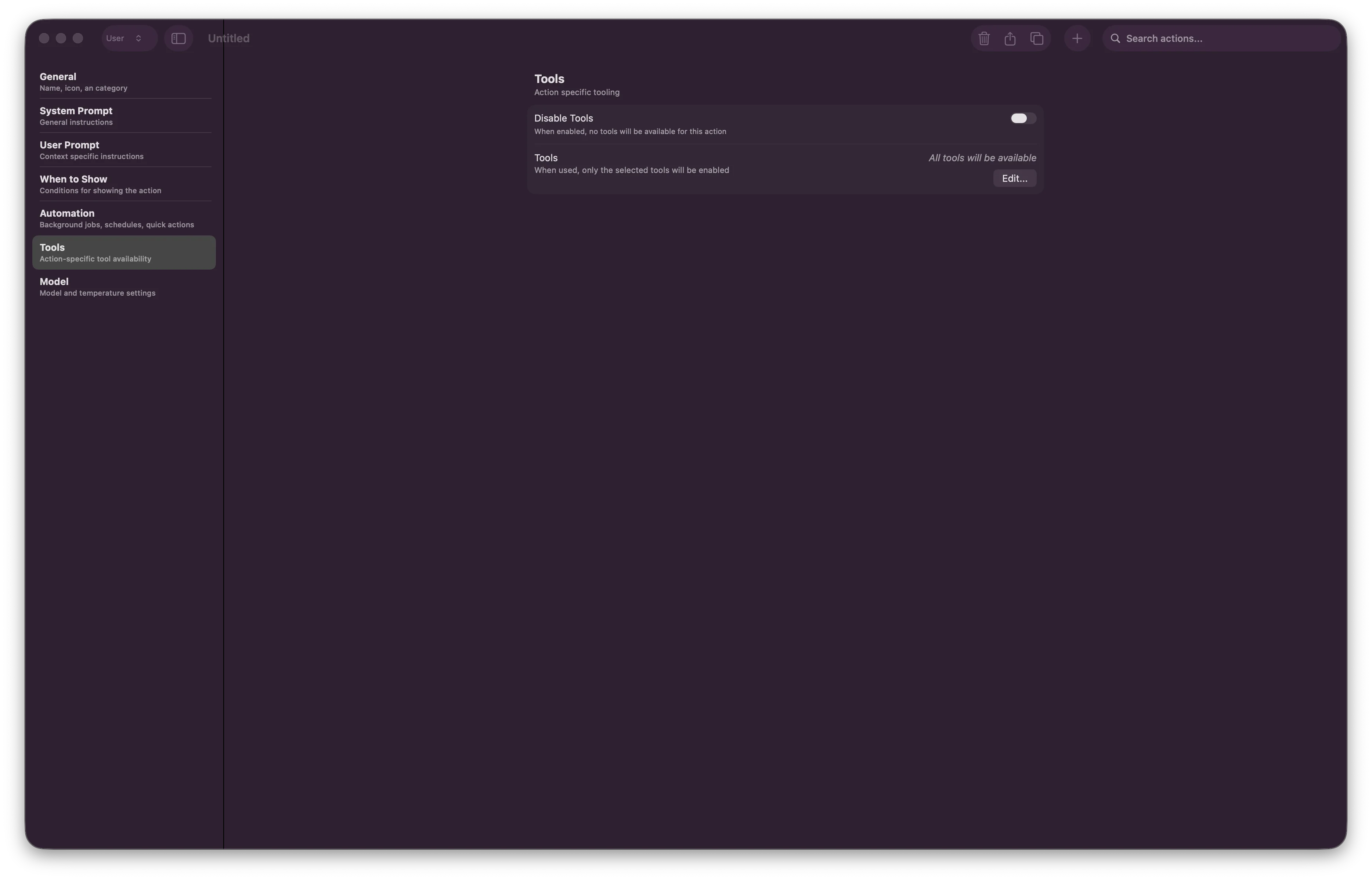
- Disable Tools - When off, only selected tools are available; when on, tool access is restricted
- When tool access is enabled with an empty selection: all globally activated tools are available
- When configured: only selected tools are available
- Reduce AI decision overhead (focus on relevant tools)
- Speed up action execution
- Improve security (limit what actions can access)
7. Model
Select AI model, thinking effort, and creativity level.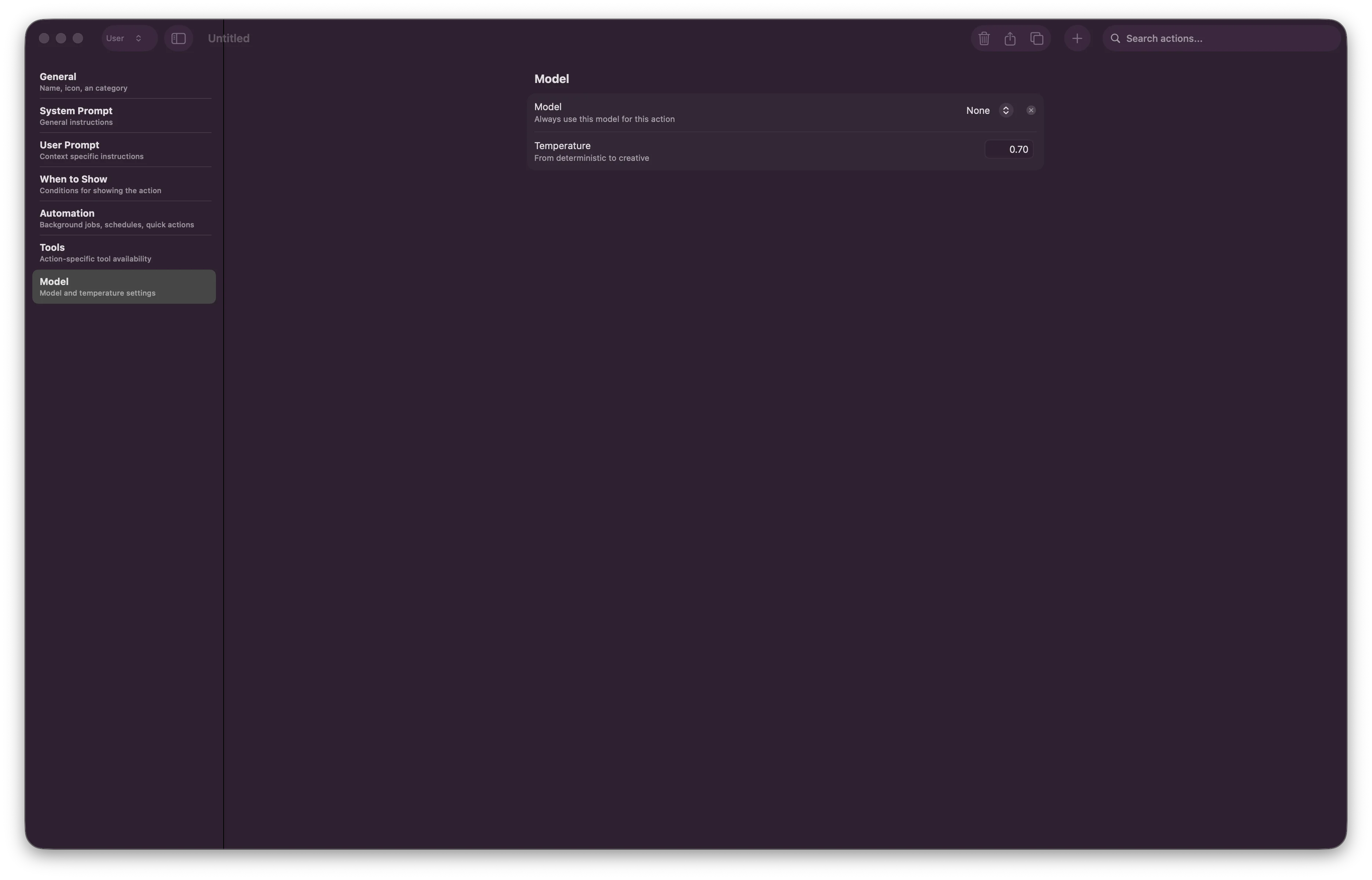
-
Model — Searchable picker grouped into Current, Favorites, and Other models. Leave empty to use the user’s default model setting, or pin a specific model for this action.
- Each row shows context length, vision support, and favorites
- When the model supports it, adjust Thinking effort (Low, Balanced, Max) inline
-
Temperature - Adjust creativity vs. precision
- 0.0 - Deterministic (consistent, predictable)
- 0.5 - Balanced (default)
- 1.0 - Creative (unpredictable, exploratory)
8. Gateways
Choose the exact gateway connections that can use this action. Every configured Buzz, Discord, and Telegram gateway has its own toggle, so two accounts on the same platform can have different access.Buzz gateway (internal) — Buzz appears only in internal Alter builds for the dev team. See Buzz gateway (internal).
The bundled Ask Anything action initially appears on all compatible gateways. Custom actions start local-only until you enable one or more gateway toggles. Changing any toggle saves an explicit list of gateway connections, so a gateway added later does not inherit that action automatically.
On Gateways, parameterless actions (no input fields) run immediately when picked from Choose action; parameterized actions wait for the user’s next message.
Scheduled gateway delivery — When an action runs on a schedule, enable Start scheduled conversations on a gateway, choose an enabled Discord, Telegram, or Buzz (internal) gateway, then pick a Destination (channel, chat, or Buzz stream). Alter posts the action’s opening response there instead of only running locally. Buzz gateways can also set a Default scheduled destination in Settings → Integrations → Gateways.
See Gateways for setup, chat commands, scheduled delivery, and gateway settings.
Diagnostics and warnings
Both My Actions and action documents surface warnings when something is misconfigured — missing Quick Actions, invalid icons, broken gateway references, workspace issues, and similar problems.- Click a warning badge on a row or section to see details and suggested fixes
- Filter the list to Warnings to audit actions that need attention
- Ask the editor chat to “fix warnings on this action” or “scan all actions for problems”
Best Practices
Clear Names
“Code Explainer” describes what it does. Avoid generic names like “Action 1”.
Specific Prompts
Be detailed with AI instructions. Generic prompts produce generic outputs.
Scope Tools
Enable only the tools your action needs. Reduces overhead and improves speed.
Use Context Variables
{{ textSelection }} always works. Manual copy/paste is error-prone.Conditional Visibility
“Code Explainer” only in VSCode + Xcode reduces menu clutter.
Chat plus document
Draft quickly in editor chat, then open the action document to polish prompts and parameters.
Common Action Examples
Example 1: Code Explainer
Setup:- Name: Explain Code
- Category: code
- Installed Apps: VSCode, Xcode
- System Prompt: You are an expert programmer who explains code clearly
- User Prompt:
Please explain this code:\n\n{{ textSelection }} - Consumer: markdown
- Temperature: 0.5
Example 2: Email Draft Creator
Setup:- Name: Draft Email
- Category: productivity
- When to Show: Mail app active
- System Prompt: You are a professional business communicator
- User Prompt:
Transform this into a professional email:\n\n{{ textSelection }} - Tools: Enable only Mail
- Consumer: in-place
- Temperature: 0.6
Example 3: Scheduled Daily Brief
Setup:- Name: Daily Brief
- Category: productivity
- Automation: Schedule for 9:00 AM daily
- Background Job: Enabled
- System Prompt: Generate a daily brief of priorities
Voice Triggers
Assign voice hotkeys to trigger actions hands-free:1
System Settings
Go to Settings > Voice Triggers
2
Add Trigger
Click + Add Trigger
3
Select Action
Choose action from dropdown
4
Assign Phrase
Enter trigger phrase (e.g., “explain” for Code Explainer)
5
Save
Click Save and you’re ready
x-callback-url Integration
Trigger Alter actions from any application using special URLs. This enables powerful cross-app automation workflows.What is x-callback-url?
x-callback-url is an inter-app communication protocol that lets applications trigger actions in each other through formatted URLs.- Inbound - Trigger Alter actions from other apps (Shortcuts, Notes, Safari, etc.)
- Outbound - Create links in Alter that open other apps (Bear, OmniFocus, Drafts, etc.)
Getting Your Action’s Callback URL
1
Open My Actions
Press ⌘⇧E
2
Select or ask
Select the action in the list, or ask the editor chat for the callback URL
3
Open the action document
Double-click the action (or choose Edit from the context menu)
4
Go to General
Navigate to the General section
5
Copy URL
Copy the
alter:// URL from URL Callback, or paste the URL the editor chat returnedTriggering Alter Actions from Other Apps
Example 1: Web Search from Safari- Create a new Shortcut
- Add “Open URL” action
- Paste your
alter://URL - Run the shortcut to trigger the action
Use Cases
Workflow Automation
Workflow Automation
Trigger action from Calendar → Generate meeting notes → Create email draft
Multi-App Integration
Multi-App Integration
Notion button → Trigger Alter action → Update task status
Information Transfer
Information Transfer
Copy text → Trigger action with callback → Open result in external app (no manual copying needed)
Keyboard Shortcuts
Global
My Actions (Tools & Actions window, My Actions selected)
Action document window
File menu commands in My Actions and action documents follow whichever Alter window is active.
See Shortcuts for the full list.
Troubleshooting
Action runs but produces poor output
Action runs but produces poor output
- Review System Prompt — be more specific
- Adjust Temperature (lower for precision, higher for creativity)
- Check User Prompt — ensure variables are correct
Voice trigger not working
Voice trigger not working
- Verify hotkey is configured in Settings
- Check microphone permissions
- Test with manual trigger first
Tools not available in action
Tools not available in action
- Open the action document → Tools section
- Verify tools aren’t disabled and the right tools are selected
- Confirm the tool is activated under Tools & Actions → Active Tools
- Ask editor chat to inspect tool access if unsure
Warnings on an action
Warnings on an action
- Click the warning badge for details
- Open the linked section (Tools, Gateways, Quick Action, etc.) and fix the reference
- Ask editor chat to diagnose and repair the selected action
Cannot delete an action
Cannot delete an action
- Read the dependency message — another Quick Action, action, or workspace may still reference it
- Remove those links first, then retry deletion from the context menu or editor chat
Related Guides
- Create reusable actions — First action in minutes
- Manage tools — Connect integrations used by your actions
- Tools & Integrations — Available tools for your actions
- URL Callbacks — Deep dive into x-callback-url automation
- Voice & Dictation — Set up voice triggers
- Settings — Configure global model and voice settings
Ready to build? Press ⌘⇧E, describe the action you want in the editor chat, or double-click any action to open its document. Want to automate across apps? Use x-callback-urls to trigger actions from Safari, Shortcuts, Notes, or any app that supports URL schemes.