Connect ChatGPT to Alter to search your meetings, read transcripts, run saved actions, and continue Alter conversations. Alter runs the tools on your Mac and returns the results to ChatGPT.

Before you start

  • Sign in to Alter on your Mac.
  • Install a ChatGPT desktop version that supports plugins and personal marketplaces.
  • Keep your Mac online with Alter running while you use the connection.
Plugin availability depends on your ChatGPT version, account, mode, and workspace policy. If you cannot use a personal marketplace, see Connect with a remote MCP URL.

Enable MCP Gateway in Alter

1

Open Gateways

In Alter, press ⌘, to open Settings, then select Gateways under Integrations.
2

Add and enable MCP Gateway

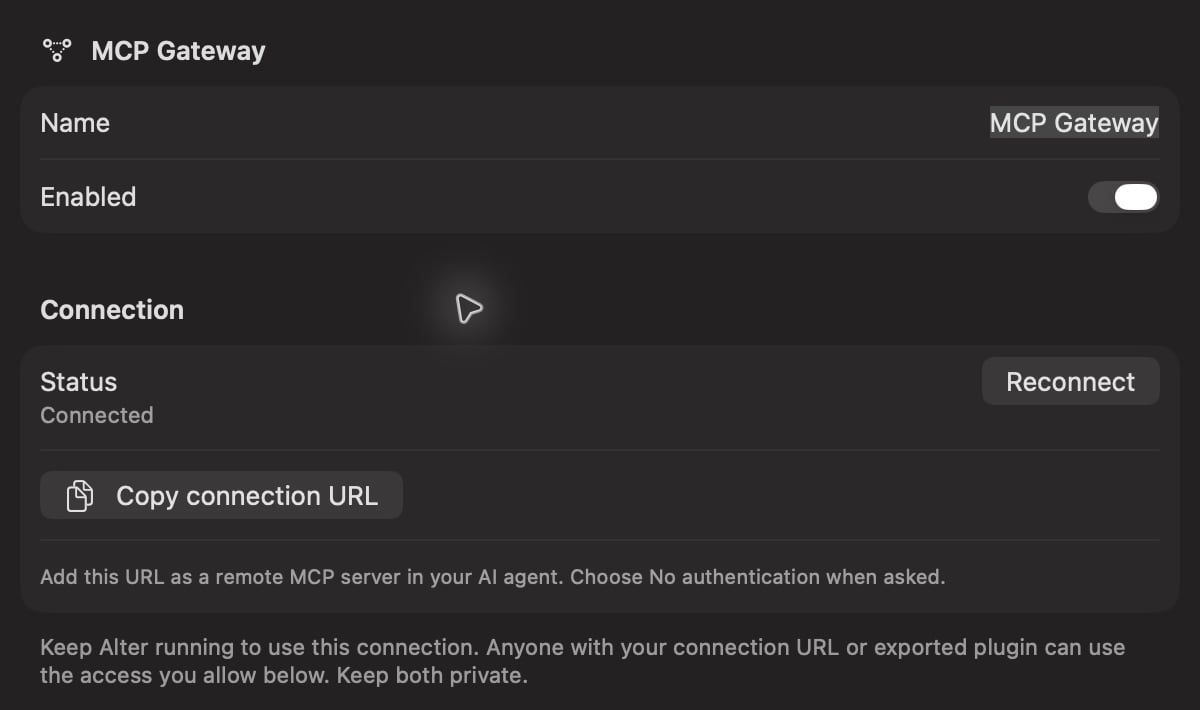
Choose Add gateway → MCP Gateway, or open your existing MCP Gateway. Turn on Enabled.
3

Choose allowed access

Under Allowed access, enable the capabilities you want ChatGPT to use. For a first test, enable Read meeting transcripts.Choose Save and restart, then wait for the connection to be ready. The default action for new Alter chats is Ask Anything.
Alter MCP Gateway settings with Enabled switched on and the connection controls

Enable MCP Gateway, save your changes, and wait for the connection to be ready.

Install the ChatGPT desktop plugin

1

Prepare the plugin in Alter

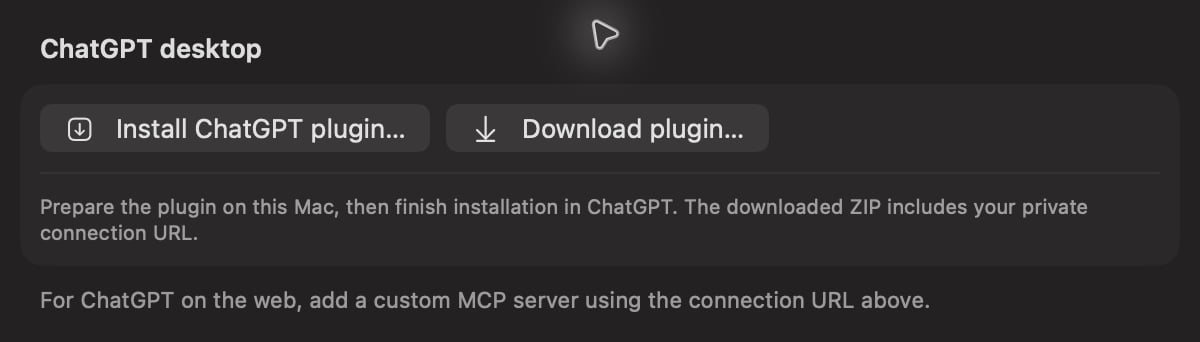
Open your MCP Gateway and choose Install ChatGPT plugin… in the ChatGPT desktop section.Alter prepares the plugin and adds it to your personal marketplace on this Mac. You still need to install it inside ChatGPT.
ChatGPT desktop section in Alter with Install ChatGPT plugin and Download plugin buttons

Use Install ChatGPT plugin to prepare the desktop connection.

2

Open Plugins in ChatGPT

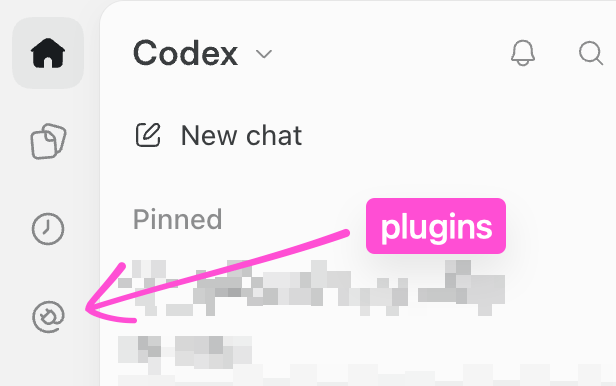
Fully quit and reopen ChatGPT. Click the Plugins icon in the left sidebar.
ChatGPT sidebar with a magenta arrow pointing to the Plugins icon

Open Plugins using the sidebar icon marked by the arrow.

3

Enable Alter under Personal and Local

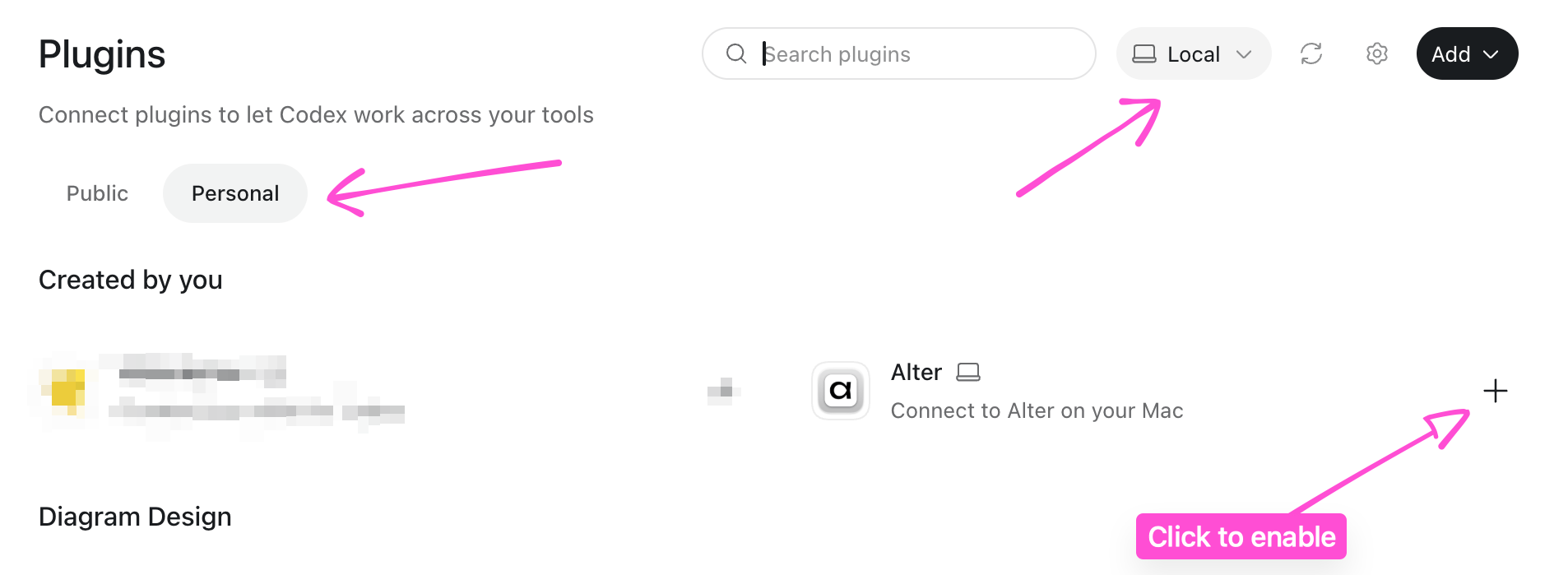
Select Personal, then choose Local in the location selector at the top. Find Alter and click the + button beside it to install and enable the plugin.If you already have a personal marketplace, it keeps its existing name and other plugins.
ChatGPT Plugins page with arrows pointing to Personal, Local, and the plus button beside Alter

Choose Personal and Local, then click + beside Alter.

4

Run the first-time setup

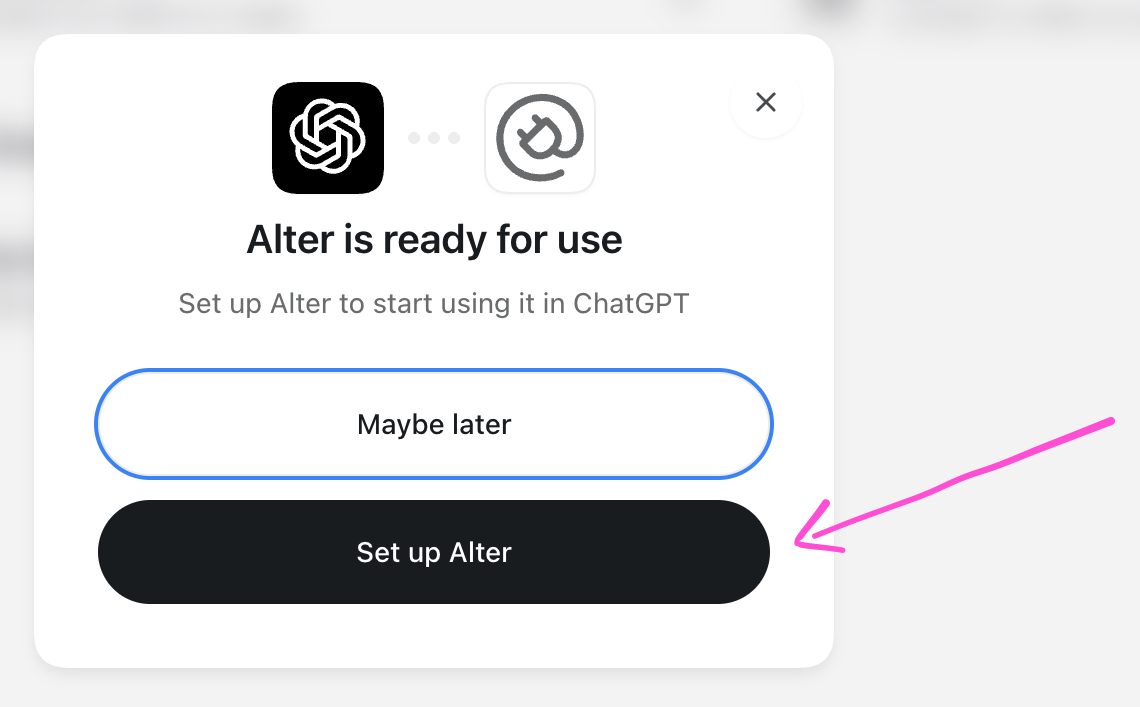
In the Alter is ready for use dialog, choose Set up Alter. ChatGPT opens a setup chat to check the connection and report the available capabilities. Follow any approval prompts it shows.
Alter installation dialog with an arrow pointing to Set up Alter

Choose Set up Alter to check the connection for the first time.
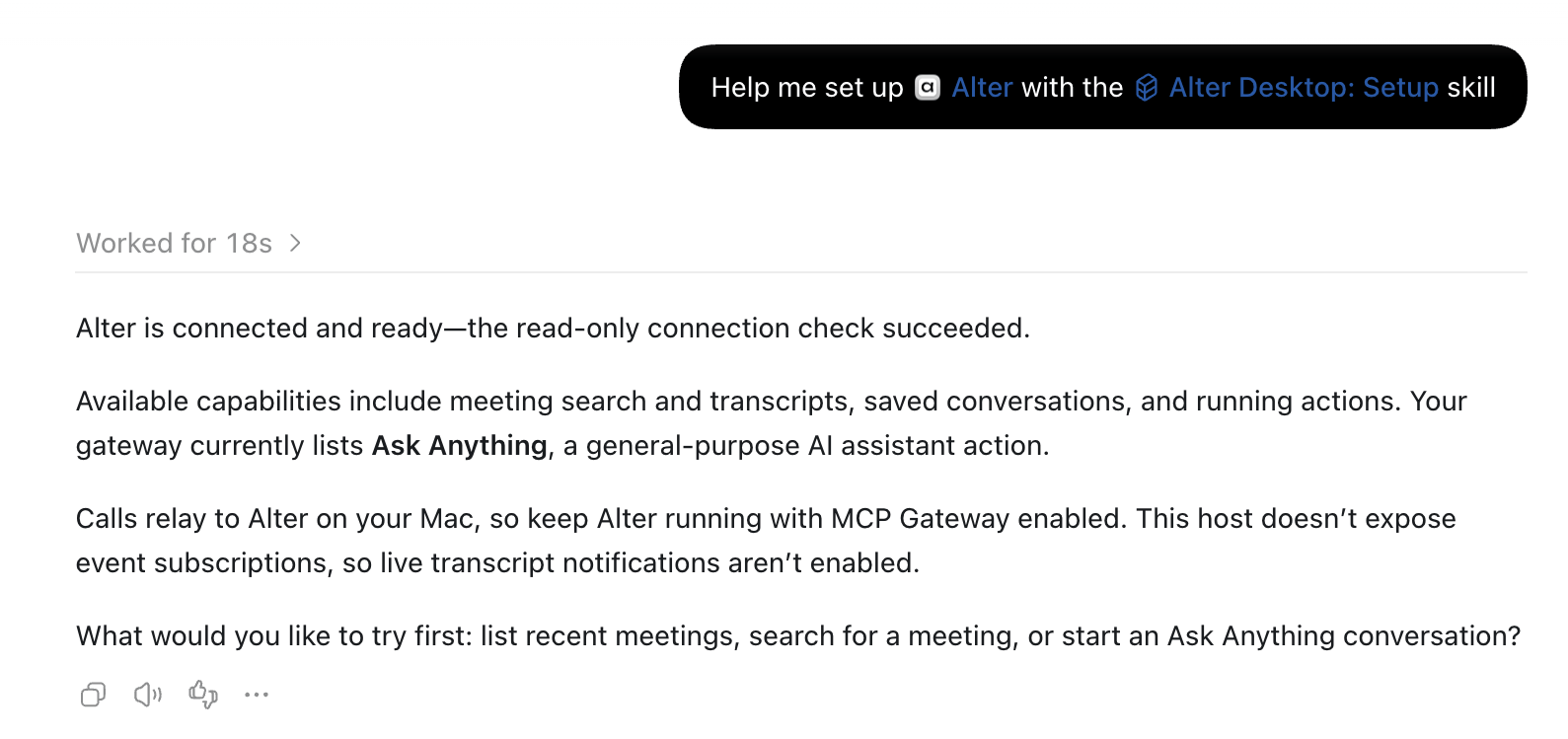
Check that ChatGPT reports a successful read-only connection check. Your available capabilities depend on the access switches you enabled in Alter.
Setup chat confirming Alter is connected and the read-only check succeeded, while noting this Local host does not expose event subscriptions

Example successful connection check in Local mode. Tools are connected; event subscriptions are unavailable in this mode.

Setup is for first-time installation and connection troubleshooting. You do not need to run it before every request.
5

Select Alter in a new chat

Start a new chat, type @, and select Alter. Try:
List my recent meetings in Alter.
ChatGPT may ask you to approve a tool before it runs. If the list is empty, try a meeting you have saved in Alter or check the access settings below.

Choose what ChatGPT can access

Change these switches under Allowed access in MCP Gateway:
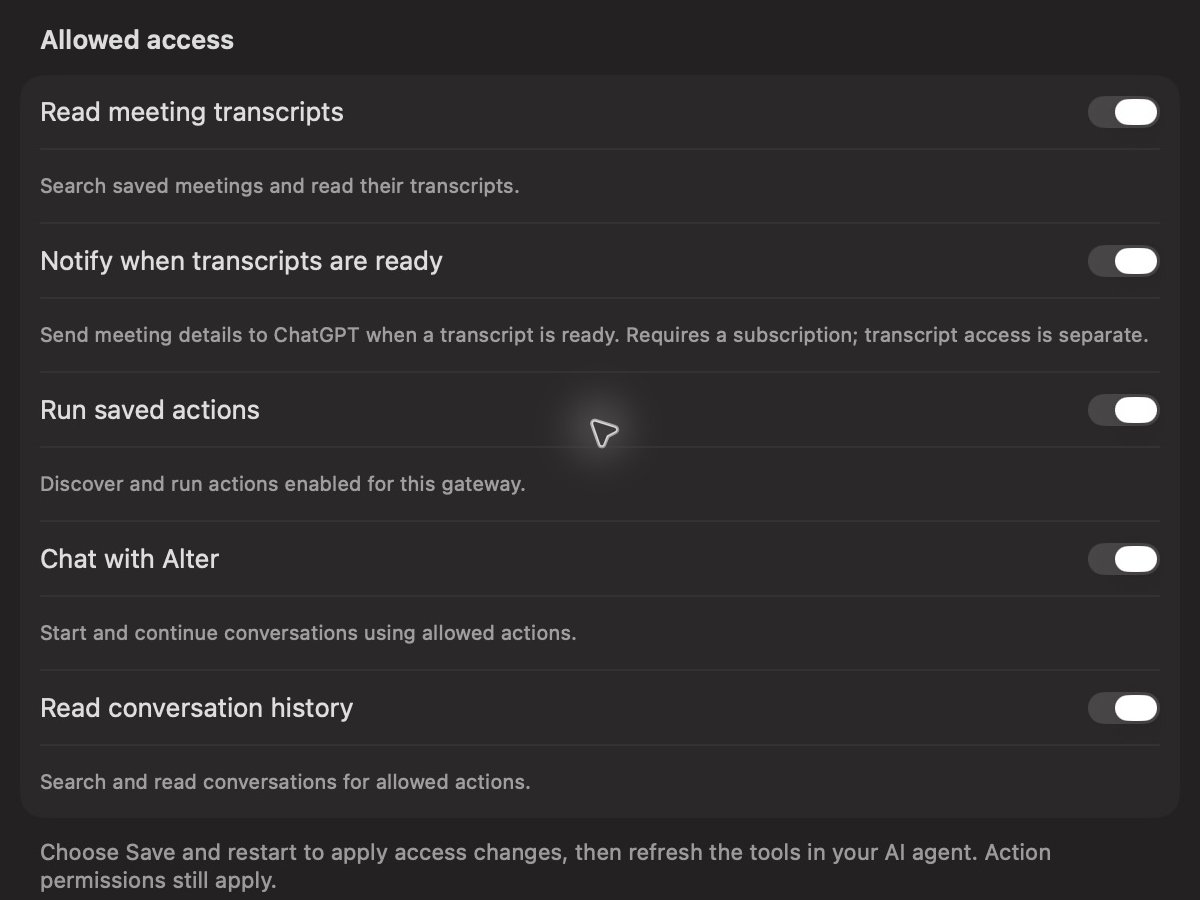
Allowed access settings in Alter showing the five MCP Gateway capability switches

Choose which meeting, action, and conversation capabilities ChatGPT can use.

Choose Save and restart after changing access, then refresh Alter’s tools in ChatGPT. Restarting the gateway cancels tasks currently running through it. For saved actions, open Action Editor → Gateways and enable MCP Gateway or All. The gateway’s Available actions list shows which actions are allowed. New chats use the Default action selected under Behavior. Alter can ask you a question or request file access during a task. ChatGPT should show you the choices and wait for your answer. Choose Allow once, Always allow, or decline when those options are offered; installing the plugin does not automatically approve these requests.

Receive new-meeting notifications

Installing the plugin does not automatically create a ChatGPT event subscription for meetings.
1

Allow notifications

In Alter’s MCP Gateway, enable Notify when transcripts are ready. Also enable Read meeting transcripts if you want ChatGPT to read or summarize the transcript. Choose Save and restart.
2

Ask ChatGPT to subscribe

In a ChatGPT Work chat connected to Alter, ask:
Subscribe to Alter’s transcript-ready event. When a meeting transcript is ready, summarize the decisions and my action items.
Confirm that ChatGPT creates an active event subscription to meeting.transcript_ready. A connected plugin alone does not confirm an event subscription.
3

Record or import a meeting

Record a meeting in Alter or import a new audio recording. Once Alter finishes processing and saving its transcript, it sends the event to ChatGPT.The event contains meeting details. ChatGPT retrieves the transcript separately when transcript access is enabled. Regenerating an existing transcript does not send a new-meeting event.
Event subscriptions require a supported ChatGPT mode: Work on the web, or desktop Work with Cloud selected. Keep Alter running and your Mac online when the transcript finishes. Installing the desktop plugin alone does not enable event subscriptions in every mode.

Connect with a remote MCP URL

For agent-neutral setup and supported capabilities, see Connect an AI agent with Remote MCP. For ChatGPT on the web, or if personal marketplaces are unavailable:
  1. In Alter’s MCP Gateway, choose Copy connection URL.
  2. In ChatGPT’s Plugins page, choose Add custom MCP server.
  3. Name it Alter, paste the URL, and choose No authentication.
  4. Create and install the connection, then select Alter in a new Work chat.
Use one connection for your workflow to avoid duplicate Alter entries. Other AI agents can use this remote MCP URL if they support it; the ChatGPT plugin setup steps are specific to ChatGPT. Download plugin… saves a ZIP for manual installation in a compatible plugin host. Downloading or importing the ZIP does not by itself create a cloud MCP connection. If ChatGPT shows Open in desktop app, use the custom MCP connection above for web access.

Privacy and disconnecting

Your connection URL and exported plugin contain a private access key. Anyone with them can use the access you allow in Alter. Keep them private and do not publish or share the ZIP. Tools execute in Alter on your Mac. Requests and results pass through Alter’s relay to connect to ChatGPT. Data you ask ChatGPT to read, including transcript text, is returned to ChatGPT. To stop access, disable MCP Gateway in Alter. Deleting and recreating the gateway creates a new URL; update or reinstall the ChatGPT connection afterward.

Troubleshooting

After updating Alter, choose Install ChatGPT plugin… again, restart ChatGPT, and refresh or reinstall the plugin to receive updated instructions.