Use Alter as a remote MCP server for meetings, saved actions, and conversations on your Mac
MCP Gateway lets a compatible AI agent call Alter’s tools through a private HTTPS URL. Use it to search meetings, read transcripts, run allowed saved actions, and start or continue Alter conversations.Alter executes the tools on your Mac. An Alter relay connects your AI agent to the running app. You do not need to expose a port on your Mac or run a separate local MCP command.
Using ChatGPT desktop? Follow Use Alter in ChatGPT for the plugin installation walkthrough. This guide covers the remote MCP connection used by compatible agents.
Use an AI agent that supports adding a remote HTTPS MCP server URL. A client that only accepts a local command cannot use this URL directly.
Keep your Mac online with Alter running while using the connection.
ChatGPT is the first tested integration. Other clients must support Alter’s remote MCP endpoint; their compatibility has not yet been verified end to end. Tool support and event-subscription support can differ within the same client.
Press ⌘, to open Settings, then select Gateways under Integrations.Choose Add gateway → MCP Gateway, or open an existing MCP Gateway.
2
Choose access and save
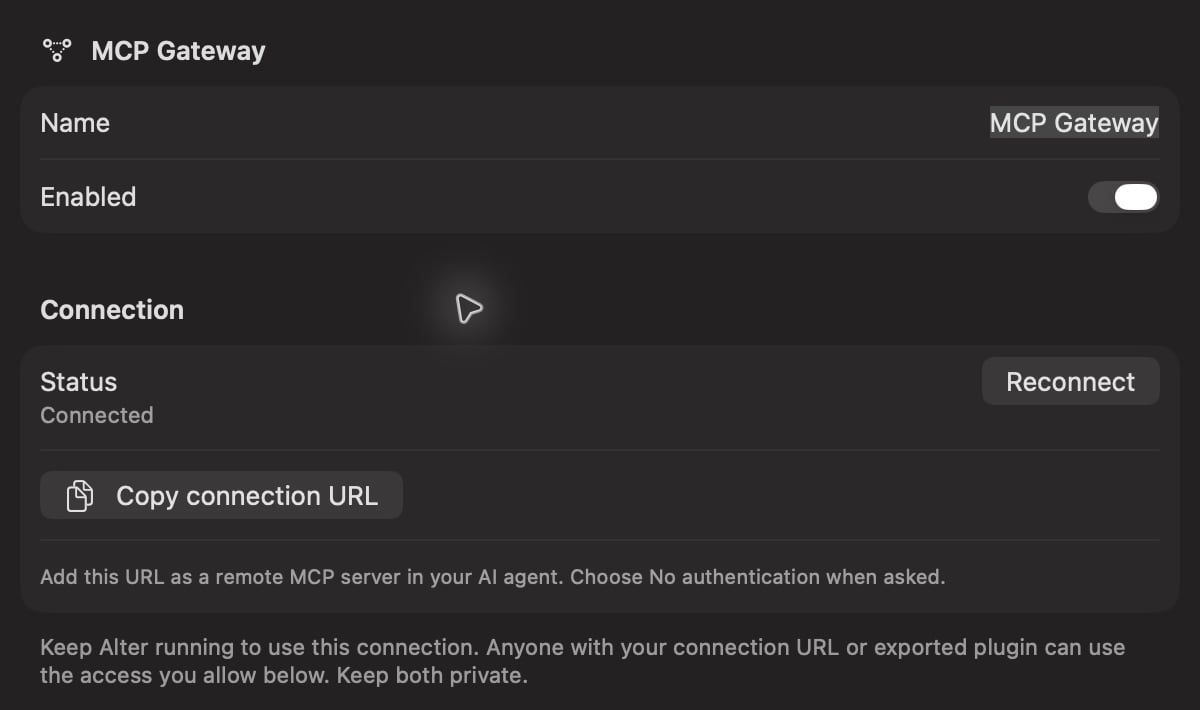
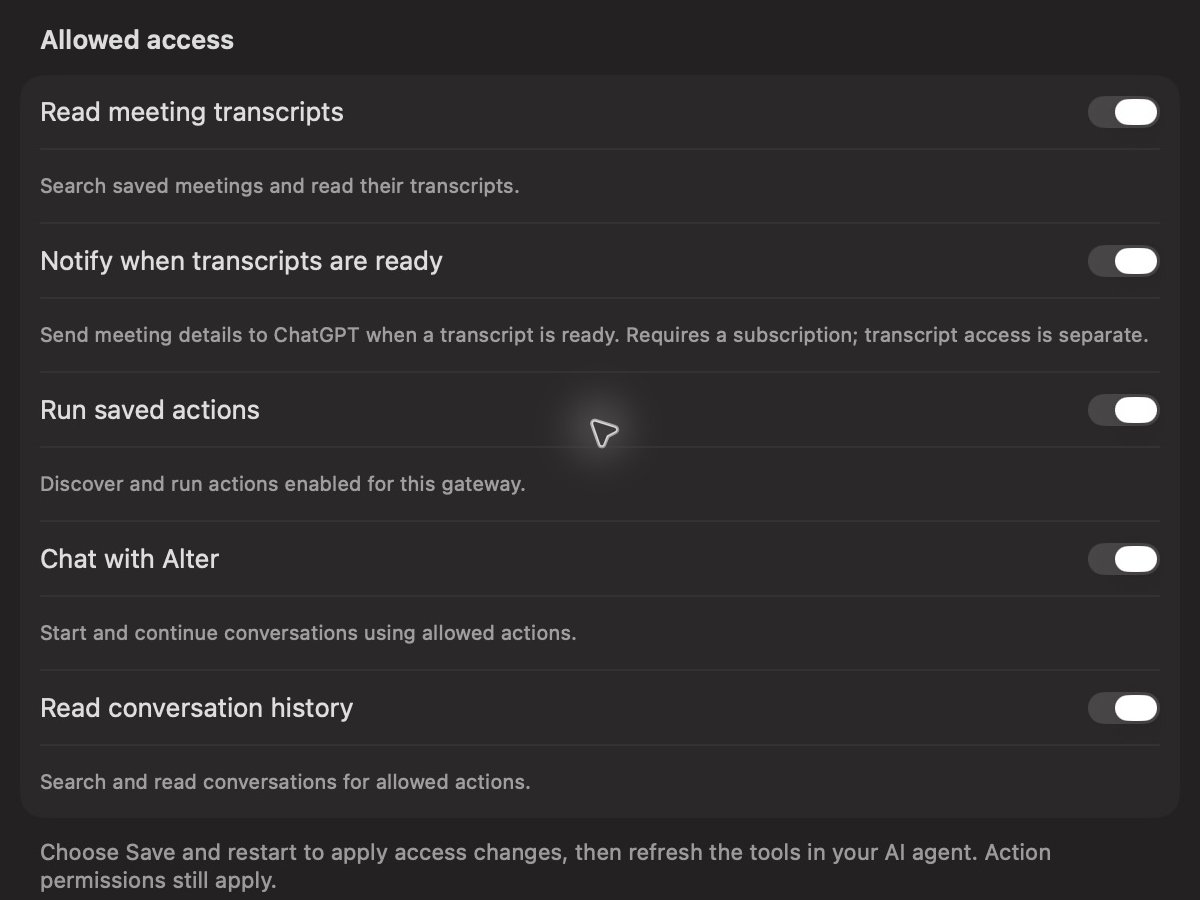
Turn on Enabled. Under Allowed access, enable the capabilities you want the agent to use. For a read-only meeting test, enable Read meeting transcripts.Choose Save and restart, then wait for the connection to be ready.
Enable MCP Gateway and save the connection before adding it to your AI agent.
3
Copy your connection URL
Choose Copy connection URL in the Connection section.This is your private remote MCP endpoint. Keep the complete URL private, including the key at the end.
Open your agent’s MCP or integration settings and add a remote server using these values:
Field
Value
Name
Alter
Server URL
Paste the complete URL from Copy connection URL.
Authentication
No authentication, or your client’s equivalent. Access is already included in the private URL.
Save the connection and refresh or discover its tools. The exact labels depend on your client. You do not need an additional API key or OAuth sign-in for this connection.Start with a read-only request:
List my recent meetings in Alter.
Your agent may ask you to approve a tool call. If no meetings appear, confirm that you have saved meetings in Alter and enabled transcript access.
Enable only the capabilities you want the connected agent to use.
Setting
Available tools and behavior
Read meeting transcripts
list_meetings, search_meetings, and get_meeting_transcript list and search saved meetings, then read a selected transcript.
Run saved actions
list_actions and run_action discover and run saved actions permitted for this gateway.
Chat with Alter
create_conversation and send_message start and continue conversations using permitted actions.
Read conversation history
list_conversations, search_conversations, and get_conversation find and read conversations whose actions are permitted for this gateway.
Notify when transcripts are ready
Allows transcript-ready events for supported clients with an active event subscription. See Event support for current restrictions.
Disabled capabilities are removed from the available tools and cannot be used by calling them directly. After changing access, choose Save and restart, then refresh the tools in your agent. Restarting the gateway cancels active gateway tasks.
Under Behavior, choose the Default action for new chats. Ask Anything is the usual default.For another saved action, open Action Editor → Gateways and enable MCP Gateway or All. The gateway’s Available actions list shows which actions are permitted. The agent also needs Run saved actions access to discover and run them.New Ask Anything conversations use your default Alter workspace. Other actions use their configured workspace. Continuing a conversation keeps that conversation’s workspace and action permissions.
“Search my Alter meetings for pricing and summarize the matching discussions.”
Inspect recent meetings
“List my recent meetings in Alter, then read the latest transcript.”
Discover saved actions
“Which Alter actions can you run through this connection?”
Start an Alter chat
“Ask Alter to inspect the latest files in its current workspace without changing them.”
Search past conversations
“Find my earlier Alter conversations about onboarding.”
Meeting search matches terms in indexed meeting content. Conversation search matches indexed conversation titles and messages. Ask the agent to read a matching transcript or conversation when you need more detail.
Chats and actions can return a task ID while Alter works. The agent uses get_task to retrieve the result and can use cancel_task to stop a running task.An Alter task may pause to ask a question or request file access. Your agent should show you the question and choices, wait for your answer, and send that answer back to Alter before continuing.Permission choices can include Allow once, Always allow, or declining access. The connection does not approve these requests automatically. If the agent keeps waiting without showing a question, ask it to inspect the task’s pending question and use the available answer_questions tool after you answer.
Remote tool access does not automatically create an event subscription. Event support also depends on the AI agent and its selected mode.Alter currently accepts transcript-ready webhook destinations only on ChatGPT/OpenAI domains. Other MCP agents can use compatible tools, but arbitrary third-party event destinations are not supported. Follow ChatGPT meeting notifications for the supported subscription setup.
The connection URL grants the access you enable for this gateway. Treat it like a password, and store it only in clients you trust.Tools run in Alter on your Mac. Requests and results pass through Alter’s relay, including transcript text when an agent requests it. Your saved meetings and conversations stay in Alter; the connected agent receives the data returned by its allowed tool calls.Keep Alter running and your Mac online. Disabling the gateway stops access and cancels its active tasks. Deleting and recreating it generates a new connection URL; replace the old URL in each connected client.
The client only offers a command or executable field
Choose a client or connection type that supports a remote HTTPS MCP URL.
The server cannot connect
Confirm Alter is running and MCP Gateway is enabled and connected. Try Reconnect in Alter’s Connection section, then refresh the client. Reconnect cancels active gateway tasks.
Tools are missing
Enable the matching Allowed access switch, save, and refresh the agent’s tool list. For actions, also check Action Editor → Gateways.
A task is waiting
Check whether Alter needs an explicit answer or file-access decision.
Tools work but events do not
Check the client and mode. Current event destinations are limited to ChatGPT/OpenAI domains and require an active subscription.
Access stopped after changing Alter accounts or recreating a gateway
Copy the current connection URL and replace it in your agent.
{"docsConfig":{"theme":"almond","$schema":"https://mintlify.com/docs.json","name":"Alter Documentation","colors":{"primary":"#e600ff","light":"#e600ff","dark":"#e600ff"},"logo":{"light":"https://mintcdn.com/alter-95c0cbf0/WXb2usZGgo4LLQRY/logo/light.svg?fit=max\u0026auto=format\u0026n=WXb2usZGgo4LLQRY\u0026q=85\u0026s=88c978ebad219425b3ff1d6dbbf0b4a4","dark":"https://mintcdn.com/alter-95c0cbf0/WXb2usZGgo4LLQRY/logo/dark.svg?fit=max\u0026auto=format\u0026n=WXb2usZGgo4LLQRY\u0026q=85\u0026s=f72ec7f94bd735bae96db1c4c1f163f3"},"favicon":"https://mintcdn.com/alter-95c0cbf0/ETZUgP6KVrmfgXvp/favicon.svg?fit=max\u0026auto=format\u0026n=ETZUgP6KVrmfgXvp\u0026q=85\u0026s=6074a127eee2dde83ec101f90a4a4c56","navbar":{"links":[{"href":"mailto:[email protected]","label":"Support"}],"primary":{"type":"button","label":"Download","href":"https://alterhq.com/beta"}},"footer":{"socials":{"youtube":"https://youtube.com/@useAlter","discord":"https://discord.gg/gvCMmfBRWZ","x":"https://x.com/@alterhq_","github":"https://github.com/alterhq","linkedin":"https://linkedin.com/company/alterhq"}},"contextual":{"options":["copy","view","chatgpt","claude","perplexity","mcp","cursor","vscode"],"display":"header"},"styling":{"latex":false},"navigation":{"global":{"anchors":[{"anchor":"Website","icon":"globe","href":"https://alterhq.com"},{"anchor":"Discord","icon":"discord","href":"https://discord.gg/gvCMmfBRWZ"},{"anchor":"YouTube","icon":"youtube","href":"https://youtube.com/@useAlter"}]},"languages":[{"language":"en","href":""},{"language":"pt","href":"pt"},{"language":"fr","href":"fr"},{"language":"es","href":"es"},{"language":"de","href":"de"},{"language":"zh","href":"zh"},{"language":"ja","href":"ja"}]}},"deployment":{"deploymentMetadataValue":{"subdomain":"alter-95c0cbf0","hasAudioNarration":false,"actualSubdomain":"alter-95c0cbf0","customDomains":["docs.alterhq.com"],"gitSource":{"type":"github","owner":"alterhq","repo":"docs","deployBranch":"main","contentDirectory":"","isPrivate":false,"mountPath":"","label":""},"chroma":{"liveDeploymentHistoryId":"6adb0ec0a1b00b3903d33f26","collectionId":"9b93af3c-282a-427d-93e4-4beba031a9c2","schemaVersion":"v3","latestBuiltDeploymentHistoryId":"6adb0ec0a1b00b3903d33f26"},"feedback":{"thumbs":true,"edits":true,"issues":true},"entitlements":{},"buildId":"6adb1512a5e032762909fe55","clientVersion":"0.0.3939","searchFilterCounts":[{"language":"en","tag":"Workflows","count":27},{"language":"de","tag":"Arbeitsabläufe","count":26},{"language":"es","tag":"Flujos de trabajo","count":26},{"language":"fr","tag":"Flux de travail","count":26},{"language":"ja","tag":"ワークフロー","count":26},{"language":"pt","tag":"Fluxos de trabalho","count":26},{"language":"zh","tag":"工作流程","count":26},{"language":"en","tag":"Apps \u0026 Tools","count":23},{"language":"de","tag":"Apps und Tools","count":21},{"language":"es","tag":"Aplicaciones y herramientas","count":21},{"language":"fr","tag":"Applications et outils","count":21},{"language":"ja","tag":"アプリとツール","count":21},{"language":"pt","tag":"Aplicativos e ferramentas","count":21},{"language":"zh","tag":"应用程序和工具","count":21},{"language":"en","tag":"Getting Started","count":20},{"language":"de","tag":"Erste Schritte","count":20},{"language":"es","tag":"Empezando","count":20},{"language":"fr","tag":"Commencer","count":20},{"language":"ja","tag":"はじめる","count":20},{"language":"pt","tag":"Começando","count":20},{"language":"zh","tag":"入门","count":20},{"language":"en","tag":"Start Here","count":19},{"language":"de","tag":"Beginnen Sie hier","count":19},{"language":"es","tag":"Comience aquí","count":19},{"language":"fr","tag":"Commencez ici","count":19},{"language":"ja","tag":"ここから始めましょう","count":19},{"language":"pt","tag":"Comece aqui","count":19},{"language":"zh","tag":"从这里开始","count":19},{"language":"en","tag":"How to","count":10},{"language":"de","tag":"Wie","count":10},{"language":"es","tag":"Cómo","count":10},{"language":"fr","tag":"Comment","count":10},{"language":"ja","tag":"方法","count":10},{"language":"pt","tag":"Como fazer","count":10},{"language":"zh","tag":"如何","count":10},{"language":"en","tag":"API Router","count":8},{"language":"en","tag":"Mac Apps","count":8},{"language":"en","tag":"Integrations","count":8},{"language":"en","tag":"Reference","count":8},{"language":"de","tag":"API-Router","count":8},{"language":"de","tag":"Referenz","count":8},{"language":"es","tag":"Enrutador API","count":8},{"language":"es","tag":"Referencia","count":8},{"language":"fr","tag":"Routeur API","count":8},{"language":"fr","tag":"Référence","count":8},{"language":"ja","tag":"APIルーター","count":8},{"language":"ja","tag":"参照","count":8},{"language":"pt","tag":"API do Roteador","count":8},{"language":"pt","tag":"Referência","count":8},{"language":"zh","tag":"API路由器","count":8},{"language":"zh","tag":"参考","count":8},{"language":"en","tag":"Computer Use","count":7},{"language":"de","tag":"Mac-Apps","count":7},{"language":"de","tag":"Computernutzung","count":7},{"language":"de","tag":"Integrationen","count":7},{"language":"es","tag":"Aplicaciones para Mac","count":7},{"language":"es","tag":"Uso de la computadora","count":7},{"language":"es","tag":"Integraciones","count":7},{"language":"fr","tag":"Applications Mac","count":7},{"language":"fr","tag":"Utilisation de l'ordinateur","count":7},{"language":"fr","tag":"Intégrations","count":7},{"language":"ja","tag":"Mac アプリ","count":7},{"language":"ja","tag":"コンピュータの使用","count":7},{"language":"ja","tag":"統合","count":7},{"language":"pt","tag":"Aplicativos para Mac","count":7},{"language":"pt","tag":"Uso do computador","count":7},{"language":"pt","tag":"Integrações","count":7},{"language":"zh","tag":"Mac 应用程序","count":7},{"language":"zh","tag":"电脑使用","count":7},{"language":"zh","tag":"集成","count":7},{"language":"default","tag":"API Router","count":3},{"language":"default","tag":"API Reference","count":3}]},"assistantConfig":{"enableAskAiButton":false,"enableStarterQuestions":false,"enableContextualStarterQuestions":false,"enableAskAiSearchBar":true},"hasChatPermissions":false,"hasWebMcpPermissions":false,"toggles":[{"name":"kill-isr","enabled":true,"variant":{"name":"disabled","enabled":false,"feature_enabled":true},"impressionData":false},{"name":"agent-mintlify-slack","enabled":true,"variant":{"name":"disabled","enabled":false,"feature_enabled":true},"impressionData":false},{"name":"editor-v7-file-tree","enabled":true,"variant":{"name":"disabled","enabled":false,"feature_enabled":true},"impressionData":false},{"name":"agent-integrations-settings","enabled":true,"variant":{"name":"disabled","enabled":false,"feature_enabled":true},"impressionData":false},{"name":"automations-pr-grouping","enabled":true,"variant":{"name":"disabled","enabled":false,"feature_enabled":true},"impressionData":false},{"name":"custom-prefix","enabled":true,"variant":{"name":"disabled","enabled":false,"feature_enabled":true},"impressionData":false},{"name":"analytics-v7","enabled":true,"variant":{"name":"disabled","enabled":false,"feature_enabled":true},"impressionData":false},{"name":"user-flows-analytics","enabled":true,"variant":{"name":"disabled","enabled":false,"feature_enabled":true},"impressionData":false},{"name":"no-publish-flow","enabled":true,"variant":{"name":"disabled","enabled":false,"feature_enabled":true},"impressionData":false},{"name":"workos-onboarding","enabled":true,"variant":{"name":"disabled","enabled":false,"feature_enabled":true},"impressionData":false},{"name":"llms-txt-v2","enabled":true,"variant":{"name":"disabled","enabled":false,"feature_enabled":true},"impressionData":false},{"name":"pause-universal-search-reconcile","enabled":true,"variant":{"name":"disabled","enabled":false,"feature_enabled":true},"impressionData":false},{"name":"snapshot-serving-live","enabled":true,"variant":{"name":"disabled","enabled":false,"feature_enabled":true},"impressionData":false},{"name":"stripTemperatureMiddleware","enabled":true,"variant":{"name":"disabled","enabled":false,"feature_enabled":true},"impressionData":false},{"name":"per-site-search-delta","enabled":true,"variant":{"name":"disabled","enabled":false,"feature_enabled":true},"impressionData":false},{"name":"support-platform-pylon-zendesk","enabled":true,"variant":{"name":"disabled","enabled":false,"feature_enabled":true},"impressionData":false},{"name":"snapshot-serving","enabled":true,"variant":{"name":"disabled","enabled":false,"feature_enabled":true},"impressionData":false},{"name":"instant-rollback","enabled":true,"variant":{"name":"disabled","enabled":false,"feature_enabled":true},"impressionData":false},{"name":"granular-notifications-server","enabled":true,"variant":{"name":"disabled","enabled":false,"feature_enabled":true},"impressionData":false},{"name":"granular-notifications","enabled":true,"variant":{"name":"disabled","enabled":false,"feature_enabled":true},"impressionData":false},{"name":"editor-private-page-search","enabled":true,"variant":{"name":"disabled","enabled":false,"feature_enabled":true},"impressionData":false},{"name":"automations-fable","enabled":true,"variant":{"name":"disabled","enabled":false,"feature_enabled":true},"impressionData":false},{"name":"fixed-ai-action-pricing","enabled":true,"variant":{"name":"disabled","enabled":false,"feature_enabled":true},"impressionData":false},{"name":"automation-resolve-merge-conflict","enabled":true,"variant":{"name":"disabled","enabled":false,"feature_enabled":true},"impressionData":false},{"name":"scoped-publishing","enabled":true,"variant":{"name":"disabled","enabled":false,"feature_enabled":true},"impressionData":false},{"name":"mintql","enabled":true,"variant":{"name":"disabled","enabled":false,"feature_enabled":true},"impressionData":false},{"name":"page-level-analytics","enabled":true,"variant":{"name":"disabled","enabled":false,"feature_enabled":true},"impressionData":false},{"name":"editor-version-history-v2","enabled":true,"variant":{"name":"disabled","enabled":false,"feature_enabled":true},"impressionData":false},{"name":"editor-nav-generations","enabled":true,"variant":{"name":"disabled","enabled":false,"feature_enabled":true},"impressionData":false},{"name":"billing-page-v2","enabled":true,"variant":{"name":"disabled","enabled":false,"feature_enabled":true},"impressionData":false},{"name":"workspace-projects","enabled":true,"variant":{"name":"disabled","enabled":false,"feature_enabled":true},"impressionData":false},{"name":"assistant-v5","enabled":true,"variant":{"name":"disabled","enabled":false,"feature_enabled":true},"impressionData":false},{"name":"byok-sep-25","enabled":true,"variant":{"name":"disabled","enabled":false,"feature_enabled":true},"impressionData":false},{"name":"fork-pr-previews","enabled":true,"variant":{"name":"disabled","enabled":false,"feature_enabled":true},"impressionData":false},{"name":"revalidation-jwt","enabled":true,"variant":{"name":"disabled","enabled":false,"feature_enabled":true},"impressionData":false},{"name":"vite-origin","enabled":true,"variant":{"name":"disabled","enabled":false,"feature_enabled":true},"impressionData":false},{"name":"editor-agent-model-picker","enabled":true,"variant":{"name":"disabled","enabled":false,"feature_enabled":true},"impressionData":false},{"name":"billing-updated-9-15","enabled":true,"variant":{"name":"disabled","enabled":false,"feature_enabled":true},"impressionData":false},{"name":"hobby-abuse-scan","enabled":true,"variant":{"name":"disabled","enabled":false,"feature_enabled":true},"impressionData":false},{"name":"dashboard-inbox","enabled":true,"variant":{"name":"disabled","enabled":false,"feature_enabled":true},"impressionData":false}],"isAtlas":false,"googleFontsInlined":true},"customCss":[],"page":{"pagePath":"apps-tools/gateways-mcp","slug":"/apps-tools/gateways-mcp","pageMetadata":{"title":"Connect an AI agent with Remote MCP","description":"Use Alter as a remote MCP server for meetings, saved actions, and conversations on your Mac","href":"/apps-tools/gateways-mcp"},"description":{"compiledSource":"\"use strict\";\nconst {jsx: _jsx} = arguments[0];\nconst {useMDXComponents: _provideComponents} = arguments[0];\nfunction _createMdxContent(props) {\n const _components = {\n p: \"p\",\n ..._provideComponents(),\n ...props.components\n };\n return _jsx(_components.p, {\n children: \"Use Alter as a remote MCP server for meetings, saved actions, and conversations on your Mac\"\n });\n}\nfunction MDXContent(props = {}) {\n const {wrapper: MDXLayout} = {\n ..._provideComponents(),\n ...props.components\n };\n return MDXLayout ? _jsx(MDXLayout, {\n ...props,\n children: _jsx(_createMdxContent, {\n ...props\n })\n }) : _createMdxContent(props);\n}\nreturn {\n default: MDXContent\n};\n","frontmatter":{},"scope":{}},"pageType":"default","mdx":{"mdxSource":{"compiledSource":"\"use strict\";const{Fragment:_Fragment,jsx:_jsx,jsxs:_jsxs}=arguments[0];const{useMDXComponents:_provideComponents}=arguments[0];function _createMdxContent(props){const _components={a:`a`,blockquote:`blockquote`,code:`code`,li:`li`,p:`p`,strong:`strong`,tbody:`tbody`,td:`td`,th:`th`,thead:`thead`,tr:`tr`,ul:`ul`,..._provideComponents(),...props.components},{Frame,Heading,Note,OptimizedImage,Step,Steps,Table,Tip}=_components;if(!Frame)_missingMdxReference(`Frame`,true);if(!Heading)_missingMdxReference(`Heading`,true);if(!Note)_missingMdxReference(`Note`,true);if(!OptimizedImage)_missingMdxReference(`OptimizedImage`,true);if(!Step)_missingMdxReference(`Step`,true);if(!Steps)_missingMdxReference(`Steps`,true);if(!Table)_missingMdxReference(`Table`,true);if(!Tip)_missingMdxReference(`Tip`,true);return _jsxs(_Fragment,{children:[_jsx(_components.p,{children:`MCP Gateway lets a compatible AI agent call Alter’s tools through a private HTTPS URL. Use it to search meetings, read transcripts, run allowed saved actions, and start or continue Alter conversations.`}),`\n`,_jsx(_components.p,{children:`Alter executes the tools on your Mac. An Alter relay connects your AI agent to the running app. You do not need to expose a port on your Mac or run a separate local MCP command.`}),`\n`,_jsx(Tip,{children:_jsxs(_components.p,{children:[`Using ChatGPT desktop? Follow `,_jsx(_components.a,{href:`/apps-tools/gateways-chatgpt`,children:`Use Alter in ChatGPT`}),` for the plugin installation walkthrough. This guide covers the remote MCP connection used by compatible agents.`]})}),`\n`,_jsx(Heading,{level:`2`,id:`before-you-start`,children:`Before you start`}),`\n`,_jsxs(_components.ul,{children:[`\n`,_jsx(_components.li,{children:`Sign in to Alter on your Mac.`}),`\n`,_jsxs(_components.li,{children:[`Use an AI agent that supports adding a `,_jsx(_components.strong,{children:`remote HTTPS MCP server URL`}),`. A client that only accepts a local command cannot use this URL directly.`]}),`\n`,_jsx(_components.li,{children:`Keep your Mac online with Alter running while using the connection.`}),`\n`]}),`\n`,_jsx(Note,{children:_jsx(_components.p,{children:`ChatGPT is the first tested integration. Other clients must support Alter’s remote MCP endpoint; their compatibility has not yet been verified end to end. Tool support and event-subscription support can differ within the same client.`})}),`\n`,_jsx(Heading,{level:`2`,id:`enable-mcp-gateway`,children:`Enable MCP Gateway`}),`\n`,_jsxs(Steps,{children:[_jsxs(Step,{title:`Open Gateways in Alter`,children:[_jsxs(_components.p,{children:[`Press `,_jsx(_components.strong,{children:`⌘,`}),` to open `,_jsx(_components.strong,{children:`Settings`}),`, then select `,_jsx(_components.strong,{children:`Gateways`}),` under `,_jsx(_components.strong,{children:`Integrations`}),`.`]}),_jsxs(_components.p,{children:[`Choose `,_jsx(_components.strong,{children:`Add gateway → MCP Gateway`}),`, or open an existing MCP Gateway.`]})]}),_jsxs(Step,{title:`Choose access and save`,children:[_jsxs(_components.p,{children:[`Turn on `,_jsx(_components.strong,{children:`Enabled`}),`. Under `,_jsx(_components.strong,{children:`Allowed access`}),`, enable the capabilities you want the agent to use. For a read-only meeting test, enable `,_jsx(_components.strong,{children:`Read meeting transcripts`}),`.`]}),_jsxs(_components.p,{children:[`Choose `,_jsx(_components.strong,{children:`Save and restart`}),`, then wait for the connection to be ready.`]}),_jsx(Frame,{caption:`Enable MCP Gateway and save the connection before adding it to your AI agent.`,children:_jsx(OptimizedImage,{src:`https://mintcdn.com/alter-95c0cbf0/Hy1s62bRsMvpVH6C/images/gateways/chatgpt/alter-mcp-connection.png?fit=max\u0026auto=format\u0026n=Hy1s62bRsMvpVH6C\u0026q=85\u0026s=4b8b77cf9de2094d96a8b0b3cdfad0f9`,alt:`Alter MCP Gateway settings with Enabled switched on and connection controls`,\"data-og-width\":`1200`,width:`1200`,\"data-og-height\":`710`,height:`710`,\"data-path\":`images/gateways/chatgpt/alter-mcp-connection.png`,\"data-optimize\":`true`,\"data-opv\":`3`,srcset:`https://mintcdn.com/alter-95c0cbf0/Hy1s62bRsMvpVH6C/images/gateways/chatgpt/alter-mcp-connection.png?w=280\u0026fit=max\u0026auto=format\u0026n=Hy1s62bRsMvpVH6C\u0026q=85\u0026s=f652707c271612bc4fc6f31f0ffaf181 280w, https://mintcdn.com/alter-95c0cbf0/Hy1s62bRsMvpVH6C/images/gateways/chatgpt/alter-mcp-connection.png?w=560\u0026fit=max\u0026auto=format\u0026n=Hy1s62bRsMvpVH6C\u0026q=85\u0026s=78a698b44f4fc6808ebe0ae9e6e86802 560w, https://mintcdn.com/alter-95c0cbf0/Hy1s62bRsMvpVH6C/images/gateways/chatgpt/alter-mcp-connection.png?w=840\u0026fit=max\u0026auto=format\u0026n=Hy1s62bRsMvpVH6C\u0026q=85\u0026s=d4445c861fd692923b2beca64af56b74 840w, https://mintcdn.com/alter-95c0cbf0/Hy1s62bRsMvpVH6C/images/gateways/chatgpt/alter-mcp-connection.png?w=1100\u0026fit=max\u0026auto=format\u0026n=Hy1s62bRsMvpVH6C\u0026q=85\u0026s=3ca4d0d18f7380c1e89e4ba0ec6721ab 1100w, https://mintcdn.com/alter-95c0cbf0/Hy1s62bRsMvpVH6C/images/gateways/chatgpt/alter-mcp-connection.png?w=1650\u0026fit=max\u0026auto=format\u0026n=Hy1s62bRsMvpVH6C\u0026q=85\u0026s=ebb5f24c2ddac2096c57f42b8114a8cd 1650w, https://mintcdn.com/alter-95c0cbf0/Hy1s62bRsMvpVH6C/images/gateways/chatgpt/alter-mcp-connection.png?w=2500\u0026fit=max\u0026auto=format\u0026n=Hy1s62bRsMvpVH6C\u0026q=85\u0026s=53877d00dc21302072a3c512cbcf4dfc 2500w`})})]}),_jsxs(Step,{title:`Copy your connection URL`,children:[_jsxs(_components.p,{children:[`Choose `,_jsx(_components.strong,{children:`Copy connection URL`}),` in the `,_jsx(_components.strong,{children:`Connection`}),` section.`]}),_jsx(_components.p,{children:`This is your private remote MCP endpoint. Keep the complete URL private, including the key at the end.`})]})]}),`\n`,_jsx(Heading,{level:`2`,id:`add-alter-to-your-ai-agent`,children:`Add Alter to your AI agent`}),`\n`,_jsx(_components.p,{children:`Open your agent’s MCP or integration settings and add a remote server using these values:`}),`\n`,_jsxs(Table,{children:[_jsx(_components.thead,{children:_jsxs(_components.tr,{children:[_jsx(_components.th,{children:`Field`}),_jsx(_components.th,{children:`Value`})]})}),_jsxs(_components.tbody,{children:[_jsxs(_components.tr,{children:[_jsx(_components.td,{children:`Name`}),_jsx(_components.td,{children:_jsx(_components.strong,{children:`Alter`})})]}),_jsxs(_components.tr,{children:[_jsx(_components.td,{children:`Server URL`}),_jsxs(_components.td,{children:[`Paste the complete URL from `,_jsx(_components.strong,{children:`Copy connection URL`}),`.`]})]}),_jsxs(_components.tr,{children:[_jsx(_components.td,{children:`Authentication`}),_jsxs(_components.td,{children:[_jsx(_components.strong,{children:`No authentication`}),`, or your client’s equivalent. Access is already included in the private URL.`]})]})]})]}),`\n`,_jsx(_components.p,{children:`Save the connection and refresh or discover its tools. The exact labels depend on your client. You do not need an additional API key or OAuth sign-in for this connection.`}),`\n`,_jsx(_components.p,{children:`Start with a read-only request:`}),`\n`,_jsxs(_components.blockquote,{children:[`\n`,_jsx(_components.p,{children:`List my recent meetings in Alter.`}),`\n`]}),`\n`,_jsx(_components.p,{children:`Your agent may ask you to approve a tool call. If no meetings appear, confirm that you have saved meetings in Alter and enabled transcript access.`}),`\n`,_jsx(Heading,{level:`2`,id:`choose-allowed-access`,children:`Choose allowed access`}),`\n`,_jsx(Frame,{caption:`Enable only the capabilities you want the connected agent to use.`,children:_jsx(OptimizedImage,{src:`https://mintcdn.com/alter-95c0cbf0/Hy1s62bRsMvpVH6C/images/gateways/chatgpt/alter-mcp-access.png?fit=max\u0026auto=format\u0026n=Hy1s62bRsMvpVH6C\u0026q=85\u0026s=ed9df89e68ddf7d65d5debac27cbffec`,alt:`Alter MCP Gateway Allowed access section showing meeting, action, chat, and history switches`,\"data-og-width\":`1200`,width:`1200`,\"data-og-height\":`900`,height:`900`,\"data-path\":`images/gateways/chatgpt/alter-mcp-access.png`,\"data-optimize\":`true`,\"data-opv\":`3`,srcset:`https://mintcdn.com/alter-95c0cbf0/Hy1s62bRsMvpVH6C/images/gateways/chatgpt/alter-mcp-access.png?w=280\u0026fit=max\u0026auto=format\u0026n=Hy1s62bRsMvpVH6C\u0026q=85\u0026s=146032e38884c4e5ffe2be742b8f8146 280w, https://mintcdn.com/alter-95c0cbf0/Hy1s62bRsMvpVH6C/images/gateways/chatgpt/alter-mcp-access.png?w=560\u0026fit=max\u0026auto=format\u0026n=Hy1s62bRsMvpVH6C\u0026q=85\u0026s=5000768d61f03a19a1d4686ce4433883 560w, https://mintcdn.com/alter-95c0cbf0/Hy1s62bRsMvpVH6C/images/gateways/chatgpt/alter-mcp-access.png?w=840\u0026fit=max\u0026auto=format\u0026n=Hy1s62bRsMvpVH6C\u0026q=85\u0026s=19620c1bc6d22b2830a754aa832c4f2a 840w, https://mintcdn.com/alter-95c0cbf0/Hy1s62bRsMvpVH6C/images/gateways/chatgpt/alter-mcp-access.png?w=1100\u0026fit=max\u0026auto=format\u0026n=Hy1s62bRsMvpVH6C\u0026q=85\u0026s=c61893395a51c41a58cbb2b79069cfaf 1100w, https://mintcdn.com/alter-95c0cbf0/Hy1s62bRsMvpVH6C/images/gateways/chatgpt/alter-mcp-access.png?w=1650\u0026fit=max\u0026auto=format\u0026n=Hy1s62bRsMvpVH6C\u0026q=85\u0026s=3d42955698ad95b927ddc64e77cce2c5 1650w, https://mintcdn.com/alter-95c0cbf0/Hy1s62bRsMvpVH6C/images/gateways/chatgpt/alter-mcp-access.png?w=2500\u0026fit=max\u0026auto=format\u0026n=Hy1s62bRsMvpVH6C\u0026q=85\u0026s=52e6aec6ea211c368421147aceb56487 2500w`})}),`\n`,_jsxs(Table,{children:[_jsx(_components.thead,{children:_jsxs(_components.tr,{children:[_jsx(_components.th,{children:`Setting`}),_jsx(_components.th,{children:`Available tools and behavior`})]})}),_jsxs(_components.tbody,{children:[_jsxs(_components.tr,{children:[_jsx(_components.td,{children:_jsx(_components.strong,{children:`Read meeting transcripts`})}),_jsxs(_components.td,{children:[_jsx(_components.code,{children:`list_meetings`}),`, `,_jsx(_components.code,{children:`search_meetings`}),`, and `,_jsx(_components.code,{children:`get_meeting_transcript`}),` list and search saved meetings, then read a selected transcript.`]})]}),_jsxs(_components.tr,{children:[_jsx(_components.td,{children:_jsx(_components.strong,{children:`Run saved actions`})}),_jsxs(_components.td,{children:[_jsx(_components.code,{children:`list_actions`}),` and `,_jsx(_components.code,{children:`run_action`}),` discover and run saved actions permitted for this gateway.`]})]}),_jsxs(_components.tr,{children:[_jsx(_components.td,{children:_jsx(_components.strong,{children:`Chat with Alter`})}),_jsxs(_components.td,{children:[_jsx(_components.code,{children:`create_conversation`}),` and `,_jsx(_components.code,{children:`send_message`}),` start and continue conversations using permitted actions.`]})]}),_jsxs(_components.tr,{children:[_jsx(_components.td,{children:_jsx(_components.strong,{children:`Read conversation history`})}),_jsxs(_components.td,{children:[_jsx(_components.code,{children:`list_conversations`}),`, `,_jsx(_components.code,{children:`search_conversations`}),`, and `,_jsx(_components.code,{children:`get_conversation`}),` find and read conversations whose actions are permitted for this gateway.`]})]}),_jsxs(_components.tr,{children:[_jsx(_components.td,{children:_jsx(_components.strong,{children:`Notify when transcripts are ready`})}),_jsxs(_components.td,{children:[`Allows transcript-ready events for supported clients with an active event subscription. See `,_jsx(_components.a,{href:`#event-support`,children:`Event support`}),` for current restrictions.`]})]})]})]}),`\n`,_jsxs(_components.p,{children:[`Disabled capabilities are removed from the available tools and cannot be used by calling them directly. After changing access, choose `,_jsx(_components.strong,{children:`Save and restart`}),`, then refresh the tools in your agent. Restarting the gateway cancels active gateway tasks.`]}),`\n`,_jsx(Heading,{level:`3`,id:`default-action-and-saved-actions`,children:`Default action and saved actions`}),`\n`,_jsxs(_components.p,{children:[`Under `,_jsx(_components.strong,{children:`Behavior`}),`, choose the `,_jsx(_components.strong,{children:`Default action`}),` for new chats. `,_jsx(_components.strong,{children:`Ask Anything`}),` is the usual default.`]}),`\n`,_jsxs(_components.p,{children:[`For another saved action, open `,_jsx(_components.strong,{children:`Action Editor → Gateways`}),` and enable `,_jsx(_components.strong,{children:`MCP Gateway`}),` or `,_jsx(_components.strong,{children:`All`}),`. The gateway’s `,_jsx(_components.strong,{children:`Available actions`}),` list shows which actions are permitted. The agent also needs `,_jsx(_components.strong,{children:`Run saved actions`}),` access to discover and run them.`]}),`\n`,_jsxs(_components.p,{children:[`New `,_jsx(_components.strong,{children:`Ask Anything`}),` conversations use your default Alter workspace. Other actions use their configured workspace. Continuing a conversation keeps that conversation’s workspace and action permissions.`]}),`\n`,_jsx(Heading,{level:`2`,id:`try-these-requests`,children:`Try these requests`}),`\n`,_jsxs(Table,{children:[_jsx(_components.thead,{children:_jsxs(_components.tr,{children:[_jsx(_components.th,{children:`Goal`}),_jsx(_components.th,{children:`Example request`})]})}),_jsxs(_components.tbody,{children:[_jsxs(_components.tr,{children:[_jsx(_components.td,{children:`Find a meeting by topic`}),_jsx(_components.td,{children:`“Search my Alter meetings for pricing and summarize the matching discussions.”`})]}),_jsxs(_components.tr,{children:[_jsx(_components.td,{children:`Inspect recent meetings`}),_jsx(_components.td,{children:`“List my recent meetings in Alter, then read the latest transcript.”`})]}),_jsxs(_components.tr,{children:[_jsx(_components.td,{children:`Discover saved actions`}),_jsx(_components.td,{children:`“Which Alter actions can you run through this connection?”`})]}),_jsxs(_components.tr,{children:[_jsx(_components.td,{children:`Start an Alter chat`}),_jsx(_components.td,{children:`“Ask Alter to inspect the latest files in its current workspace without changing them.”`})]}),_jsxs(_components.tr,{children:[_jsx(_components.td,{children:`Search past conversations`}),_jsx(_components.td,{children:`“Find my earlier Alter conversations about onboarding.”`})]})]})]}),`\n`,_jsx(_components.p,{children:`Meeting search matches terms in indexed meeting content. Conversation search matches indexed conversation titles and messages. Ask the agent to read a matching transcript or conversation when you need more detail.`}),`\n`,_jsx(Heading,{level:`3`,id:`questions-and-permissions`,children:`Questions and permissions`}),`\n`,_jsxs(_components.p,{children:[`Chats and actions can return a task ID while Alter works. The agent uses `,_jsx(_components.code,{children:`get_task`}),` to retrieve the result and can use `,_jsx(_components.code,{children:`cancel_task`}),` to stop a running task.`]}),`\n`,_jsx(_components.p,{children:`An Alter task may pause to ask a question or request file access. Your agent should show you the question and choices, wait for your answer, and send that answer back to Alter before continuing.`}),`\n`,_jsxs(_components.p,{children:[`Permission choices can include `,_jsx(_components.strong,{children:`Allow once`}),`, `,_jsx(_components.strong,{children:`Always allow`}),`, or declining access. The connection does not approve these requests automatically. If the agent keeps waiting without showing a question, ask it to inspect the task’s pending question and use the available `,_jsx(_components.code,{children:`answer_questions`}),` tool after you answer.`]}),`\n`,_jsx(Heading,{level:`2`,id:`event-support`,children:`Event support`}),`\n`,_jsx(_components.p,{children:`Remote tool access does not automatically create an event subscription. Event support also depends on the AI agent and its selected mode.`}),`\n`,_jsxs(_components.p,{children:[`Alter currently accepts transcript-ready webhook destinations only on ChatGPT/OpenAI domains. Other MCP agents can use compatible tools, but arbitrary third-party event destinations are not supported. Follow `,_jsx(_components.a,{href:`/apps-tools/gateways-chatgpt#receive-new-meeting-notifications`,children:`ChatGPT meeting notifications`}),` for the supported subscription setup.`]}),`\n`,_jsx(Heading,{level:`2`,id:`privacy-and-availability`,children:`Privacy and availability`}),`\n`,_jsx(_components.p,{children:`The connection URL grants the access you enable for this gateway. Treat it like a password, and store it only in clients you trust.`}),`\n`,_jsx(_components.p,{children:`Tools run in Alter on your Mac. Requests and results pass through Alter’s relay, including transcript text when an agent requests it. Your saved meetings and conversations stay in Alter; the connected agent receives the data returned by its allowed tool calls.`}),`\n`,_jsx(_components.p,{children:`Keep Alter running and your Mac online. Disabling the gateway stops access and cancels its active tasks. Deleting and recreating it generates a new connection URL; replace the old URL in each connected client.`}),`\n`,_jsx(Heading,{level:`2`,id:`troubleshooting`,children:`Troubleshooting`}),`\n`,_jsxs(Table,{children:[_jsx(_components.thead,{children:_jsxs(_components.tr,{children:[_jsx(_components.th,{children:`Symptom`}),_jsx(_components.th,{children:`What to check`})]})}),_jsxs(_components.tbody,{children:[_jsxs(_components.tr,{children:[_jsx(_components.td,{children:`The client only offers a command or executable field`}),_jsx(_components.td,{children:`Choose a client or connection type that supports a remote HTTPS MCP URL.`})]}),_jsxs(_components.tr,{children:[_jsx(_components.td,{children:`The server cannot connect`}),_jsxs(_components.td,{children:[`Confirm Alter is running and MCP Gateway is enabled and connected. Try `,_jsx(_components.strong,{children:`Reconnect`}),` in Alter’s `,_jsx(_components.strong,{children:`Connection`}),` section, then refresh the client. Reconnect cancels active gateway tasks.`]})]}),_jsxs(_components.tr,{children:[_jsx(_components.td,{children:`Tools are missing`}),_jsxs(_components.td,{children:[`Enable the matching `,_jsx(_components.strong,{children:`Allowed access`}),` switch, save, and refresh the agent’s tool list. For actions, also check `,_jsx(_components.strong,{children:`Action Editor → Gateways`}),`.`]})]}),_jsxs(_components.tr,{children:[_jsx(_components.td,{children:`A task is waiting`}),_jsx(_components.td,{children:`Check whether Alter needs an explicit answer or file-access decision.`})]}),_jsxs(_components.tr,{children:[_jsx(_components.td,{children:`Tools work but events do not`}),_jsx(_components.td,{children:`Check the client and mode. Current event destinations are limited to ChatGPT/OpenAI domains and require an active subscription.`})]}),_jsxs(_components.tr,{children:[_jsx(_components.td,{children:`Access stopped after changing Alter accounts or recreating a gateway`}),_jsx(_components.td,{children:`Copy the current connection URL and replace it in your agent.`})]})]})]}),`\n`,_jsx(Heading,{level:`2`,id:`related-pages`,children:`Related pages`}),`\n`,_jsxs(_components.ul,{children:[`\n`,_jsx(_components.li,{children:_jsx(_components.a,{href:`/apps-tools/gateways-chatgpt`,children:`Use Alter in ChatGPT`})}),`\n`,_jsx(_components.li,{children:_jsx(_components.a,{href:`/apps-tools/gateways`,children:`Gateways overview`})}),`\n`,_jsx(_components.li,{children:_jsx(_components.a,{href:`/workflows/alter-actions#gateways`,children:`Alter Actions`})}),`\n`,_jsx(_components.li,{children:_jsx(_components.a,{href:`/references/local-data-and-privacy`,children:`Local data and privacy`})}),`\n`]})]})}function MDXContent(props={}){const{wrapper:MDXLayout}={..._provideComponents(),...props.components};return MDXLayout?_jsx(MDXLayout,{...props,children:_jsx(_createMdxContent,{...props})}):_createMdxContent(props)}return{default:MDXContent};function _missingMdxReference(id,component){throw new Error(`Expected `+(component?`component`:`object`)+\" `\"+id+\"` to be defined: you likely forgot to import, pass, or provide it.\")}","frontmatter":{},"scope":{"config":{},"pageMetadata":{"title":"Connect an AI agent with Remote MCP","description":"Use Alter as a remote MCP server for meetings, saved actions, and conversations on your Mac","href":"/apps-tools/gateways-mcp"}}},"mdxSourceWithNoJs":null},"mdxExtracts":{"tableOfContents":[{"title":"Before you start","slug":"before-you-start","depth":2,"children":[]},{"title":"Enable MCP Gateway","slug":"enable-mcp-gateway","depth":2,"children":[]},{"title":"Add Alter to your AI agent","slug":"add-alter-to-your-ai-agent","depth":2,"children":[]},{"title":"Choose allowed access","slug":"choose-allowed-access","depth":2,"children":[{"title":"Default action and saved actions","slug":"default-action-and-saved-actions","depth":3,"children":[]}]},{"title":"Try these requests","slug":"try-these-requests","depth":2,"children":[{"title":"Questions and permissions","slug":"questions-and-permissions","depth":3,"children":[]}]},{"title":"Event support","slug":"event-support","depth":2,"children":[]},{"title":"Privacy and availability","slug":"privacy-and-availability","depth":2,"children":[]},{"title":"Troubleshooting","slug":"troubleshooting","depth":2,"children":[]},{"title":"Related pages","slug":"related-pages","depth":2,"children":[]}],"codeExamples":{}},"jsLinks":[],"subdomain":"alter-95c0cbf0","siteName":"Alter Documentation","title":"Connect an AI agent with Remote MCP - Alter Documentation","navMaps":{"firstHrefInVersion":{},"firstHrefInLanguage":{"en":{"href":"/apps-tools/gateways-mcp","matchLevel":0},"pt":{"href":"/pt/apps-tools/gateways-mcp","matchLevel":1},"fr":{"href":"/fr/apps-tools/gateways-mcp","matchLevel":1},"es":{"href":"/es/apps-tools/gateways-mcp","matchLevel":1},"de":{"href":"/de/apps-tools/gateways-mcp","matchLevel":1},"zh":{"href":"/zh/apps-tools/gateways-mcp","matchLevel":1},"ja":{"href":"/ja/apps-tools/gateways-mcp","matchLevel":1}}},"lastModified":"2026-10-23T07:38:00.931Z","originalFileLocation":"apps-tools/gateways-mcp.mdx","locale":"en"},"headHtml":"\u003cscript data-mint-head>(function(){var d=document.documentElement,p=null;if(!p){try{p=localStorage.getItem(\"isDarkMode\")}catch(e){}if(p==='true')p='dark';else if(p==='false')p='light';if(p!=='light'\u0026\u0026p!=='dark'\u0026\u0026p!=='system')p=\"system\"}var r=p==='system'?(matchMedia(\"(prefers-color-scheme: dark)\").matches?'dark':'light'):p;d.classList.remove(r==='dark'?'light':'dark');d.classList.add(r);d.setAttribute(\"data-theme-preference\",p)})();\u003c/script>\u003cmeta data-mint-head name=\"description\" content=\"Use Alter as a remote MCP server for meetings, saved actions, and conversations on your Mac\">\u003cmeta data-mint-head name=\"application-name\" content=\"Alter Documentation\">\u003cmeta data-mint-head name=\"generator\" content=\"Mintlify\">\u003clink data-mint-head rel=\"icon\" type=\"image/png\" sizes=\"192x192\" href=\"/mintlify-assets/_mintlify/favicons/alter-95c0cbf0/pa5gZOwCSzoGDgRT/_generated/favicon/android-chrome-192x192.png\" media=\"(prefers-color-scheme: light)\">\u003clink data-mint-head rel=\"apple-touch-icon\" type=\"image/png\" sizes=\"180x180\" href=\"/mintlify-assets/_mintlify/favicons/alter-95c0cbf0/pa5gZOwCSzoGDgRT/_generated/favicon/apple-touch-icon.png\">\u003clink data-mint-head rel=\"icon\" type=\"image/png\" sizes=\"16x16\" href=\"/mintlify-assets/_mintlify/favicons/alter-95c0cbf0/pa5gZOwCSzoGDgRT/_generated/favicon/favicon-16x16.png\" media=\"(prefers-color-scheme: light)\">\u003clink data-mint-head rel=\"icon\" type=\"image/png\" sizes=\"32x32\" href=\"/mintlify-assets/_mintlify/favicons/alter-95c0cbf0/pa5gZOwCSzoGDgRT/_generated/favicon/favicon-32x32.png\" media=\"(prefers-color-scheme: light)\">\u003clink data-mint-head rel=\"shortcut icon\" type=\"image/x-icon\" href=\"/mintlify-assets/_mintlify/favicons/alter-95c0cbf0/pa5gZOwCSzoGDgRT/_generated/favicon/favicon.ico\" media=\"(prefers-color-scheme: light)\">\u003clink data-mint-head rel=\"icon\" type=\"image/png\" sizes=\"192x192\" href=\"/mintlify-assets/_mintlify/favicons/alter-95c0cbf0/pa5gZOwCSzoGDgRT/_generated/favicon-dark/android-chrome-192x192.png\" media=\"(prefers-color-scheme: dark)\">\u003clink data-mint-head rel=\"icon\" type=\"image/png\" sizes=\"16x16\" href=\"/mintlify-assets/_mintlify/favicons/alter-95c0cbf0/pa5gZOwCSzoGDgRT/_generated/favicon-dark/favicon-16x16.png\" media=\"(prefers-color-scheme: dark)\">\u003clink data-mint-head rel=\"icon\" type=\"image/png\" sizes=\"32x32\" href=\"/mintlify-assets/_mintlify/favicons/alter-95c0cbf0/pa5gZOwCSzoGDgRT/_generated/favicon-dark/favicon-32x32.png\" media=\"(prefers-color-scheme: dark)\">\u003clink data-mint-head rel=\"shortcut icon\" type=\"image/x-icon\" href=\"/mintlify-assets/_mintlify/favicons/alter-95c0cbf0/pa5gZOwCSzoGDgRT/_generated/favicon-dark/favicon.ico\" media=\"(prefers-color-scheme: dark)\">\u003cmeta data-mint-head property=\"og:title\" content=\"Connect an AI agent with Remote MCP - Alter Documentation\">\u003cmeta data-mint-head property=\"og:description\" content=\"Use Alter as a remote MCP server for meetings, saved actions, and conversations on your Mac\">\u003cmeta data-mint-head property=\"og:site_name\" content=\"Alter Documentation\">\u003cmeta data-mint-head property=\"og:url\" content=\"https://docs.alterhq.com/apps-tools/gateways-mcp\">\u003cmeta data-mint-head property=\"og:type\" content=\"website\">\u003cmeta data-mint-head property=\"og:image\" content=\"https://alter-95c0cbf0.mintlify.app/_mintlify/api/og/v2?division=Integrations\u0026amp;title=Connect+an+AI+agent+with+Remote+MCP\u0026amp;description=Use+Alter+as+a+remote+MCP+server+for+meetings%2C+saved+actions%2C+and+conversations+on+your+Mac\u0026amp;theme=220c5701edbdd98798ebe4fe\u0026amp;signature=9f0a94f2799672ac2170d0c591b1d6a70d0a4ae9b828a4a7da3e7c2a32d6e5d8\">\u003cmeta data-mint-head property=\"og:image:width\" content=\"1200\">\u003cmeta data-mint-head property=\"og:image:height\" content=\"630\">\u003cmeta data-mint-head name=\"twitter:card\" content=\"summary_large_image\">\u003cmeta data-mint-head name=\"twitter:title\" content=\"Connect an AI agent with Remote MCP - Alter Documentation\">\u003cmeta data-mint-head name=\"twitter:description\" content=\"Use Alter as a remote MCP server for meetings, saved actions, and conversations on your Mac\">\u003cmeta data-mint-head name=\"twitter:image\" content=\"https://alter-95c0cbf0.mintlify.app/_mintlify/api/og/v2?division=Integrations\u0026amp;title=Connect+an+AI+agent+with+Remote+MCP\u0026amp;description=Use+Alter+as+a+remote+MCP+server+for+meetings%2C+saved+actions%2C+and+conversations+on+your+Mac\u0026amp;theme=220c5701edbdd98798ebe4fe\u0026amp;signature=9f0a94f2799672ac2170d0c591b1d6a70d0a4ae9b828a4a7da3e7c2a32d6e5d8\">\u003cmeta data-mint-head name=\"twitter:image:width\" content=\"1200\">\u003cmeta data-mint-head name=\"twitter:image:height\" content=\"630\">\u003cmeta data-mint-head name=\"msapplication-config\" content=\"/mintlify-assets/_mintlify/favicons/alter-95c0cbf0/pa5gZOwCSzoGDgRT/_generated/favicon/browserconfig.xml\">\u003cmeta data-mint-head name=\"apple-mobile-web-app-title\" content=\"Alter Documentation\">\u003cmeta data-mint-head name=\"msapplication-TileColor\" content=\"#e600ff\">\u003clink data-mint-head rel=\"canonical\" href=\"https://docs.alterhq.com/apps-tools/gateways-mcp\">\u003clink data-mint-head rel=\"alternate\" type=\"application/xml\" href=\"/sitemap.xml\">\u003clink data-mint-head rel=\"alternate\" type=\"text/markdown\" href=\"/apps-tools/gateways-mcp.md\">\u003clink data-mint-head rel=\"alternate\" hreflang=\"en\" href=\"https://docs.alterhq.com/apps-tools/gateways-mcp\">\u003clink data-mint-head rel=\"alternate\" hreflang=\"pt\" href=\"https://docs.alterhq.com/pt/apps-tools/gateways-mcp\">\u003clink data-mint-head rel=\"alternate\" hreflang=\"fr\" href=\"https://docs.alterhq.com/fr/apps-tools/gateways-mcp\">\u003clink data-mint-head rel=\"alternate\" hreflang=\"es\" href=\"https://docs.alterhq.com/es/apps-tools/gateways-mcp\">\u003clink data-mint-head rel=\"alternate\" hreflang=\"de\" href=\"https://docs.alterhq.com/de/apps-tools/gateways-mcp\">\u003clink data-mint-head rel=\"alternate\" hreflang=\"zh\" href=\"https://docs.alterhq.com/zh/apps-tools/gateways-mcp\">\u003clink data-mint-head rel=\"alternate\" hreflang=\"ja\" href=\"https://docs.alterhq.com/ja/apps-tools/gateways-mcp\">\u003clink data-mint-head rel=\"alternate\" hreflang=\"x-default\" href=\"https://docs.alterhq.com/apps-tools/gateways-mcp\">\u003cscript data-mint-head type=\"application/ld+json\">{\"@context\":\"https://schema.org\",\"@graph\":[{\"@type\":\"Organization\",\"@id\":\"https://docs.alterhq.com/#organization\",\"name\":\"Alter Documentation\",\"url\":\"https://docs.alterhq.com\",\"logo\":{\"@type\":\"ImageObject\",\"url\":\"https://mintcdn.com/alter-95c0cbf0/WXb2usZGgo4LLQRY/logo/light.svg?fit=max\u0026auto=format\u0026n=WXb2usZGgo4LLQRY\u0026q=85\u0026s=88c978ebad219425b3ff1d6dbbf0b4a4\"}},{\"@type\":\"WebSite\",\"@id\":\"https://docs.alterhq.com#website\",\"name\":\"Alter Documentation\",\"url\":\"https://docs.alterhq.com\",\"publisher\":{\"@id\":\"https://docs.alterhq.com/#organization\"}},{\"@type\":\"WebPage\",\"@id\":\"https://docs.alterhq.com/apps-tools/gateways-mcp#webpage\",\"url\":\"https://docs.alterhq.com/apps-tools/gateways-mcp\",\"name\":\"Connect an AI agent with Remote MCP\",\"description\":\"Use Alter as a remote MCP server for meetings, saved actions, and conversations on your Mac\",\"dateModified\":\"2026-10-23T07:38:00.931Z\",\"isPartOf\":{\"@id\":\"https://docs.alterhq.com#website\"},\"breadcrumb\":{\"@id\":\"https://docs.alterhq.com/apps-tools/gateways-mcp#breadcrumb\"}},{\"@type\":\"BreadcrumbList\",\"@id\":\"https://docs.alterhq.com/apps-tools/gateways-mcp#breadcrumb\",\"itemListElement\":[{\"@type\":\"ListItem\",\"position\":1,\"name\":\"Integrations\",\"item\":\"https://docs.alterhq.com/apps-tools/integrations-overview\"},{\"@type\":\"ListItem\",\"position\":2,\"name\":\"Connect an AI agent with Remote MCP\",\"item\":\"https://docs.alterhq.com/apps-tools/gateways-mcp\"}]},{\"@type\":[\"Article\",\"TechArticle\"],\"@id\":\"https://docs.alterhq.com/apps-tools/gateways-mcp#article\",\"headline\":\"Connect an AI agent with Remote MCP\",\"name\":\"Connect an AI agent with Remote MCP\",\"description\":\"Use Alter as a remote MCP server for meetings, saved actions, and conversations on your Mac\",\"url\":\"https://docs.alterhq.com/apps-tools/gateways-mcp\",\"mainEntityOfPage\":{\"@id\":\"https://docs.alterhq.com/apps-tools/gateways-mcp#webpage\"},\"dateModified\":\"2026-10-23T07:38:00.931Z\",\"publisher\":{\"@id\":\"https://docs.alterhq.com/#organization\"},\"isPartOf\":{\"@id\":\"https://docs.alterhq.com#website\"}}]}\u003c/script>\u003cscript data-mint-head type=\"application/ld+json\">{\"@context\":\"https://schema.org\",\"@type\":\"WebSite\",\"name\":\"Alter Documentation\",\"creator\":{\"@type\":\"Organization\",\"name\":\"Mintlify\",\"url\":\"https://mintlify.com\"}}\u003c/script>","siteName":"Alter Documentation","nav":{"global":{"anchors":[{"anchor":"Website","icon":"globe","href":"https://alterhq.com"},{"anchor":"Discord","icon":"discord","href":"https://discord.gg/gvCMmfBRWZ"},{"anchor":"YouTube","icon":"youtube","href":"https://youtube.com/@useAlter"}]},"languages":[{"language":"en","tabs":[{"tab":"Getting Started","pages":[{"title":"Getting Started","href":""}]},{"tab":"Workflows","pages":[{"title":"Workflows","href":"/workflows/manage-mail-with-alter"}]},{"tab":"Apps \u0026 Tools","groups":[{"group":"Integrations","pages":[{"title":"Overview","href":"/apps-tools/integrations-overview"},{"title":"Gateways","description":"Use Alter from MCP-compatible AI agents, Discord, and Telegram while Alter runs on your Mac","href":"/apps-tools/gateways"},{"title":"Connect an AI agent with Remote MCP","href":"/apps-tools/gateways-mcp"},{"title":"Use Alter in ChatGPT","description":"Enable MCP Gateway, install the Alter plugin, and choose what ChatGPT can access on your Mac","href":"/apps-tools/gateways-chatgpt"},{"title":"Set up a Discord gateway","href":"/apps-tools/gateways-discord"},{"title":"Set up a Telegram gateway","href":"/apps-tools/gateways-telegram"},{"title":"Buzz gateway (internal)","href":"/apps-tools/gateways-buzz"},{"title":"Troubleshooting","href":"/apps-tools/integrations-troubleshooting"}]},{"group":"Mac Apps","pages":[{"title":"Mail","href":"/apps-tools/mail"},{"title":"Calendar","href":"/apps-tools/calendar"},{"title":"Notes","href":"/apps-tools/notes"},{"title":"Reminders","href":"/apps-tools/reminders"},{"title":"Messages","href":"/apps-tools/messages"},{"title":"Contacts","href":"/apps-tools/contacts"},{"title":"Maps","href":"/apps-tools/maps"},{"title":"DEVONthink","href":"/apps-tools/devonthink"}]},{"group":"Computer Use","pages":[{"title":"Overview","href":"/apps-tools/computer-use"},{"title":"Background Computer Use","href":"/apps-tools/computer-use-background"},{"title":"Agent tools reference","href":"/apps-tools/computer-use-agent-tools"},{"title":"Get Active App Context","href":"/apps-tools/computer-use-get-active-app-context"},{"title":"Perform","href":"/apps-tools/computer-use-perform"},{"title":"Wait","href":"/apps-tools/computer-use-wait"},{"title":"Scroll","href":"/apps-tools/computer-use-scroll"}]}]},{"tab":"How to","pages":[{"title":"How to","href":"/how-to/change-hotkey"}]},{"tab":"Troubleshooting","pages":[{"title":"Troubleshooting","href":"/common-issues/mic-not-transcribing"}]},{"tab":"Reference","pages":[{"title":"Reference","href":"/references/faq-core"}]},{"tab":"API Router","pages":[{"title":"API Router","href":"/references/api-router-overview"}]}]},{"language":"pt","pages":[{"title":"pt","href":"/pt/apps-tools/gateways-mcp"}]},{"language":"fr","pages":[{"title":"fr","href":"/fr/apps-tools/gateways-mcp"}]},{"language":"es","pages":[{"title":"es","href":"/es/apps-tools/gateways-mcp"}]},{"language":"de","pages":[{"title":"de","href":"/de/apps-tools/gateways-mcp"}]},{"language":"zh","pages":[{"title":"zh","href":"/zh/apps-tools/gateways-mcp"}]},{"language":"ja","pages":[{"title":"ja","href":"/ja/apps-tools/gateways-mcp"}]}]},"title":"Connect an AI agent with Remote MCP - Alter Documentation","buildId":"dpl_5UDDZ9hnigTkoV7QtvQ39eUp84nu","deploymentId":"dpl_5UDDZ9hnigTkoV7QtvQ39eUp84nu","dynamics":["07c022d89b","a74be98ba7"],"chunks":["Frame-CUTvSGqu.js","DynamicMarkdown-BGu84FgU.js","zoom-image-lightbox-ChyC7Hte.js","PlusIcon-DXkY3IBj.js","lightbox-handle-r17bVUz3.js"]}