

Alter connects to Telegram with a bot token from @BotFather. Alter uses long polling on your Mac — you do not configure webhooks or a public URL.
Bevor Sie beginnen
- Ein Telegram-Konto.
- Alter ist auf Ihrem Mac installiert und läuft.
- Die Telegram-App oder Telegram Web.
- @BotFather auf Telegram
- Telegram Bots — Features and BotFather
- Telegram Bot API tutorial
- Bot FAQ — groups and privacy
Schritt 1 – Erstellen Sie einen Bot mit BotFather
1
Open BotFather

2
Run /newbot
Send 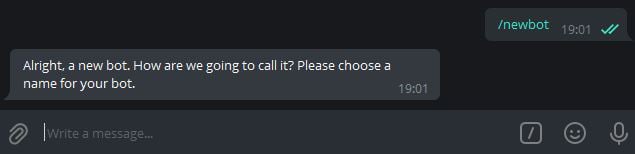

/newbot. BotFather asks for a display name (shown in contacts) and a username (must end in bot, for example MyAlterHelperBot).3
Copy the HTTP API token
When creation succeeds, BotFather sends a message containing your token (format like 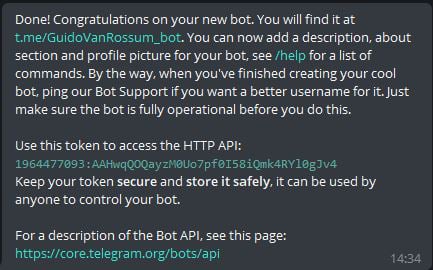
123456789:ABCdefGHIjklMNOpqrsTUVwxyz). Copy the full string.Telegram documents this flow in the Bot tutorial — Obtain your bot token.Optionale BotFather-Einstellungen
Schritt 2 – Starten Sie einen Chat mit Ihrem Bot
1
Open the bot
Tap the link BotFather provides (for example
t.me/YourBotName) or search for your bot’s username in Telegram. The success message in Step 1 includes this link.2
Tap Start
Send
/start so Telegram opens a conversation. You need an active chat before testing Alter.Schritt 3 – Optional: Verwenden Sie den Bot in einer Gruppe
Alter kann sowohl Nachrichten aus Gruppenchats als auch aus privaten Chats empfangen.1
Add the bot to a group
In your group, add the bot as a member (you may need admin permission to add bots).
2
Check Group Privacy (if messages are missing)
By default, Telegram bots in groups may only see commands and @mentions. For broader group access, open @BotFather →
/mybots → your bot → Bot Settings → Group Privacy → Turn off.See Bot FAQ — privacy mode.3
Restrict access if needed
If the bot should only respond to certain people or groups, see Secure access — allowlists and IDs below and fill in Erlaubte Telegram-Benutzer- oder Chat-IDs when you connect Alter.
Sicherer Zugriff – Zulassungslisten und IDs
Beschränken Sie, wer Ihr Telegram-Gateway mit Erlaubte Telegram-Benutzer- oder Chat-IDs in Einstellungen → Integrationen → Gateways verwenden kann. Alter prüft jede eingehende Nachricht und jeden Inline-Schaltflächentipp anhand dieser Liste, bevor eine Aktion ausgeführt wird.Alter matches user IDs, chat IDs, and
@usernames (case-insensitive). Leave the field empty to allow anyone who can message the bot. Enter * to allow everyone explicitly. Messages from users or chats not on the list are silently ignored — Alter does not reply with an error.Benutzer-ID vs. Chat-ID
Telegram verwendet numerische IDs sowohl für Personen als auch für Konversationen:
Bei einem private chat mit Ihrem Bot ist die Chat-ID normalerweise dieselbe wie Ihre Benutzer-ID. Fügen Sie in einem group die Chat-ID der Gruppe hinzu, wenn Sie möchten, dass jeder in dieser Gruppe zugelassen wird (vorbehaltlich der Group Privacy-Einstellungen).
Alter akzeptiert auch
@username-Werte (zum Beispiel @sam), wenn die Person einen öffentlichen Benutzernamen hat.
So finden Sie Ihre Telegram-Benutzer-ID
1
Use an ID bot (easiest)
In Telegram, open @userinfobot or @getidsbot and tap Start. The bot replies with your numeric Id — that is your user ID.Copy the number (digits only, no
@) into Erlaubte Telegram-Benutzer- oder Chat-IDs.2
Forward a message (groups or other chats)
To identify someone else, forward one of their messages to @userinfobot or @getidsbot. The bot reports the sender’s user ID.
So finden Sie eine Chat-ID
1
Private chat with your bot
Your user ID from Step 1 above is usually enough — private chat IDs match the user’s ID.To confirm, message your bot, then call Telegram’s
getUpdates method with your bot token and look for "chat": {"id": …} and "from": {"id": …} in the JSON. See Telegram Bot API — Chat and User.2
Group or supergroup
Add @getidsbot to the group temporarily (or use @RawDataBot), send any message in the group, and copy the Chat ID from the bot’s reply. Group IDs are negative numbers.Remove the ID bot from the group when you are done if you do not need it there permanently.
3
Bot API getUpdates (no extra bots)
With your bot token, open this URL in a browser (replace
TOKEN with your token):https://api.telegram.org/botTOKEN/getUpdatesSend a test message in the chat you want to identify, refresh the page, and read message.chat.id (chat ID) and message.from.id (sender user ID) from the latest entry.Konfigurieren Sie die Zulassungsliste in Alter
1
Collect IDs
Gather comma-separated user IDs, chat IDs, and/or
@usernames for everyone (or every group) that should be able to use the bot.2
Paste into Gateways settings
Open Einstellungen → Integrationen → Gateways, edit your Telegram gateway, and enter the values in Erlaubte Telegram-Benutzer- oder Chat-IDs (for example
123456789, -1001234567890, @sam).3
Save and test
Click Speichern und neu starten. Message the bot from an allowed account or group — you should get a reply. Messages from IDs not on the list are ignored with no response.
Best Practices für die Sicherheit
- Treat the bot token like a password. Speichern Sie es nur in Alter (Keychain). Wenn es undicht ist, widerrufen Sie es in @BotFather mit
/revokeund fügen Sie den neuen Token in Alter ein. - Use an allowlist for personal bots. Eine leere Zulassungsliste bedeutet, dass jeder, der Ihren Bot entdeckt, ihm eine Nachricht senden kann, während Alter ausgeführt wird.
- Prefer numeric IDs over
@username. Benutzernamen können sich ändern; Numerische IDs sind stabil. - Limit group exposure. Schalten Sie Group Privacy in BotFather ein, es sei denn, der Bot muss alle Gruppennachrichten lesen. Fügen Sie nur vertrauenswürdige Gruppen hinzu und setzen Sie die Gruppenchat-ID auf die Zulassungsliste, wenn sich der Bot in mehreren Gruppen befindet.
- Be cautious with third-party ID bots. Sie können weitergeleitete Nachrichten und Gruppenmetadaten sehen. Entfernen Sie sie aus sensiblen Gruppen, wenn Sie sie nicht mehr benötigen.
Verbinden Sie sich in Alter
1
Open Gateways settings
Open Einstellungen (⌘,) → Integrationen → Gateways.
2
Add a Telegram gateway
Click Gateway hinzufügen → Telegram.
3
Fill in Connection fields
4
Choose Standardaktion
Ask Anything ist die Voreinstellung und funktioniert sofort auf Telegram. Für eine benutzerdefinierte Action setzen Sie Verfügbarkeit auf Telegram oder Alle unter Action Editor → Gateways.
5
Enable and save
Turn Aktiviert on, then click Speichern und neu starten. Wait for Verbunden als @your_bot_username.
Testen Sie den Bot
1
Confirm Alter is running
Gateways only work while Alter is open on your Mac.
2
Send /help
In your Telegram chat with the bot, send
/help. The bot should list commands.3
Send a message
Send a normal message. Alter should show Thinking…, then stream the reply. In private chats, Alter uses Telegram’s native draft preview when available; otherwise it edits a regular message (rich replies can be up to about 32,000 characters).
4
Try buttons and /stop
Send
/help and use the New chat, Choose action, or Past chats buttons. While Alter is responding in a group, tap Stop or send /stop to cancel the current turn.5
Try attachments
Send a photo or document. Alter downloads supported attachments for the turn and can upload output files from tool runs when the action produces them.
6
Try voice messages
Send a voice message or audio file. Alter transcribes it with your selected voice processor (Einstellungen → Voice) and sends the text to the active action. Audio-only messages work as chat turns even without typed text.