

Open Custom Model Setup
In TypingMind, go to:Settings -> Models -> + Add Custom Model
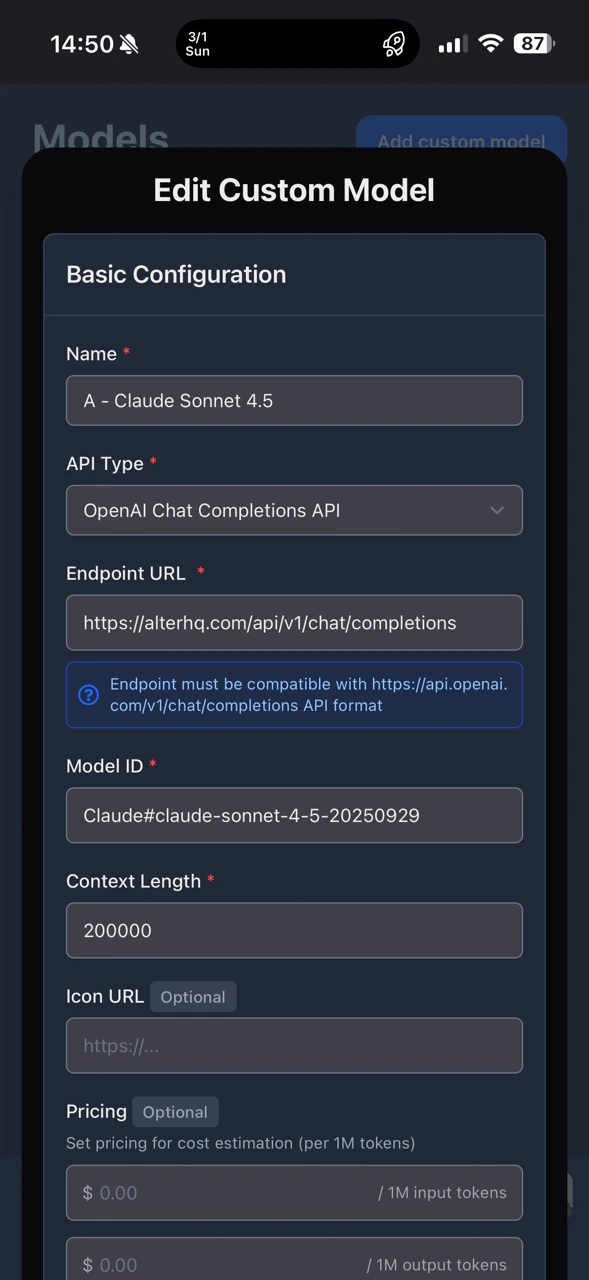
1) Basic Configuration
Set the fields as follows:Name:AlterAPI Type:OpenAI Chat Completions APIEndpoint URL:https://alterhq.com/api/v1/chat/completionsModel ID: choose one from the supported IDs belowContext Length: default value, or any value you prefer
2) Authentication
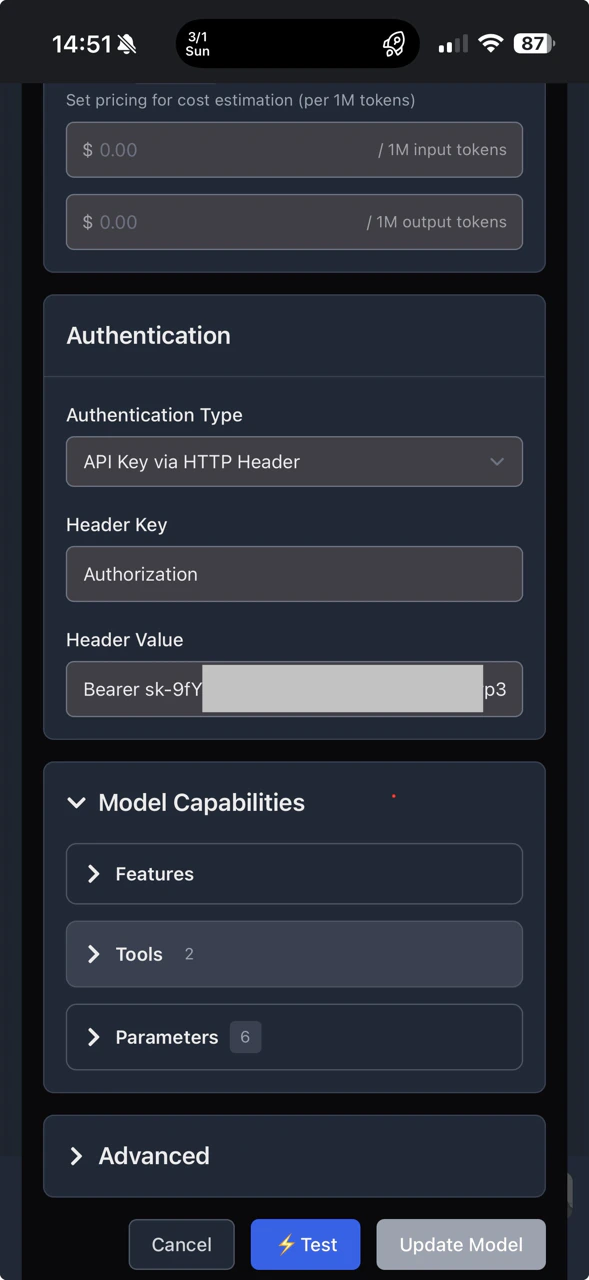
In the Authentication section:Authentication Type:No authentication
3) Advanced Configuration (Required)
ExpandAdvanced at the bottom, then add a Custom Header pair:
Key(left):AuthorizationValue(right):Bearer <YOUR_API_KEY>
<YOUR_API_KEY> with your real Alter API key.
Make sure there is one space between Bearer and your key.
Supported Model IDs
Copy the Model ID exactly as shown.Claude (Anthropic)
Claude#claude-3-5-sonnet-latestClaude#claude-3-7-sonnet-20250219Claude#claude-3-opus-20240229Claude#claude-3-haiku-20240307
OpenAI
OpenAI#gpt-4oOpenAI#gpt-4o-miniOpenAI#chatgpt-4o-latestOpenAI#gpt-4-turbo
Gemini (Google)
Gemini#gemini-2.0-flash-001Gemini#gemini-2.0-flash-lite-001Gemini#gemini-1.5-proGemini#gemini-1.5-flash
DeepSeek and Others (via Providers)
Together#deepseek-ai/DeepSeek-R1Together#deepseek-ai/DeepSeek-V3Groq#deepseek-r1-distill-llama-70bPerplexity#sonar-pro