

Two interfaces, one powerful experience. Use the Quick Panel for fast interactions and The Hub for deep work.
Two Ways to Interact
The Hub
Full workspace with tabs, sidebar, and comprehensive management
Quick Panel
Lightweight floating panel for quick queries and voice commands
General Concept
Alter provides two main interfaces for interacting with AI:The Hub
The Hub
The main window interface with tabs, sidebar, and comprehensive workspace management. Best for:
- Extended conversations
- Workspace management
- Multi-tasking with multiple contexts
- Reviewing meeting transcripts
Quick Panel
Quick Panel
The lightweight floating panel accessible from the notch or hotkey. Perfect for:
- Quick queries
- Voice commands
- Fast context additions
- Rapid interactions
Hub Interface
The Hub is divided into three main sections:
- Sidebar - Navigation for conversations, workspaces, transcripts, and more
- Main Content Area - Tabbed interface showing active content
- Input Area - Prompt box and context management
Opening The Hub
Tab Types
Conversations
Chat sessions with AI models
Workspaces
Collections of files, folders, and apps
Transcripts
Meeting transcriptions and recordings
Calendar Events
Scheduled meetings and events
Scheduled Jobs
Automated tasks and workflows
Keyboard Shortcuts
| Shortcut | Action |
|---|---|
Cmd + B | Toggle sidebar visibility |
Cmd + W | Close active tab |
Cmd + Option + → | Next tab |
Cmd + Option + ← | Previous tab |
Cmd + K | Clear all contexts |
Cmd + Delete | Delete active conversation |
Managing Contexts
Inspector Panel
Conversation Details
Metadata, export options, sharing links
Context Management
See all contexts in current conversation
Workspace Info
Statistics, files, and settings
Quick Panel Interface
The Quick Panel (accessible from the notch) is divided into three sections:1. Context
Your selected files, apps, and references
2. Prompt
Where you type or speak your request
3. Additional Selection
Quick access to models and actions
Navigation
Use keyboard shortcuts in the Quick Panel:←,↑,→,↓- Navigate between objectsEnter- Select an object@- Add elements to context#- Show conversation history>- Show meeting history/- List and choose model?- Show help menu
See the Prompt Box section below for more keyboard shortcuts.
The Context Section
The Context section displays elements sent to Alter for reference.Files
Documents, images, audio files
Text Selection
Selected text from any app
Transcripts
Audio and YouTube transcripts
Folders
Entire directories
Workspaces
Saved workspace collections
Applications
Current app context
Web Pages
URLs and web content
Keyboard Navigation
| Key | Action |
|---|---|
← ↑ → ↓ | Navigate contexts |
Space | Add/remove selected |
Cmd + K | Remove all contexts |
Using Your Clipboard
Paste content directly:Cmd + V
Your clipboard content is automatically added to Alter’s context.
The Prompt Box
The Prompt Box is where the magic happens.Start typing your prompt or an Alter Action title to send it to your AI model.
Keyboard Shortcuts
| Shortcut | Action |
|---|---|
Enter | Send prompt with active model |
Cmd + Enter | Search the web (via Gemini) |
Shift + Enter | New line |
@ | Add elements to context |
# | Show conversation history |
> | Show meeting transcription history |
/ | List and choose model |
? | Show help menu |
Help Menu

? in the prompt box to see all available shortcuts.
Conversation Windows
Resizing Windows
Customize conversation window size for your workflow:Width
Drag edges horizontally to resize
Height
Drag edges vertically to resize
Layout
Fit alongside other applications
Persistent
Size is remembered for future sessions
Useful for: Side-by-side work, reviewing long documents, screen sharing, different display setups
Continuous Speech-to-Prompt
Have extended voice conversations without touching your keyboard:Conversation History
Managing Chat History
Access history by typing# in the prompt box or using The Hub’s sidebar.
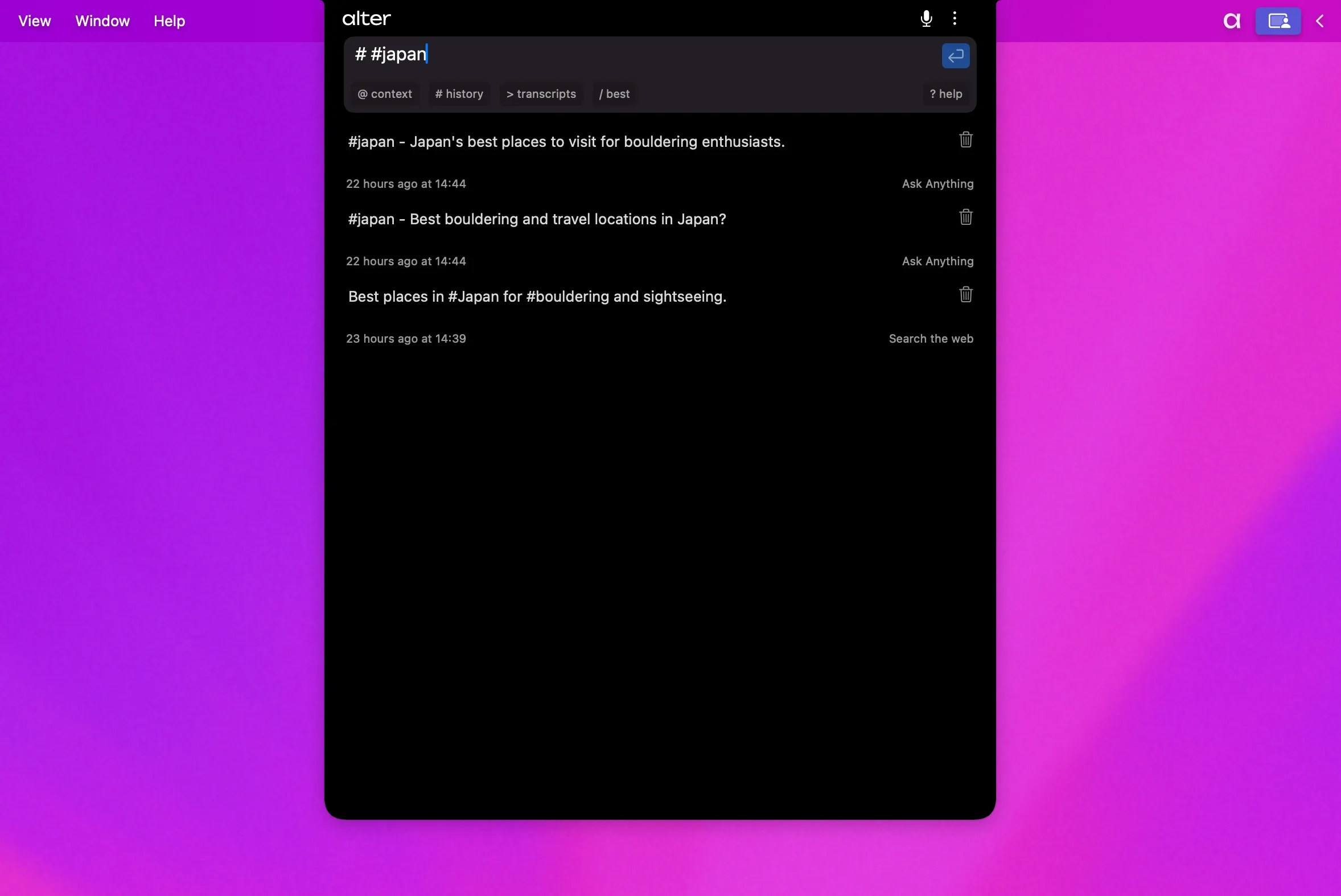
Organizing with Tags
Add tags like#personal to categorize chats:
Renaming Conversations
Exporting Conversations
Export as markdown for documentation or sharing:Export Uses
- Documentation
- Sharing with team
- Archiving important discussions
- Using in other tools