> ## Documentation Index
> Fetch the complete documentation index at: https://docs.alterhq.com/llms.txt
> Use this file to discover all available pages before exploring further.
# 设置 Telegram gateway
> 通过 BotFather 创建 Telegram 机器人并将其连接到 Alter Gateways
使用本指南通过**BotFather**创建Telegram机器人,复制其令牌,并将其连接到**設定 → 集成 → Gateways**下。
Alter connects to Telegram with a **bot token** from [@BotFather](https://t.me/BotFather). Alter uses long polling on your Mac — you do not configure webhooks or a public URL.
## 开始之前
* 一个Telegram帐户。
* **Alter** 在您的 Mac 上安装并运行。
* Telegram应用程序或[Telegram Web](https://web.telegram.org/)。
官方参考:
* [@BotFather](https://t.me/BotFather) 于 Telegram
* [Telegram Bots — Features and BotFather](https://core.telegram.org/bots/features#botfather)
* [Telegram Bot API tutorial](https://core.telegram.org/bots/tutorial)
* [Bot FAQ — groups and privacy](https://core.telegram.org/bots/faq#what-messages-will-my-bot-get)
## 步骤 1 — 使用 BotFather 创建一个机器人
In Telegram, open [@BotFather](https://t.me/BotFather) and tap **Start** (or send `/start`).
 *Source: [kitob-bot README](https://github.com/ytsshinobi/kitob-bot)*
Send `/newbot`. BotFather asks for a **display name** (shown in contacts) and a **username** (must end in `bot`, for example `MyAlterHelperBot`).
*Source: [kitob-bot README](https://github.com/ytsshinobi/kitob-bot)*
Send `/newbot`. BotFather asks for a **display name** (shown in contacts) and a **username** (must end in `bot`, for example `MyAlterHelperBot`).
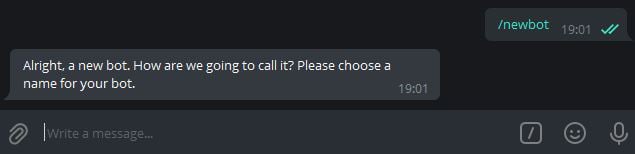
 *Source: [kitob-bot README](https://github.com/ytsshinobi/kitob-bot)*
When creation succeeds, BotFather sends a message containing your **token** (format like `123456789:ABCdefGHIjklMNOpqrsTUVwxyz`). Copy the full string.
Telegram documents this flow in the [Bot tutorial — Obtain your bot token](https://core.telegram.org/bots/tutorial#obtain-your-bot-token).
*Source: [kitob-bot README](https://github.com/ytsshinobi/kitob-bot)*
When creation succeeds, BotFather sends a message containing your **token** (format like `123456789:ABCdefGHIjklMNOpqrsTUVwxyz`). Copy the full string.
Telegram documents this flow in the [Bot tutorial — Obtain your bot token](https://core.telegram.org/bots/tutorial#obtain-your-bot-token).
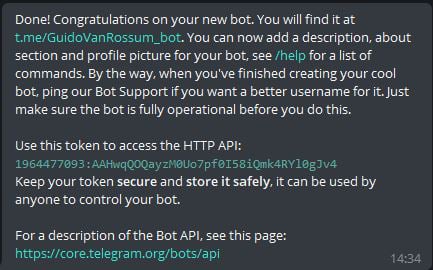 *Source: [kitob-bot README](https://github.com/ytsshinobi/kitob-bot). The token shown is from a public tutorial repo — treat your own token like a password.*
Treat the token like a password. If it is exposed, open BotFather and send `/revoke` for that bot, then paste the new token into Alter.
### 可选BotFather设置
| Command | When to use |
| ----------------- | --------------------------------------------------- |
| `/setdescription` | Short description users see before starting the bot |
| `/setabouttext` | About text on the bot profile |
| `/setuserpic` | Bot avatar |
| `/token` | Retrieve the token again for an existing bot |
## 第 2 步 — 开始与您的机器人聊天
Tap the link BotFather provides (for example `t.me/YourBotName`) or search for your bot's username in Telegram. The success message in **Step 1** includes this link.
Send `/start` so Telegram opens a conversation. You need an active chat before testing Alter.
## 步骤 3 — 可选:在组中使用机器人
Alter可以接收群聊和私聊的消息。
In your group, add the bot as a member (you may need admin permission to add bots).
By default, Telegram bots in groups may only see commands and @mentions. For broader group access, open [@BotFather](https://t.me/BotFather) → `/mybots` → your bot → **Bot Settings** → **Group Privacy** → **Turn off**.
See [Bot FAQ — privacy mode](https://core.telegram.org/bots/faq#what-messages-will-my-bot-get).
If the bot should only respond to certain people or groups, see [Secure access — allowlists and IDs](#secure-access--allowlists-and-ids) below and fill in **允许的 Telegram 使用者或聊天 ID** when you connect Alter.
## 安全访问 — 允许名单和 ID
限制谁可以使用您的Telegram网关与**設定 → 集成 → Gateways**中的**允许的 Telegram 使用者或聊天 ID**。 Alter 在运行操作之前检查每个传入消息和内联按钮点击该列表。
Alter matches **user IDs**, **chat IDs**, and `@usernames` (case-insensitive). Leave the field **empty** to allow anyone who can message the bot. Enter `*` to allow everyone explicitly. Messages from users or chats not on the list are **silently ignored** — Alter does not reply with an error.
### 用户 ID 与聊天 ID
Telegram 对人和对话都使用数字 ID:
| ID type | Typical format | When to use in Alter |
| ----------- | -------------------------------------------------------------------------------------------------- | ------------------------------------------------- |
| **User ID** | Positive number (for example `123456789`) | Allow a specific person in DMs or in a group |
| **Chat ID** | Positive for private chats; **negative** for groups and supergroups (for example `-1001234567890`) | Allow an entire group, or a specific private chat |
在与您的机器人的 **private chat** 中,聊天 ID 通常与您的用户 ID 相同。在 **group** 中,如果您希望允许该群组中的每个人都被允许(取决于 [Group Privacy](#step-3--optional-use-the-bot-in-a-group) 设置),请添加该群组的聊天 ID。
如果此人具有公共用户名,则 Alter 还接受 `@username` 值(例如 `@sam`)。
### 如何找到您的Telegram用户ID
In Telegram, open [@userinfobot](https://t.me/userinfobot) or [@getidsbot](https://t.me/getidsbot) and tap **Start**. The bot replies with your numeric **Id** — that is your **user ID**.
Copy the number (digits only, no `@`) into **允许的 Telegram 使用者或聊天 ID**.
To identify someone else, forward one of their messages to [@userinfobot](https://t.me/userinfobot) or [@getidsbot](https://t.me/getidsbot). The bot reports the sender's user ID.
Only forward messages in contexts where you are comfortable sharing metadata with a third-party bot. For sensitive groups, prefer the Bot API method below or add the whole group by chat ID instead.
### 如何查找聊天ID
Your user ID from **Step 1** above is usually enough — private chat IDs match the user's ID.
To confirm, message your bot, then call Telegram's [`getUpdates`](https://core.telegram.org/bots/api#getupdates) method with your bot token and look for `"chat": {"id": …}` and `"from": {"id": …}` in the JSON. See [Telegram Bot API — Chat](https://core.telegram.org/bots/api#chat) and [User](https://core.telegram.org/bots/api#user).
Add [@getidsbot](https://t.me/getidsbot) to the group temporarily (or use [@RawDataBot](https://t.me/RawDataBot)), send any message in the group, and copy the **Chat ID** from the bot's reply. Group IDs are negative numbers.
Remove the ID bot from the group when you are done if you do not need it there permanently.
With your bot token, open this URL in a browser (replace `TOKEN` with your token):
`https://api.telegram.org/botTOKEN/getUpdates`
Send a test message in the chat you want to identify, refresh the page, and read `message.chat.id` (chat ID) and `message.from.id` (sender user ID) from the latest entry.
Treat the URL like a password — anyone with it can control your bot. Close the tab when finished and never share the link.
Alter's `/status` command shows the default action and whether a conversation is selected — it does **not** print user or chat IDs. Use the methods above when building an allowlist.
### 在Alter中配置白名单
Gather comma-separated user IDs, chat IDs, and/or `@usernames` for everyone (or every group) that should be able to use the bot.
Open **設定 → 集成 → Gateways**, edit your Telegram gateway, and enter the values in **允许的 Telegram 使用者或聊天 ID** (for example `123456789, -1001234567890, @sam`).
Click **保存并重启**. Message the bot from an allowed account or group — you should get a reply. Messages from IDs not on the list are ignored with no response.
### 安全最佳实践
* **Treat the bot token like a password.** 仅将其存储在Alter (Keychain) 中。如果泄漏,请使用`/revoke`在[@BotFather](https://t.me/BotFather)中撤销它,并将新令牌粘贴到Alter中。
* **Use an allowlist for personal bots.** 空白名单意味着发现您的机器人的任何人都可以在 Alter 运行时向其发送消息。
* **Prefer numeric IDs over `@username`.** 用户名可以更改;数字 ID 是稳定的。
* **Limit group exposure.** 在BotFather 中打开[Group Privacy](#step-3--optional-use-the-bot-in-a-group),除非机器人必须读取所有群组消息。仅添加受信任的群组,如果机器人位于多个群组中,则将群组聊天 ID 列入白名单。
* **Be cautious with third-party ID bots.** 他们可以查看转发的消息和组元数据。当您不再需要它们时,将它们从敏感组中删除。
## 连接Alter
Open **设置** (⌘,) → **集成** → **Gateways**.
Click **添加 Gateway** → **Telegram**.
| Field | What to enter |
| -------------------------- | ----------------------------------------------------------------------------------------------------------------------------------------------- |
| **名稱** | A label you will recognize (for example `Telegram — Personal`). |
| **Bot 令牌** | The token from BotFather (**Step 1**). |
| **允许的 Telegram 使用者或聊天 ID** | Comma-separated user IDs, chat IDs, or `@usernames`. Leave empty to allow anyone who can message the bot. Use `*` to allow everyone explicitly. |
**Ask Anything** 是默认 Action,在 Telegram 上开箱即用。对于自定义 Action,在 **Action Editor → Gateways** 中将 **可用性** 设为 **Telegram** 或 **全部**。
Turn **已启用** on, then click **保存并重启**. Wait for **已连接为 @your\_bot\_username**.
如果连接失败,请参阅[Gateways troubleshooting](/apps-tools/gateways#troubleshooting)。
## 测试机器人
Gateways only work while Alter is open on your Mac.
In your Telegram chat with the bot, send `/help`. The bot should list commands.
Send a normal message. Alter should show **Thinking…**, then stream the reply. In private chats, Alter uses Telegram's native draft preview when available; otherwise it edits a regular message (rich replies can be up to about 32,000 characters).
Send `/help` and use the **New chat**, **Choose action**, or **Past chats** buttons. While Alter is responding in a group, tap **Stop** or send `/stop` to cancel the current turn.
Send a photo or document. Alter downloads supported attachments for the turn and can upload output files from tool runs when the action produces them.
Send a **voice message** or audio file. Alter transcribes it with your selected voice processor (**设置 → Voice**) and sends the text to the active action. Audio-only messages work as chat turns even without typed text.
## 相关页面
* [Gateways overview](/apps-tools/gateways)
* [Set up a Discord gateway](/apps-tools/gateways-discord)
* [Alter Actions — Gateway 可用性](/workflows/alter-actions#gateways)
* [Alter Settings](/how-to/settings-guide)
*Source: [kitob-bot README](https://github.com/ytsshinobi/kitob-bot). The token shown is from a public tutorial repo — treat your own token like a password.*
Treat the token like a password. If it is exposed, open BotFather and send `/revoke` for that bot, then paste the new token into Alter.
### 可选BotFather设置
| Command | When to use |
| ----------------- | --------------------------------------------------- |
| `/setdescription` | Short description users see before starting the bot |
| `/setabouttext` | About text on the bot profile |
| `/setuserpic` | Bot avatar |
| `/token` | Retrieve the token again for an existing bot |
## 第 2 步 — 开始与您的机器人聊天
Tap the link BotFather provides (for example `t.me/YourBotName`) or search for your bot's username in Telegram. The success message in **Step 1** includes this link.
Send `/start` so Telegram opens a conversation. You need an active chat before testing Alter.
## 步骤 3 — 可选:在组中使用机器人
Alter可以接收群聊和私聊的消息。
In your group, add the bot as a member (you may need admin permission to add bots).
By default, Telegram bots in groups may only see commands and @mentions. For broader group access, open [@BotFather](https://t.me/BotFather) → `/mybots` → your bot → **Bot Settings** → **Group Privacy** → **Turn off**.
See [Bot FAQ — privacy mode](https://core.telegram.org/bots/faq#what-messages-will-my-bot-get).
If the bot should only respond to certain people or groups, see [Secure access — allowlists and IDs](#secure-access--allowlists-and-ids) below and fill in **允许的 Telegram 使用者或聊天 ID** when you connect Alter.
## 安全访问 — 允许名单和 ID
限制谁可以使用您的Telegram网关与**設定 → 集成 → Gateways**中的**允许的 Telegram 使用者或聊天 ID**。 Alter 在运行操作之前检查每个传入消息和内联按钮点击该列表。
Alter matches **user IDs**, **chat IDs**, and `@usernames` (case-insensitive). Leave the field **empty** to allow anyone who can message the bot. Enter `*` to allow everyone explicitly. Messages from users or chats not on the list are **silently ignored** — Alter does not reply with an error.
### 用户 ID 与聊天 ID
Telegram 对人和对话都使用数字 ID:
| ID type | Typical format | When to use in Alter |
| ----------- | -------------------------------------------------------------------------------------------------- | ------------------------------------------------- |
| **User ID** | Positive number (for example `123456789`) | Allow a specific person in DMs or in a group |
| **Chat ID** | Positive for private chats; **negative** for groups and supergroups (for example `-1001234567890`) | Allow an entire group, or a specific private chat |
在与您的机器人的 **private chat** 中,聊天 ID 通常与您的用户 ID 相同。在 **group** 中,如果您希望允许该群组中的每个人都被允许(取决于 [Group Privacy](#step-3--optional-use-the-bot-in-a-group) 设置),请添加该群组的聊天 ID。
如果此人具有公共用户名,则 Alter 还接受 `@username` 值(例如 `@sam`)。
### 如何找到您的Telegram用户ID
In Telegram, open [@userinfobot](https://t.me/userinfobot) or [@getidsbot](https://t.me/getidsbot) and tap **Start**. The bot replies with your numeric **Id** — that is your **user ID**.
Copy the number (digits only, no `@`) into **允许的 Telegram 使用者或聊天 ID**.
To identify someone else, forward one of their messages to [@userinfobot](https://t.me/userinfobot) or [@getidsbot](https://t.me/getidsbot). The bot reports the sender's user ID.
Only forward messages in contexts where you are comfortable sharing metadata with a third-party bot. For sensitive groups, prefer the Bot API method below or add the whole group by chat ID instead.
### 如何查找聊天ID
Your user ID from **Step 1** above is usually enough — private chat IDs match the user's ID.
To confirm, message your bot, then call Telegram's [`getUpdates`](https://core.telegram.org/bots/api#getupdates) method with your bot token and look for `"chat": {"id": …}` and `"from": {"id": …}` in the JSON. See [Telegram Bot API — Chat](https://core.telegram.org/bots/api#chat) and [User](https://core.telegram.org/bots/api#user).
Add [@getidsbot](https://t.me/getidsbot) to the group temporarily (or use [@RawDataBot](https://t.me/RawDataBot)), send any message in the group, and copy the **Chat ID** from the bot's reply. Group IDs are negative numbers.
Remove the ID bot from the group when you are done if you do not need it there permanently.
With your bot token, open this URL in a browser (replace `TOKEN` with your token):
`https://api.telegram.org/botTOKEN/getUpdates`
Send a test message in the chat you want to identify, refresh the page, and read `message.chat.id` (chat ID) and `message.from.id` (sender user ID) from the latest entry.
Treat the URL like a password — anyone with it can control your bot. Close the tab when finished and never share the link.
Alter's `/status` command shows the default action and whether a conversation is selected — it does **not** print user or chat IDs. Use the methods above when building an allowlist.
### 在Alter中配置白名单
Gather comma-separated user IDs, chat IDs, and/or `@usernames` for everyone (or every group) that should be able to use the bot.
Open **設定 → 集成 → Gateways**, edit your Telegram gateway, and enter the values in **允许的 Telegram 使用者或聊天 ID** (for example `123456789, -1001234567890, @sam`).
Click **保存并重启**. Message the bot from an allowed account or group — you should get a reply. Messages from IDs not on the list are ignored with no response.
### 安全最佳实践
* **Treat the bot token like a password.** 仅将其存储在Alter (Keychain) 中。如果泄漏,请使用`/revoke`在[@BotFather](https://t.me/BotFather)中撤销它,并将新令牌粘贴到Alter中。
* **Use an allowlist for personal bots.** 空白名单意味着发现您的机器人的任何人都可以在 Alter 运行时向其发送消息。
* **Prefer numeric IDs over `@username`.** 用户名可以更改;数字 ID 是稳定的。
* **Limit group exposure.** 在BotFather 中打开[Group Privacy](#step-3--optional-use-the-bot-in-a-group),除非机器人必须读取所有群组消息。仅添加受信任的群组,如果机器人位于多个群组中,则将群组聊天 ID 列入白名单。
* **Be cautious with third-party ID bots.** 他们可以查看转发的消息和组元数据。当您不再需要它们时,将它们从敏感组中删除。
## 连接Alter
Open **设置** (⌘,) → **集成** → **Gateways**.
Click **添加 Gateway** → **Telegram**.
| Field | What to enter |
| -------------------------- | ----------------------------------------------------------------------------------------------------------------------------------------------- |
| **名稱** | A label you will recognize (for example `Telegram — Personal`). |
| **Bot 令牌** | The token from BotFather (**Step 1**). |
| **允许的 Telegram 使用者或聊天 ID** | Comma-separated user IDs, chat IDs, or `@usernames`. Leave empty to allow anyone who can message the bot. Use `*` to allow everyone explicitly. |
**Ask Anything** 是默认 Action,在 Telegram 上开箱即用。对于自定义 Action,在 **Action Editor → Gateways** 中将 **可用性** 设为 **Telegram** 或 **全部**。
Turn **已启用** on, then click **保存并重启**. Wait for **已连接为 @your\_bot\_username**.
如果连接失败,请参阅[Gateways troubleshooting](/apps-tools/gateways#troubleshooting)。
## 测试机器人
Gateways only work while Alter is open on your Mac.
In your Telegram chat with the bot, send `/help`. The bot should list commands.
Send a normal message. Alter should show **Thinking…**, then stream the reply. In private chats, Alter uses Telegram's native draft preview when available; otherwise it edits a regular message (rich replies can be up to about 32,000 characters).
Send `/help` and use the **New chat**, **Choose action**, or **Past chats** buttons. While Alter is responding in a group, tap **Stop** or send `/stop` to cancel the current turn.
Send a photo or document. Alter downloads supported attachments for the turn and can upload output files from tool runs when the action produces them.
Send a **voice message** or audio file. Alter transcribes it with your selected voice processor (**设置 → Voice**) and sends the text to the active action. Audio-only messages work as chat turns even without typed text.
## 相关页面
* [Gateways overview](/apps-tools/gateways)
* [Set up a Discord gateway](/apps-tools/gateways-discord)
* [Alter Actions — Gateway 可用性](/workflows/alter-actions#gateways)
* [Alter Settings](/how-to/settings-guide)