> ## Documentation Index
> Fetch the complete documentation index at: https://docs.alterhq.com/llms.txt
> Use this file to discover all available pages before exploring further.
# 设置 Discord gateway
> 创建 Discord 机器人并将其连接到 Alter Gateways
使用本指南创建Discord机器人,授予Alter所需的权限,并将其连接到**設定 → 集成 → Gateways**下。
Alter connects to Discord as a **bot** using a **bot token**. You create the bot in the [Discord Developer Portal](https://discord.com/developers/applications); Alter does not generate an invite URL for you — you add the bot to your server from the portal.
## 开始之前
* 一个 Discord 帐户,有权创建应用程序(并将机器人添加到目标服务器)。
* **Alter** 在您的 Mac 上安装并运行。
* 几分钟即可复制令牌和 ID — 将机器人令牌视为密码。
官方参考:
* [Discord Developer Portal](https://discord.com/developers/applications)
* [Discord quick start — overview of apps](https://discord.com/developers/docs/quick-start/overview-of-apps)
## 步骤 1 — 创建一个 Discord 应用程序
Go to [discord.com/developers/applications](https://discord.com/developers/applications) and sign in.
Click **New Application**, choose a name (for example `Alter`), and confirm.
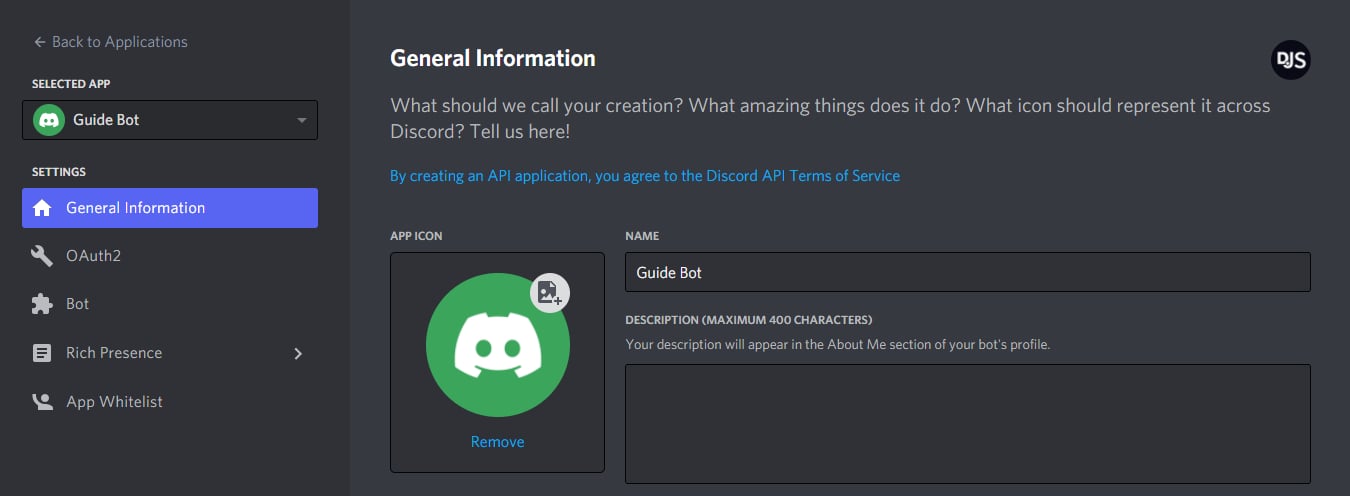 *Source: [discord.js guide — Application Setup](https://discordjs.guide/preparations/app-setup)*
In the left sidebar, select **Bot**, then click **Add Bot** (or **Reset Token** if you already created one).
*Source: [discord.js guide — Application Setup](https://discordjs.guide/preparations/app-setup)*
In the left sidebar, select **Bot**, then click **Add Bot** (or **Reset Token** if you already created one).
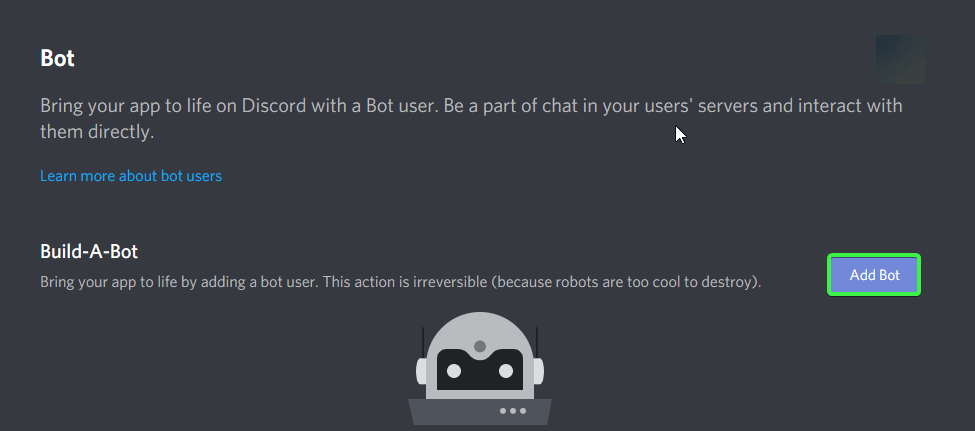 *Source: [Stack Overflow — permanent OAuth invite for a Discord bot](https://stackoverflow.com/questions/68218211/how-do-you-create-a-permanent-oauth-invite-for-your-discord-bot)*
## 步骤 2 — 启用 Message Content Intent
Alter 必须读取服务器和 DM 中的消息文本。 Discord 要求您在 Developer Portal 中显式打开此功能。
In your application, go to **Bot**.
Under **Privileged Gateway Intents**, turn on **Message Content Intent**.
*Source: [Stack Overflow — permanent OAuth invite for a Discord bot](https://stackoverflow.com/questions/68218211/how-do-you-create-a-permanent-oauth-invite-for-your-discord-bot)*
## 步骤 2 — 启用 Message Content Intent
Alter 必须读取服务器和 DM 中的消息文本。 Discord 要求您在 Developer Portal 中显式打开此功能。
In your application, go to **Bot**.
Under **Privileged Gateway Intents**, turn on **Message Content Intent**.
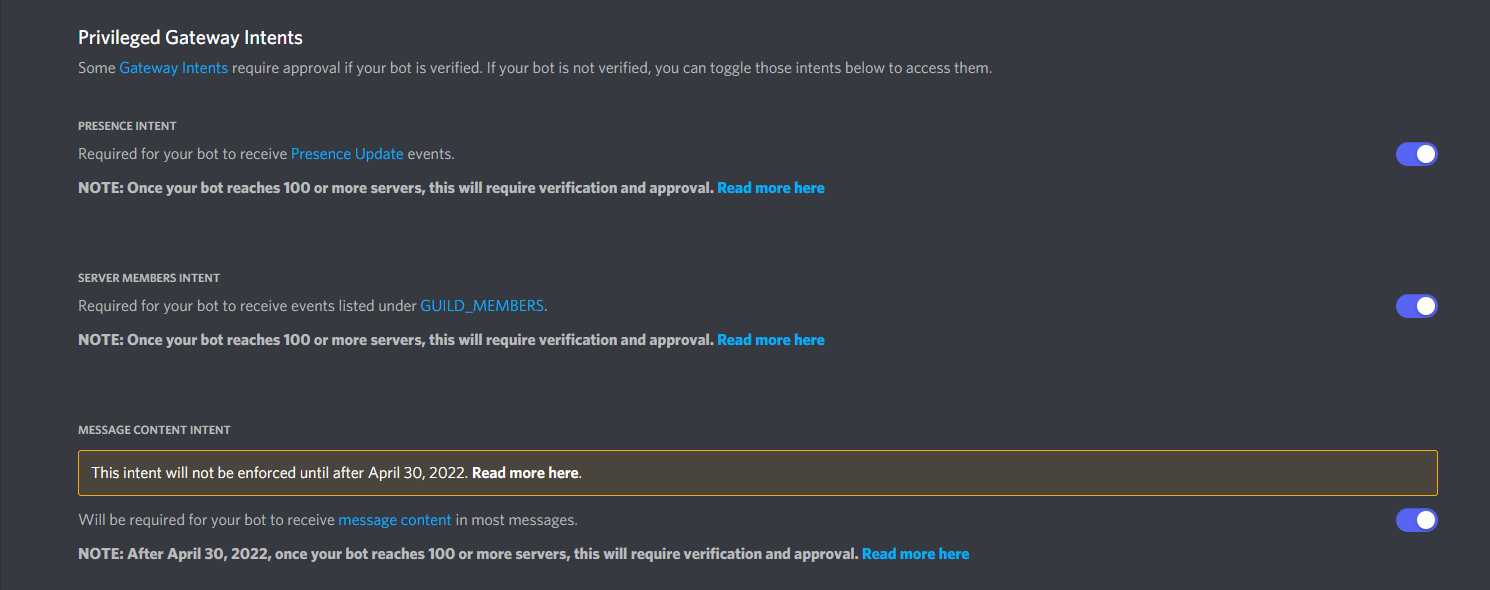 *Source: [PyCord docs — Gateway Intents](https://docs.pycord.dev/en/master/intents.html)*
Confirm any prompts. Without this intent, Alter cannot read messages and shows an error such as *Enable Message Content Intent for this bot*.
## 步骤 3 — 复制机器人令牌
On the **Bot** page, click **Reset Token** (first-time setup) or **Copy** under **Token**.
*Source: [PyCord docs — Gateway Intents](https://docs.pycord.dev/en/master/intents.html)*
Confirm any prompts. Without this intent, Alter cannot read messages and shows an error such as *Enable Message Content Intent for this bot*.
## 步骤 3 — 复制机器人令牌
On the **Bot** page, click **Reset Token** (first-time setup) or **Copy** under **Token**.
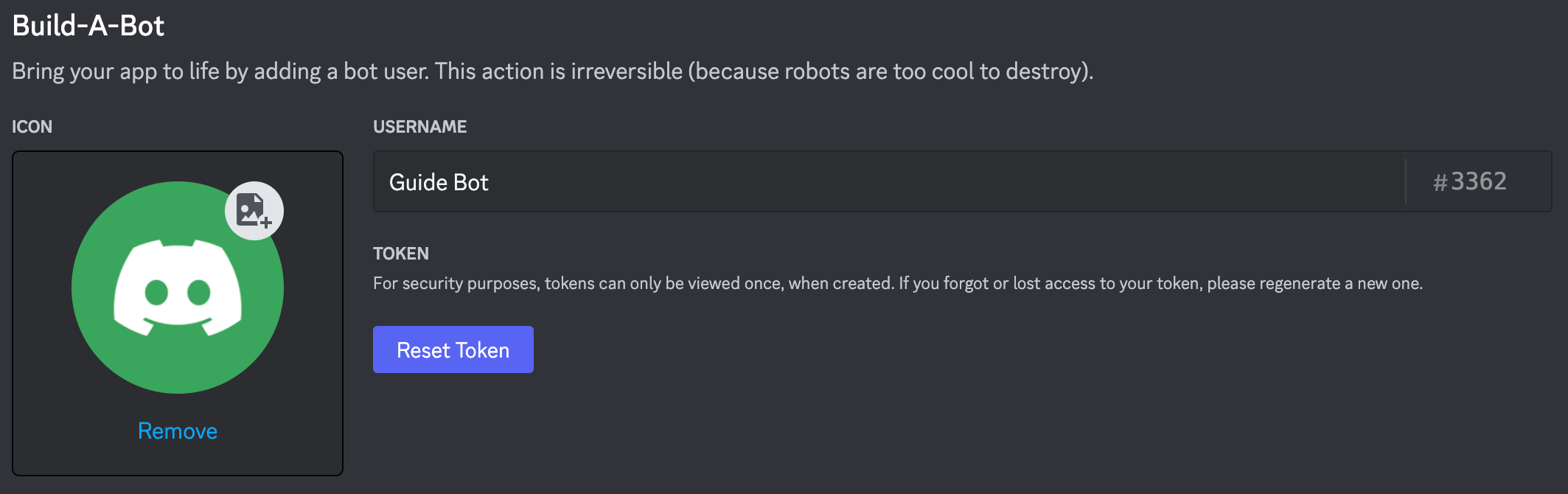 *Source: [discord.js guide — Application Setup](https://discordjs.guide/preparations/app-setup)*
Paste the token somewhere safe temporarily — you will enter it in Alter in a later step. If it leaks, use **Reset Token** in the portal and update Alter.
Never commit or share your bot token. Anyone with the token can control your bot.
## 步骤 4 — 邀请机器人到您的服务器
Alter 不会在应用程序内构建邀请链接。在Developer Portal中生成一个:
In your application sidebar, go to **OAuth2** → **URL Generator**.
Under **Scopes**, check **bot**.
*Source: [discord.js guide — Application Setup](https://discordjs.guide/preparations/app-setup)*
Paste the token somewhere safe temporarily — you will enter it in Alter in a later step. If it leaks, use **Reset Token** in the portal and update Alter.
Never commit or share your bot token. Anyone with the token can control your bot.
## 步骤 4 — 邀请机器人到您的服务器
Alter 不会在应用程序内构建邀请链接。在Developer Portal中生成一个:
In your application sidebar, go to **OAuth2** → **URL Generator**.
Under **Scopes**, check **bot**.
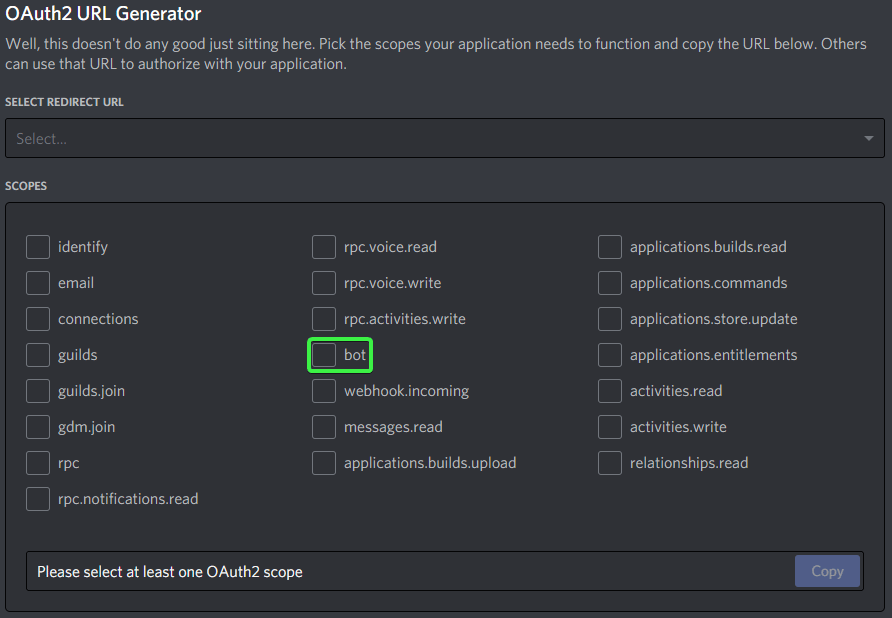 *Source: [Stack Overflow — permanent OAuth invite for a Discord bot](https://stackoverflow.com/questions/68218211/how-do-you-create-a-permanent-oauth-invite-for-your-discord-bot)*
Under **Bot Permissions**, enable:
* **View Channels**
* **Send Messages**
* **Read Message History**
* **Attach Files**
* **Create Public Threads** and **Send Messages in Threads** (optional — only needed if you enable **在线程中開始服务器討論** in Alter)
These let Alter read your messages, reply, send file outputs from tool runs, and optionally create discussion threads in server channels.
*Source: [Stack Overflow — permanent OAuth invite for a Discord bot](https://stackoverflow.com/questions/68218211/how-do-you-create-a-permanent-oauth-invite-for-your-discord-bot)*
Under **Bot Permissions**, enable:
* **View Channels**
* **Send Messages**
* **Read Message History**
* **Attach Files**
* **Create Public Threads** and **Send Messages in Threads** (optional — only needed if you enable **在线程中開始服务器討論** in Alter)
These let Alter read your messages, reply, send file outputs from tool runs, and optionally create discussion threads in server channels.
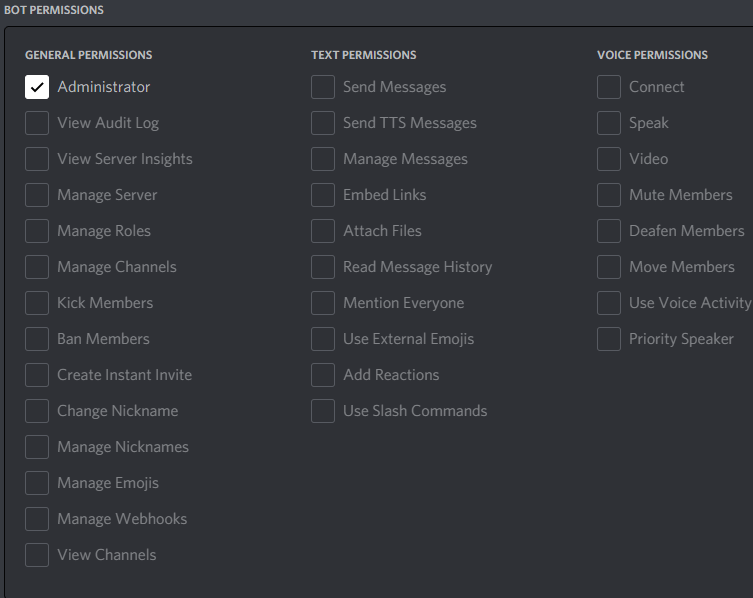 *Source: [Stack Overflow — permanent OAuth invite for a Discord bot](https://stackoverflow.com/questions/68218211/how-do-you-create-a-permanent-oauth-invite-for-your-discord-bot). Select the permissions listed above — not Administrator.*
Copy the URL at the bottom, open it in your browser, choose your server, and authorize the bot.
Discord documents this flow in [Adding bots to servers](https://discord.com/developers/docs/topics/oauth2#bot-authorization-flow).
*Source: [Stack Overflow — permanent OAuth invite for a Discord bot](https://stackoverflow.com/questions/68218211/how-do-you-create-a-permanent-oauth-invite-for-your-discord-bot). Select the permissions listed above — not Administrator.*
Copy the URL at the bottom, open it in your browser, choose your server, and authorize the bot.
Discord documents this flow in [Adding bots to servers](https://discord.com/developers/docs/topics/oauth2#bot-authorization-flow).
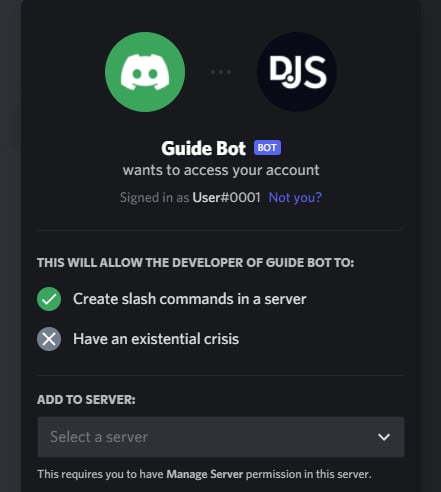 *Source: [discord.js guide — Adding Your App](https://discordjs.guide/preparations/adding-your-app)*
You need **Manage Server** (or equivalent) on the target Discord server to complete the invite.
## 步骤 5 — 可选:复制服务器和用户 ID
如果您想限制哪些服务器或用户可以与 Alter 通信,请使用这些。
In the Discord client: **User Settings → Advanced → Developer Mode** → on.
See [Discord's ID documentation](https://support.discord.com/hc/en-us/articles/206346498-Where-can-I-find-my-User-Server-Message-ID).
Right-click your server icon → **Copy Server ID**. Paste this into Alter's **服务器 ID(可选)** field to ignore messages from other servers.
Right-click a user → **Copy User ID**. Use comma-separated IDs in **允许的 Discord 使用者 ID** to allow only those people.
将 **Server ID** 和 **允许的 Discord 使用者 ID** 留空,以允许任何可以向机器人发送消息的人(受Discord 频道权限的约束)。
## 连接Alter
Open **设置** (⌘,) → **集成** → **Gateways**. See the [Gateways overview](/apps-tools/gateways#open-gateways-settings) for other ways to open Settings.
Click **添加 Gateway** → **Discord**. Alter creates a new gateway entry in the list.
| Field | What to enter |
| ---------------------- | ----------------------------------------------------------------------------------------------------------------------------------------------- |
| **名稱** | A label you will recognize (for example `Discord — Work server`). |
| **Bot 令牌** | The token from **Step 3**. Alter accepts tokens with or without a leading `Bot ` prefix. |
| **服务器 ID(可选)** | Your guild ID from **Step 5**, or leave empty for any server the bot is in. When set, Alter also registers slash commands for that server only. |
| **就緒訊息頻道 ID(可选)** | A channel ID where Alter posts “Hey, I'm up and running.” after a successful connection. |
| **允许的 Discord 使用者 ID** | Comma-separated user IDs, or leave empty for open access. Use `*` to allow everyone explicitly. |
| **在服务器中需要 @提及** | When on, the bot only responds in server channels when `@mentioned`. Direct messages are unaffected. |
**Ask Anything** 是默认 Action,在 Discord 上开箱即用。对于自定义 Action,在 **Action Editor → Gateways** 中将 **可用性** 设为 **Discord** 或 **全部**。
在 **Behavior** 下,新 Discord Gateway **默认开启** **在主题中发起服务器讨论** — 每条新的服务器顶层消息都会创建独立的 Discord 主题和 Alter 会话。已在主题内的消息继续该会话。私信不变。若希望在主频道回复可关闭。若保持开启,邀请 bot 时请授予 **Create Public Threads** 和 **Send Messages in Threads**(**步骤 4**)。
Turn **已启用** on, then click **保存并重启**. Wait for a status such as **已连接为 bot …** or **已连接为 @…**.
如果连接失败,请参见[Gateways troubleshooting](/apps-tools/gateways#troubleshooting)。
## 测试机器人
Gateways only work while Alter is open on your Mac.
In a DM or server channel, send `/help` (or use Discord's `/help` slash command). The bot should list commands and show **New chat**, **Choose action**, and **Past chats** buttons.
Send a normal message (or `@mention` the bot in a server if **在服务器中需要 @提及** is enabled). Alter should react with 👀, show a **Thinking…** placeholder, then stream the answer and react with ✅ or ❌ when done.
Run `/new` to start a fresh conversation with the **默认 Action**, or `/new ask-anything` to target a specific action ID.
Send a Discord **voice message** or attach an audio file. Alter transcribes it with your selected voice processor (**设置 → Voice**) and sends the text to the active action.
## 相关页面
* [Gateways overview](/apps-tools/gateways)
* [Set up a Telegram gateway](/apps-tools/gateways-telegram)
* [Alter Actions — Gateway 可用性](/workflows/alter-actions#gateways)
* [Alter Settings](/how-to/settings-guide)
*Source: [discord.js guide — Adding Your App](https://discordjs.guide/preparations/adding-your-app)*
You need **Manage Server** (or equivalent) on the target Discord server to complete the invite.
## 步骤 5 — 可选:复制服务器和用户 ID
如果您想限制哪些服务器或用户可以与 Alter 通信,请使用这些。
In the Discord client: **User Settings → Advanced → Developer Mode** → on.
See [Discord's ID documentation](https://support.discord.com/hc/en-us/articles/206346498-Where-can-I-find-my-User-Server-Message-ID).
Right-click your server icon → **Copy Server ID**. Paste this into Alter's **服务器 ID(可选)** field to ignore messages from other servers.
Right-click a user → **Copy User ID**. Use comma-separated IDs in **允许的 Discord 使用者 ID** to allow only those people.
将 **Server ID** 和 **允许的 Discord 使用者 ID** 留空,以允许任何可以向机器人发送消息的人(受Discord 频道权限的约束)。
## 连接Alter
Open **设置** (⌘,) → **集成** → **Gateways**. See the [Gateways overview](/apps-tools/gateways#open-gateways-settings) for other ways to open Settings.
Click **添加 Gateway** → **Discord**. Alter creates a new gateway entry in the list.
| Field | What to enter |
| ---------------------- | ----------------------------------------------------------------------------------------------------------------------------------------------- |
| **名稱** | A label you will recognize (for example `Discord — Work server`). |
| **Bot 令牌** | The token from **Step 3**. Alter accepts tokens with or without a leading `Bot ` prefix. |
| **服务器 ID(可选)** | Your guild ID from **Step 5**, or leave empty for any server the bot is in. When set, Alter also registers slash commands for that server only. |
| **就緒訊息頻道 ID(可选)** | A channel ID where Alter posts “Hey, I'm up and running.” after a successful connection. |
| **允许的 Discord 使用者 ID** | Comma-separated user IDs, or leave empty for open access. Use `*` to allow everyone explicitly. |
| **在服务器中需要 @提及** | When on, the bot only responds in server channels when `@mentioned`. Direct messages are unaffected. |
**Ask Anything** 是默认 Action,在 Discord 上开箱即用。对于自定义 Action,在 **Action Editor → Gateways** 中将 **可用性** 设为 **Discord** 或 **全部**。
在 **Behavior** 下,新 Discord Gateway **默认开启** **在主题中发起服务器讨论** — 每条新的服务器顶层消息都会创建独立的 Discord 主题和 Alter 会话。已在主题内的消息继续该会话。私信不变。若希望在主频道回复可关闭。若保持开启,邀请 bot 时请授予 **Create Public Threads** 和 **Send Messages in Threads**(**步骤 4**)。
Turn **已启用** on, then click **保存并重启**. Wait for a status such as **已连接为 bot …** or **已连接为 @…**.
如果连接失败,请参见[Gateways troubleshooting](/apps-tools/gateways#troubleshooting)。
## 测试机器人
Gateways only work while Alter is open on your Mac.
In a DM or server channel, send `/help` (or use Discord's `/help` slash command). The bot should list commands and show **New chat**, **Choose action**, and **Past chats** buttons.
Send a normal message (or `@mention` the bot in a server if **在服务器中需要 @提及** is enabled). Alter should react with 👀, show a **Thinking…** placeholder, then stream the answer and react with ✅ or ❌ when done.
Run `/new` to start a fresh conversation with the **默认 Action**, or `/new ask-anything` to target a specific action ID.
Send a Discord **voice message** or attach an audio file. Alter transcribes it with your selected voice processor (**设置 → Voice**) and sends the text to the active action.
## 相关页面
* [Gateways overview](/apps-tools/gateways)
* [Set up a Telegram gateway](/apps-tools/gateways-telegram)
* [Alter Actions — Gateway 可用性](/workflows/alter-actions#gateways)
* [Alter Settings](/how-to/settings-guide)