> ## Documentation Index
> Fetch the complete documentation index at: https://docs.alterhq.com/llms.txt
> Use this file to discover all available pages before exploring further.
# Core FAQ
> Quick answers to common questions about using Alter
Use these short answers first, then expand with how-to or guide content.
Scope: quick in-product usage questions only (opening Alter, context, settings, dictation, BYOK setup).
## How do I open Alter?
1. Hover over the notch.
2. Press `Alt+Space`.
3. Hold `Fn` and speak.
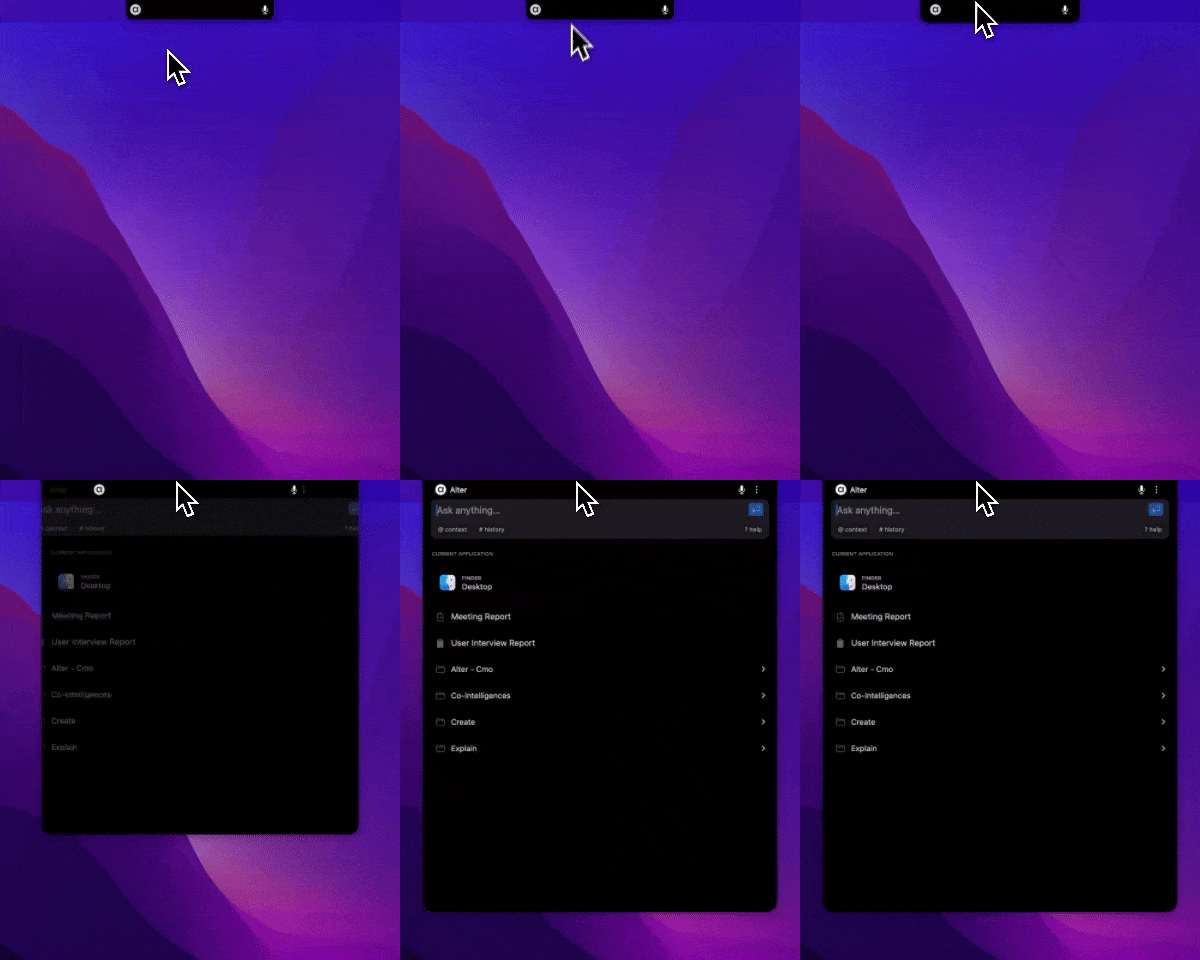 See [Getting Started](/getting-started/getting-started-path) for more details.
## How do I add my own API key?
1. Open Settings (`Cmd+,`).
2. Go to API Keys.
3. Select provider and enter key.
See [Getting Started](/getting-started/getting-started-path) for more details.
## How do I add my own API key?
1. Open Settings (`Cmd+,`).
2. Go to API Keys.
3. Select provider and enter key.
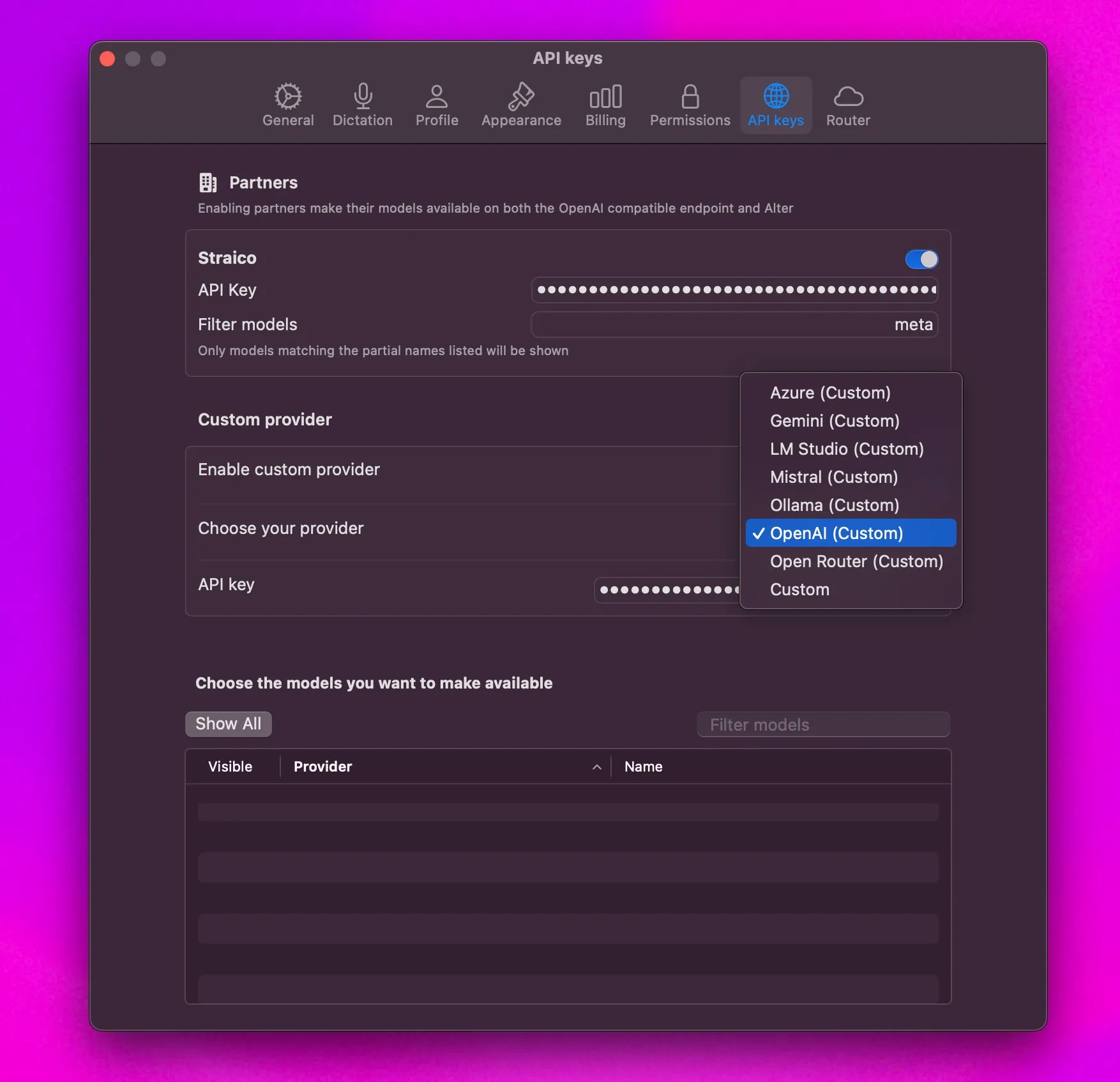 See [How-To: Use Your Own API Key](/how-to/use-byok) for detailed instructions.
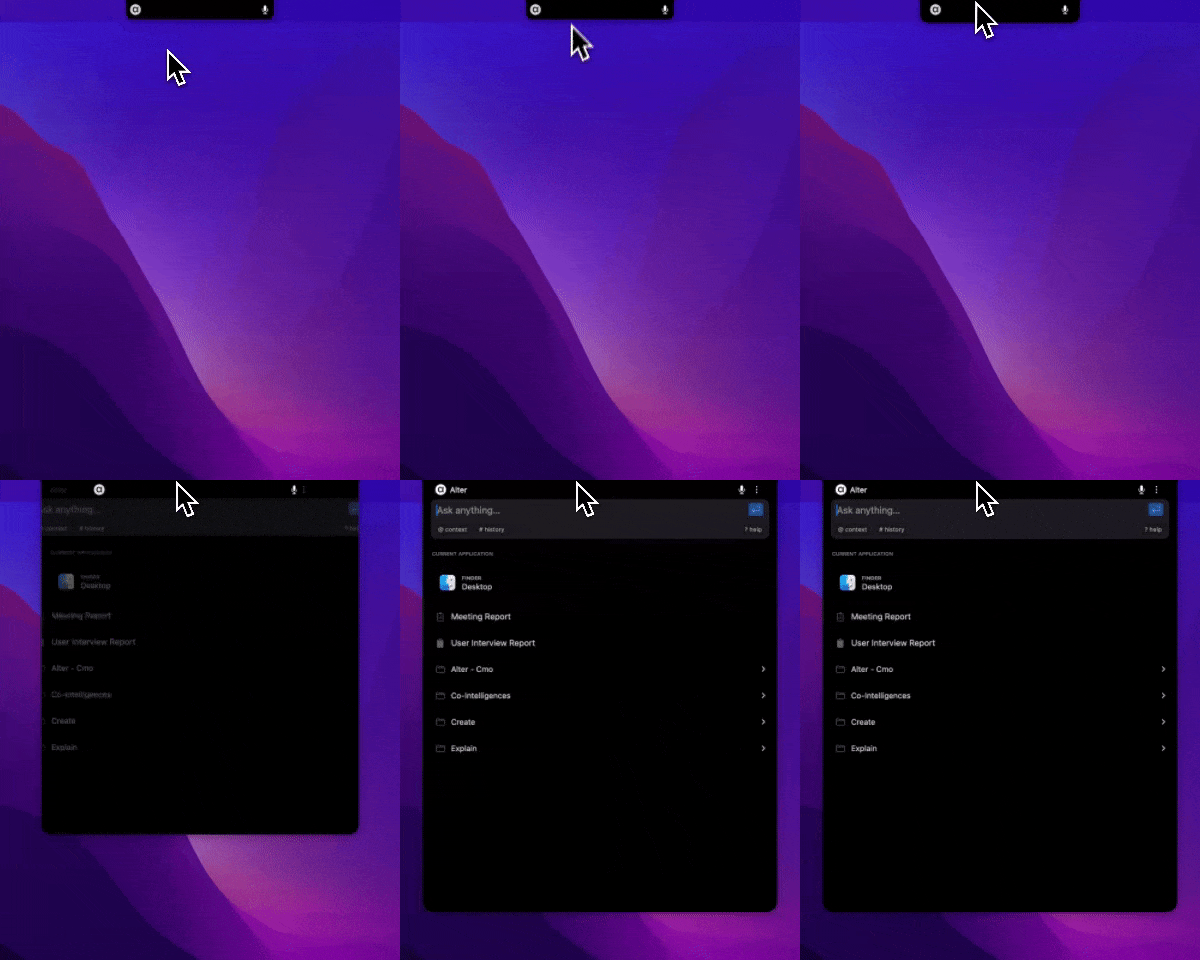
## How do I add context to a prompt?
* Drag and drop files onto the notch.
* Right-click files and choose Add to Alter.
* Use `@` to add context from the prompt.
See [How-To: Use Your Own API Key](/how-to/use-byok) for detailed instructions.
## How do I add context to a prompt?
* Drag and drop files onto the notch.
* Right-click files and choose Add to Alter.
* Use `@` to add context from the prompt.
 See [Window Types: Notch, Hub, and Panels](/getting-started/window-types-notch-hub-panels#the-context-section) for more details.
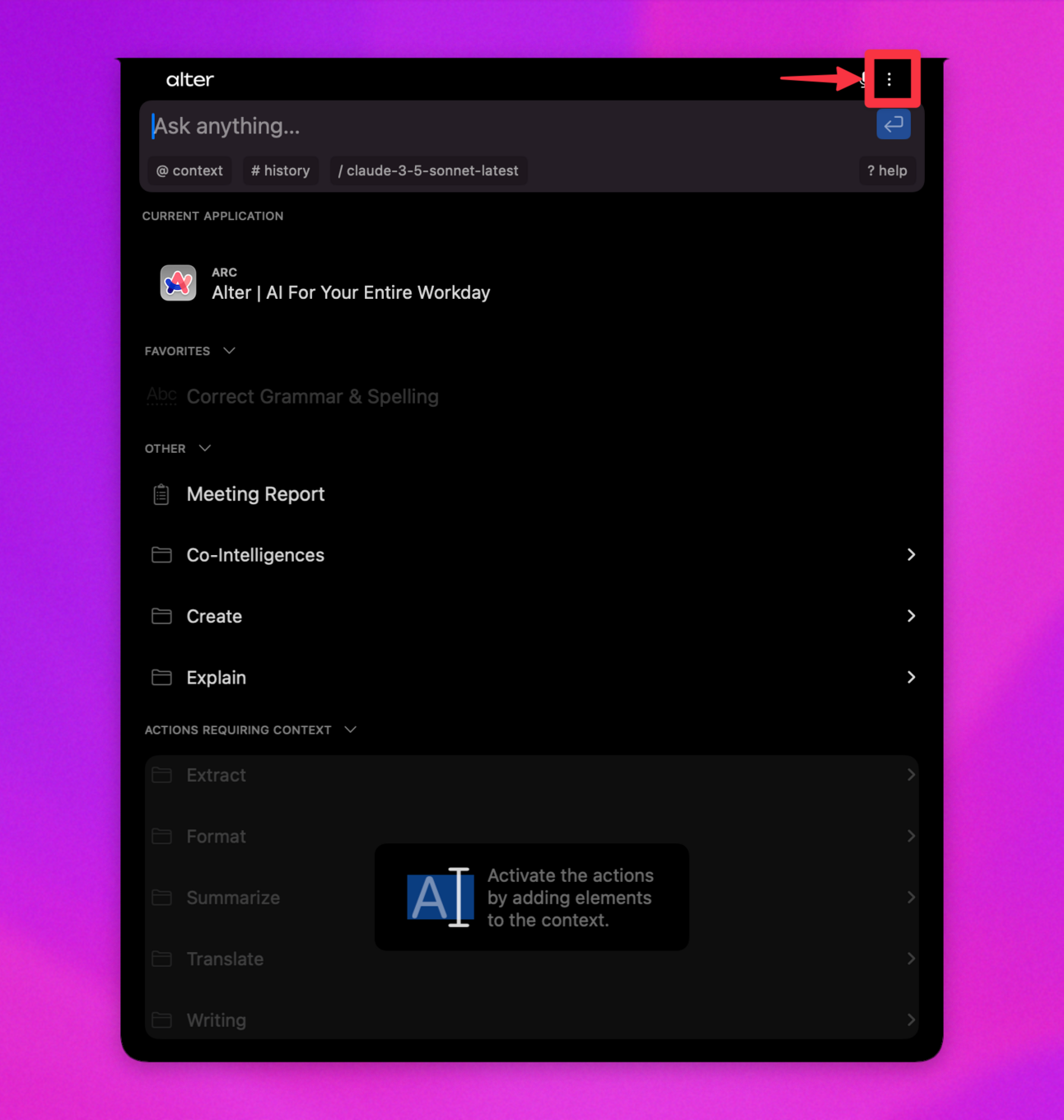
## How do I change settings quickly?
* Open Alter and press `Cmd+,`.
* Or open three-dot menu -> Settings.
See [Window Types: Notch, Hub, and Panels](/getting-started/window-types-notch-hub-panels#the-context-section) for more details.
## How do I change settings quickly?
* Open Alter and press `Cmd+,`.
* Or open three-dot menu -> Settings.
 See [Alter Settings](/how-to/settings-guide) for more details.
## How do I configure dictation?
Settings -> Dictation, then choose processor, language, and replacements.
See [Alter Settings](/how-to/settings-guide) for more details.
## How do I configure dictation?
Settings -> Dictation, then choose processor, language, and replacements.
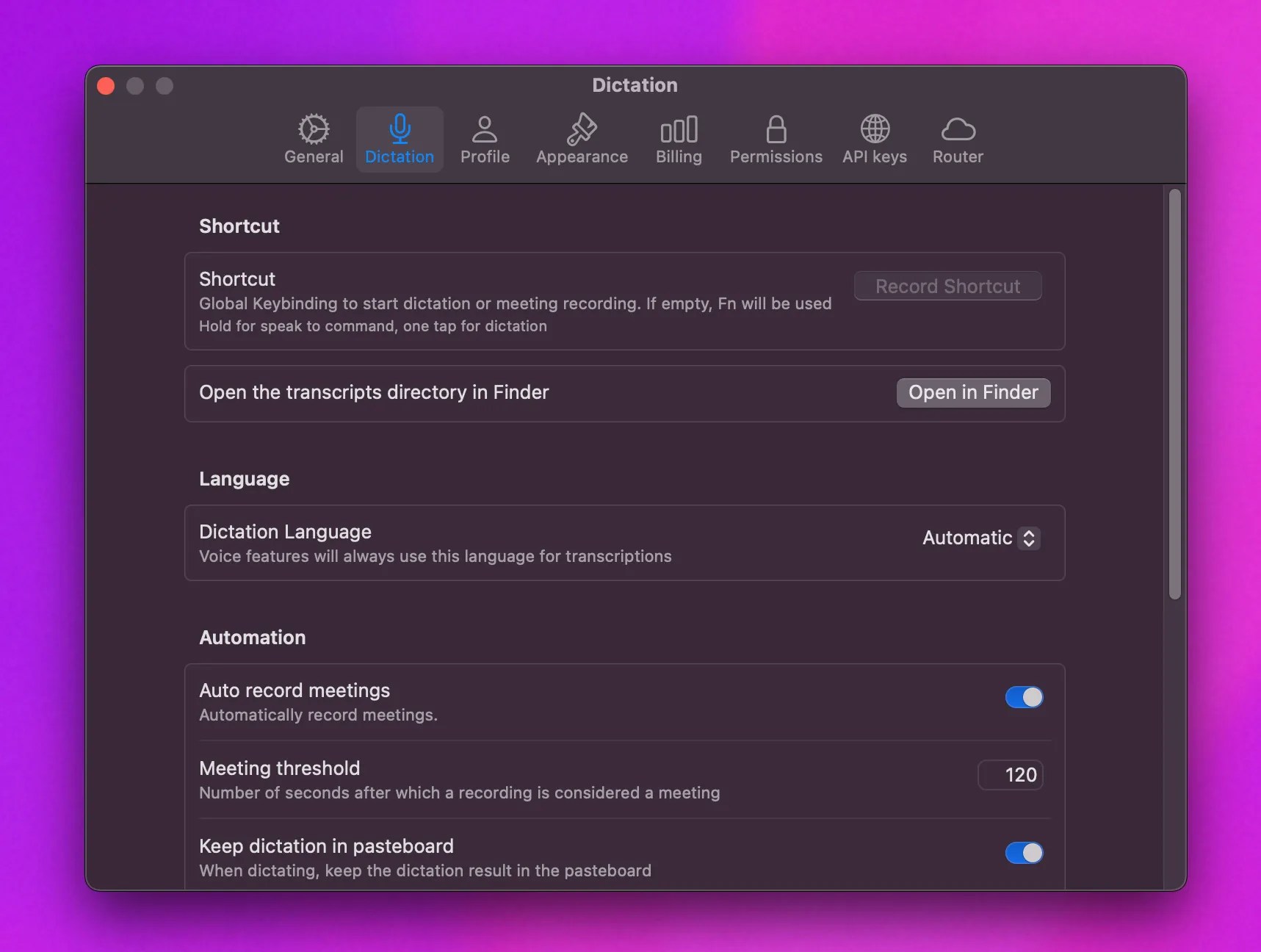 See [Dictation Guide](/workflows/dictation) for complete setup instructions.