> ## Documentation Index
> Fetch the complete documentation index at: https://docs.alterhq.com/llms.txt
> Use this file to discover all available pages before exploring further.
# Configurar um Telegram gateway
> Crie um bot Telegram com BotFather e ligue-o aos Gateways do Alter
Use este guia para criar um bot Telegram através de **BotFather**, copie seu token e conecte-o em **Definições → Integrations → Gateways**.
Alter connects to Telegram with a **bot token** from [@BotFather](https://t.me/BotFather). Alter uses long polling on your Mac — you do not configure webhooks or a public URL.
## Antes de começar
* Uma conta Telegram.
* **Alter** instalado e em execução no seu Mac.
* O aplicativo Telegram ou [Telegram Web](https://web.telegram.org/).
Referências oficiais:
* [@BotFather](https://t.me/BotFather) em Telegram
* [Telegram Bots — Features and BotFather](https://core.telegram.org/bots/features#botfather)
* [Telegram Bot API tutorial](https://core.telegram.org/bots/tutorial)
* [Bot FAQ — groups and privacy](https://core.telegram.org/bots/faq#what-messages-will-my-bot-get)
## Passo 1 — Crie um bot com BotFather
In Telegram, open [@BotFather](https://t.me/BotFather) and tap **Start** (or send `/start`).
 *Source: [kitob-bot README](https://github.com/ytsshinobi/kitob-bot)*
Send `/newbot`. BotFather asks for a **display name** (shown in contacts) and a **username** (must end in `bot`, for example `MyAlterHelperBot`).
*Source: [kitob-bot README](https://github.com/ytsshinobi/kitob-bot)*
Send `/newbot`. BotFather asks for a **display name** (shown in contacts) and a **username** (must end in `bot`, for example `MyAlterHelperBot`).
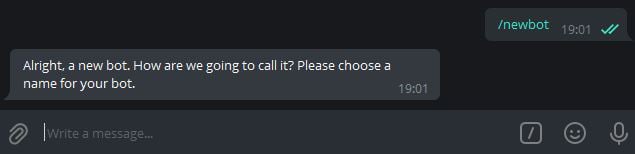
 *Source: [kitob-bot README](https://github.com/ytsshinobi/kitob-bot)*
When creation succeeds, BotFather sends a message containing your **token** (format like `123456789:ABCdefGHIjklMNOpqrsTUVwxyz`). Copy the full string.
Telegram documents this flow in the [Bot tutorial — Obtain your bot token](https://core.telegram.org/bots/tutorial#obtain-your-bot-token).
*Source: [kitob-bot README](https://github.com/ytsshinobi/kitob-bot)*
When creation succeeds, BotFather sends a message containing your **token** (format like `123456789:ABCdefGHIjklMNOpqrsTUVwxyz`). Copy the full string.
Telegram documents this flow in the [Bot tutorial — Obtain your bot token](https://core.telegram.org/bots/tutorial#obtain-your-bot-token).
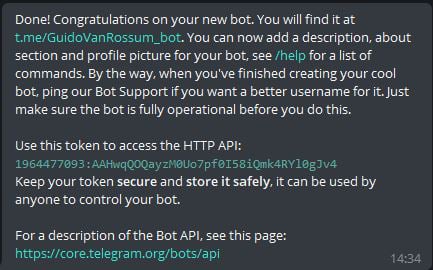 *Source: [kitob-bot README](https://github.com/ytsshinobi/kitob-bot). The token shown is from a public tutorial repo — treat your own token like a password.*
Treat the token like a password. If it is exposed, open BotFather and send `/revoke` for that bot, then paste the new token into Alter.
### Configurações opcionais do BotFather
| Command | When to use |
| ----------------- | --------------------------------------------------- |
| `/setdescription` | Short description users see before starting the bot |
| `/setabouttext` | About text on the bot profile |
| `/setuserpic` | Bot avatar |
| `/token` | Retrieve the token again for an existing bot |
## Etapa 2 — Inicie um bate-papo com seu bot
Tap the link BotFather provides (for example `t.me/YourBotName`) or search for your bot's username in Telegram. The success message in **Step 1** includes this link.
Send `/start` so Telegram opens a conversation. You need an active chat before testing Alter.
## Passo 3 — Opcional: use o bot em grupo
Alter pode receber mensagens de bate-papos em grupo e também de bate-papos privados.
In your group, add the bot as a member (you may need admin permission to add bots).
By default, Telegram bots in groups may only see commands and @mentions. For broader group access, open [@BotFather](https://t.me/BotFather) → `/mybots` → your bot → **Bot Settings** → **Group Privacy** → **Turn off**.
See [Bot FAQ — privacy mode](https://core.telegram.org/bots/faq#what-messages-will-my-bot-get).
If the bot should only respond to certain people or groups, see [Secure access — allowlists and IDs](#secure-access--allowlists-and-ids) below and fill in **IDs de utilizador ou chat Telegram permitidos** when you connect Alter.
## Acesso seguro — listas de permissões e IDs
Restrinja quem pode usar seu gateway Telegram com **IDs de utilizador ou chat Telegram permitidos** em **Definições → Integrations → Gateways**. Alter verifica cada mensagem recebida e toque no botão embutido nessa lista antes de executar uma ação.
Alter matches **user IDs**, **chat IDs**, and `@usernames` (case-insensitive). Leave the field **empty** to allow anyone who can message the bot. Enter `*` to allow everyone explicitly. Messages from users or chats not on the list are **silently ignored** — Alter does not reply with an error.
### ID do usuário x ID do bate-papo
Telegram usa IDs numéricos para pessoas e conversas:
| ID type | Typical format | When to use in Alter |
| ----------- | -------------------------------------------------------------------------------------------------- | ------------------------------------------------- |
| **User ID** | Positive number (for example `123456789`) | Allow a specific person in DMs or in a group |
| **Chat ID** | Positive for private chats; **negative** for groups and supergroups (for example `-1001234567890`) | Allow an entire group, or a specific private chat |
Em um **private chat** com seu bot, o ID do chat geralmente é igual ao seu ID de usuário. Em um **group**, adicione o ID de bate-papo do grupo se desejar que todos nesse grupo tenham permissão (sujeito às configurações de [Group Privacy](#step-3--optional-use-the-bot-in-a-group)).
Alter também aceita valores `@username` (por exemplo `@sam`) se a pessoa tiver um nome de usuário público.
### Como encontrar seu ID de usuário Telegram
In Telegram, open [@userinfobot](https://t.me/userinfobot) or [@getidsbot](https://t.me/getidsbot) and tap **Start**. The bot replies with your numeric **Id** — that is your **user ID**.
Copy the number (digits only, no `@`) into **IDs de utilizador ou chat Telegram permitidos**.
To identify someone else, forward one of their messages to [@userinfobot](https://t.me/userinfobot) or [@getidsbot](https://t.me/getidsbot). The bot reports the sender's user ID.
Only forward messages in contexts where you are comfortable sharing metadata with a third-party bot. For sensitive groups, prefer the Bot API method below or add the whole group by chat ID instead.
### Como encontrar um ID de bate-papo
Your user ID from **Step 1** above is usually enough — private chat IDs match the user's ID.
To confirm, message your bot, then call Telegram's [`getUpdates`](https://core.telegram.org/bots/api#getupdates) method with your bot token and look for `"chat": {"id": …}` and `"from": {"id": …}` in the JSON. See [Telegram Bot API — Chat](https://core.telegram.org/bots/api#chat) and [User](https://core.telegram.org/bots/api#user).
Add [@getidsbot](https://t.me/getidsbot) to the group temporarily (or use [@RawDataBot](https://t.me/RawDataBot)), send any message in the group, and copy the **Chat ID** from the bot's reply. Group IDs are negative numbers.
Remove the ID bot from the group when you are done if you do not need it there permanently.
With your bot token, open this URL in a browser (replace `TOKEN` with your token):
`https://api.telegram.org/botTOKEN/getUpdates`
Send a test message in the chat you want to identify, refresh the page, and read `message.chat.id` (chat ID) and `message.from.id` (sender user ID) from the latest entry.
Treat the URL like a password — anyone with it can control your bot. Close the tab when finished and never share the link.
Alter's `/status` command shows the default action and whether a conversation is selected — it does **not** print user or chat IDs. Use the methods above when building an allowlist.
### Configure a lista de permissões em Alter
Gather comma-separated user IDs, chat IDs, and/or `@usernames` for everyone (or every group) that should be able to use the bot.
Open **Definições → Integrations → Gateways**, edit your Telegram gateway, and enter the values in **IDs de utilizador ou chat Telegram permitidos** (for example `123456789, -1001234567890, @sam`).
Click **Guardar e reiniciar**. Message the bot from an allowed account or group — you should get a reply. Messages from IDs not on the list are ignored with no response.
### Melhores práticas de segurança
* **Treat the bot token like a password.** Armazene-o apenas em Alter (Keychain). Se vazar, revogue-o em [@BotFather](https://t.me/BotFather) com `/revoke` e cole o novo token em Alter.
* **Use an allowlist for personal bots.** Uma lista de permissões vazia significa que qualquer pessoa que descobrir seu bot poderá enviar mensagens enquanto Alter estiver em execução.
* **Prefer numeric IDs over `@username`.** Os nomes de usuário podem ser alterados; IDs numéricos são estáveis.
* **Limit group exposure.** Ative [Group Privacy](#step-3--optional-use-the-bot-in-a-group) em BotFather, a menos que o bot precise ler todas as mensagens do grupo. Adicione apenas grupos confiáveis e coloque o ID do chat em grupo na lista de permissões se o bot estiver em vários grupos.
* **Be cautious with third-party ID bots.** Eles podem ver mensagens encaminhadas e metadados de grupo. Remova-os de grupos confidenciais quando não precisar mais deles.
## Conecte-se em Alter
Open **Definições** (⌘,) → **Integrations** → **Gateways**.
Click **Adicionar gateway** → **Telegram**.
| Field | What to enter |
| ------------------------------------------------- | ----------------------------------------------------------------------------------------------------------------------------------------------- |
| **Nome** | A label you will recognize (for example `Telegram — Personal`). |
| **Token do bot** | The token from BotFather (**Step 1**). |
| **IDs de utilizador ou chat Telegram permitidos** | Comma-separated user IDs, chat IDs, or `@usernames`. Leave empty to allow anyone who can message the bot. Use `*` to allow everyone explicitly. |
Uma ligação **Guia de configuração Telegram gateway** no final da secção Connection abre esta página no browser.
**Ask Anything** é a predefinição e funciona no Telegram de imediato. Para action personalizada, defina **Disponibilidade** como **Telegram** ou **Todos** em **Action Editor → Gateways**.
Turn **Ativado** on, then click **Guardar e reiniciar**. Wait for **Ligado como @your\_bot\_username**.
Se a conexão falhar, consulte [Gateways troubleshooting](/apps-tools/gateways#troubleshooting).
## Teste o bot
Gateways only work while Alter is open on your Mac.
In your Telegram chat with the bot, send `/help`. The bot should list commands.
Send a normal message. Alter should show **Thinking…**, then stream the reply. In private chats, Alter uses Telegram's native draft preview when available; otherwise it edits a regular message (rich replies can be up to about 32,000 characters).
Send `/help` and use the **New chat**, **Choose action**, or **Past chats** buttons. While Alter is responding in a group, tap **Stop** or send `/stop` to cancel the current turn.
Send a photo or document. Alter downloads supported attachments for the turn and can upload output files from tool runs when the action produces them.
Send a **voice message** or audio file. Alter transcribes it with your selected voice processor (**Definições → Voice**) and sends the text to the active action. Audio-only messages work as chat turns even without typed text.
## Páginas relacionadas
* [Gateways overview](/apps-tools/gateways)
* [Set up a Discord gateway](/apps-tools/gateways-discord)
* [Alter Actions — Disponibilidade em Gateways](/workflows/alter-actions#gateways)
* [Alter Settings](/how-to/settings-guide)
*Source: [kitob-bot README](https://github.com/ytsshinobi/kitob-bot). The token shown is from a public tutorial repo — treat your own token like a password.*
Treat the token like a password. If it is exposed, open BotFather and send `/revoke` for that bot, then paste the new token into Alter.
### Configurações opcionais do BotFather
| Command | When to use |
| ----------------- | --------------------------------------------------- |
| `/setdescription` | Short description users see before starting the bot |
| `/setabouttext` | About text on the bot profile |
| `/setuserpic` | Bot avatar |
| `/token` | Retrieve the token again for an existing bot |
## Etapa 2 — Inicie um bate-papo com seu bot
Tap the link BotFather provides (for example `t.me/YourBotName`) or search for your bot's username in Telegram. The success message in **Step 1** includes this link.
Send `/start` so Telegram opens a conversation. You need an active chat before testing Alter.
## Passo 3 — Opcional: use o bot em grupo
Alter pode receber mensagens de bate-papos em grupo e também de bate-papos privados.
In your group, add the bot as a member (you may need admin permission to add bots).
By default, Telegram bots in groups may only see commands and @mentions. For broader group access, open [@BotFather](https://t.me/BotFather) → `/mybots` → your bot → **Bot Settings** → **Group Privacy** → **Turn off**.
See [Bot FAQ — privacy mode](https://core.telegram.org/bots/faq#what-messages-will-my-bot-get).
If the bot should only respond to certain people or groups, see [Secure access — allowlists and IDs](#secure-access--allowlists-and-ids) below and fill in **IDs de utilizador ou chat Telegram permitidos** when you connect Alter.
## Acesso seguro — listas de permissões e IDs
Restrinja quem pode usar seu gateway Telegram com **IDs de utilizador ou chat Telegram permitidos** em **Definições → Integrations → Gateways**. Alter verifica cada mensagem recebida e toque no botão embutido nessa lista antes de executar uma ação.
Alter matches **user IDs**, **chat IDs**, and `@usernames` (case-insensitive). Leave the field **empty** to allow anyone who can message the bot. Enter `*` to allow everyone explicitly. Messages from users or chats not on the list are **silently ignored** — Alter does not reply with an error.
### ID do usuário x ID do bate-papo
Telegram usa IDs numéricos para pessoas e conversas:
| ID type | Typical format | When to use in Alter |
| ----------- | -------------------------------------------------------------------------------------------------- | ------------------------------------------------- |
| **User ID** | Positive number (for example `123456789`) | Allow a specific person in DMs or in a group |
| **Chat ID** | Positive for private chats; **negative** for groups and supergroups (for example `-1001234567890`) | Allow an entire group, or a specific private chat |
Em um **private chat** com seu bot, o ID do chat geralmente é igual ao seu ID de usuário. Em um **group**, adicione o ID de bate-papo do grupo se desejar que todos nesse grupo tenham permissão (sujeito às configurações de [Group Privacy](#step-3--optional-use-the-bot-in-a-group)).
Alter também aceita valores `@username` (por exemplo `@sam`) se a pessoa tiver um nome de usuário público.
### Como encontrar seu ID de usuário Telegram
In Telegram, open [@userinfobot](https://t.me/userinfobot) or [@getidsbot](https://t.me/getidsbot) and tap **Start**. The bot replies with your numeric **Id** — that is your **user ID**.
Copy the number (digits only, no `@`) into **IDs de utilizador ou chat Telegram permitidos**.
To identify someone else, forward one of their messages to [@userinfobot](https://t.me/userinfobot) or [@getidsbot](https://t.me/getidsbot). The bot reports the sender's user ID.
Only forward messages in contexts where you are comfortable sharing metadata with a third-party bot. For sensitive groups, prefer the Bot API method below or add the whole group by chat ID instead.
### Como encontrar um ID de bate-papo
Your user ID from **Step 1** above is usually enough — private chat IDs match the user's ID.
To confirm, message your bot, then call Telegram's [`getUpdates`](https://core.telegram.org/bots/api#getupdates) method with your bot token and look for `"chat": {"id": …}` and `"from": {"id": …}` in the JSON. See [Telegram Bot API — Chat](https://core.telegram.org/bots/api#chat) and [User](https://core.telegram.org/bots/api#user).
Add [@getidsbot](https://t.me/getidsbot) to the group temporarily (or use [@RawDataBot](https://t.me/RawDataBot)), send any message in the group, and copy the **Chat ID** from the bot's reply. Group IDs are negative numbers.
Remove the ID bot from the group when you are done if you do not need it there permanently.
With your bot token, open this URL in a browser (replace `TOKEN` with your token):
`https://api.telegram.org/botTOKEN/getUpdates`
Send a test message in the chat you want to identify, refresh the page, and read `message.chat.id` (chat ID) and `message.from.id` (sender user ID) from the latest entry.
Treat the URL like a password — anyone with it can control your bot. Close the tab when finished and never share the link.
Alter's `/status` command shows the default action and whether a conversation is selected — it does **not** print user or chat IDs. Use the methods above when building an allowlist.
### Configure a lista de permissões em Alter
Gather comma-separated user IDs, chat IDs, and/or `@usernames` for everyone (or every group) that should be able to use the bot.
Open **Definições → Integrations → Gateways**, edit your Telegram gateway, and enter the values in **IDs de utilizador ou chat Telegram permitidos** (for example `123456789, -1001234567890, @sam`).
Click **Guardar e reiniciar**. Message the bot from an allowed account or group — you should get a reply. Messages from IDs not on the list are ignored with no response.
### Melhores práticas de segurança
* **Treat the bot token like a password.** Armazene-o apenas em Alter (Keychain). Se vazar, revogue-o em [@BotFather](https://t.me/BotFather) com `/revoke` e cole o novo token em Alter.
* **Use an allowlist for personal bots.** Uma lista de permissões vazia significa que qualquer pessoa que descobrir seu bot poderá enviar mensagens enquanto Alter estiver em execução.
* **Prefer numeric IDs over `@username`.** Os nomes de usuário podem ser alterados; IDs numéricos são estáveis.
* **Limit group exposure.** Ative [Group Privacy](#step-3--optional-use-the-bot-in-a-group) em BotFather, a menos que o bot precise ler todas as mensagens do grupo. Adicione apenas grupos confiáveis e coloque o ID do chat em grupo na lista de permissões se o bot estiver em vários grupos.
* **Be cautious with third-party ID bots.** Eles podem ver mensagens encaminhadas e metadados de grupo. Remova-os de grupos confidenciais quando não precisar mais deles.
## Conecte-se em Alter
Open **Definições** (⌘,) → **Integrations** → **Gateways**.
Click **Adicionar gateway** → **Telegram**.
| Field | What to enter |
| ------------------------------------------------- | ----------------------------------------------------------------------------------------------------------------------------------------------- |
| **Nome** | A label you will recognize (for example `Telegram — Personal`). |
| **Token do bot** | The token from BotFather (**Step 1**). |
| **IDs de utilizador ou chat Telegram permitidos** | Comma-separated user IDs, chat IDs, or `@usernames`. Leave empty to allow anyone who can message the bot. Use `*` to allow everyone explicitly. |
Uma ligação **Guia de configuração Telegram gateway** no final da secção Connection abre esta página no browser.
**Ask Anything** é a predefinição e funciona no Telegram de imediato. Para action personalizada, defina **Disponibilidade** como **Telegram** ou **Todos** em **Action Editor → Gateways**.
Turn **Ativado** on, then click **Guardar e reiniciar**. Wait for **Ligado como @your\_bot\_username**.
Se a conexão falhar, consulte [Gateways troubleshooting](/apps-tools/gateways#troubleshooting).
## Teste o bot
Gateways only work while Alter is open on your Mac.
In your Telegram chat with the bot, send `/help`. The bot should list commands.
Send a normal message. Alter should show **Thinking…**, then stream the reply. In private chats, Alter uses Telegram's native draft preview when available; otherwise it edits a regular message (rich replies can be up to about 32,000 characters).
Send `/help` and use the **New chat**, **Choose action**, or **Past chats** buttons. While Alter is responding in a group, tap **Stop** or send `/stop` to cancel the current turn.
Send a photo or document. Alter downloads supported attachments for the turn and can upload output files from tool runs when the action produces them.
Send a **voice message** or audio file. Alter transcribes it with your selected voice processor (**Definições → Voice**) and sends the text to the active action. Audio-only messages work as chat turns even without typed text.
## Páginas relacionadas
* [Gateways overview](/apps-tools/gateways)
* [Set up a Discord gateway](/apps-tools/gateways-discord)
* [Alter Actions — Disponibilidade em Gateways](/workflows/alter-actions#gateways)
* [Alter Settings](/how-to/settings-guide)