> ## Documentation Index
> Fetch the complete documentation index at: https://docs.alterhq.com/llms.txt
> Use this file to discover all available pages before exploring further.
# Window Types: Notch, Hub, and Panels
> Understand Alter's interface modes, including Notch interactions, The Hub, and the Quick Panel
**Two interfaces, one powerful experience.** Use the Quick Panel for fast interactions and The Hub for deep work.
## Two Ways to Interact
Full workspace with tabs, sidebar, and comprehensive management
Lightweight floating panel for quick queries and voice commands
***
### General Concept
Alter provides two main interfaces for interacting with AI:
The main window interface with tabs, sidebar, and comprehensive workspace management. Best for:
* Extended conversations
* Workspace management
* Multi-tasking with multiple contexts
* Reviewing meeting transcripts
The lightweight floating panel accessible from the notch or hotkey. Perfect for:
* Quick queries
* Voice commands
* Fast context additions
* Rapid interactions
***
## Hub Interface
The Hub is divided into three main sections:
1. **Sidebar** - Navigation for conversations, workspaces, transcripts, and more
2. **Main Content Area** - Tabbed interface showing active content
3. **Input Area** - Prompt box and context management
### Opening The Hub
Press `Shift + Cmd + H`
Select "Open The Hub" from the Alter menu bar icon
Open a conversation link from a floating panel
### Tab Types
Chat sessions with AI models
Collections of files, folders, and apps
Meeting transcriptions and recordings
Scheduled meetings and events
Automated tasks and workflows
### Keyboard Shortcuts
| Shortcut | Action |
| ------------------ | -------------------------- |
| `Cmd + B` | Toggle sidebar visibility |
| `Cmd + W` | Close active tab |
| `Cmd + Option + →` | Next tab |
| `Cmd + Option + ←` | Previous tab |
| `Cmd + K` | Clear all contexts |
| `Cmd + Delete` | Delete active conversation |
### Managing Contexts
Drag and drop files, or use `@` in the prompt box
Use arrow keys to move between contexts
Press `Cmd + K` to remove all contexts
### Inspector Panel
Metadata, export options, sharing links
See all contexts in current conversation
Statistics, files, and settings
Toggle the Inspector using the sidebar icon or inspector button.
***
## Quick Panel Interface
The Quick Panel (accessible from the notch) is divided into three sections:
Your selected files, apps, and references
Where you type or speak your request
Quick access to models and actions
### Navigation
Use keyboard shortcuts in the Quick Panel:
* `←`, `↑`, `→`, `↓` - Navigate between objects
* `Enter` - Select an object
* `@` - Add elements to context
* `#` - Show conversation history
* `>` - Show meeting history
* `/` - List and choose model
* `?` - Show help menu
See the **Prompt Box** section below for more keyboard shortcuts.
***
## The Context Section
The **Context** section displays elements sent to Alter for reference.
Documents, images, audio files
Selected text from any app
Audio and YouTube transcripts
Entire directories
Saved workspace collections
Current app context
URLs and web content
### Keyboard Navigation
| Key | Action |
| --------------- | ------------------- |
| `←` `↑` `→` `↓` | Navigate contexts |
| `Space` | Add/remove selected |
| `Cmd + K` | Remove all contexts |
### Using Your Clipboard
Paste content directly: `Cmd + V`
Your clipboard content is automatically added to Alter's context.
***
## The Prompt Box
The **Prompt Box** is where the magic happens.
Start typing your prompt or an Alter Action title to send it to your AI model.
### Keyboard Shortcuts
| Shortcut | Action |
| --------------- | ---------------------------------- |
| `Enter` | Send prompt with active model |
| `Cmd + Enter` | Search the web (via Gemini) |
| `Shift + Enter` | New line |
| `@` | Add elements to context |
| `#` | Show conversation history |
| `>` | Show meeting transcription history |
| `/` | List and choose model |
| `?` | Show help menu |
**Invoke Actions:** Type any character in an Action's title to trigger it!
### Help Menu

Press `?` in the prompt box to see all available shortcuts.
***
## Conversation Windows
### Resizing Windows
Customize conversation window size for your workflow:
Drag edges horizontally to resize
Drag edges vertically to resize
Fit alongside other applications
Size is remembered for future sessions
**Useful for:** Side-by-side work, reviewing long documents, screen sharing, different display setups
### Continuous Speech-to-Prompt
Have extended voice conversations without touching your keyboard:
Press and hold `Fn` (or your configured key)
Say your prompt out loud
Let go to send to conversation
Each voice prompt adds to the same thread
**Hands-free workflow:** Perfect for brainstorming, dictation, or when your hands are busy.
***
## Conversation History
### Managing Chat History
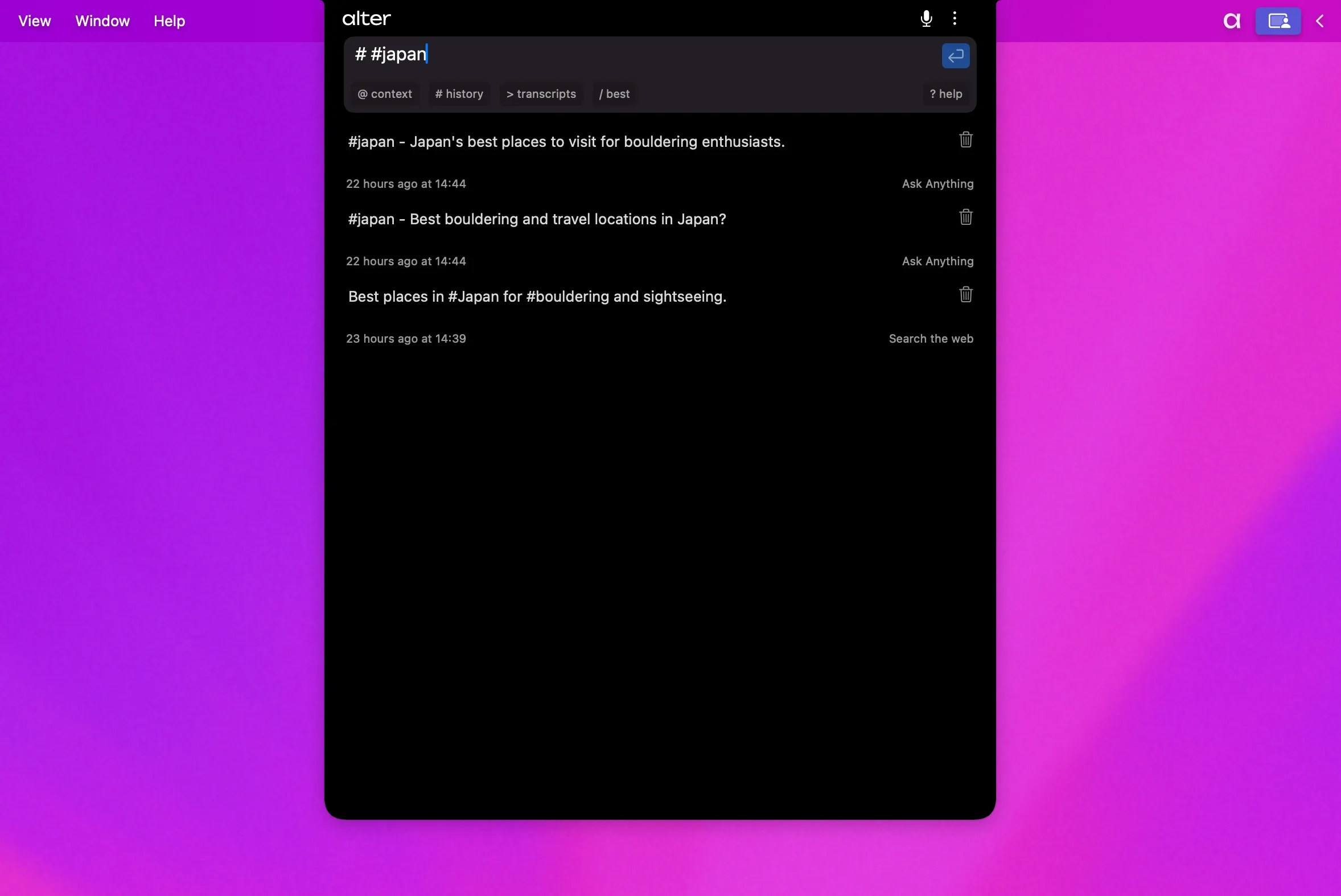
Access history by typing `#` in the prompt box or using The Hub's sidebar.
 ### Organizing with Tags
Add tags like `#personal` to categorize chats:
```
# #personal #food
```
Search for conversations matching multiple tags.
### Renaming Conversations
Right-click any conversation in the list
Choose `Rename` from the menu
Give it a descriptive name
### Exporting Conversations
Export as markdown for documentation or sharing:
Locate it in the history
Open the context menu
Choose the Export option
Choose location and save as .md file
* Documentation
* Sharing with team
* Archiving important discussions
* Using in other tools
***
## Related Resources
Workspaces, Actions, and more
Complete shortcut reference
### Organizing with Tags
Add tags like `#personal` to categorize chats:
```
# #personal #food
```
Search for conversations matching multiple tags.
### Renaming Conversations
Right-click any conversation in the list
Choose `Rename` from the menu
Give it a descriptive name
### Exporting Conversations
Export as markdown for documentation or sharing:
Locate it in the history
Open the context menu
Choose the Export option
Choose location and save as .md file
* Documentation
* Sharing with team
* Archiving important discussions
* Using in other tools
***
## Related Resources
Workspaces, Actions, and more
Complete shortcut reference